






Remove Recently Added Apps from the Start Menu using Intune
In this post, you will learn how to remove recently added apps from the Start menu using Intune. The recently added list on your Start menu shows the list of recently installed applications.
In case you do not want to show users about the recent installed applications list. The policy allows IT Admins to configure Start by hiding recently added apps.
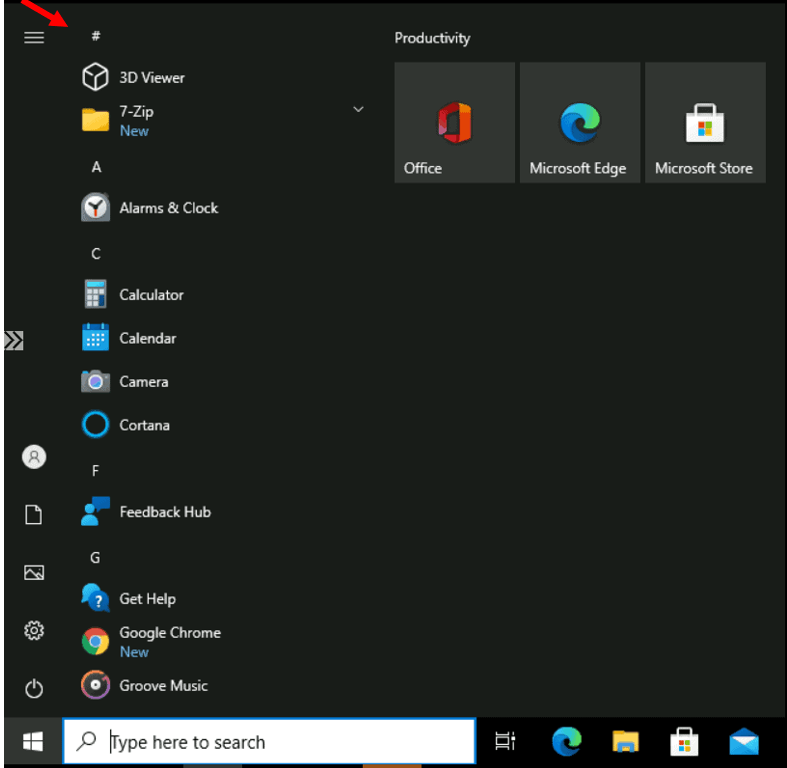
By default In Windows 10 Start menu, you will see recently added applications at the top of the app list that is recently installed. Let’s check the steps to prevent the Start Menu from displaying a list of recently installed applications.
Here you can learn more details about the process to create a policy with Intune Settings Catalog. Let’s see a list of Intune Settings Catalog Policies.

How to Remove Recently Added Apps from Start Menu using Intune
Let’s follow the below steps to remove recently added apps from the start menu using Intune –
- Sign in to the Microsoft Endpoint Manager admin center
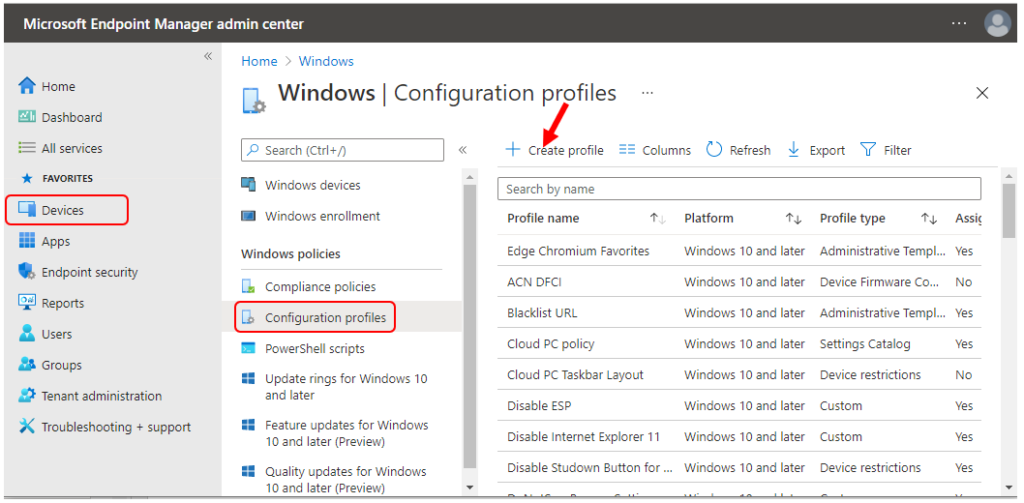
- Select Devices > Windows > Configuration profiles > Create profile.
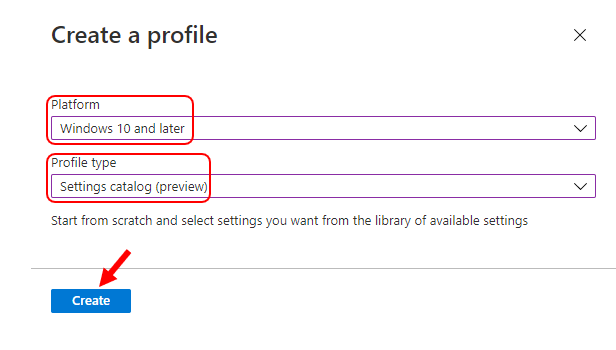
In Create Profile, Select Platform, Windows 10, and later and Profile, Select Settings catalog (preview). Click on Create button.
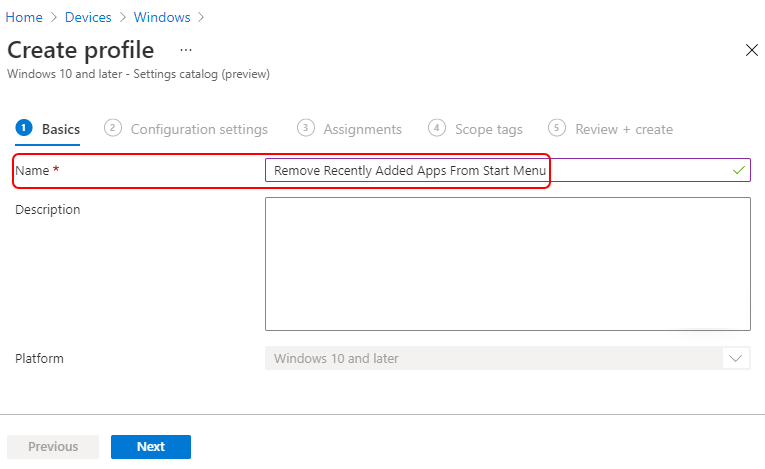
On the Basics tab, enter a descriptive name, such as Remove Recently Added Apps From Start Menu. Optionally, enter a Description for the policy, then select Next.
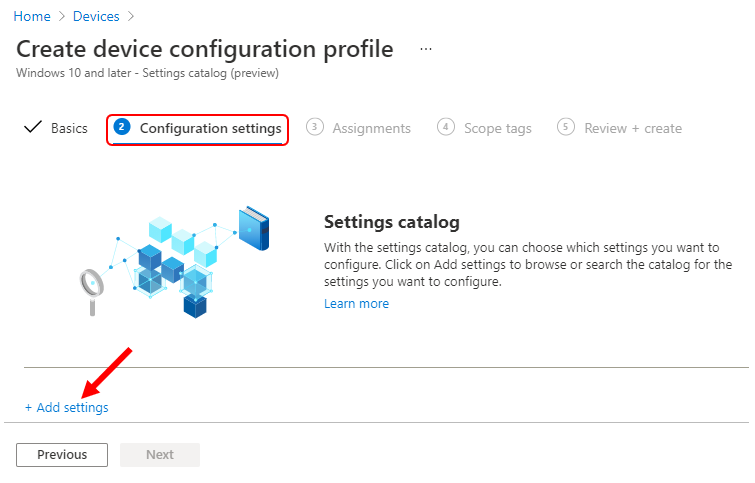
In Configuration settings, select Add settings.
Remove Recently Added Apps using Intune Policy
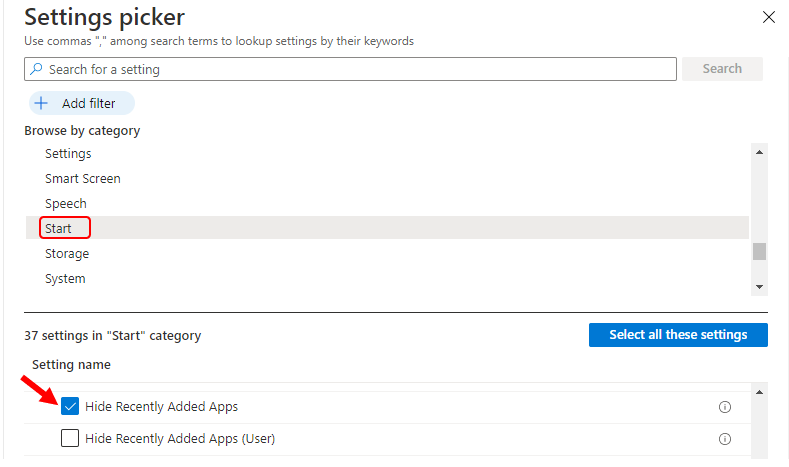
Select Start, Under these settings, you will see all the settings in this category. After adding your settings, click the cross mark at the right-hand corner to close the settings picker.
Here, I selected the Hide Recently Added Apps option below.
Note – In policy, use Add settings > Search to find specific settings. You can search by category or a keyword, such as Hide Recently Added Apps.
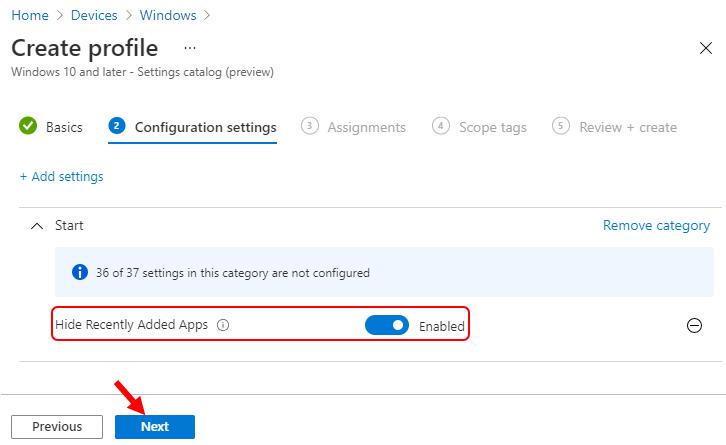
All the settings are shown and configured with a default value. If you don’t want to configure a setting, then select the minus. The above is the brain of the policy to Remove Recently Added Apps from the Start Menu using Intune.
Set Hide Recently Added Apps to Enabled, Enabling this policy hides recently added apps from appearing on the start menu. Click Next.
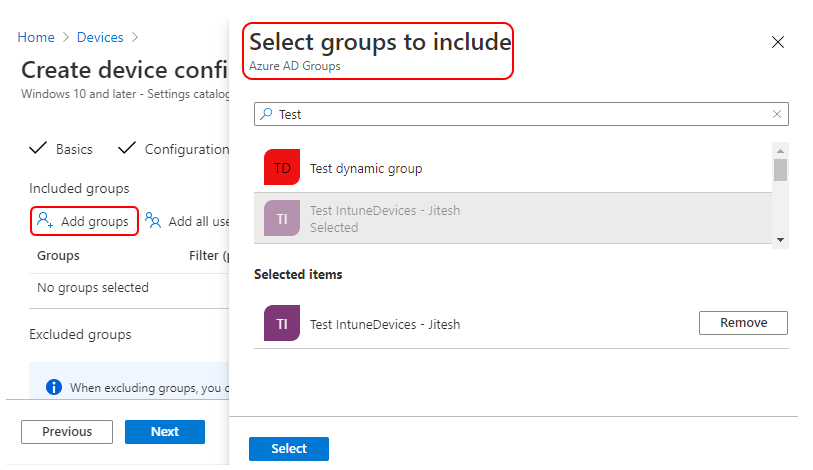
Under Assignments, In Included groups, select Add groups and then choose Select groups to include one or more groups. Select Next to continue.
In Scope tags, you can assign a tag to filter the profile to specific IT groups. Add scope tags (if required) and click Next.
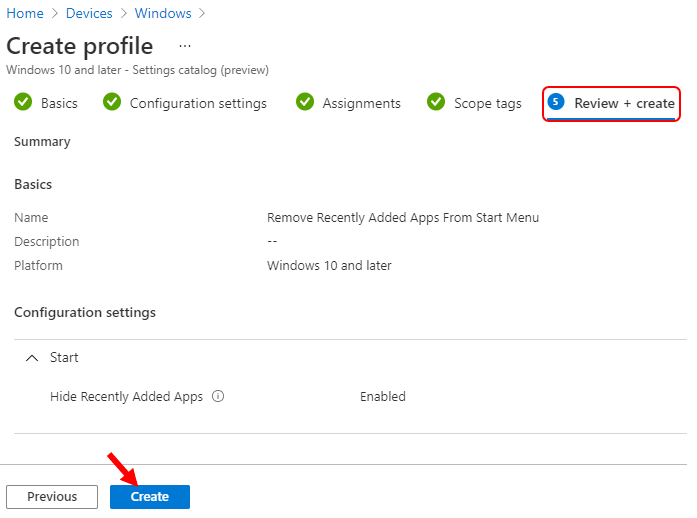
In Review + create, review your settings. When you select Create, your changes are saved, and the profile is assigned.
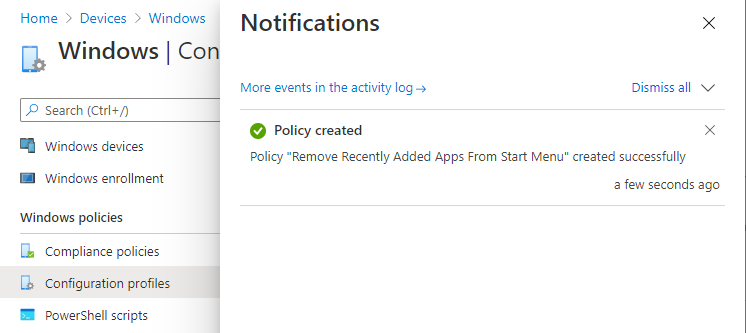
A notification will appear automatically in the top right-hand corner with a message. Here you can see, Policy “Remove Recently Added Apps From Start Menu” created successfully.
This completes the steps to hide recently added apps using Intune. The policy is also shown in the Configuration profiles list.
Your groups will receive your profile settings when the devices check-in with the Intune service.
Once the policy applies to the devices, the list of recently installed applications will no longer appear in the Start menu. This policy may require a reboot device to take effect.
Author
About Author -> Jitesh has over 5 years of working experience in the IT Industry. He writes and shares his experiences related to Microsoft device management technologies and IT Infrastructure management. His primary focus area is Windows 10 Deployment solution with Configuration Manager, Microsoft Deployment Toolkit (MDT), and Microsoft Intune.


Jitesh,
What if I want to remove the shortcut for only one app from the start menu? Can I do this? I do not want to do this for recently added app (there could be several apps we might push through Intune, so that will not be a good idea for those apps not to show up in start menu), but we want a specific app to be removed from start menu so users do not go and click on this.
Appreciate your feedback.