






Deploy Windows 11 Hardware Readiness PowerShell Script using SCCM and Intune
This is a quick post that you can help to check the Windows 11 hardware readiness PowerShell script for existing Windows 10 PCs. I have a post where we have gone through end-to-end Windows 11 system requirements.
Microsoft shared a PowerShell script to help enterprises to assess the hardware compatibility of their Windows 10 devices with Windows 11 upgrades. You can use SCCM to deploy Windows 11 Hardware Readiness Script. You can use the Run Script option from SCCM to get the live output of the Windows 11 hardware readiness script.
For Intune, you don’t need to deploy this PowerShell script. The Endpoint analytics collect these hardware requirement details from Windows PCs. You will check these reports from the Work from Anywhere section of the MEM Admin center portal. More details are available in the below section of this post.
- Remove Windows 11 Update Patch Latest Cumulative Update
- Windows 11 Troubleshooting Options Fixes
- How to Install RSAT on Windows 11 PCs
Windows 11 Hardware Requirements
The following paragraph gives you a quick overview of Windows 11 hardware requirements. Also, the following table gives you much more detail about the hardware requirements. Also, you can use Windows 11 PC Health Check App to check the details of the requirement.

There is at least 4 GB of System Memory (RAM).
The System Disk is 64 GB or Later.
Minimum 9 GB of Free disk space.
The processor has two or more cores.
The processor clock speed is 1 GHz or Faster. More details on the list of supported models of CPU for Windows 11.
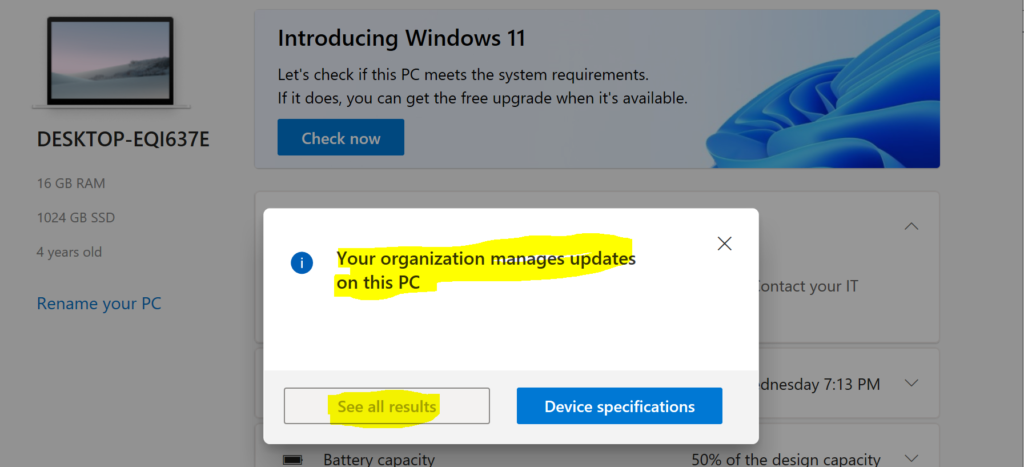
The Windows 11 PC health check application is not designed for enterprise-managed Windows 10 devices. For example, if SCCM or Intune manages your Windows 10 device, the Windows 11 PC health check app is not helpful.
Windows 11 PC Health Check app error message for managed PCs – Your organization managed updates on this PC. The only option is to use Windows 11 Hardware Readiness Script provided by Microsoft to assess the hardware compatibility for existing Windows 10 PCs.
The following table gives you a better idea of the Windows 11 hardware requirements.
| Component | Specification |
|---|---|
| Processor: | 1 gigahertz (GHz) or faster with 2 or more cores on a compatible 64-bit processor or System on a Chip (SoC) – https://docs.microsoft.com/en-us/windows-hardware/design/minimum/supported/windows-11-supported-intel-processors |
| RAM: | 4 gigabyte (GB) |
| Storage: | 64 GB or larger storage device |
| System firmware: | UEFI, Secure Boot capable |
| TPM: | Trusted Platform Module (TPM) version 2.0 |
| Graphics card: | Compatible with DirectX 12 or later with WDDM 2.0 driver |
| Display: | High definition (720p) display that is greater than 9″ diagonally, 8 bits per color channel |
| Additional Processor Support | Intel 7th Gen processors that we did not originally include in our minimum system requirements. |
| Additional Processor Support | Intel® Core™ X-series, Xeon® W-series & Intel® Core™ 7820HQ (only select devices that shipped with modern drivers based on Declarative, Componentized, Hardware Support Apps (DCH) design principles, including Surface Studio 2) |
Manual Method Windows 11 Hardware Readiness Script
Windows 11 Hardware Readiness Script verifies the hardware compliance. This script will Return code 0 for success. And in case of failure, returns non-zero error code along with error message. You can download the PowerShell script to test this manually.
I did run this Windows 11 Hardware Readiness script on a couple of PCs. You can see the failure or not capable result from the following screenshot and output of the script. There are two reasons for not being capable of upgrading to Windows 11 in the following scenario.
- TPM Version is not 2.0.
- Secure Boot is not enabled.
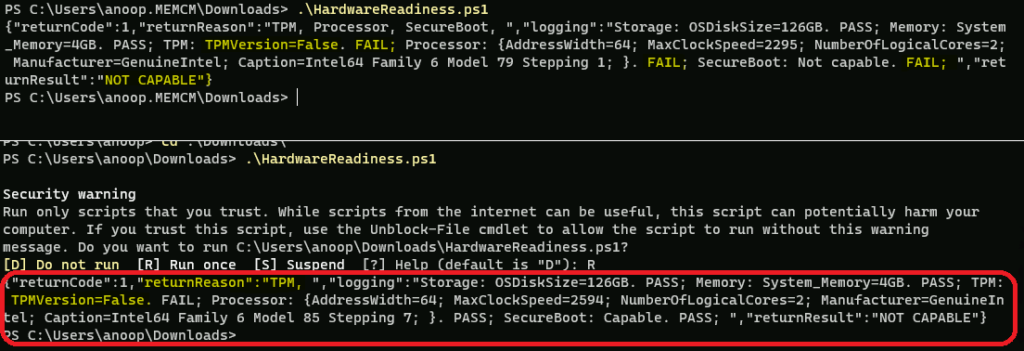
PS C:\Users\anoop.MEMCM\Downloads> .\HardwareReadiness.ps1
“returnCode”:1,“returnReason”:”TPM, Processor, SecureBoot, “,
“logging”:”Storage: OSDiskSize=126GB. PASS;
Memory: System_Memory=4GB. PASS;
TPM: TPMVersion=False. FAIL;
Processor: {AddressWidth=64; MaxClockSpeed=2295; NumberOfLogicalCores=2; Manufacturer=GenuineIntel; Caption=Intel64 Family 6 Model 79 Stepping 1; }. FAIL;
SecureBoot: Not capable. FAIL; “,
“returnResult”:”NOT CAPABLE“
NOTE! – I did run the Windows 11 Hardware Readiness Script on Windows 11 VM running in Azure, and it failed because of the TPM version compatibility. However, Windows 11 works fine on this VM without any registry hack.
Deploy Windows 11 Hardware Readiness Script using SCCM
You can use SCCM/ConfigMgr to Windows 11 hardware readiness script. You can read more details about the fast channel architecture, the technology used behind the scenes to deploy PowerShell scripts using SCCM.
The following are some posts that will help you understand the PowerShell script deployment using SCCM.
- SCCM Run Scripts – Realtime Deployment Options
- SCCM Run Script Step By Step Guide
- PowerShell script deployment feature architecture and troubleshooting guide
- Real-Time Graphical Representation SCCM Run Script Results
You can follow the steps mentioned below to complete the Windows 11 Hardware readiness script deployment using SCCM to assess the hardware requirements of Windows 10.
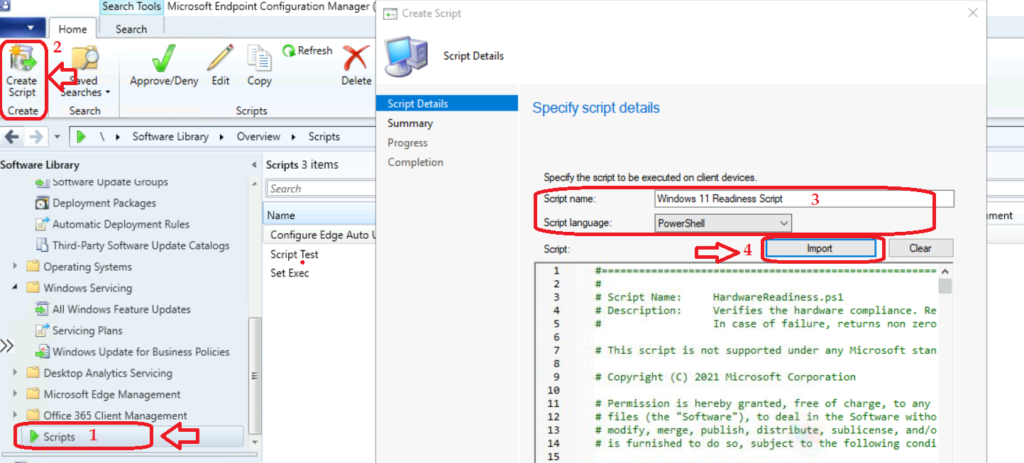
- In the ConfigMgr console, click Software Library.
- Navigate to \Software Library\Overview\Scripts.
- On the Home tab, in the Create group, click Create Script.
- On the Script page of the Create Script wizard, configure the following settings:
- Enter the Script Name and Select Script Language as PowerShell.
- Click on IMPORT button to browse to the PS1 file that you downloaded.
- Click on the NEXT, NEXT, and Close button to continue.
NOTE! – You will need to APPROVE the script before you can deploy it to Windows 10 device collection.
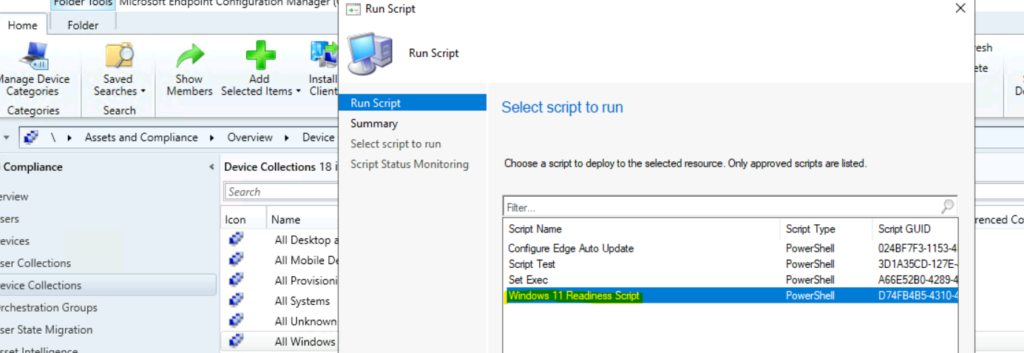
You can navigate to Device Collections from Assets and Compliance -> Right-click on All Windows 10 Devices collection and select the Run Script option.
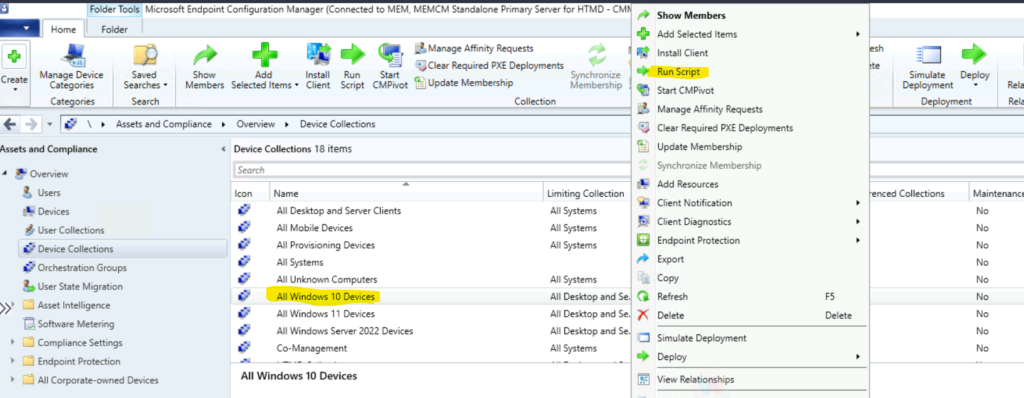
You can select the script Called Windows 11 Readiness Script and click on next to continue. You will also get the Script execution details:
Script Name: Windows 11 Readiness Script
Script Type: PowerShell
Collection ID: MEM00020
There are 2 resources in this collection. Online clients will be notified to run the script as soon as possible. Click Next to continue.
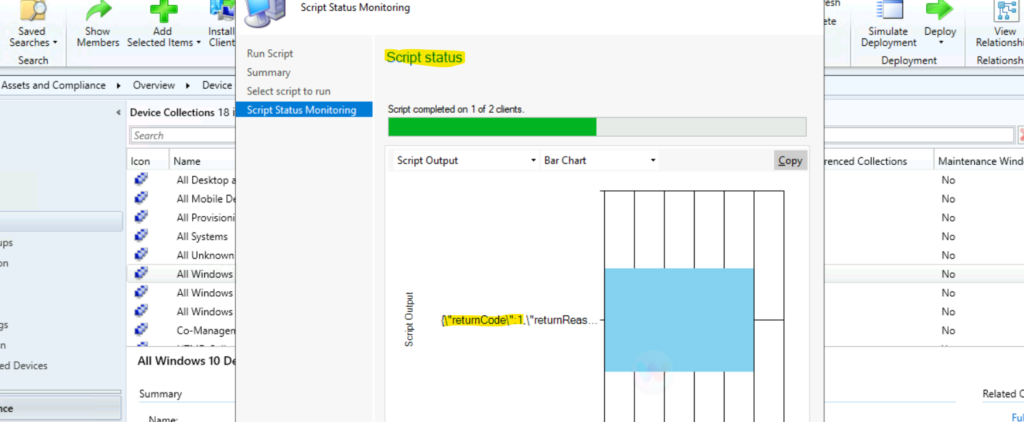
You can check the results in the Script Status following screenshot. The SCCM lab Windows 10 device is not capable for Windows 11 upgrade as per the detailed output of the script.
\”returnCode\”:1,\”returnReason\”:\”TPM, Processor, SecureBoot, \”,
\”logging\”:\”Storage: OSDiskSize=126GB. PASS; Memory: System_Memory=4GB. PASS;
TPM: TPMVersion=False. FAIL;
Processor: {AddressWidth=64; MaxClockSpeed=2397; NumberOfLogicalCores=2; Manufacturer=GenuineIntel; Caption=Intel64 Family 6 Model 63 Stepping 2; }. FAIL;
SecureBoot: Not capable. FAIL;
\”,\”returnResult\”:\”NOT CAPABLE\”
NOTE! – I have seen results show as Succeeded with Exit Code = 0. However, the detailed output of the Windows 11 Readiness script shows as NOT CAPABLE with return code 1. You will need to look at the detailed output of the script instead of the EXIT code that SCCM provides.
Intune Method to Assess Windows 11 Upgrade Capability
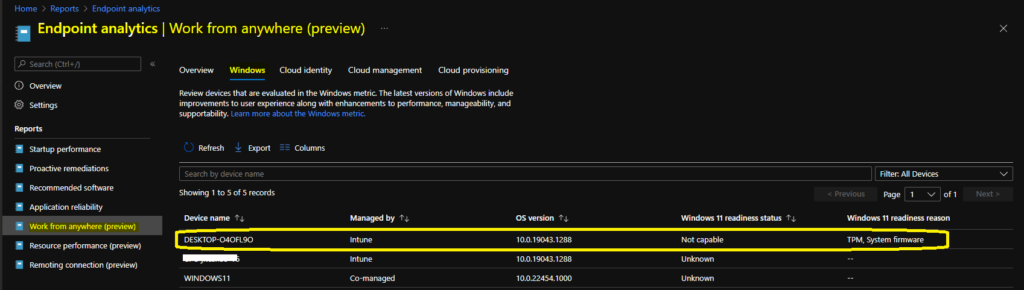
Now, let’s quickly look into the Intune method to assess Windows 11 upgrade capability. You can get Windows 11 upgrade readiness details from Endpoint Analytics -> Work from anywhere.
You will need to configure Endpoint analytics if you have not done this already. You can get more details about how to enable endpoint analytics from the following posts.
- Monitor Performance Using Endpoint Analytics Intune
- MEM Endpoint Analytics With Joy | Learn And Discover
The Windows 11 readiness status shows as not capable for one of the Intune managed Windows 10 devices. Also, this gives you the details of assessment as Windows 11 readiness reason. The TPM and System Firmware are the two reasons that have been given in the report.
Troubleshooting Options with the Script
The return code of the Windows 11 hardware readiness PowerShell script is the first step in troubleshooting. Failed to run is mainly because of device or user issues. I don’t know much about the undetermined issues. It’s worth looking into the event logs etc., to get more details.
-2 – FAILED TO RUN
-1 – UNDETERMINED
0 – CAPABLE
1 – NOT CAPABLE
Author
Anoop is Microsoft MVP! He is a Solution Architect in enterprise client management with over 17 years of experience (calculation done in 2018). He is Blogger, Speaker, and Local User Group HTMD Community leader. His main focus is on Device Management technologies like SCCM 2012, Current Branch, and Intune. He writes about ConfigMgr, Windows 11, Windows 10, Azure AD, Microsoft Intune, Windows 365, AVD, etc…..…




Hi Anoop! Thank you for this great tutorial. Do you have an idea, what i should do, when my device in ms endpoint shows “windows 11 readyness status – not capable” but the w11 readyness reason ist empty? I`ve startet the readyness script manually and it shows no problems (returncode=0) my system is capable..
When I run this script in sql it only seems to report on 286 devices when we have over 5000, should I run it some other way to query all devices maybe ?.
Thanks for nay help with this Robert
Maybe use the Upgrade Readiness Experience Indicators in MECM to help define the ones not ready. I used a query that references it to build a collection for any devices with a color Red.
I do have one ask if possible. I want to use this as a package to run from Software Center, then have the results output in something very end user friendly. If fail, simply output, “your device is not compatible for upgrading to Windows 11. Contact the Service desk for more detailed information about why”. I am thinking of maybe using an If statement that will output the message if return code is 1. Thoughts on this