






FIX: Application Is Not Available to Add In SCCM Install Application Task Sequence Step
The Application Is Not Available to Add In SCCM Install Application Task Sequence Step. This is being observed after successfully creating the application in SCCM. The available applications did not appear in the list while adding the Install Application step in SCCM Task Sequence. How do I add an application to the task sequence? Let’s check more Available Options for SCCM Install Application Task Sequence Step.
The application creation process using SCCM has been explained in many posts before. The list of posts is mentioned in the below list. You can create SCCM apps using PowerShell command lets or manually. We would recommend performing the application creation option using the manual method to understand the process first. You can try the automation afterward if you are interested. You will need to ensure that you are ready with all the command-line options of that particular application before starting the creation process.
- How To Deploy Zoom Application Using SCCM
- SCCM CMPivot Standalone App Installation Guide
- How to Install Office 365 ProPlus Client Package
- How to Disable SCCM Application Deployment
I had recently noticed an issue in SCCM Configuration Facebook Group reported by community members. If the applications are available in SCCM Consoler under Applications Node, You will still experience an issue application is not available to select while navigating to the task sequence install application step to add it to a task sequence. The available applications did not show up in the list.
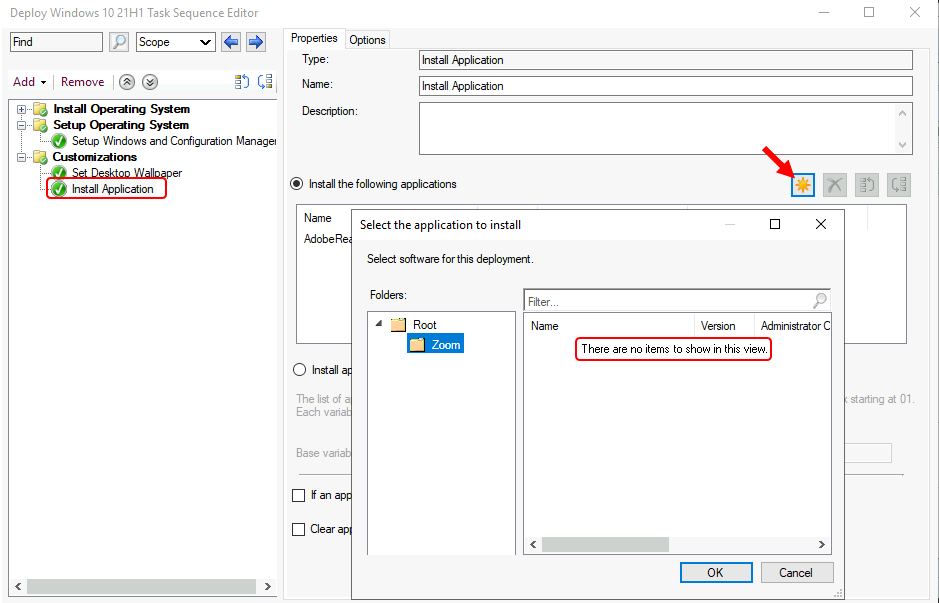
FIX – Application Is Not Available to Add In SCCM Install Application Task Sequence Step
Let’s ensure specific settings are always configured properly to fix application is not available to add in SCCM install application task sequence step.

#Option 1 –
You can use the following procedure to modify the application directly from the Properties pane of the Application node in the Configuration Manager Console.
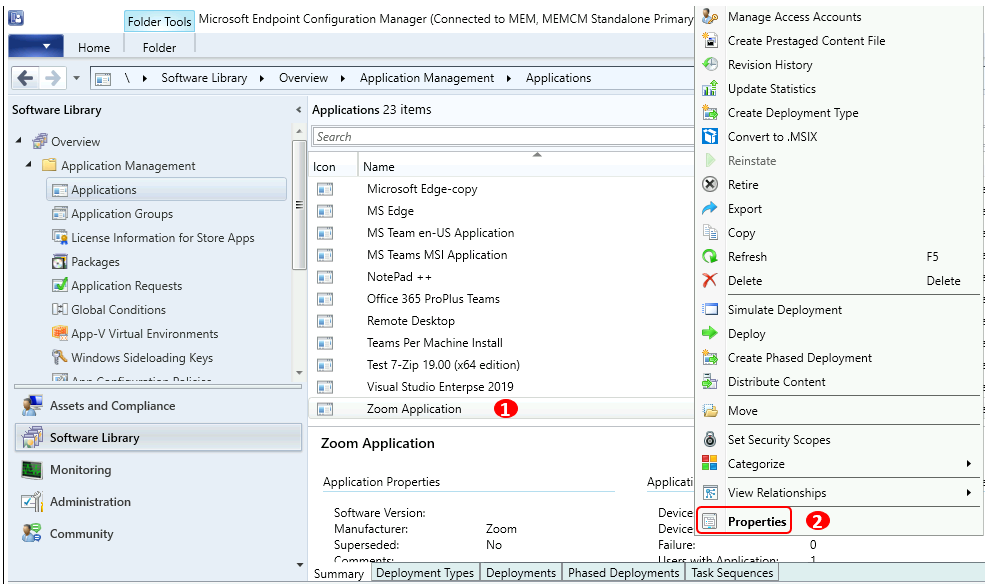
Launch SCCM Console, Navigate to Software Library workspace, expand Application Management, and select the Applications node.
Select the existing application from the list that is not appearing to add it to a task sequence. Right-click on the application and select Properties.
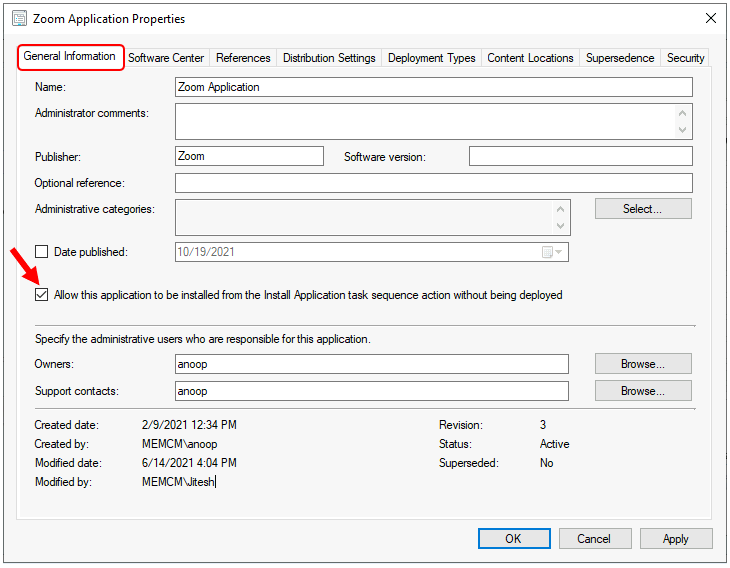
On the General Information page, check the checkbox with the label Allow this application to be installed from the Install Application task sequence action without being deployed. Click Apply and OK to confirm.
#Option 2 –
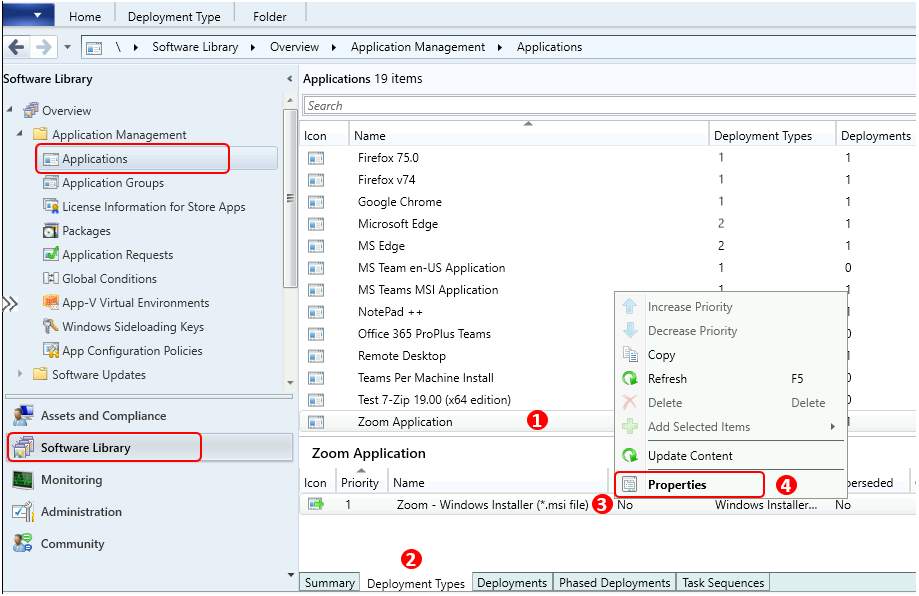
In the Configuration Manager console, go to the Software Library workspace, expand Application Management, and select the Applications node.
Select an application that is not appearing to add it to a task sequence in the Applications node and select Deployment Types tab. Right-click on the existing deployment type and select Properties.
Switch to the User Experience tab. The installation behavior must be Install for system, and the logon requirement is set to either Whether or not a user is logged on or Only when no user is logged on.
Related Posts – Let’s learn how to define All Users or A User SCCM app deployment type using user experience settings.
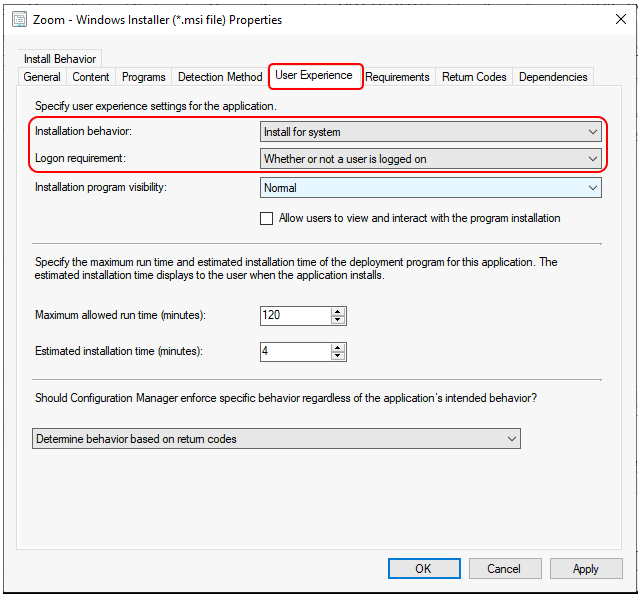
#Option 3 –
When creating an application in the Configuration Manager console, select the application installation file Type as Windows app package (*.appx, *.appxbundle, *.msix, *.msixbundle). You will not be able to see the application appearing while adding to the task sequence. Let’s learn SCCM Install Application Task Sequence Step Options in Configuration Manager.
Known issues for a task sequence deployment type
- Don’t use the Install Application step in this task sequence. Use the Install Package step to install apps.
- In version 2006 and earlier, you can’t yet deploy an app task sequence to a user collection. This issue was resolved in version 2010.
#Option 4 –
When you add the application to the task sequence step, you need to make sure that the security scopes are properly set up. You can also try to recreate the application in the new folder and browse.
The described possible solutions will help you fix the issue If you have experienced it and want to share steps taken to resolve it. You can comment in the post below to help the community with your wide experience.
Author
About Author -> Jitesh has over 5 years of working experience in the IT Industry. He writes and shares his experiences related to Microsoft device management technologies and IT Infrastructure management. His primary focus area is Windows 10 Deployment solution with Configuration Manager, Microsoft Deployment Toolkit (MDT), and Microsoft Intune.




do not requred #Option 1 for TS step: “Install application” / Install the following application…
Only for using the “Install application according to dynamic variale list”
#4 – Deployment Type is Superseded
#5 – Check all superseded applications on #4 settings 🙂
Hi Anup,
I am facing a very weird issue for installing RSAT as an application in the Feature upgrade task sequence for 20H2. Your insight will help me a lot to achieve my deadline.
I have referred to save on package size imab.dk/deploy-rsat-remote-server-administration-tools-for-windows-10-v20h2-using-configmgr-and-powershell/
But it installing flawlessly as an independent application but fails to detect in the task sequence. My TS sequence is fairly simple and has only Feature Upgrade and RSAT in it.
logs
Appeval :RSAT is ciApplicable but its ciState is not ciPresent but ‘NotInstalled’
AppDicovery : +++ Application not discovered. [AppDT Id: ScopeId_FE72FC43-3A8D-4B80-AE52-BF7E58F02AAB/DeploymentType_3b7bb113-1368-48f4-8af1-1bdb54af86b1, Revision: 9]
+++ Did not detect app deployment type RSAT 20H2 – Test(ScopeId_FE72FC43-3A8D-4B80-AE52-BF7E58F02AAB/DeploymentType_3b7bb113-1368-48f4-8af1-1bdb54af86b1, revision 9) for system.
Thanks for this… This one saved me from digging through everything. I knew it had to be something silly.