






Suppress SCCM Task Sequence Notifications
In this post, you will learn how to suppress SCCM Task Sequence Notifications. When you deploy the task sequence, especially the upgrade task sequence to client computers.
In some scenarios, you don’t want the user to notify the task sequence is available for the deployment, which generally popped a window to show you a notification when the task sequence is available with Software Center.
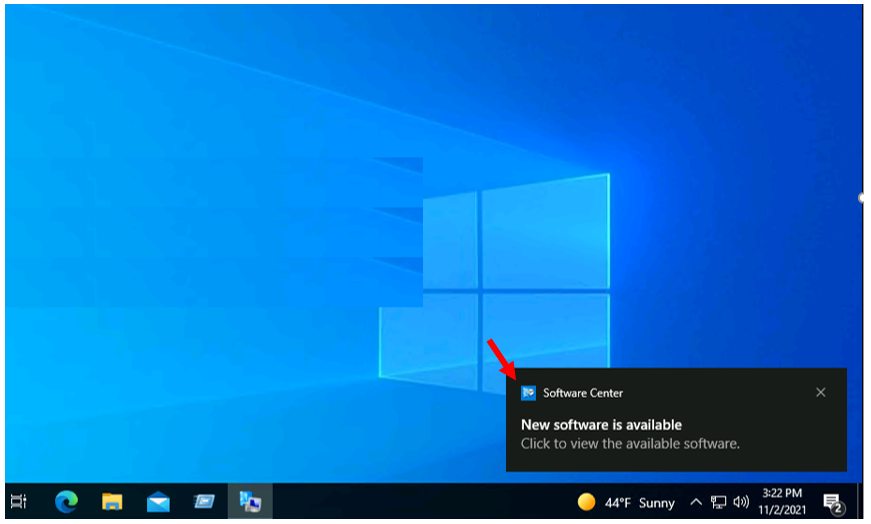
Here you can see when the task sequence is targeted to the client computers, A built-in toast notification pop-up with the message “New software is available“.
Clicking on the message will redirect you to the install task sequence from the software center. When you suppress the notifications for the task sequence, the new software is available to toast notification is hidden on client computers.

You can also configure task sequence properties of non-OS task sequences (The TS, which doesn’t contain any Operating System) or stand-alone task sequences and make them high-impact.
If you want to deploy the high-impact task sequence, Make sure you don’t check Suppress task sequence notifications, you will never get those popups you want. You can read more details, Create a Custom Software Center User Notification
- Disable SCCM Task Sequence Deployment
- Run SCCM Task Sequence with High Performance Power Plan | ConfigMgr
- SCCM Customize Windows Out of Box Experience OOBE Using ConfigMgr
Suppress SCCM Task Sequence Notifications
Let’s see the following steps to suppress task sequence notifications in SCCM –
- In the Configuration Manager console, go to the Software Library workspace, expand Operating Systems, and select Task Sequences.
- Select an existing task sequence from the task sequence list that you have deployed and select Properties.
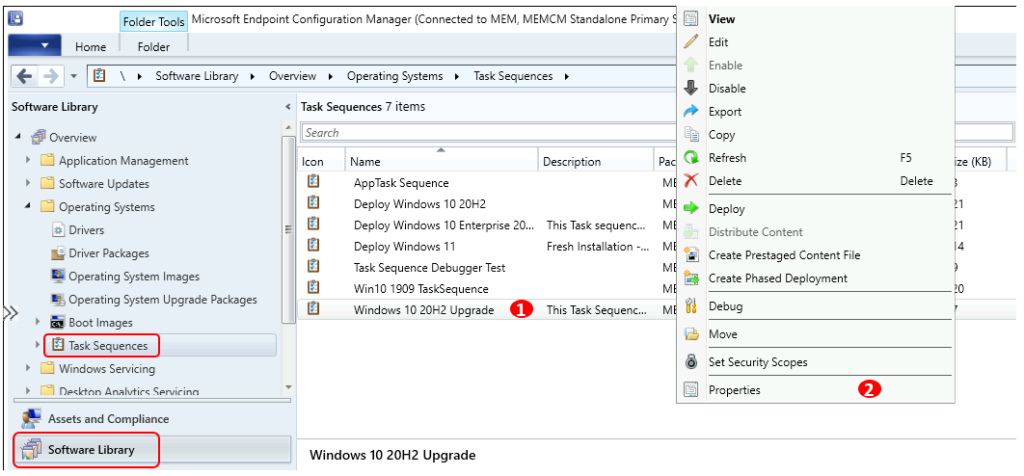
- In Task Sequence properties, Move to the Advanced tab to configure the behavior of the task sequence.
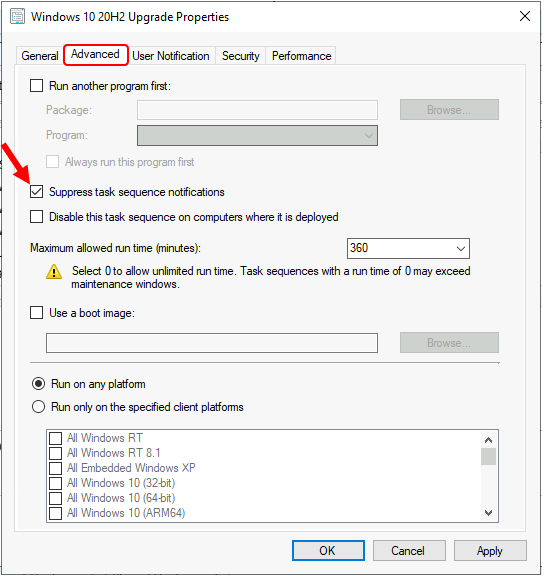
- Check the option Suppress task sequence notifications, By default, this option is disabled. Click Apply and Ok to save the changes done to the task sequence.
Suppress task sequence notifications – Select this option to hide the New Software is available to toast notification. You still see the New software icon from Software Center in the notification area. By default, this option is disabled.
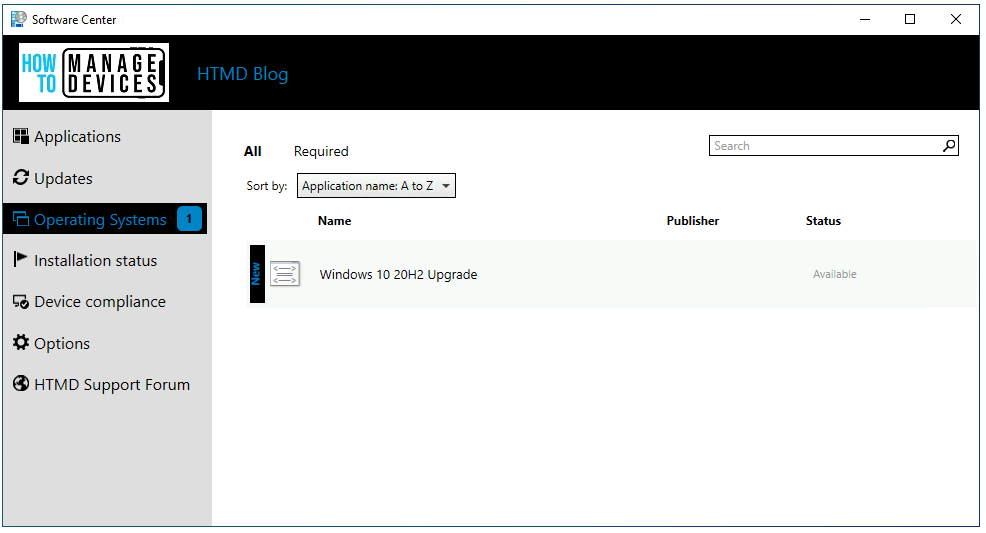
Once you have done this, you will think what will be the impact of suppressing SCCM task sequence notifications. Users will not encounter a popup message. However, you still visit the software center and check the available deployed task sequence.
Note: You can follow the steps described above, uncheck the option, refresh the deployment. If you do not want to hide the task sequence notifications.
Author
About Author -> Jitesh has over 5 years of working experience in the IT Industry. He writes and shares his experiences related to Microsoft device management technologies and IT Infrastructure management. His primary focus area is Windows 10, Windows 11 Deployment solution with Configuration Manager, Microsoft Deployment Toolkit (MDT), and Microsoft Intune.




Discussion