






How to Use ConfigMgr SCCM Change Package Content Ownership Tool
How to Use ConfigMgr SCCM Change Package Content Ownership Tool Endpoint Manager. In SCCM (ConfigMgr), package content ownership has changed much from the SCCM in 2007.
To unlock (or change the ownership of) the packages in SCCM 2007, we followed an unsupported method of updating the base with SQL queries like “SMSPackages set SourceSite=’IT1′ where SourceSite=’TMP‘”.
More details about unlocking collections, packages, and advertisements are here. Now, Microsoft has provided a tool (Content Ownership Tool) to change the ownership of content or packages without editing the DB.
This Content Ownership Change Tool (ContentOwnershipTool.exe.exe) helps change the ownership of orphan packages, which are packages without an owner-site server.

- 3 Best Methods to Import SCCM PowerShell Module Cmdlets
- Easy Guide to Deploy Wallpaper using SCCM
- SCCM Server Side Troubleshooting Tool Kit Guide Configuration Manager MEMCM
| Index |
|---|
| How to Use ConfigMgr SCCM Change Package Content Ownership Tool Endpoint Manager |
How to Use ConfigMgr SCCM Change Package Content Ownership Tool
Packages created at a site can become orphaned by removing the site server while this site server still owns them. You won’t be able to filter The SCCM ConfigMgr Content Ownership Tool (ContentOwnershipTool.exe) with package ID; you can filter or search this with Package Name, Site Code, and Types of Packages. This tool also provides a feature to filter depending on the package type.
a) SMS_package (Normal SCCM classic packages),
b) SMS_BootImagePackage (SCCM Boot Images),
c) SMS_SoftwareUpdatesPackage (Software Update related packages) and
d) SMS_ContentPackage (New Application packages introduced in SCCM 2012)
You can explore other SCCM 2012 R2 tools here, such as the Content Library Explorer Tool and Collection Evaluation Viewer Tool.
Pre-Requisite or Requirement
You can run the ContentOwnershipTool.exe from any site server in the hierarchy. However, you may get the following error when you try to run it on another machine. The Content Ownership Tool must be run while logged in as an administrative user with sufficient package permissions.
To run this application, you must install one of the following version of the .NET framework: V4.0.30319. Contact your application publisher for instructions about obtaining the appropriate version of the .NET framework.
Walkthrough of Content Ownership Tool (ContentOwnershipTool.exe)
1. I’m running the SCCM ConfigMgr Content Ownership Tool from the SCCM 2012 CAS server. You can run it from the Primary server or any other site server in your SCCM 2012 hierarchy.
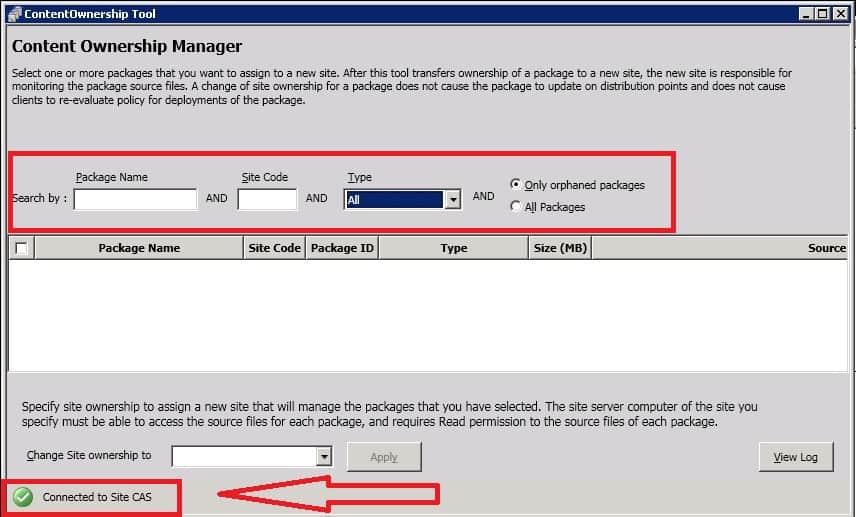
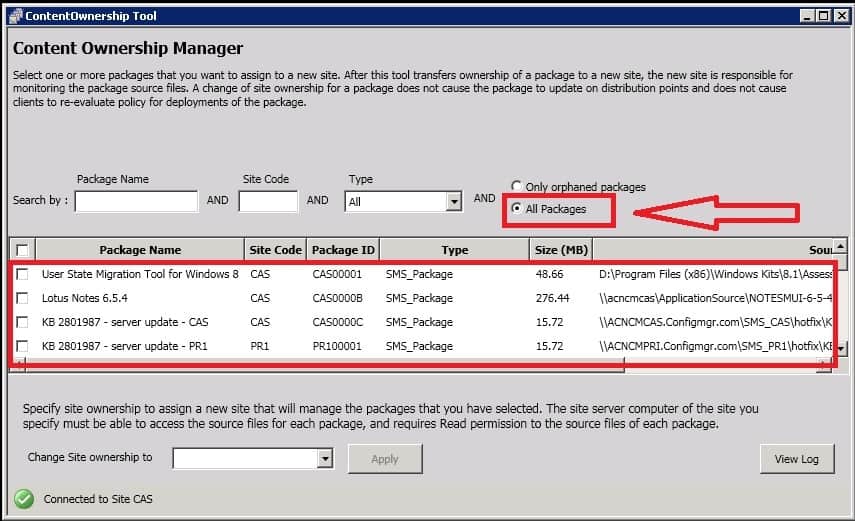
2. No orphan packages exist, so you cannot see any packages in the above screenshot. However, when you select all packages in the filtering section, you can see all the packages.
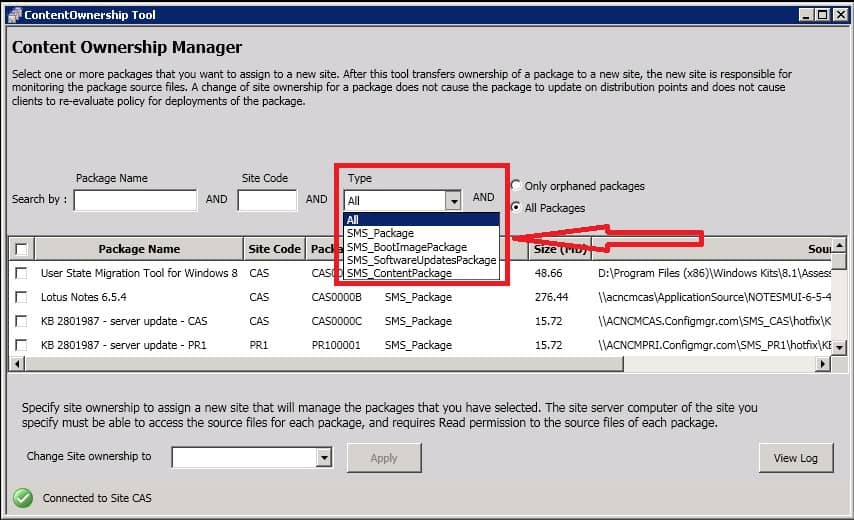
3. The Content Ownership Manager Tool can filter different types of packages like the following.
SMS_package (Normal SCCM classic packages), SMS_BootImagePackage (SCCM Boot Images), SMS_SoftwareUpdatesPackage (Software Update related packages) and SMS_ContentPackage (New Application packages introduced in SCCM 2012).
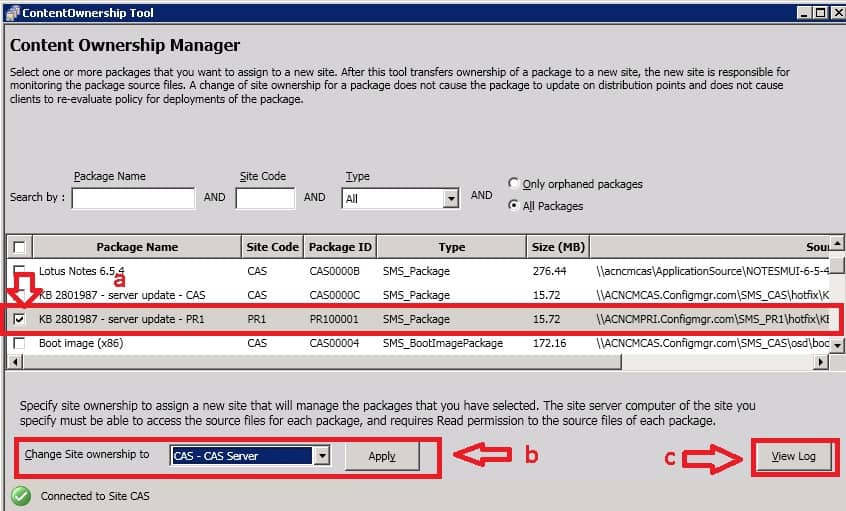
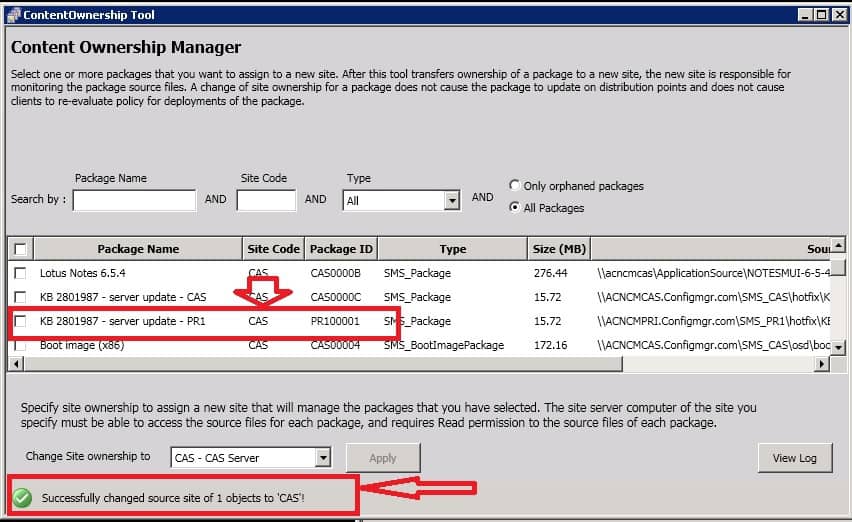
4. How can the ownership of orphan packages or content be changed using the SCCM ConfigMgr Content Ownership Tool? I’m changing the ownership of a package created at the primary site currently owned by the PRI server to the CAS server.
- a) Select the package in which you want to change ownership.
- b) Select the site details from the drop-down menu “Change Site Ownership to.”
- c) Click APPLY and the View Log button to check whether the ownership has been changed successfully.
5. View the ContentOwnershipTool.log log file located at %temp%. Where is the SCCM ConfigMgr Content Ownership Tool log file located?
You have successfully changed the package’s site code to CAS. Before the Content Ownership Change, the package owner was the PRI site (check the pic above). At the bottom of the content Ownership tool, you can see the message successfully changed the source site of an object to CAS.
| Following are the Normal Log Entries |
|---|
| INFO: STARTING ContentOwnershipTool… |
| INFO: Refreshing package list from WMI… |
| INFO: InitializeSmsProviderScope: Connected to \\root\sms successfully. |
| INFO: InitializeSmsProviderScope: Connected to Site CAS |
| INFO: Setting package properties in the background. |
| INFO: Filtering package list by Name(), SiteCode(), Type(), Orphaned-Only?(False)… |
| INFO: Filtering package list by Name(), SiteCode(), Type(SMS_SoftwareUpdatesPackage), Orphaned-Only?(False)… |
| INFO: Filtering package list by Name(), SiteCode(), Type(SMS_BootImagePackage), Orphaned-Only?(False)… |
| INFO: Filtering package list by Name(), SiteCode(), Type(SMS_ContentPackage), Orphaned-Only?(False)… |
| INFO: Filtering package list by Name(), SiteCode(), Type(SMS_Package), Orphaned-Only?(False)… |
| INFO: Filtering package list by Name(), SiteCode(), Type(), Orphaned-Only?(False)… |
| INFO: Changing site code for Package PR100001 from PR1 to CAS… |
| INFO: InitializeSmsProviderScope: Already connected to site CAS. Returning true. |
| INFO: Setting package properties in the background. |
| INFO: Filtering package list by Name(), SiteCode(), Type(), Orphaned-Only?(False)… |
Resources
SCCM Server Side Troubleshooting Tool Kit Guide HTMD Blog
We are on WhatsApp now. To get the latest step-by-step guides, news, and updates, Join our Channel. Click here. HTMD WhatsApp.
Author
Anoop C Nair is Microsoft MVP from 2015 onwards for consecutive 10 years! He is a Workplace Solution Architect with more than 22+ years of experience in Workplace technologies. He is a Blogger, Speaker, and Local User Group Community leader. His main focus is on Device Management technologies like SCCM and Intune. He writes about technologies like Intune, SCCM, Windows, Cloud PC, Windows, Entra, Microsoft Security, Career etc…




Hi Anoop,
Thank you for sharing your knowledge.
I have a query here.
I have a client environment where we initially had a primary server and now on client request we have created a central server. i need to move all packages from existing primary server to central server for centralized management.
the only way i know is manually importing and exporting all packages. Can u please help me with any tool or script that can help me do it.
StaffHi – Have you connected CAS to the Primary server or you have created new hierarchy with CAS?
If first scenario, you will get the packages automatically reflected in CAS console. If not, you need to go through the migrations jobs – via SCCM console – Administration – Migrations.
It’s not very good decision to have a central administrative server (CAS).
Hi Anoop,
Thank you so much for a quick response.
Yes, my CAS is connected to the primary server and it already has all the contents created by primary. But currently all packages are owned by primary server. I wanted to know if there is any way i can move the packages (ownership,PackageID,source).
I can do it by exporting all contents from primary and importing it in Central, but it will be very time consuming and there will be manual efforts.
Also, please help me know what you meant by this “It’s not very good decision to have a central administrative server (CAS).”
StaffI don’t think there is worth changing ownership of existing packages. It work well with Primary site ownership if I’m not mistaken.
“It’s not very good decision to have a central administrative server (CAS) ==> https://www.anoopcnair.com/sccm-intune-sample-architecture-diagram-decision-making-tips/
I always advice to AVOID CAS. I’m bit struggling with CAS personally. The only reason to have CAS is client count. If you have more than 140K clients to manage then, you need to have CAS. Otherwise no reason to have CAS.
Thank you for the advice…
your blogs and videos have always helped me alot to learn SCCM.
Please let me know if you have any seminars in Mumbai. I would definitly like to be a part of it 🙂
StaffThank you for the support. Sure thing !