






SCCM Content Library Explorer Tool | Validate | Redistribute | Invalid
Let’s understand how to Use the SCCM Content Library Explorer Tool. SCCM Content Management has completely changed, with a new content library structure introduced in 2012 and Current Branch versions.
Windows File Explorer can also allow users to explore and navigate through the content library. However, it’s difficult to understand the SCCM content’s strictures from there. So, it’s somewhat difficult for SCCM (ConfigMgr) admins to search the new content library folders and find the source files.
As part of the SCCM ConfigMgr tool kit, Microsoft has released an excellent tool for exploring the content library easily. In this post, I will walk through the features of the Content Library Explorer tool.
The following are some of the functions of the SCCM Content Library Explorer Tool.

- Disabled packages
- Validate packages
- Redistribute packages
- Copy Paste Packages
- How to Move SCCM Content Library Folders from One Drive to Another ConfigMgr
- SCCM ConfigMgr Simplest Way to Move PCK Files from One Drive to Another
Related Post – ConfigMgr Content Library Cleanup Tool | SCCM | Distribution Point and How to Monitor SCCM DP using Job Queue Manager Tool.
SCCM Content Library Explorer Tool | Validate | Redistribute | Invalid – What We Can Do using The Content Library Explorer (ContentLibraryExplorer.exe)
The following are the basic functions of the content library tool in SCCM. I like the way it helps to redistribute the Content.
- The Content Library Explorer (ContentLibraryExplorer.exe) allows one to explore the content library on a specific distribution point.
- ContentLibraryExplorer.exe helps us troubleshoot issues related to the content library.
- Helps to copy and explore the content directly from the tool.
- Packages can be redistributed to the distribution point, and packages can be validated on remote distribution points.
Access Required for Connecting to a Distribution Point with The Content Library Explorer (ContentLibraryExplorer.exe)
To use the content library for a distribution point, you will need the following permissions: administrative access to the target distribution point. You also need access to the WMI and ConfigMgr providers; otherwise, it will not connect to the remote DP content library.
Full Administrators and Read-Only Analysts have sufficient rights to view all information from this tool.
Launch the Content Library Explorer Tool
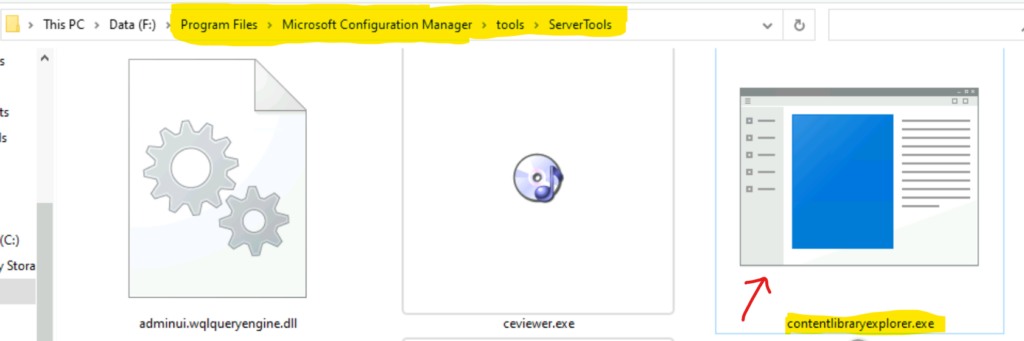
You can launch the content library explorer tool from the SCCM site server (primary server) server tools folder, as listed below. Click on ContentLibraryExplorer.exe to launch the tool.
Drive Letter:\Program Files\Microsoft Configuration Manager\tools\ServerTools
How to Use The Content Library Explorer (ContentLibraryExplorer.exe)
Let’s check how to use the SCCM content library tool and start using it for troubleshooting. This tool helps to solve package distribution issues with SCCM.
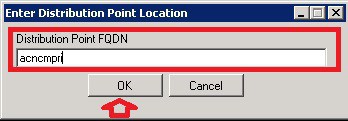
- Connect to any of the SCCM DP with FQDN. The account should have the required privileges mentioned above. When the distribution point is part of a secondary site, you must provide the FQDN of the primary site server and the primary site code.
Disabled Packages?
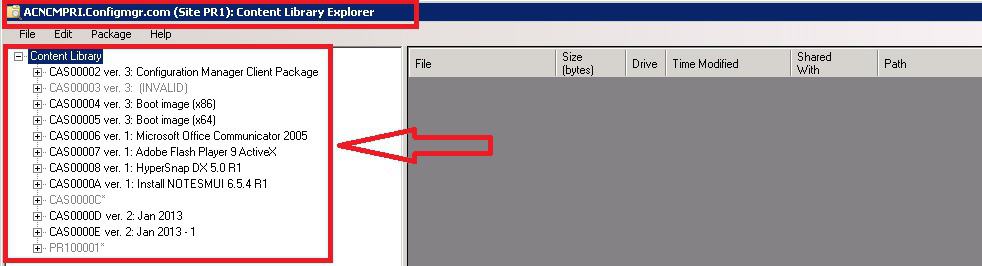
2. Once the ContentLibraryExplorer.exe tool is connected to the DP, the left pane shows the packages distributed to this DP. You can expand each Package and explore the folder structure.
Packages/Applications marked with an asterisk (*) may not be actioned. Other SCCM packages/app content may also be marked with an asterisk and have actions disabled.
Content Package Details
3. Once you select any of the packages in the ContentLibraryExplorer.exe tool’s left panel, the right pane will show you its details.
When a package folder is selected in the Content Library Tool, if it contains files, these will be listed in the right pane. You will then see all the details about the file.
- 1. Filename
- 2. File size
- 3. Drive the package content is located
- 4. other packages that use the same file on this package
- 5. when the file was last changed on the DP and
- 6. The Full FQDN of the content source file.

4. The tool also warns about INVALID packages in your SCCM content Library. Packages missing one or more content files will be marked invalid.
Fix Invalid Content Distribution Issues
To get more details about the INVALID Package, you can run a Validation to reveal which contents are missing. If all contents are present, but the data is corrupted, validation will detect the corruption of the SCCM Content Library for that particular Package.

Validate Content
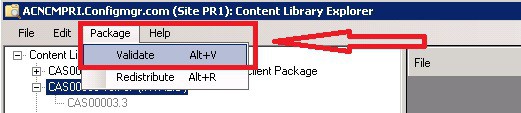
Another option available in this tool is to validate the content of packages/apps. You can Validate packages by using Package> Validate on the toolbar.
You will need first to select a package node in the left pane. Don’t select Content or a folder. The tool connects to the WMI provider at the distribution point for this action.
5. How to validate the INVALID Package on the SCCM ConfigMgr content library using Content Library Explorer?
Select package which you wanted to validate and click on PACKAGE --> Validate & Click on OK
When you receive the following error, it’s better to redistribute the Package: An error occurred. We were unable to validate the Package. Please ensure you have access to the Distribution point provider. The Package may need to be redistributed.
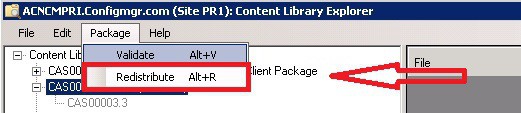
6. How do you redistribute a package that shows INVALID in the Content Library Explorer Tool of SCCM 2012?
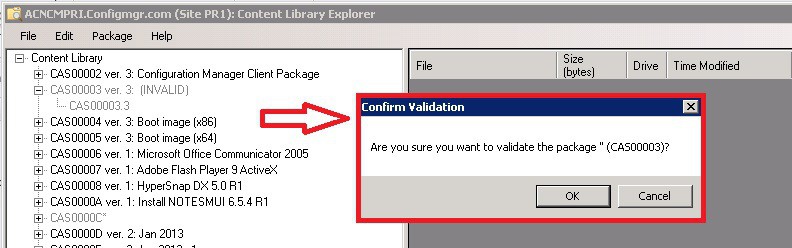
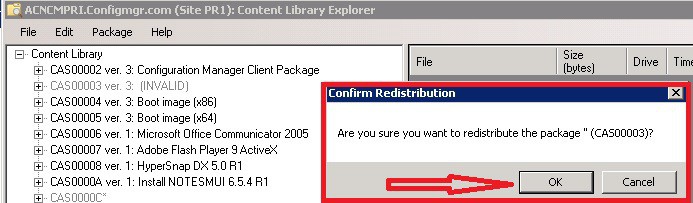
Select the package that you want to validate, click on PACKAGE –> Redistribute, & Click on OK.
The screenshot below helps you show the Confirm Redistribution. The screenshot below helps you to show more details.
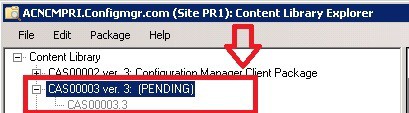
Once you redistribute the package, its status will change from INVALID to PENDING.
Copy Paste Content
Learn How to copy a content library file from the Content Library Explorer SCCM 2012 Tool. Click on the content file that you want to COPY. Click on EDIT –> Copy. The content library itself cannot be copied. Multiple files can be selected (using Ctrl + click or Shift + click), but various folders cannot.

Browse to the location where you want to store the copied file from the content Library. The specified items were successfully copied.
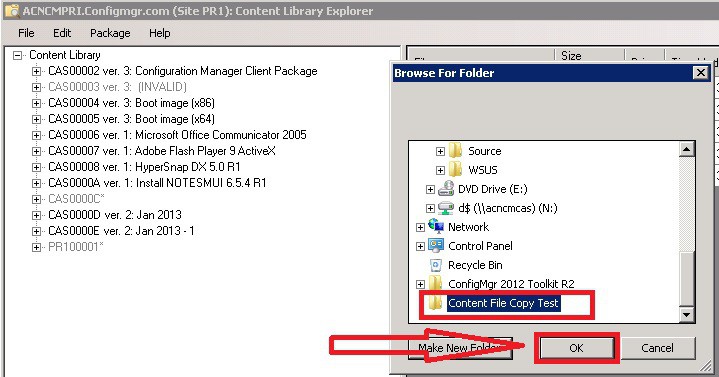
Redistribute Content
You can use this tool to Redistribute package or application content to the DP. Content redistribution usually helps resolve replication issues with Content.
Once you redistribute the Package, its status changes from INVALID to PENDING. The Content Library Explorer tool also shows the installation status of the package distribution.
Resources
ConfigMgr Content Library Cleanup Tool | SCCM | Distribution Point | Configuration Manager HTMD Blog
We are on WhatsApp now. To get the latest step-by-step guides, news, and updates, Join our Channel. Click here. HTMD WhatsApp.
Author
Anoop C Nair is Microsoft MVP from 2015 onwards for consecutive 10 years! He is a Workplace Solution Architect with more than 22+ years of experience in Workplace technologies. He is a Blogger, Speaker, and Local User Group Community leader. His main focus is on Device Management technologies like SCCM and Intune. He writes about technologies like Intune, SCCM, Windows, Cloud PC, Windows, Entra, Microsoft Security, Career etc…




We went from RTM directly to SP1 then immediately to R2
Almost ALL our DP content went GREY in the Content Explorer
Grey items in Content Explorer can’t be “redistributed” (using the menu basedtools in Content Explorer)
So we instead used powershell script(s) to bring the content back
Now over the weekend the content is AGAIN disappearing
we again run the Powershell scripts to bring the content back…
we are then able to “use” the content all week long successfully in our OSD and deployments
we go away for the weekend and on Monday the content is GONE again
Is nobody else having this happen under R2?
Thx,
Jon
StaffYes, I heard about similar behavior after upgrade.However, not pretty sure those gents are also facing exactly same issue? What is the command line you use for bringing back the content ?
Regards
Anoop
I Have an issue where I open up content explorer and I have multiple packages showing up as pending. It has been like this for days. When I go into look for the Software application in Software Library/Applications It is not showing up. I checked the content status under monitoring and looked for the Package ID. nothing with that ID is there.
This could of been caused by importing the application on the primary site instead of the CAS. But, even when i open the Console pointing to the Primary Site it is not there.
Any Idea how I can delete this package within Sql. I am at a loss.
StaffYou can see the package ID then this could not be a problem with creating packages at CAS or Primary. This could be problem with security scope when you’ve multiple security scopes and those packages are not assigned to your security scope. I’m not sure whether you’re talking about classic package or new application model. If you’re talking about new applications in CM12. There is NO package ID or application ID associated with it rather there could be application GUID.
Thanks for the Reply. I know this is not a Security Scope issue as I am the Administrator and no one else can import packages. I am talking about New application model. When you go into content status you can see what the package ID is. Thus, The package that is showing up in content Lib explorer is not showing up in Content status. Sorry if this is a little confusing. I do not know any other way to explain. Thanks Anoop.
STATMSG: ID=2300 SEV=I LEV=M SOURCE=”SMS Server” COMP=”SMS_DISTRIBUTION_MANAGER” SYS=gldxxxxxxxx.rootlnka.netnet SITE=PW1 PID=4776 TID=3388 GMTDATE=Mon May 19 17:36:14.975 2014 ISTR0=”Promis SPC GUI” ISTR1=”PW100003″ ISTR2=”” ISTR3=”” ISTR4=”” ISTR5=”” ISTR6=”” ISTR7=”” ISTR8=”” ISTR9=”” NUMATTRS=1 AID0=400 AVAL0=”PW100003″ SMS_DISTRIBUTION_MANAGER 5/19/2014 12:36:14 PM 3388 (0x0D3C)
No action specified for the package PW100003. SMS_DISTRIBUTION_MANAGER 5/19/2014 12:36:14 PM 3388 (0x0D3C)
Package PW100003 does not have a preferred sender. SMS_DISTRIBUTION_MANAGER 5/19/2014 12:36:16 PM 3388 (0x0D3C)
The package and/or program properties for package PW100003 have not changed, need to determine which site(s) need updated package info. SMS_DISTRIBUTION_MANAGER 5/19/2014 12:36:16 PM 3388 (0x0D3C)
A distribution point has been changed at this site, adding site PE1 to the list of sites to which we are sending package PW100003. SMS_DISTRIBUTION_MANAGER 5/19/2014 12:36:16 PM 3388 (0x0D3C)
Adding site CSA to list of sites to which we are sending package PW100003 data, because it is in a direct line between this site and the destination site. SMS_DISTRIBUTION_MANAGER 5/19/2014 12:36:16 PM 3388 (0x0D3C)
CDistributionSrcSQL::UpdateAvailableVersion PackageID=PW100003, Version=2, Status=2301 SMS_DISTRIBUTION_MANAGER 5/19/2014 12:36:16 PM 3388 (0x0D3C)
StoredPkgVersion (2) of package PW100003. StoredPkgVersion in database is 2. SMS_DISTRIBUTION_MANAGER 5/19/2014 12:36:17 PM 3388 (0x0D3C)
SourceVersion (2) of package PW100003. SourceVersion in database is 2. SMS_DISTRIBUTION_MANAGER 5/19/2014 12:36:17 PM 3388 (0x0D3C)
STATMSG: ID=2301 SEV=I LEV=M SOURCE=”SMS Server” COMP=”SMS_DISTRIBUTION_MANAGER” SYS=gldxxxxxxxx.rootlnka.netnet SITE=PW1 PID=4776 TID=3388 GMTDATE=Mon May 19 17:36:17.274 2014 ISTR0=”Promis SPC GUI” ISTR1=”PW100003″ ISTR2=”” ISTR3=”” ISTR4=”” ISTR5=”” ISTR6=”” ISTR7=”” ISTR8=”” ISTR9=”” NUMATTRS=1 AID0=400 AVAL0=”PW100003″ SMS_DISTRIBUTION_MANAGER 5/19/2014 12:36:17 PM 3388 (0x0D3C)
THIS IS WHAT IS IN THE DISTMGR.LOG FOR THIS PACKAGE. You can see the package ID = PW100003 This package is not showing up in content status. Which it should. 🙁
StaffI’ve not seen package ID in CM12 console for Applications. However, package IDs are available for classic packages. There could be some way to find the package ID of application. I’m NOT sure about that till now. Try to search with application name if possible. There is no application ID per se. Rather we need to track applictions with GUID.
I have a package pushed to a remote DP, used the tool and it is in a Pending state and greyed out, anyway to remove it?
StaffHi ! Try to remove it from SCCM ConfigMgr 2012 Console?
Hi,
We also have the same issue as Dan,
We have um package (with PackageID that i can see on DB with scopeID, but WITHOUT ´location´or ´ShareName´), that i cannot find on console (connect to central or primary).
Its also “Pending” on Content Library Explorer on DPs.
I’m pretty sure that it was one application i created on primary server instead of Central, and moments later, deleted it.
Any idea how can we resolve it?
Thanx
Alfredo
And what to do when CLE shows something greyed without the name with status PENDING
Where does it read this info?
From which DB table?
I have lot of files around 82.5 GB in FileLib folder.. i’m not sure what is causing issue? i could not able to do anything on the DP since there is no space.. Please let me know how can i find what is causing the issue and how can i clear those out?
When running this tool, i receive an error message on one of my DPs with:
“The legacy package does not have exactly one content.” The program does not get any further than that error message. Any ideas how i can resolve the issue?