






Quickly Find SCCM Applications Path in ConfigMgr Console
Let’s learn about all available quick options to find the SCCM Applications Path in ConfigMgr Console. It’s not easy to find out Path for applications and software update packages from one place. But in this post, you will get more detailed options about where to find the path of applications and other deployment packages.
In Configuration Manager, search is completely redesigned to be more powerful, which is more helpful for SCCM Admin to perform quick checks about availability of Application, Task Sequence, Boot Image, or Software Update Packages and more inside the console, you can now use free-text searches or criteria search, and set the search scope to the current node or folder, subfolders, or all objects.
Benefits of using search –
- Objects do not have to be in folders or categorized to be found
- Search queries can be saved for reuse and sharing
- Powerful tool for searching automatically generated content such as software updates
- Can be both heuristic (free text search) or precise (criteria search)
- Applies to all objects
Limitations of using search –

- Because global search searches all object types, it might take longer to retrieve the result set.
- Saved criteria in searches is available and visible to all administrative users, which might make data visible that you didn’t intend to be visible.
Recommended Posts –
- Easily Find SCCM Applications Without Deployments
- Disable SCCM application deployment
- SCCM Install Behavior for Applications | ConfigMgr
Applications – Free Text Search
Let’s find out the application from a free text search, It’s best if you are aware of the SCCM applications path inside the console –
- Launch SCCM Console, Navigate to Software Library workspace, expand Application Management, and select the Applications node.
This is the simplest form of search SCCM Applications path. Type in any keyword in the filter bar at the top of the list view. The result will be filtered to objects with the keyword in any property.
Note – With the search results will only get displayed from Current Node. You will not see the details from the subfolders.
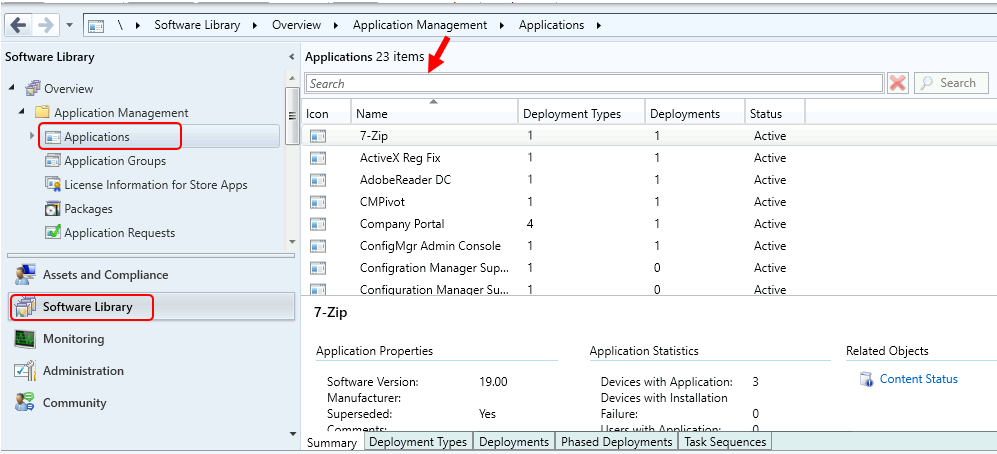
Applications – Current Node Search and Subfolder Search
By default, a search is scoped to the current node. Because folders have their nodes in the Configuration Manager console, you can also scope a search on the current folder and all its subfolders. Both free text search and criteria search can use these scopes.
- Launch SCCM Console, Navigate to Software Library workspace, expand Application Management, and select the Applications node. Select All Subfolders on the Search ribbon tab.
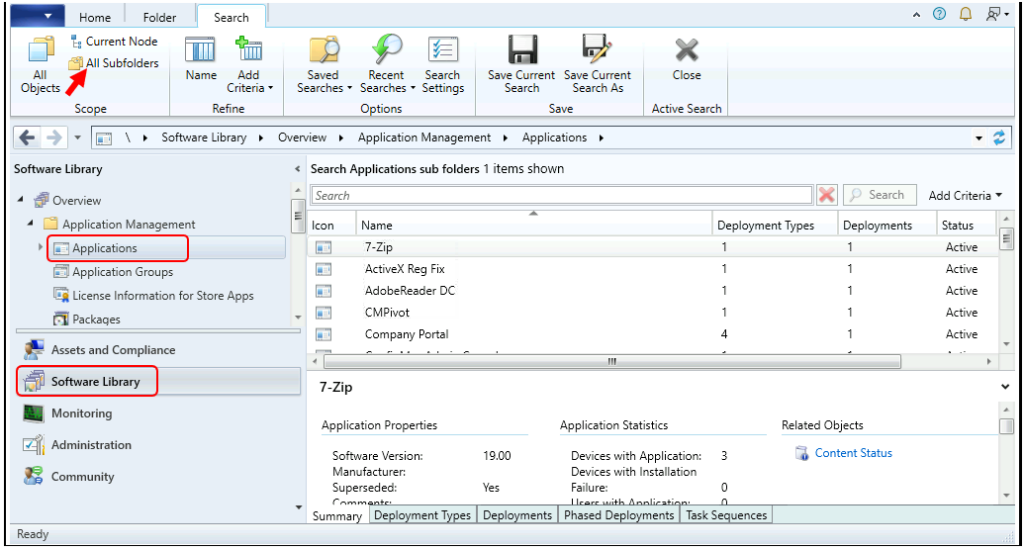
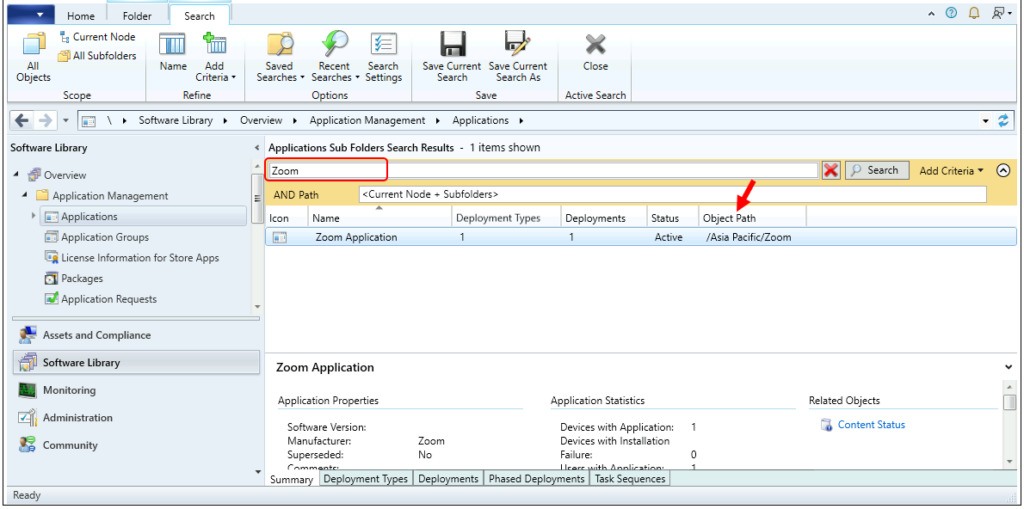
Type in any keyword in the filter bar at the top of the list view. The result will be filtered based on your search, and you will be able to see the available applications from all subfolders. You can locate the Object Path column to locate the Applications folder.
Note – If you are not able to see the Object Path column. To add the Object Path column, Right-click on a column detail name and Select column (Object Path).
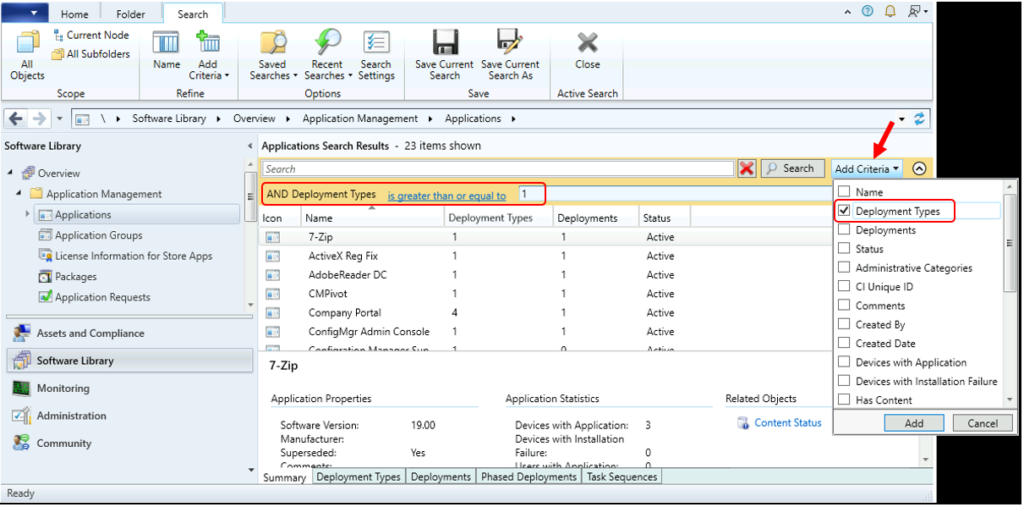
Applications – Criteria Searching
You can fine-tune searches by adding other known values as criteria for your search. When you click Add Criteria, new boxes are displayed for you to provide these values from the following –
Name
Deployment Types
Deployments
Status
Administartive Categories
CI Unique ID
Comments
Created By
Created Date
Devices with Applications
Devices with Installation Failure
Has Content
Last Date Modified
Last Update
Manufacturer
Modified By
Object Path
Revision
Security Scopes
Software Version
Superseded
Users with Application
Users with Catalog Installations
Users with Installation Failure
Criteria for the same property are combined by “OR” logic, and criteria for different properties are combined by “AND” logic. For example, an application administrator can search for an application associated with the deployment types, which have greater than or equal to 1.
Applications – Search All Objects
If you are looking for specific content but are not sure in which node to look, You can use a global search.
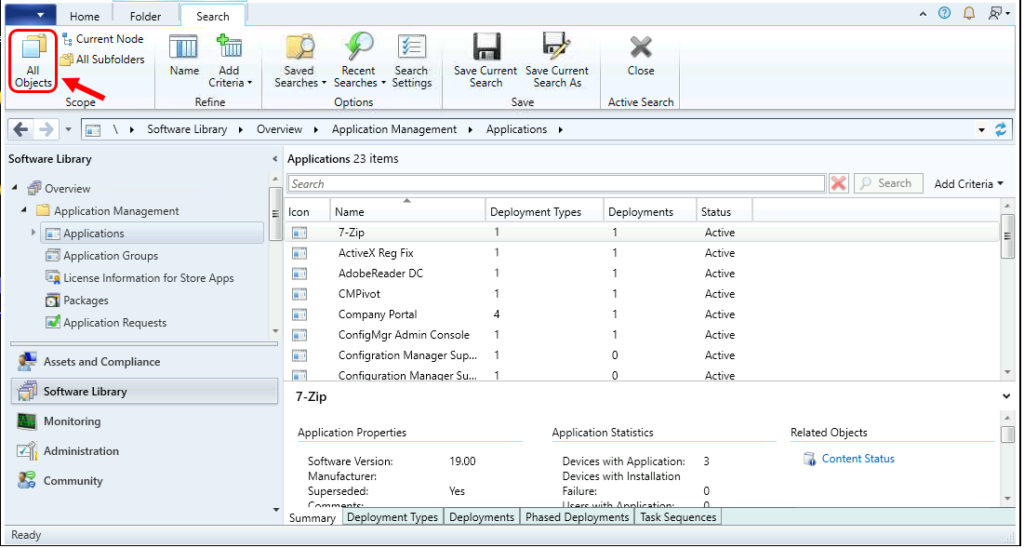
Select All Objects on the Search ribbon tab to set the search scope to be global, and then enter free text in the search text box. These returns match across all applicable object types and all properties. The result list is interactive, and the workspace information is shown to help you find them in the console.
Author
About Author -> Jitesh has over 5 years of working experience in the IT Industry. He writes and shares his experiences related to Microsoft device management technologies and IT Infrastructure management. His primary focus area is Windows 10, Windows 11 Deployment solution with Configuration Manager, Microsoft Deployment Toolkit (MDT), and Microsoft Intune.




Discussion