






FIX: SCCM Task sequence has failed with the error code 0x80070057
Let’s learn how you can FIX SCCM Task Sequence Failed with error code 0x80070057. You might encounter a prompt Task Sequence Error while performing Operating System Deployment with SCCM Task Sequence. The error prompt appeared here as in Dell Models, BIOS has set the HDD in RAID mode and the WinPE boot image has no suitable driver to wipe the disk.
First of all, you will need to understand what is the meaning of the error code 0x80070057. You can try to use the method to translate SCCM Error Codes To Error Messages. The error code 0x80070057 translates to The parameter is incorrect.
You may also experience the Task Sequence failing with the error code in task sequence step Apply Driver Package while performing Operating System Deployment with SCCM Task Sequence. Here is the detailed analysis for the error that appeared in the Task Sequence progress error prompt.
- SCCM Deployment Failed to Resolve Task Sequence Dependencies 0X80040102
- FIX: SCCM Task Sequence Failed With Error Code 0x80070002
- FIX: SCCM Task sequence has failed with the error code 0x800700A1
Issue Summary – SCCM Task sequence has failed with the error code 0x80070057
The task sequence appears at the disk partitioning step when you have started the deployment. Task Sequence fails with the following error message –

Task Sequence Error: Task sequence has failed with the error code 0x80070057 in the task sequence step ‘Partition Disk 0 – UEFI’. For more information, contact your system administrator or helpdesk operator.
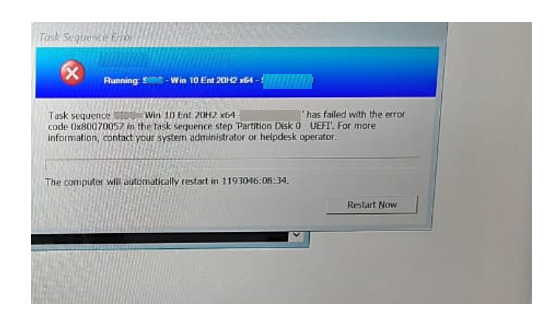
In this scenario, Task Sequence terminated at the beginning. You will collect the logs at WinPE X:\Windows\temp\smstslog\smsts.log. To get the command prompt window, you have to press F8 key. More you can explore SCCM OSD Task Sequence Troubleshooting Steps by Step Ultimate Guide SMSTS.log. Here’s the highlight from the SMSTS.log –
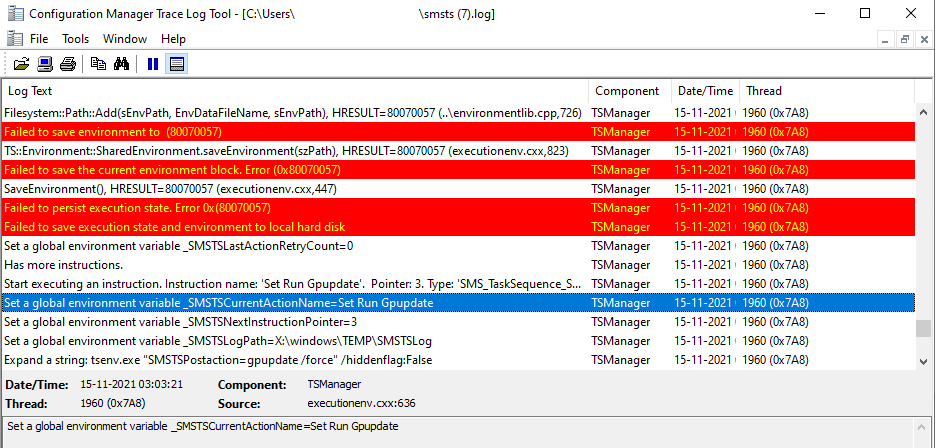
User did not specify local data drive	TSManager	15-11-2021 03:03:20	1960 (0x07A8)
Volume C:\ is not a fixed hard drive	TSManager	15-11-2021 03:03:20	1960 (0x07A8)
Volume X:\ is not a fixed hard drive	TSManager	15-11-2021 03:03:20	1960 (0x07A8)
TSM root drive = 	TSManager	15-11-2021 03:03:20	1960 (0x07A8)
We do not find an available volume to store the local data path	TSManager	15-11-2021 03:03:20	1960 (0x07A8)
Set a global environment variable _SMSTSNextInstructionPointer=1	TSManager	15-11-2021 03:03:20	1960 (0x07A8)
Set a Task Sequence execution environment variable _SMSTSNextInstructionPointer=1	TSManager	15-11-2021 03:03:20	1960 (0x07A8)
Set a global environment variable _SMSTSInstructionStackString=0	TSManager	15-11-2021 03:03:20	1960 (0x07A8)
Set a Task Sequence execution environment variable _SMSTSInstructionStackString=0	TSManager	15-11-2021 03:03:20	1960 (0x07A8)
Save the current environment block	TSManager	15-11-2021 03:03:20	1960 (0x07A8)
pszPath[0] != L'\0', HRESULT=80070057 (..\path.cpp,60)	TSManager	15-11-2021 03:03:20	1960 (0x07A8)
Filesystem::Path::Add(sEnvPath, EnvDataFileName, sEnvPath), HRESULT=80070057 (..\environmentlib.cpp,726)	TSManager	15-11-2021 03:03:20	1960 (0x07A8)
Failed to save environment to  (80070057)	TSManager	15-11-2021 03:03:20	1960 (0x07A8)
TS::Environment::SharedEnvironment.saveEnvironment(szPath), HRESULT=80070057 (executionenv.cxx,823)	TSManager	15-11-2021 03:03:20	1960 (0x07A8)
Failed to save the current environment block. Error (0x80070057)	TSManager	15-11-2021 03:03:20	1960 (0x07A8)
SaveEnvironment(), HRESULT=80070057 (executionenv.cxx,447)	TSManager	15-11-2021 03:03:20	1960 (0x07A8)
Failed to persist execution state. Error 0x(80070057)	TSManager	15-11-2021 03:03:20	1960 (0x07A8)
Failed to save execution state and environment to local hard disk	TSManager	15-11-2021 03:03:20	1960 (0x07A8)
Set a global environment variable _SMSTSLastActionRetryCount=0	TSManager	15-11-2021 03:03:20	1960 (0x07A8)
Has more instructions.	TSManager	15-11-2021 03:03:20	1960 (0x07A8)
Start executing an instruction. Instruction name: 'Set Error Timeout'.  Pointer: 1. Type: 'SMS_TaskSequence_SetVariableAction'. Disabled: 0	TSManager	15-11-2021 03:03:20	1960 (0x07A8)
Set a global environment variable _SMSTSCurrentActionName=Set Error Timeout	TSManager	15-11-2021 03:03:20	1960 (0x07A8)
Set a global environment variable _SMSTSNextInstructionPointer=1	TSManager	15-11-2021 03:03:20	1960 (0x07A8)
Set a global environment variable _SMSTSLogPath=X:\windows\TEMP\SMSTSLog	TSManager	15-11-2021 03:03:20	1960 (0x07A8)
Expand a string: tsenv.exe "SMSTSErrorDialogTimeout=0" /hiddenflag:False	TSManager	15-11-2021 03:03:20	1960 (0x07A8)
FIX – SCCM Task sequence has failed with the error code 0x80070057
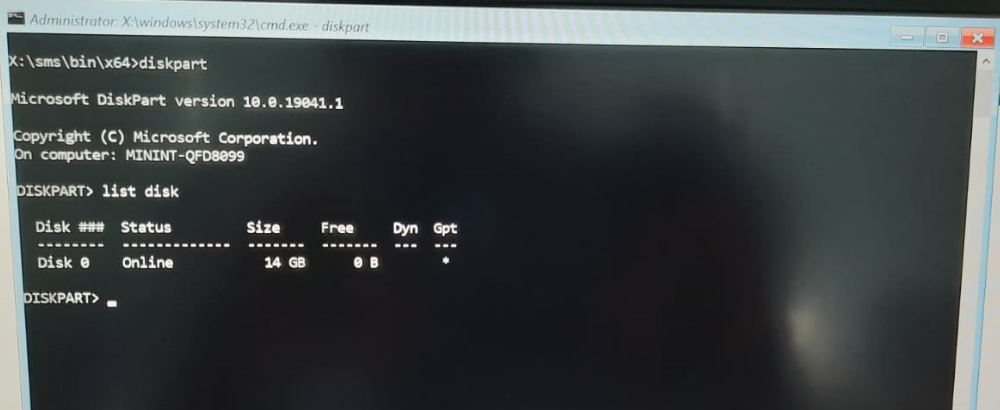
Let’s check the steps and resolution to fix error 0x80070057. Further checking the disk drive at the failure stage, we were unable to find a volume. Here you can see, The storage drive is only visible at the point.
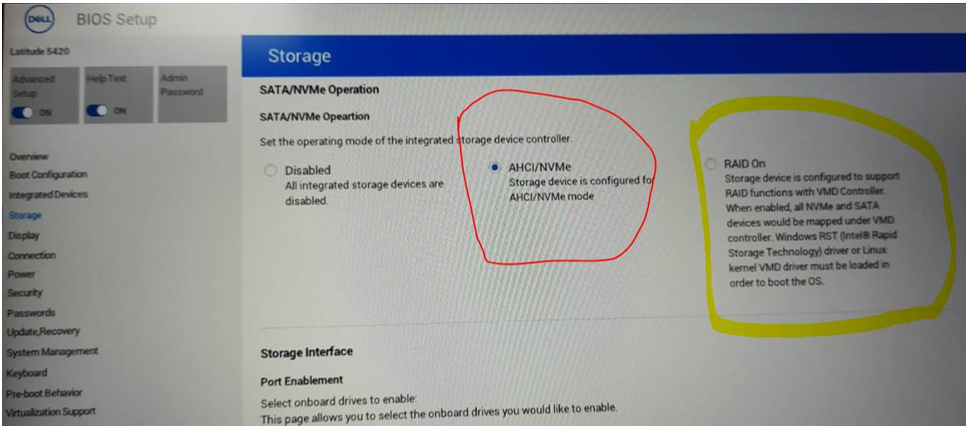
In our troubleshooting, we found that the default OEM setting for Dell Latitude 5420 models HDD is set to RAID On mode, This is why the task sequence was unable to locate the Local hard disk, and it’s failing Installation.
When we changed the Storage Option from RAID On to AHCI/NVMe mode in the BIOS setting, The local disk was visible during the installation process, and deployment was completed without any issue.
Author
About Author -> Jitesh has over 5 years of working experience in the IT Industry. He writes and shares his experiences related to Microsoft device management technologies and IT Infrastructure management. His primary focus area is Windows 10, Windows 11 Deployment solution with Configuration Manager, Microsoft Deployment Toolkit (MDT), and Microsoft Intune.




Thank you very much for info about changing storage type from RAID On to AHCI/NVMe mode in the BIOS. Much appreciated.
StaffThat’s awesome! Your issue resolved 🙂
Thank you so much
I was havig the same problem when deploying a task sequence to a Dell Latitude 5520 and I was getting that error message, when I changed that BIOS setting, it worked.
StaffGood to hear! Appreciate your input 🙂
Thanks for your posting. It is really helpful.
Dell Precision 5560 is no issue with RAID On but Precision 5570 should be changed as AHCI/NVMe.
We are getting the same error on HP EliteBook 820 G3 and we tried with disk partition still same error getting in the logs.
Please advise.
StaffHi Nitin,
Can you please validate the disk status by using Diskpart? Ensure you are able to locate the disk! If having any issues, validate the BIOS settings
Is the issue appearing on all HP 820 G3?
We’re currently imaging new laptops the Dell Latitude 5531. We had the same issue. We imported the drivers from Intel Rapid Storage Technology into the boot image (x64).
We have used these drivers: https://www.dell.com/support/home/nl-nl/drivers/driversdetails?driverid=0f5g4&oscode=wt64a&productcode=latitude-15-5531-laptop
Thank you! This resolved my issue on HP EliteDesk 800 G3 during the same SCCM imaging step. Checking RAID option and then unchecking was enough to clear
Thanks this actually help me fix a Lenovo ThinkStation P360. I had an issue installing an image and kept getting a Failed to Run Task Sequence error 0x80070057 and error 0x80070003. Changing ATA Drive Setup help fix these issues.
Hi there. This guide was helpful, but I thought I would offer some other advice for those who are having issues.
Step 1: Boot into a standard Windows 10 image USB, and launch the included disk management tools by progressing through the installation.
Step 2: Wipe any internal drives by deleting all partitions. Format the boot drive so that it is ready to be imaged, and leave any other drives as unallocated space. Power off the PC.
Step 3: Check BIOS. Check that date and time settings are accurate. Storage mode should be set to AHCI, not RAID. Legacy boot disabled, Secure boot enabled. Save settings and power off the PC.
Step 4: Insert build USB or if building off PXE ensure an ethernet cable is connected to the device.
Step 5: Begin build. If building from USB and the build fails, start it again but remove the USB from the PC when the task sequence begins (when you see 0%)
With this sequence I am able to get any image on any machine to work. Skip even one step and I find it likely the image will fail. I hope this helps somebody as it has taken quite some time to develop this process.
This fixed my issue also. Question I have is, is there a way to add a step in the task sequence to change the BIOS setting so my techs don’t have to physically change the setting from RAID to AHCI?
My guess (but I am not an sccm expert by any means!) would be that you have to streamline the RAID driver that is needed for Windows to recognize it in the WindowsPE image. Then it wil recognize the RAID partition and you would be able to use it. Of course: then you would still be using a RAID partition, which is not what I would want…
I don’t know any way to change bios settings via the TS, maybe someone else?
HP 240 G8 getting same error there is no advance tab and raid option