






FIX Windows 11 Upgrade Error Code 0xC190010E
This post helps you to fix Windows 11 Upgrade Error Code 0xC190010E. You will encounter an issue where a Configuration Manager Windows 11 in-place upgrade task sequence fails to install in the client computer. The Error Code 0xC190010E refereed to the Windows installation process requires that the user accept the license agreement.
Microsoft recommends against installing Windows 11 on a device that does not meet the Windows 11 minimum system requirements.
Windows 11 Upgrade Troubleshooting Logs are spread across different folders. Depending on the deployment or failure scenarios, the Windows upgrade troubleshooting logs are located in different folders.
Your first step is to locate the log file to find details, and Here you will get more details of log files for Windows 11 Upgrade Process.

Upon checking the Setupact.log, Setuperr.log files. The Setuperr.log provides a high-level list of errors that occurred during the specialize phase of Windows 11 Setup or Upgrade.
Recommended Posts –
- Windows Upgrade Troubleshooting Logs
- Fix Windows 11 Upgrade Error 0xc11900130
- Windows 11 Migration Guide PowerPoint Word Email Templates for Free Download
Issue Descriptions – Windows 11 Upgrade Failed Error Code 0xC190010E
In this scenario, you notice the following issues when you examine Setuperr.log files on an affected device –
Setuperr.log
2021-12-15 17:18:23, Error MOUPG CSetupHost::Execute(454): Result = 0xC1900210
Windows Setup will return error MOSETUP_E_EULA_ACCEPT_REQUIRED (0xC190010E) if /EULA accept is not specified.
| Result code | Message | Description |
| 0XC190010e | MOSETUP_E_EULA_ACCEPT_REQUIRED | The installation process requires that the user accept the license agreement. |
Starting with Windows 11, acceptance of the Windows EULA is required before Windows Setup installation begins. Since In Windows 11, /Auto will not accept nor suppress the end-user license agreement.
The Smsts.log file may also contain the following details –
The Smsts.log file shows that the /Eula accept wasn’t used in the Windows Setup command line that’s used to start the in-place upgrade by the task sequence.
Windows-Upgradestatus:7% OSDUpgradeWindows 692 (0x02B4)

Waiting for Windows Upgrade Setup process to return OSDUpgradeWindows                  692 (0x02B4)

Wait for event returned 0OSDUpgradeWindows

Windows setup completed with exit code hexadecimal 0xC190010E (decimal 3247440142)                   OSDUpgradeWindows

Saving exit code of Windows upgrade - hexadecimal 0xC190010E (decimal 3247440142) -  to Task sequence environment variable '_SMSTSOSUpgradeActionReturnCode', as decimal string

Windows Setup failed with hexadecimal exit code 0xC190010E (decimal 3247440142). To identify the type of issue, lookup it against the table of known values of Windows Setup errors online.

Executing command line: "C:\_SMSTaskSequence\Packages\KA101153\SETUP.EXE" /ImageIndex 1 /auto Upgrade /quiet
/noreboot /postoobe "C:\Windows\SMSTSPostUpgrade\SetupComplete.cmd" /postrollback
"C:\Windows\SMSTSPostUpgrade\SetupRollback.cmd" /postrollbackcontext system /DynamicUpdate Disable with options
(0, 0)
FIX Windows 11 Upgrade Failed Error Code 0xC190010E
To fix the issue, Let’s follow the steps to modify an existing Windows 11 upgrade task sequence to add support for Windows 11 upgrades –
- In the Configuration Manager console, go to the Software Library workspace, expand Operating Systems, and select the Task Sequences node.
- In the Task Sequence list, select the Windows 11 upgrade task sequence that you want to edit. Right click on selected task sequence, Select Edit to modify.
Add Set Task Sequence Variable step –
- Select Add, choose the General category, and then select Set Task Sequence Variable. This action adds the step after the currently selected step.
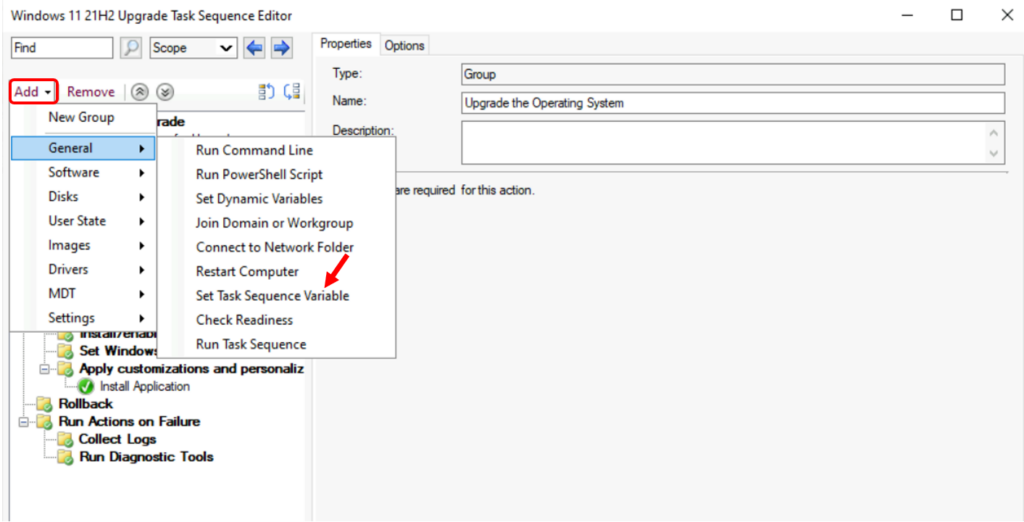
- Specify the task sequence variable WindowsUpgradeAdditionalOptions with the /eula accept at some point prior to the upgrade operating system action.
- Task Sequence Variable Name – <Steps Name>
- Task Sequence Variable – WindowsUpgradeAdditionalOptions
- Value – /Eula Accept
Note – By specifying /EULA accept, you are agreeing that when applying this operating system, either (1) the applicable Windows license was purchased through volume licensing, or (2) that you are accepting the relevant Microsoft Software License Terms.
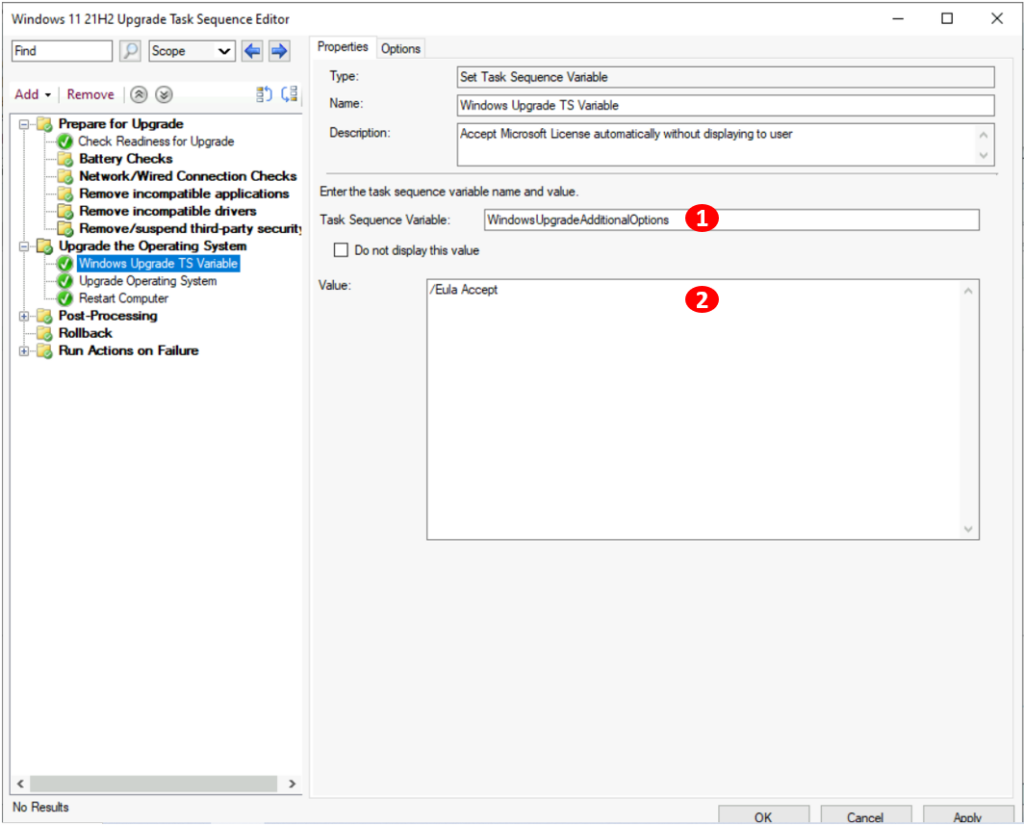
- Select Apply and OK to save your changes and close the window.
Once you complete the above steps, refresh the targeted deployment to collections and reinitiate the upgrade task sequence in the client computer. You will be able to successfully upgrade your existing supported windows 10 version to Windows 11.




I was having this issue, but the fix didn’t work for me. Instead, I had to do the same but using a different variable – OSDSetupAdditionalUpgradeOptions as opposed to WindowsUpgradeAdditionalOptions.
Hope this helps if anyone has the same problem