






Disable Windows Spotlight Suggested Content in Settings using Intune
In this post, you will learn how to disable Windows Spotlight Suggested Content in Settings using Intune (MEM). Microsoft can offer you suggestions throughout Settings. Generally, these tips and suggested content will contain links to official documentation, quick tips, and even videos demonstrating a feature.
This content comes in various forms and can help you discover new features within Settings or suggest new content and apps you might find interesting. By default, these tips and suggested content will appear on the rightmost side of the page.
Microsoft has started showing suggested content via a huge banner in Windows Setting Apps to help Windows users to learn new Windows features.
Although it’s a good way to show the most hidden or missed features and options of Windows 10 or Windows 11, if you think it’s annoying and these embedded tips are not helpful, you can easily remove tips and suggested content from the Windows settings app.

If you do not want Windows Spotlight to appear on your modern Windows 10 lock screen? This blog post can help you to disable the Windows Spotlight features.
- Disable Toast Notifications from Lock Screen using Intune
- Collect Windows 10 Diagnostics Information from Intune Portal | Endpoint Manager
- Intune Logs Event IDs IME Logs Details For Windows Client Side Troubleshooting
Disable Windows Spotlight Suggested Content in Settings using Intune
This section will help you assign the policy to disable Windows Spotlight suggested content in settings using Intune setting catalog policies. You can refer to the following guide to Create Intune Settings Catalog Policy and deploy it only to a set of Intune Managed Windows 11 or Windows 10 devices using Intune Filters.
- Sign in to the Endpoint Manager Intune portal https://endpoint.microsoft.com/
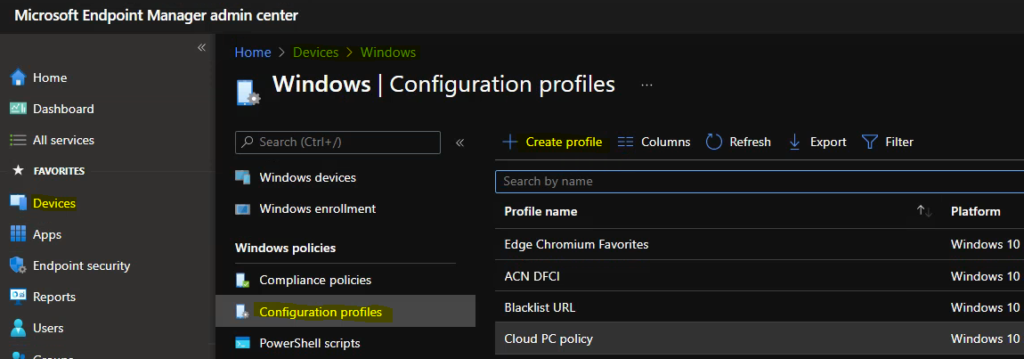
- Select Devices > Windows > Configuration profiles > Create profile
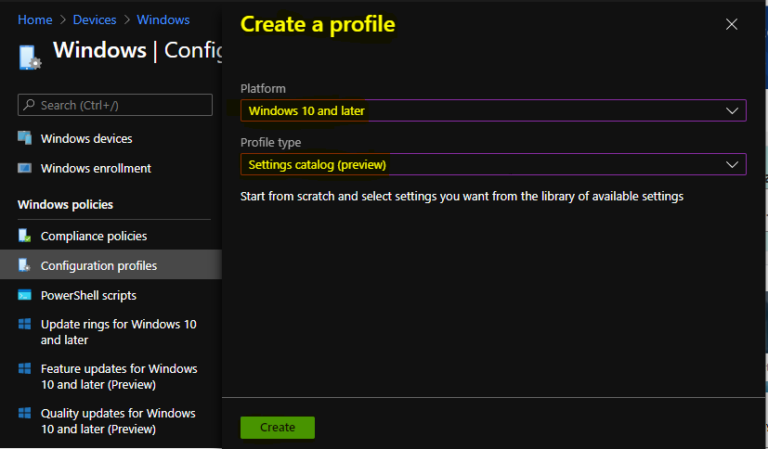
In Create Profile, Select Platform, Windows 10, and later and Profile, Select Profile Type as Settings catalog. Click on Create button.
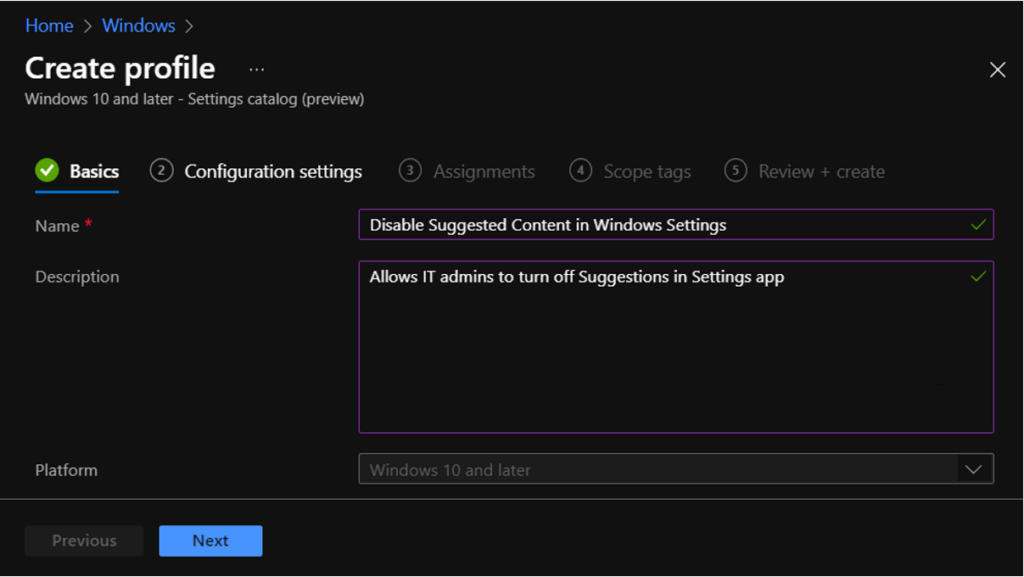
On the Basics tab, enter a descriptive name, such as Disable Microsoft Teams Auto Start. Optionally, enter a Description for the policy, then select Next.
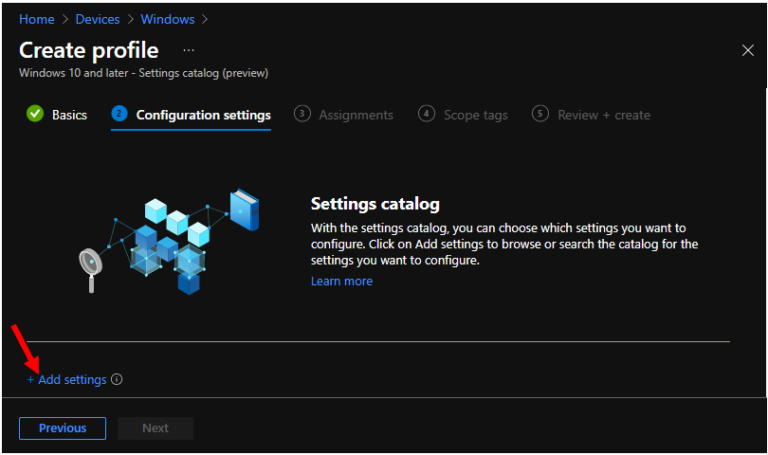
In Configuration settings, click Add settings to browse or search the catalog for the settings you want to configure.
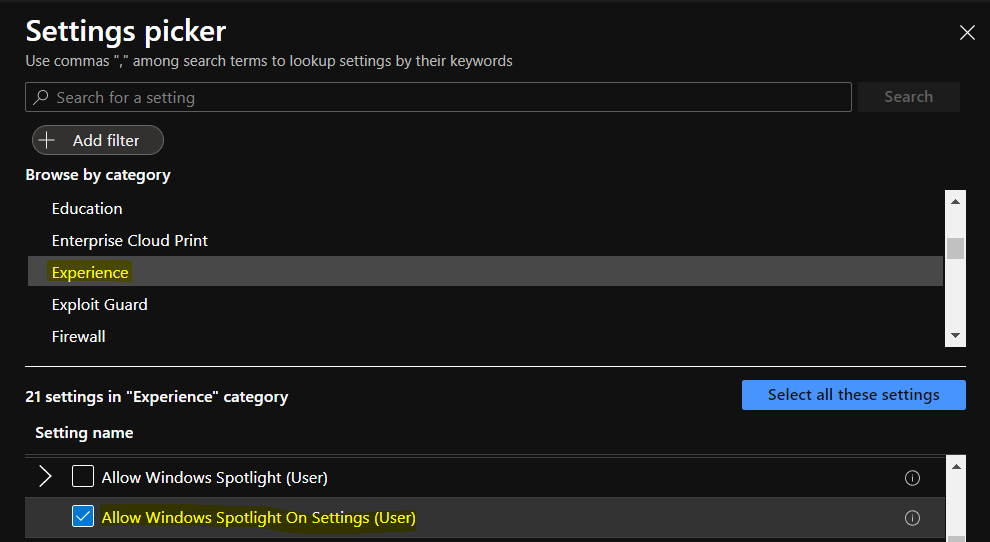
On the Settings Picker windows, Select Experience to see all the settings in this category. Select Allow Windows Spotlight On Settings (User) settings below. After adding your settings, click the cross mark at the right-hand corner to close the settings picker –
Note – In policy, use the search box to find specific settings. You can search by category or a keyword, such as Spotlight. It will display all the related settings available.
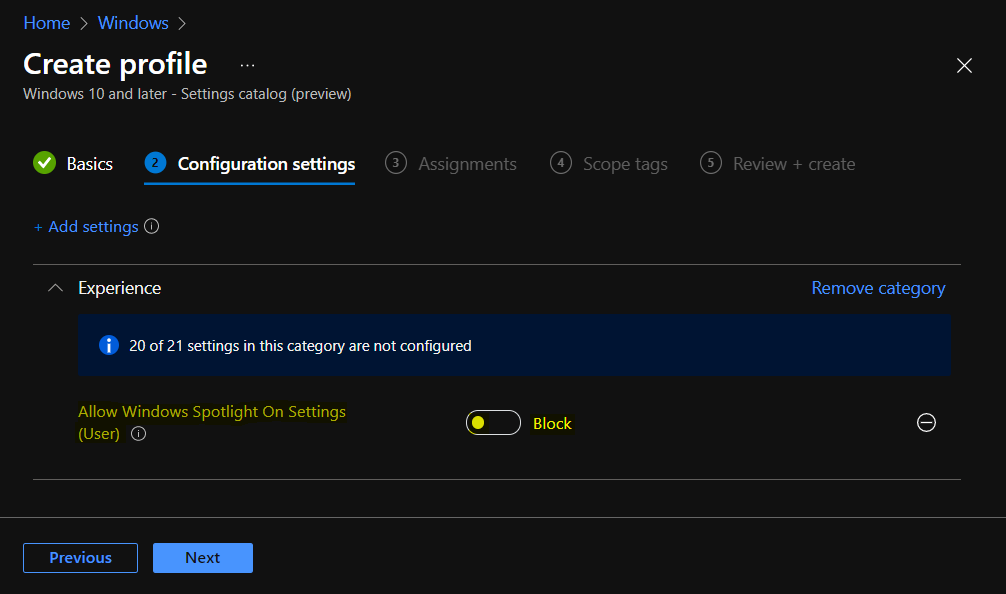
The setting is shown and configured with a default value Allow. Set Allow Windows Spotlight On Settings (User) to Block.
This policy allows IT admins to turn off Suggestions in Settings app. These suggestions from Microsoft may show after each OS clean install, upgrade, or an on-going basis to help users discover apps/features on Windows or across devices, to make their experience productive. User Setting is changeable on a per-user basis.
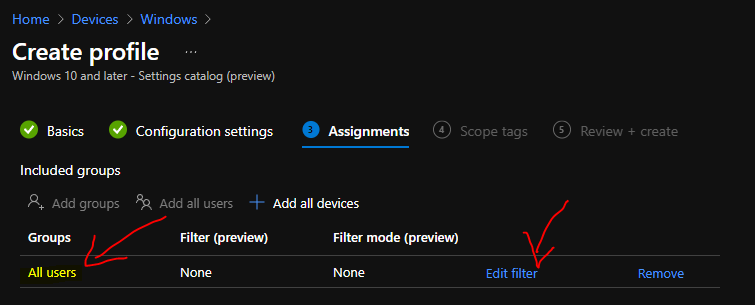
Under Assignments, In Included groups, click Add groups and then choose Select groups to include one or more groups. Click Next to continue.
In Scope tags, you can assign a tag to filter the profile to specific IT groups. Add scope tags (if required) and click Next.
In Review + create, review your settings. When you select Create, your changes are saved, and the profile is assigned.
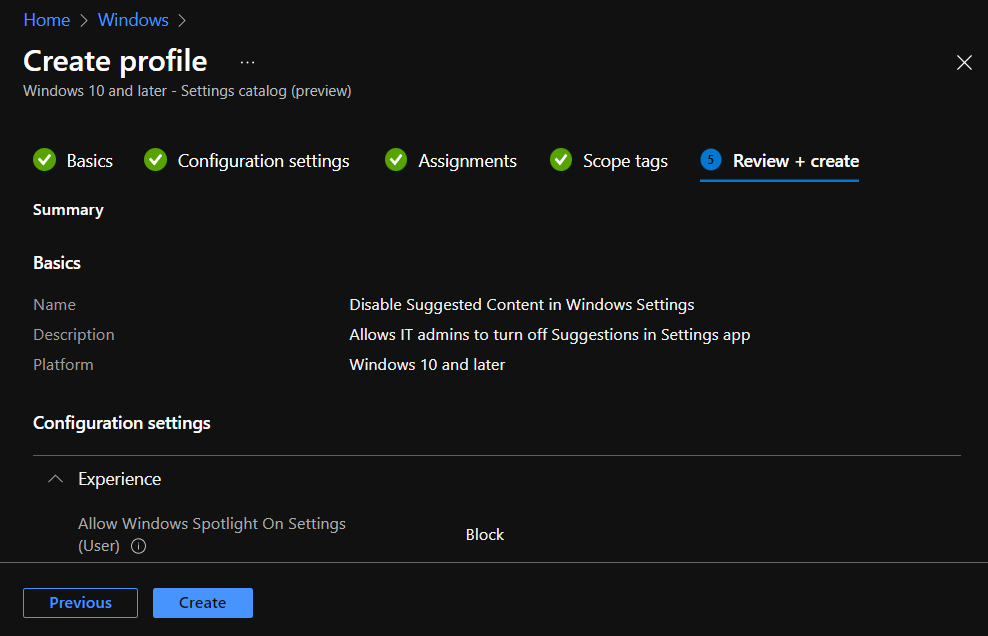
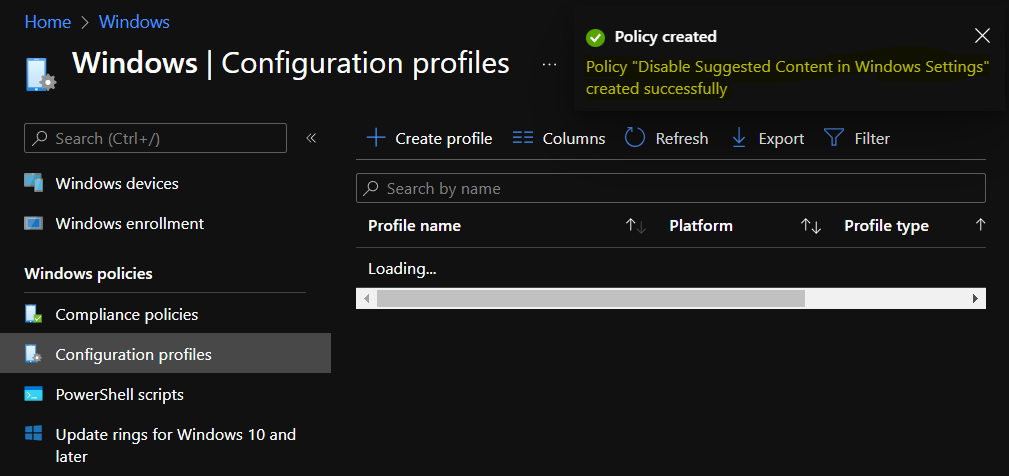
A notification will appear automatically in the top right-hand corner with a message. Here you can see that Policy “Disable Suggested Content in Windows Settings” created successfully. The policy is also shown in the Configuration profiles list.
Your groups will receive your profile settings when the devices check-in with the Intune service. Once the policy applies to the devices. The suggested content will not be displayed on the Windows settings app. User setting is under Settings -> Privacy -> General -> Show me suggested content in Settings app.
You can check Intune settings catalog profile report from Intune Portal, which provides an overall view of device configuration policies deployment status.


Discussion