






Fix Missing Windows Insider Program Option from Windows 11 PC
Let’s check how to fix the missing Windows Insider Program page/option from Windows 11 PC. Windows 11 insider program settings are missing or hidden. We will see how to fix this Windows Insider Program option.
The Telemetry (Diagnostic data) configuration on the Windows 11 or Windows 10 PCs is important. You will need to ensure that the optional diagnostic data is not disabled with group policy or Intune MDM policies.
You can join Windows Insider Program from Windows 11 PC using the step-by-step guide. You can also explore the latest features, validate your apps and infrastructure, and deploy faster as a Windows Insider for business using personal or work user names and passwords.
You will need to ensure whether your PC meets the minimum Windows 11 hardware requirements. The hardware requirements are mandatory to join the Windows Insider program.

- Join Windows Insider Program From Windows 11 PC Step By Step Guide
- Repair Microsoft Office Applications in Windows 11 | Fix Error Code 0-2031 17006
- Upgrade to Windows 11 using Intune Feature Update Deployment Policy
- Best Guide to Deploy Windows 11 Using SCCM
Missing Windows Insider Program Page Issue?
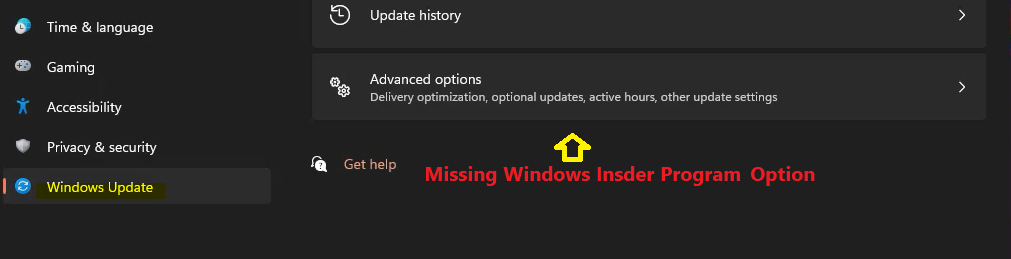
On one of my Windows 11 PCs, I couldn’t find the option to join the Windows Insider Program Page. The Windows Update page should have a Windows Insider Program page below the Advanced options menu.
Let’s see how to fix this issue of missing the Windows Insider Program page in the below sections of the post. You also have to ensure that other Group Policies and MDM policies are not disabling the Windows Insider program option.
Telemetry Configuration for Windows Insider
If you have not enabled the Telemetry configuration on Windows 11 or Windows 10 PCs, you won’t be able to enroll in Windows Insider Program. So, you will need to make sure that there is no Diagnostics Data policy set to disable.
You can option GPEDIT.MSC from domain control for domain-level policies or local PC for local group policies. Navigate to Computer Configuration – Administrative Templates – Windows Components – Data Collection and Preview Builds.

By configuring this Telemetry data policy setting, you can adjust what diagnostic data is collected from Windows 11 or Windows 10. This policy setting also helps to restrict the user from increasing the amount of diagnostic data collection via the Settings app.
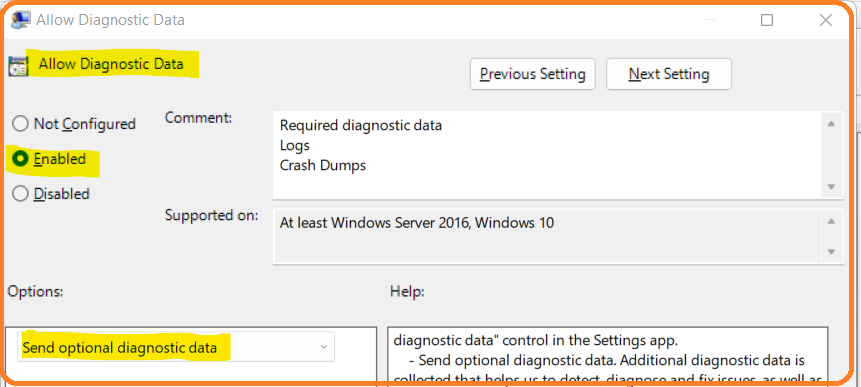
The diagnostic data collection policy configuration under this policy impacts whether the operating system can be part of the Windows Insider Program or not. Ensure that the send optional diagnostic data is enabled to join Windows Insider Program.
Send optional diagnostic data – Additional diagnostic data is collected that helps us detect, diagnose, and fix issues and make product improvements. Required diagnostic data will always be included when you choose to send optional diagnostic data.
There are two other options mentioned below. However, those are not suitable for you if you want to join Windows Insider Program from your Windows 11 PC.
- Diagnostic data off (not recommended) – Using this value, no diagnostic data is sent from the device. This value is only supported on Enterprise, Education, and Server editions.
- Send required diagnostic data – This is the minimum diagnostic data necessary to keep Windows secure, up to date, and performing as expected. Using this value disables the “Optional diagnostic data” control in the Settings app.
What is Included in Telemetry Optional Diagnostic Data
Optional diagnostic data (Telemetry) can also include diagnostic log files and crash dumps. Use the “Limit Dump Collection” and the “Limit Diagnostic Log Collection” policies to better control what optional diagnostic data is sent.’
- Required diagnostic data
- Log Files
- Crash Dumps
Suppose you disable or do not configure this policy setting. In that case, the device will send required diagnostic data, and the end-user can choose whether to send optional diagnostic data from the Settings app.
Note: The “Configure diagnostic data opt-in settings user interface” group policy can be used to prevent end-users from changing their data collection settings.
Preview Builds Group Policy Related Issues Windows Insider Program
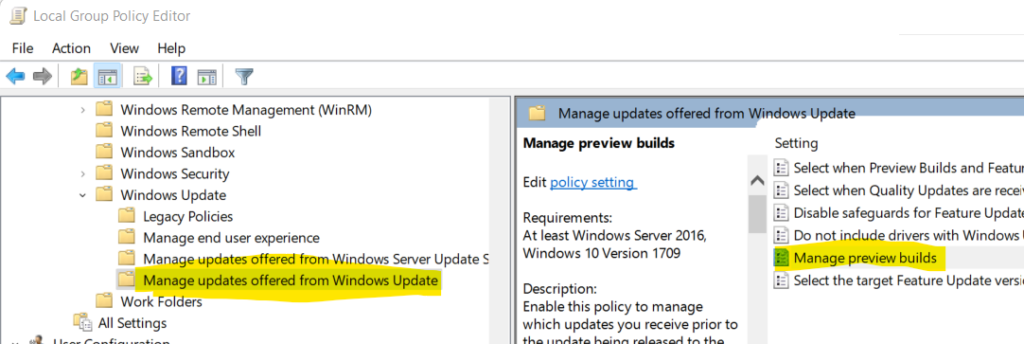
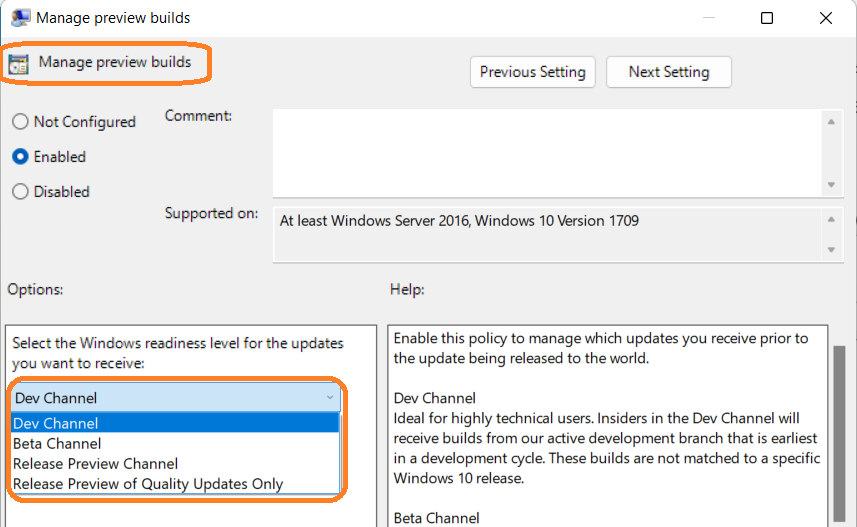
Make sure you have not configured “Windows Updates offered from Windows Update policy – Manage preview builds” is not configured. If you enable this policy to manage which updates you receive before the update is released to the world, you will need to select the appropriate insider program channel.
You should also check whether the group policy is configured from the local policy configuration or Domain Controller.
You should not disable the policy called Manage Preview Builds. If you disable this policy, you will not get the option to enroll the PC into the Windows insider program.
You can open GPEDIT.MSC to launch the group policy editor to check this policy configuration.
Navigate to Computer Configuration > Administrative Templates > Windows Components > Windows Update > Windows Update for Business.
Dev Channel – Ideal for highly technical users. Insiders in the Dev Channel will receive builds from our active development branch that is the earliest in a development cycle. These builds are not matched to a specific Windows 10 release.
Beta Channel – Ideal for feature explorers who want to see upcoming Windows 10 features. Your feedback will be especially important here as it will help our engineers ensure key issues are fixed before a major release.
Release Preview Channel (default) – Insiders in the Release Preview Channel will have access to the upcoming release of Windows 10 before it is released to the world. Microsoft supports these builds. The Release Preview Channel recommends companies preview and validates upcoming Windows 10 releases before broad deployment within their organization.
Release Preview Channel, Quality Updates Only – Ideal for those who want to validate the features and fixes coming soon to their current version. A note released feature updates will continue to be offered following configured policies when this option is selected.
Note: Preview Build enrollment requires a telemetry level setting of 2 or higher and your domain registered on insider.windows.com. For additional information on Preview Builds, see https://aka.ms/wipforbiz.
If you disable or do not configure this policy, Windows Update will not offer you any pre-release updates, and you will receive such content once released to the world. Disabling this policy will cause any devices currently on a pre-release build to opt-out and stay on the latest Feature Update once released.
Fix Missing Windows Insider Program Page from Windows 11 PC
Let’s try to Fix the Missing Windows Insider Program Page from Windows 11 PC. I have ensured that no group policy or MDM policy is disabling the Windows Insider Program page from Windows 11 or Windows 10 PC.
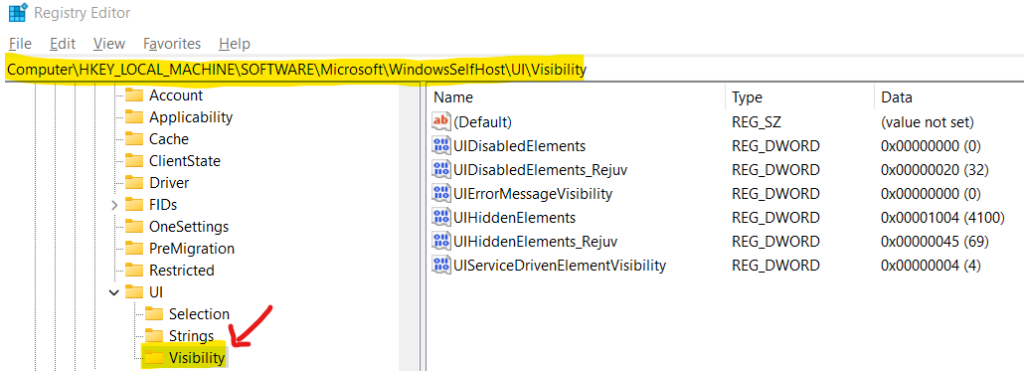
I also ensured that no registry entry hides the Windows Insider UI option from Windows 11 PC Computer\HKEY_LOCAL_MACHINE\SOFTWARE\Microsoft\WindowsSelfHost\UI\Visibility.
I decided to give the normal user the admin permissions on the Windows 11 PC by following the steps mentioned below. I have tried this with Windows 10 and Windows 11 Multi-Session VMs in Azure.
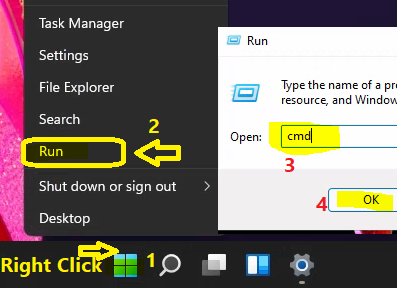
Right-click on the Start button and select the option called the Run. Type in CMD and press the OK button to launch the command prompt.
I tried to launch Windows Terminal with administrative privileges (run as an option), but it didn’t work for me.
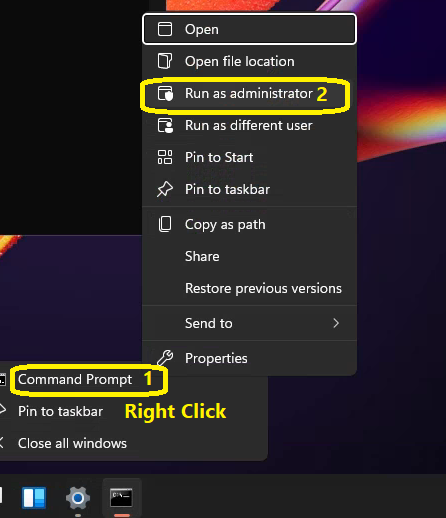
Now, it’s time to launch another Command Prompt application with administrative privileges. To do that, you will need to right-click on the command prompt menu as shown below and select the right-click menu option called Run as Administrator.
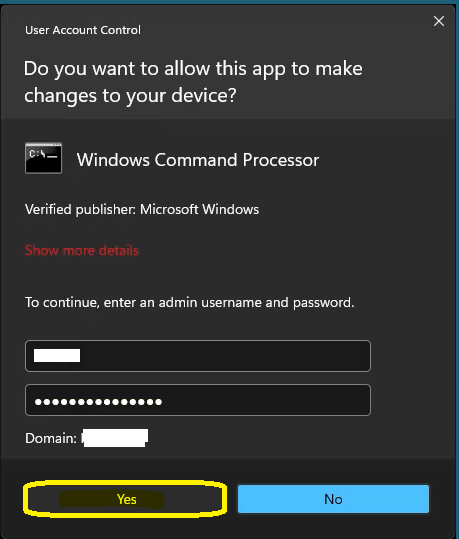
Enter the admin user name and password to launch the command prompt with administrative permissions from Windows 11 PC.
Now, it’s time to add your logged-in user (standard user) to the local administrators’ group. So that we can confirm whether the Missing Windows Insider Program option from settings apps is due to permission issues or not.
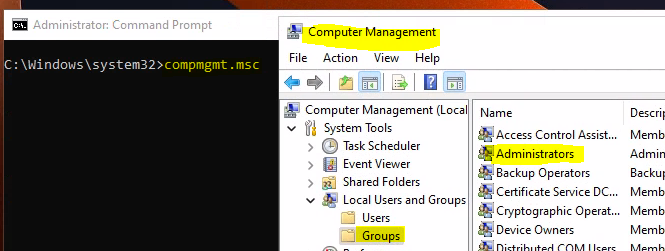
Once the user is added to the local administrators’ group, ensure that the user is logged off and logged in back to Windows 11 PC.
Launch Settings apps from the Start button. Navigate to the Windows Update page – scroll down and check whether the Windows Insider Program option is visible to the end-user or not. Yes, the Windows Insider Program page is visible now!
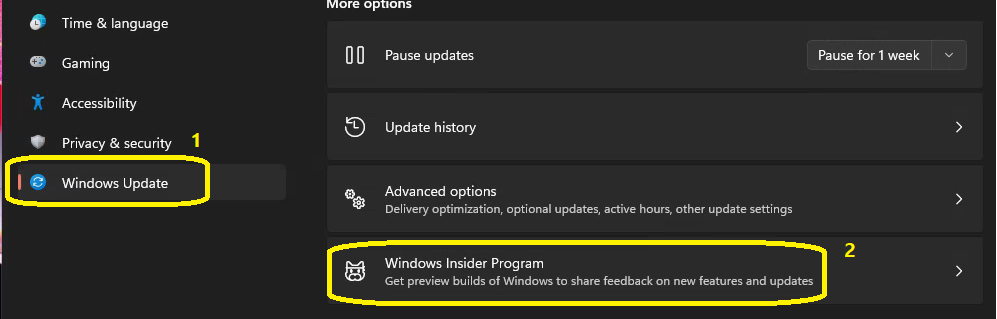
Now, you can follow the post where I have explained how to join the Windows Insider program from Windows 11 PC to complete the enrollment to Windows 11 Insider program.
Join Windows Insider Program From Windows 11 PC Step By Step Guide HTMD Blog (anoopcnair.com)




Discussion