






Install Dell Command Integration Suite DCIS for SCCM
This blog post is a complete Step-by-step Dell Command Integration Suite DCIS for SCCM Installation Guide. Dell Command Integration Suite provides more flexibility to customers who use SCCM by integrating major components of Dell Command Suite.
Dell Command | Integration Suite for System Center is an easy-to-use GUI-based tool to configure and deploy your Dell client systems. Dell Command Integration Suite (DCIS) for System Center directly integrates into the Configuration Manager console.
It eliminates the need for the command-line tools and scripts normally used in Dell Command | Configure. It also adds functionality for remote management, both in- and out-of-band.
The Dell Command Integration Suite for Microsoft System Center 6.0 Fixed the issue where the BIOS attribute status is displayed in Task View when multiple BIOS Attributes are selected as well enhanced BIOS Settings list, Supports Intel Endpoint Management Assistant (EMA) for provisioning 12th Generation Intel Core Processors and later.

- SCCM Driver Management Guide Best Practices ConfigMgr
- SCCM Driver Import Driver Package Creation Process Guide
- FIX: SCCM Task Sequence Failed to Apply Driver Package 0x80070057
Prerequisites to Install Dell Command Integration Suite for SCCM
Lists the prerequisites to install Dell Command | Integration Suite for System Center –
- You are running with supported Configuration Manager Version, Configuration Manager 2012, Configuration Manager 2012 SP1, Configuration Manager 2012 R2, or Configuration Manager Current Branch on the system where you install Dell Command | Integration Suite for System Center.
- Ensure that the Windows PowerShell is installed and configured on the system running.
- Ensure that .NET version 4.6.1 or higher is installed.
- You must have both administrative rights on the client systems on the network and one of the following types of rights to
- Configuration Manager:
- Full Administrator
- Application Administrator
- Application Author
- Operating System Deployment Manager
- Operations Administrator
Supported Client Operating Systems
- Windows 11 64-bit Home, Professional
- Windows 10 32/64-bit Professional, Enterprise
- Windows 8.1 32/64-bit Professional, Enterprise
- Windows 8 32/64-bit Professional, Enterprise
- Windows 7 32/64-bit Professional, Ultimate
Supported Server Operating Systems
- Windows Server 2019
- Windows Server 2016
- Windows Server 2012 R2, 2012
Installing Dell Command Integration Suite for SCCM
Let’s first download Dell Command | Integration Suite for Microsoft System Center | Dell India https://www.dell.com/support/kbdoc/en-in/000178049/dell-command-integration-suite-for-system-center
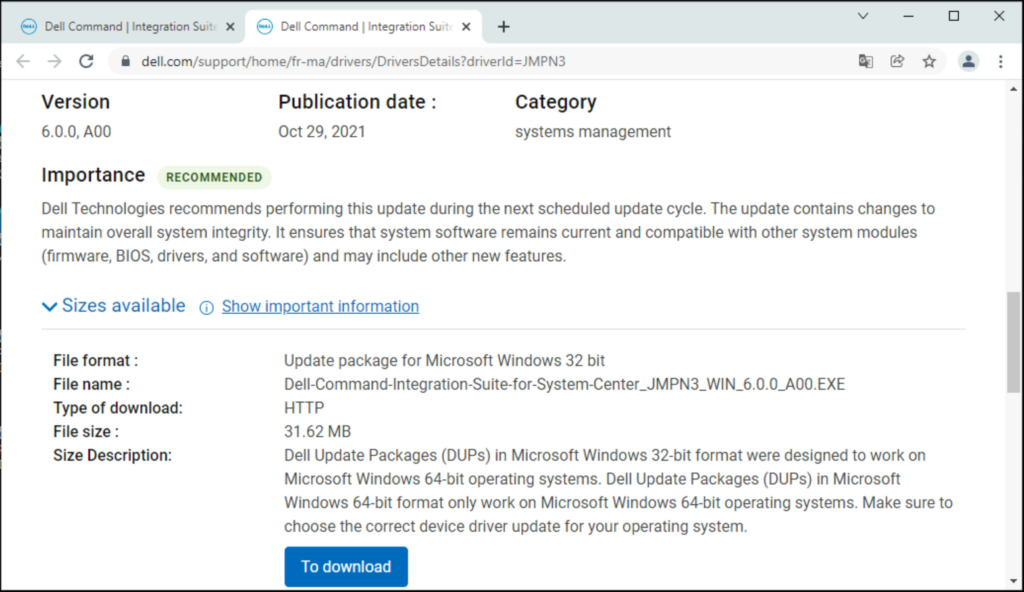
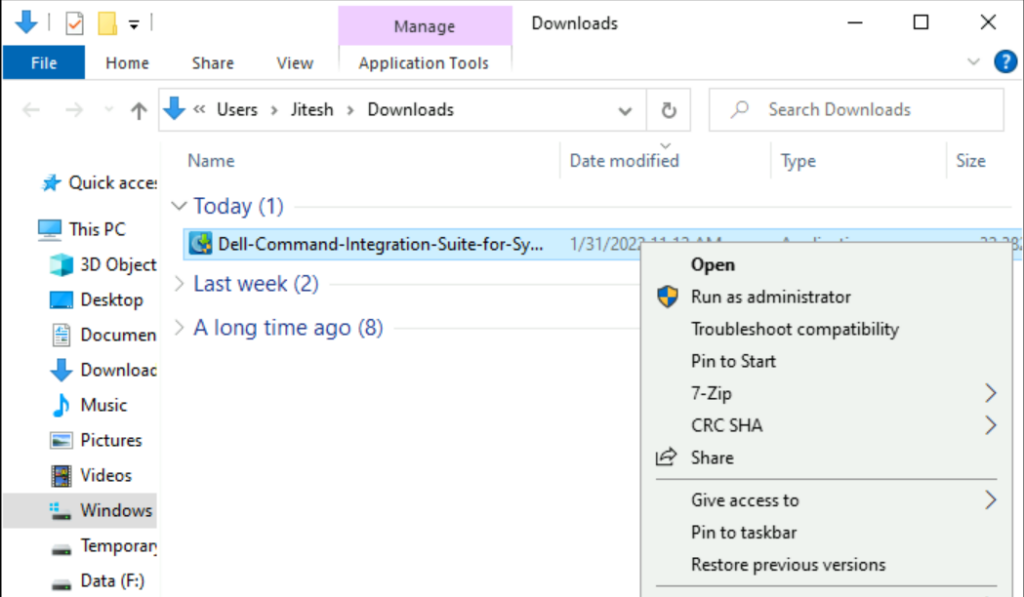
Right-Click on the downloaded file Dell-Command-Integration-Suite-for-System-Center_JMPN3_WIN_6.0.0_A00.EXE, Select Run as administrator to start the installation.
Important – Before you proceed, ensure that you are logged in with an administrator privileges account on the system where you want to install Dell Command | Integration Suite for System Center.
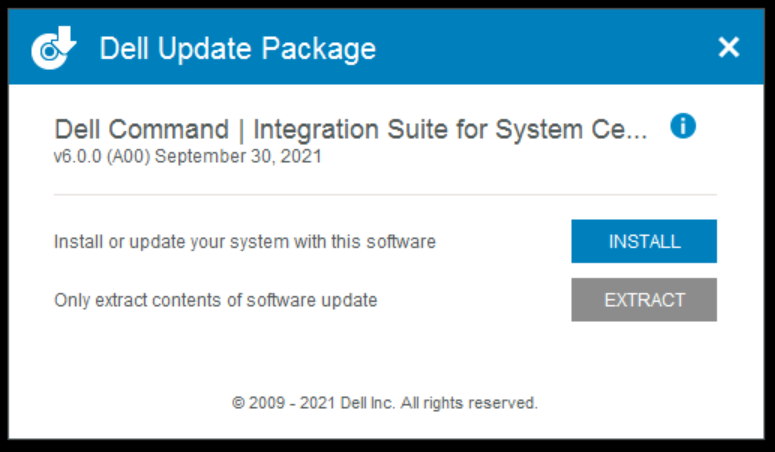
A UAC prompt may appear to allow this app to make changes to your devices? Click on Yes Here, you will get an option to Install or Extract the content. You can either extract to an empty folder or trigger the MSI installer.
Here, I had selected the option Install.
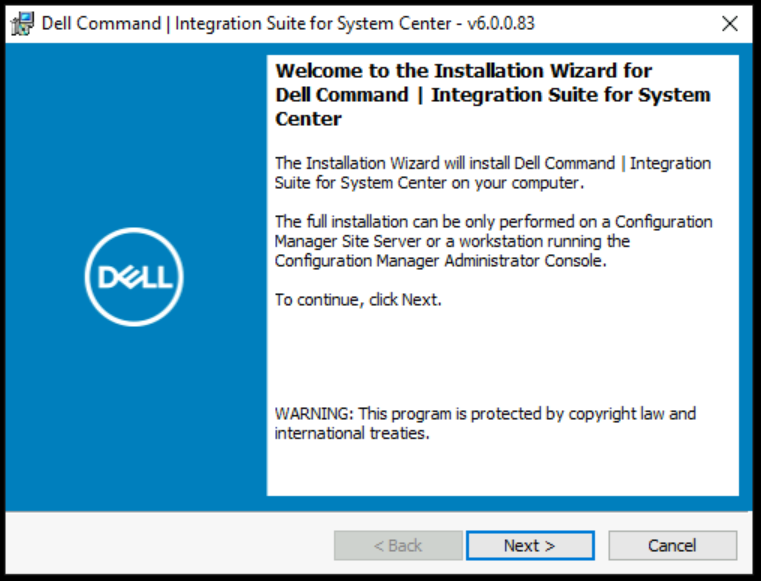
The Installation Wizard will install Dell Command | Integration Suite for System Center on your computer. To continue, click Next.
Note: The full installation can be only performed on a Configuration Manager Site Server or a workstation running the Configuration Manager Administrator Console.
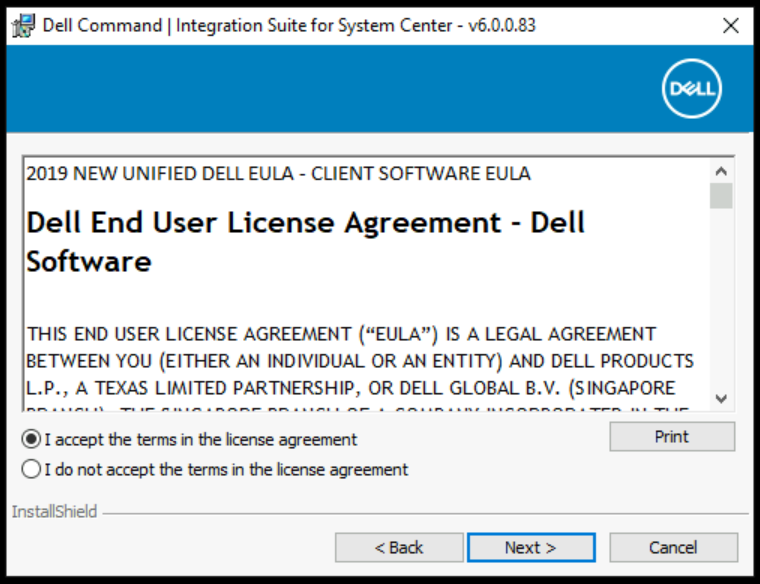
Accept End-User License Agreement (EULA), Click Next.
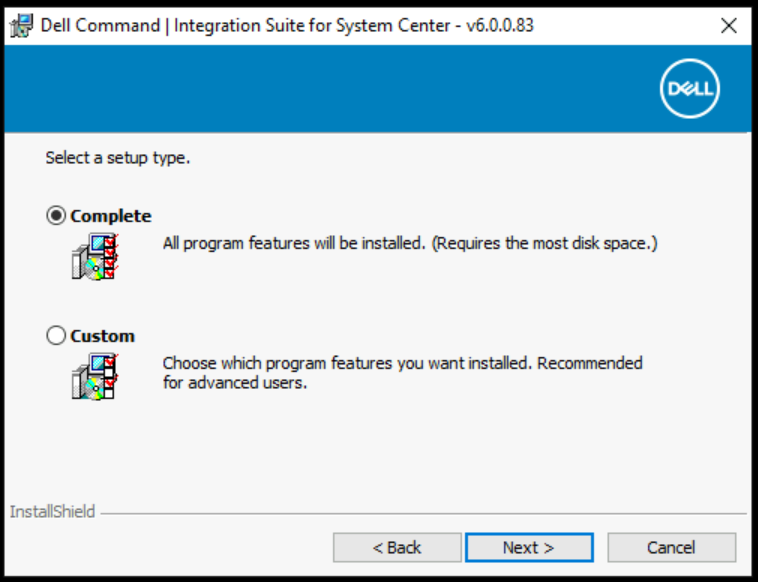
The Dell Command | Integration Suite for System Center installer offers several installation options:
- Complete Installation—All three tools are installed, Dell Command | Integration Suite for System Center, Dell Command | Intel vPro Out of Band, and Dell Command | Warranty
- Custom Installation
- Only Dell Command | Integration Suite for System Center is installed.
- Both Dell Command | Integration Suite for System Center and Dell Command | Intel vPro Out of Band are installed.
- Both Dell Command | Integration Suite for System Center and Dell Command | Warranty are installed.
- Only Dell Command | Warranty is installed.
Here I have selected the default (Complete) and clicked Next.
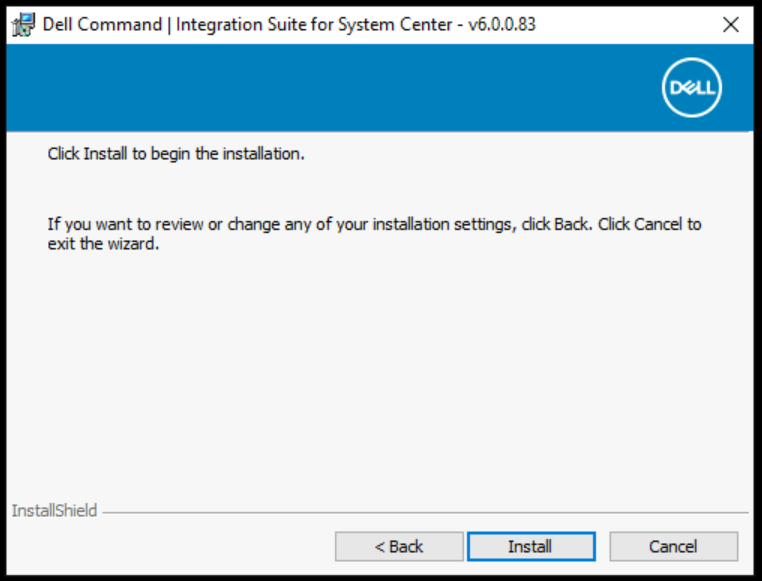
Click on Install to begin the installation.
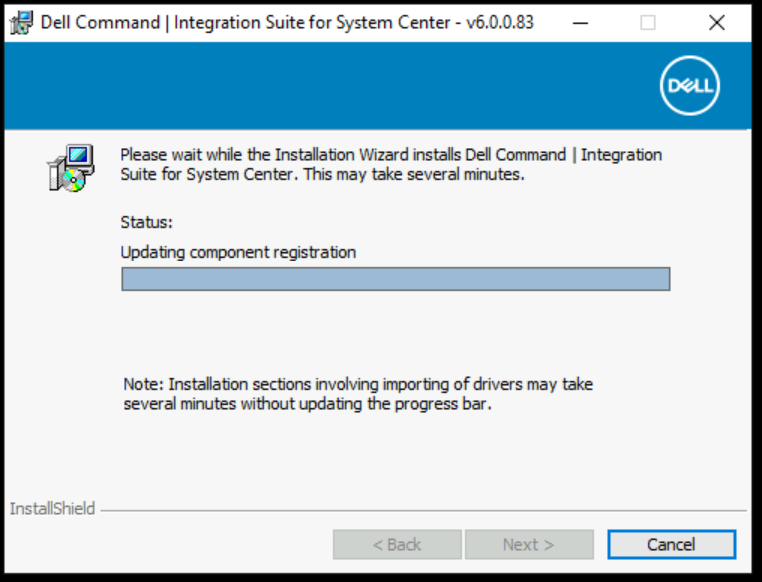
Please wait while the Installation Wizards Install Dell Command Integration Suite. The process may take several minutes.
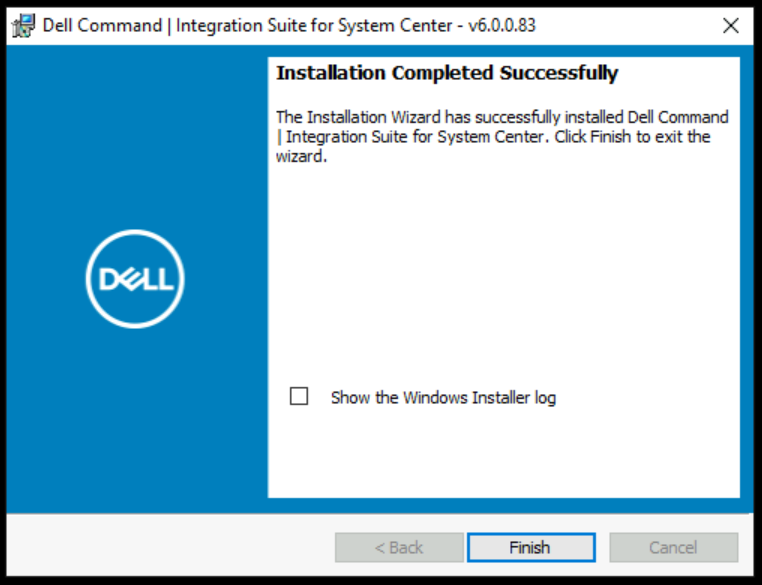
Once installation is completed, you will get the “Installation Completed Successfully” prompt. Click Finish to exit the wizard.
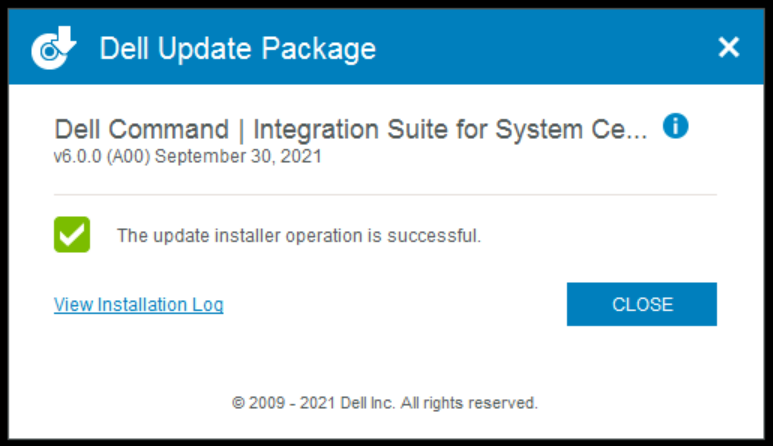
Here you will see The Update Installer operation is successful, and You can View the Installation log to validate if you want. Click on CLOSE
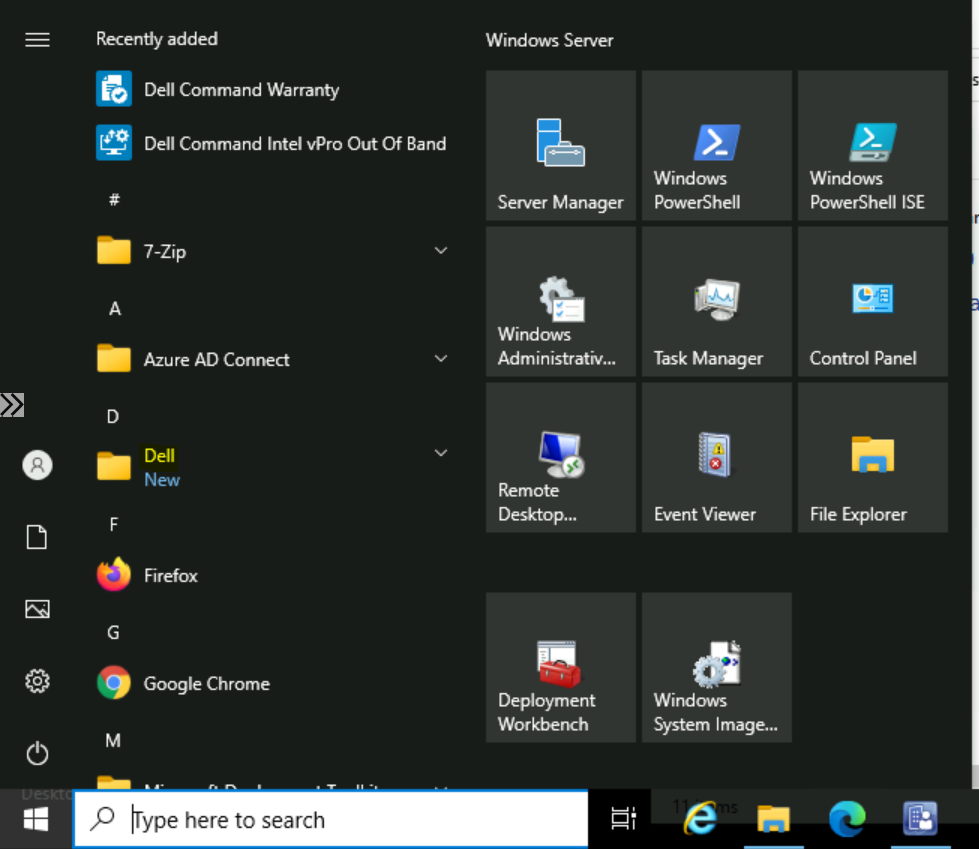
After successful installation, you will find the following tools on the Start menu in the Dell group –
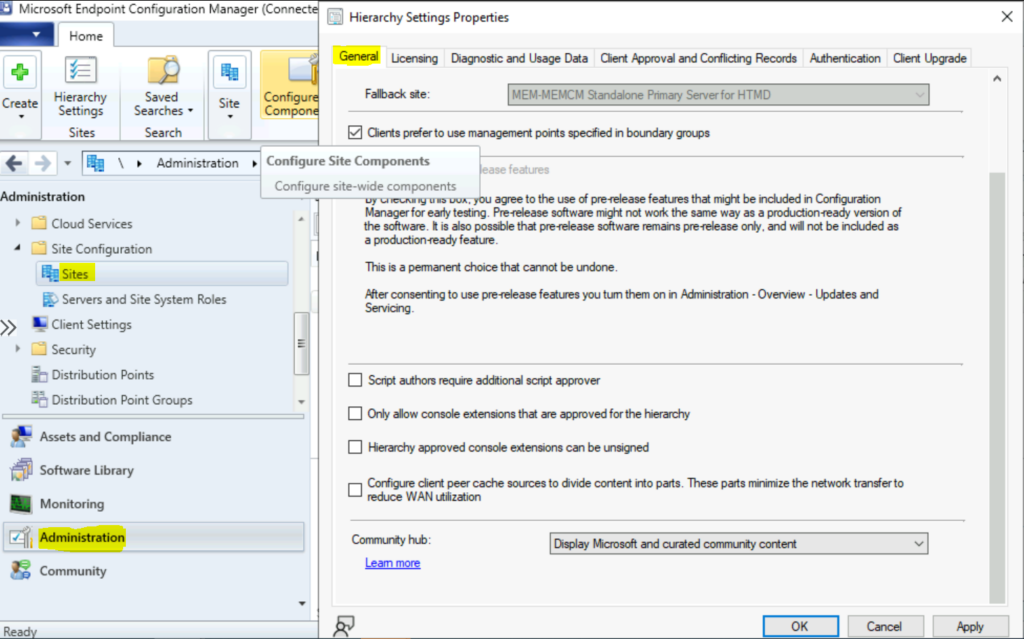
Note: To use the Dell console extensions in the Configuration Manager version 2103 or higher, you must disable hierarchy approved console extensions setting. To enable or disable hierarchy approved console extensions –
- In the Configuration Manager console, go to the Administration workspace, expand Site Configuration, and select Sites.
- Select Hierarchy Settings from the ribbon.
- On the General tab, enable or disable the Only allow console extensions that are approved for the hierarchy option.
- Select Ok when done to close the Hierarchy Settings Properties.
The setting remains disabled by default, if you upgraded from a version prior to 2103. If the setting was enabled in error, disabling the setting allows the old style extensions to be used again.
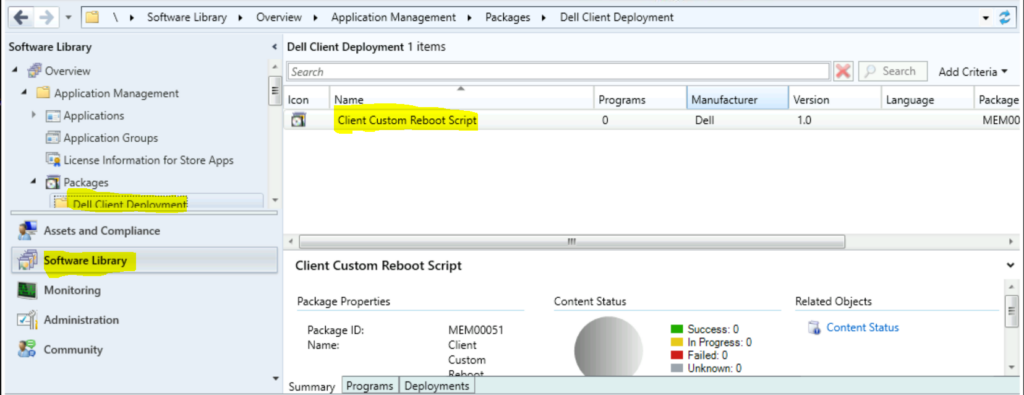
In SCCM Console, Navigate to the Software Library workspace, expand Application Management, and select Packages.
Here you can see the Dell Client Deployment appeared with the package name “Client Custom Reboot Script” Which contains a script to perform reboot to PXE or USB. By default the content will store in location <Site Server Name>\SMS_MEM\OSD\Lib\Packages\Deployment\Dell\Client\CustomReboot




Discussion