






FIX Unknown Device Drivers in Device Manager
Let’s see how quickly you can fix Unknown Device Drivers in Device Manager. When a physical device is deployed without a driver for a device or missing or incompatible drivers, you may experience a question mark or error inside Device Manager.
Device Manager displays information about each device. This includes the device type, device status, manufacturer, device-specific properties, and information about the driver for the device.
Errors in Device Manager usually occur if you need to install a driver and A driver isn’t working correctly. Typically, it is listed as an Unknown Device in the Other devices node.
Once the driver is obtained, it can be imported into a driver repository during deployment. You can automate the deployment process for the devices or update your existing driver packages for the deployment.

Ensure that all the devices you’re trying to identify an unknown device driver have the latest windows updates installed. Do you know what is drivers, and why do you need to install drivers? Refer to the post What are Drivers, and Why do we need Drivers?
- Easily Download SCCM Driver Package for Lenovo
- Learn How to Manage Drivers and Firmware for Microsoft Surface
- SCCM Driver Management Guide Best Practices ConfigMgr
FIX Unknown Device Drivers in Device Manager
Let’s follow the steps to identify the Unknown device driver to install the correct driver –
There are different ways to open Device Manager on your Windows 10/11 devices. Let’s Open Device Manager in a simple way –
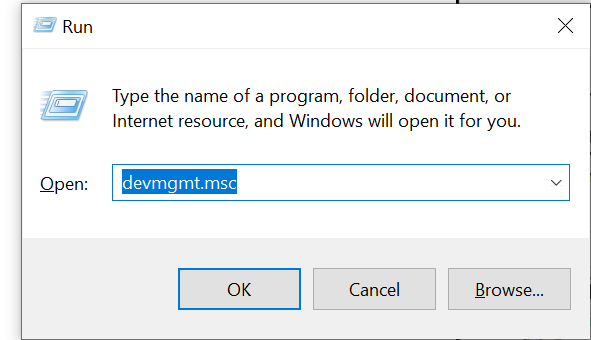
Type devmgmt.msc or hdwwiz.cpl into Run, and click on OK.
Navigate to the device manager section in question. Typically, it is listed as an Unknown Device in the Other devices node and expands the section.
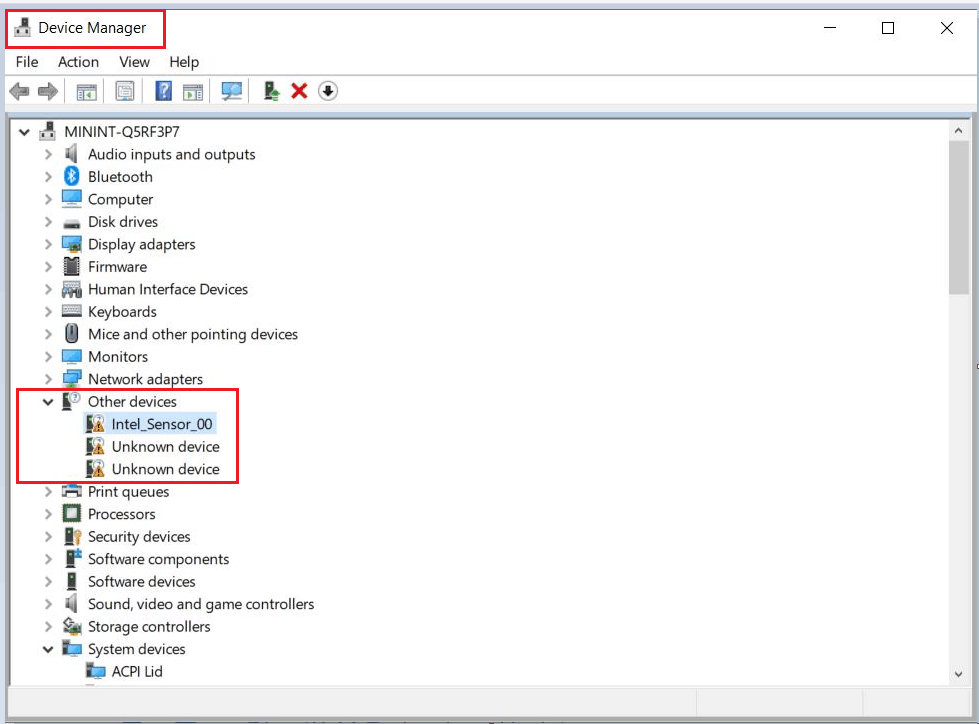
Device Manager provides a Details tab for each device. This tab displays lots of information useful to driver developers and testers.
Double-click or Right-click on the Unknown Device and select Properties. Select the Details tab and from the drop-down box under the Property tab, select Hardware Ids.
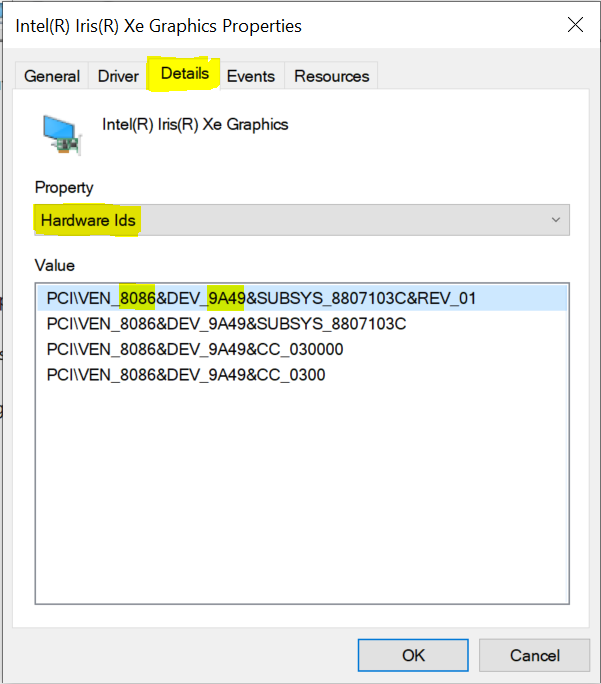
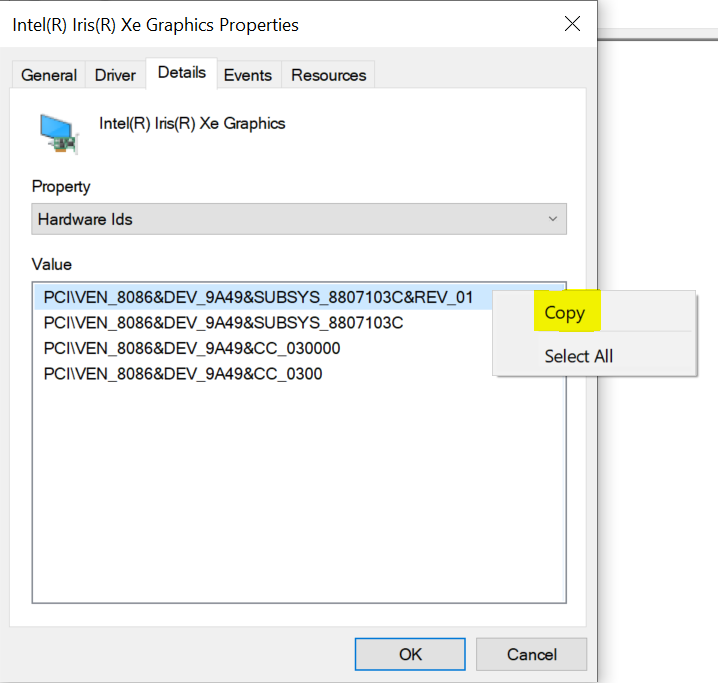
Here you will get a single value or a list of values. Select the value in the list by clicking on it. You can also right-click on the selected Hardware IDs value and select Copy. For Example: For the chosen driver, Here’s the value –
PCI\VEN_8086&DEV_9A49&SUBSYS_8807103C&REV_01
The Vendor ID and Device ID display as VEN_xxxx&DEV_xxxx (Some devices show these values as VID_xxxx&PID_xxxx) or VID_ and PID_ for USB devices.
The next step is to download and install the correct driver after identifying the device with the error.
Once you know the Vendor and Device ID, Browse to Microsoft Update Catalog https://www.catalog.update.microsoft.com paste the value into the search bar and click Search.
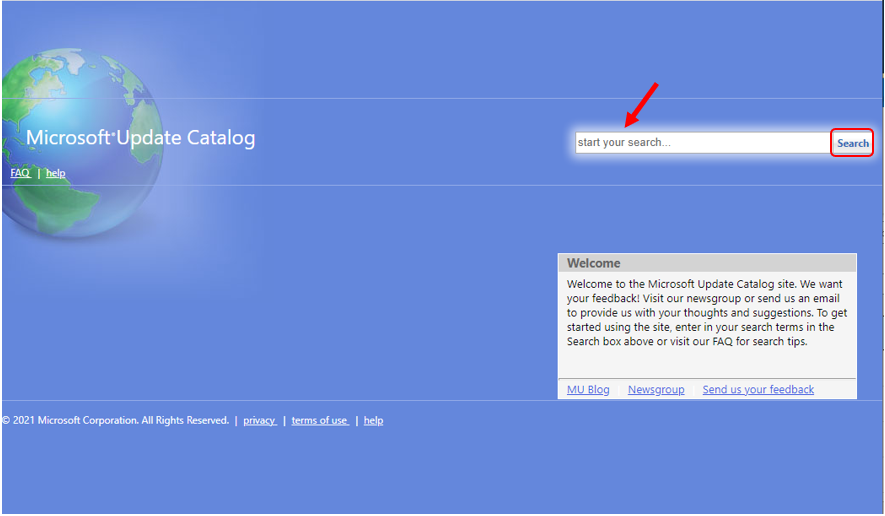
Identify the required driver from the search. To search for additional updates to download, repeat steps.
Here you can see Search results for “Hardware IDs”. Browse the displayed list to check and Select the products (Windows Version), Date, Architecture. Click on Download to download the latest file.
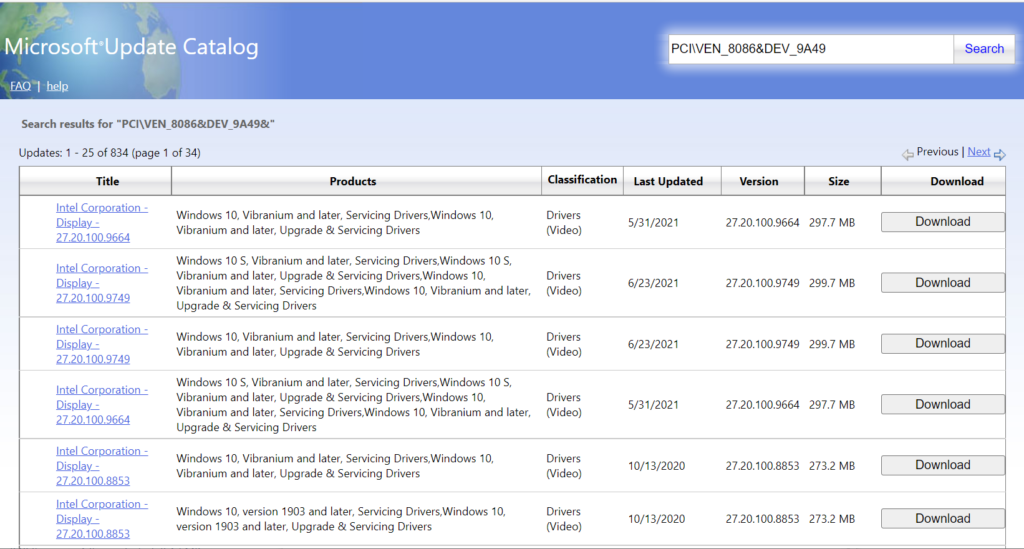
Suppose you cannot see a match based on your hardware Ids in the catalog. In those scenarios, You can directly use Search Engine (Google, Bing Etc) by the Hardware ID associated with the unknown device to find the product name for the links from the vendor’s sites.
Additionally, You can use the various official\non-official sites to find suitable device drivers. However, we do not endorse any third-party websites for downloading the correct drivers. Instead, I suggest you explore the direct manufacturing sites.
Here you can see the following options to download the correct driver –
- Automatically detect and install the correct driver using the Intel® Driver & Support Assistant (Intel® DSA).
- Manually download drivers from Download Center.
- Find unknown devices using a vendor and device ID. | Device Hunt
Once you obtain the required drivers, you can validate the manual installation to affected devices and add the gathered drivers in your existing driver packages, which you’re using during the deployment.
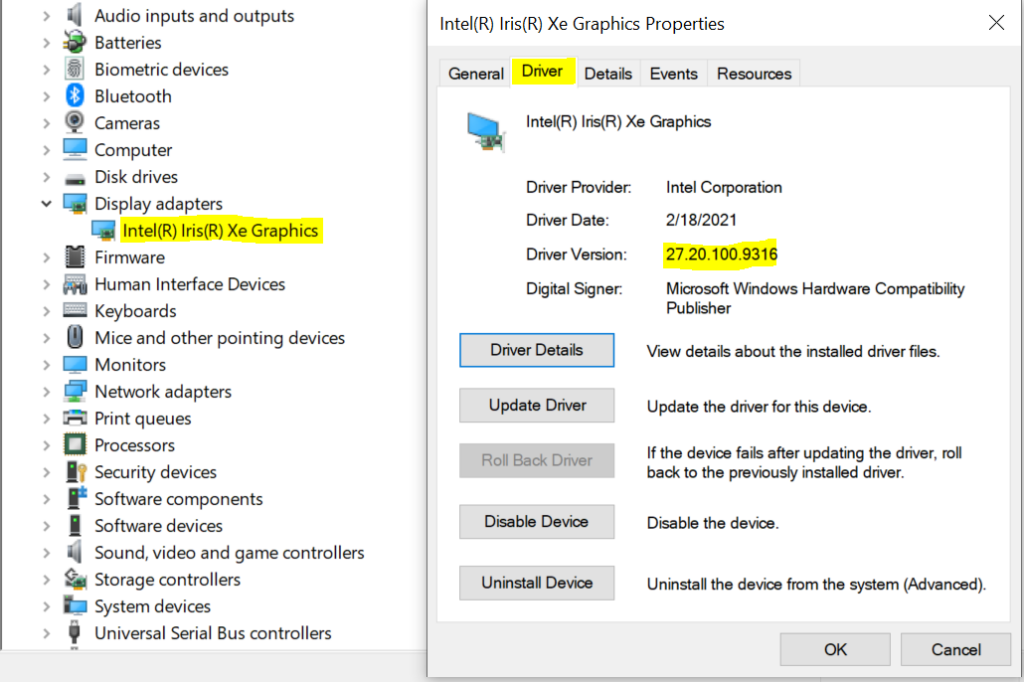
Here you can check the installed driver version, Right-click or double-click on drivers, and select Properties. Switch to the Driver tab to check the version.
As well you can expand all nodes and ensure the device has all updated drivers installed.
FIX Unknown Device Drivers with Windows Update
Open Device Manager and go to the device in question in your device. Typically, it is listed as an Unknown Device in the Other devices node and expands the section.
Right-click on the Unknown Device and select Update Driver. When I tried to update driver Intel_Sensor_00, I searched for updated drivers on Windows Update.
After clicking on the option to search for updated drivers, you will navigate to Windows Update.

In the Windows Update, select Check for updates. Please wait for a moment. If driver updates are available, they will download and install automatically through Windows Update.
During the installation process, you may be prompted to restart your device. Restart your device after the updates have been installed.
Important: Before you begin updating, Make sure you have an internet connection. Installation time varies, depending on the speed of the internet the number, size of updates.
After restarting, your device, Verify from Device Manager. Missing drivers probably have the most recent drivers are installed. Here’s how the issue is resolved your device drivers are all up-to-date.





Discussion