






Fix SCCM Limiting Collection Issue | Stop Using Collections Limited to All Systems or All Users
Let’s understand why you should stop using SCCM collections limited to All Systems or All Users and Fix SCCM Limiting Collection Issue. All Users and All Systems collections are the default collections available in the SCCM hierarchy.
I have explained the collections in various blog posts. How to create dynamic collections, how to create collections based on the Active Directory group? How to easily find out WQL queries from log files etc.
In this post, I will share one of the best practices that you must follow when you create a custom device or user collection. Even I didn’t take care of it in the lab environment for a long time. Because I always followed the easiest method.
I don’t think the easiest method will always be the best method to follow. Similarly, in this post, you will see why you should not use All Systems or All Users as a limiting collection while creating custom SCCM collections.

Management insights are one of my favorite features of SCCM. This helps the SCCM admins to keep the infrastructure healthy.
- ConfigMgr Collection Full Incremental Evaluation Status Summary from Console
- SCCM Collection Best Practices while Creating a Dynamic Collection
- SCCM Collection Incremental updates not Working because of non Supported WMI Classes
What is Limiting Collections in SCCM?
The limiting collection establishes the resources you can add to the custom collection using membership rules. In other words, the collection you’re creating will contain only members from the limiting collection.
The custom SCCM collection that you create is limited to the resources of the collection that it’s limiting. The custom collection members will be the subset of the limiting collection.
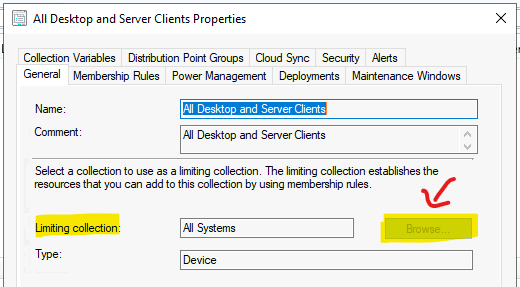
You can’t change the limiting collection of the default collections such as All Desktops and Server Clients, All Provisioning Devices, All Unknown Computers, etc. The browse button to change limiting collection is disabled for the default collections.
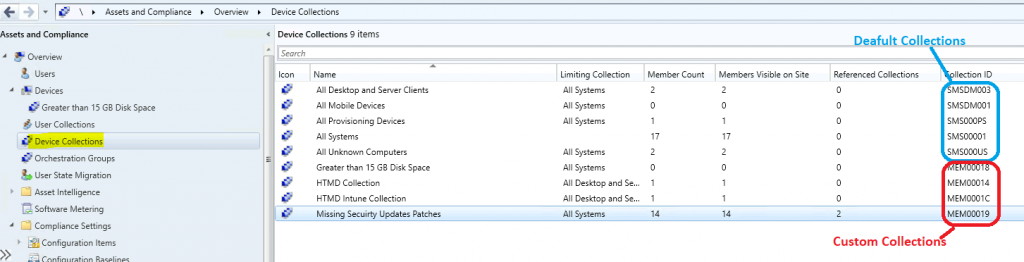
The collection ID for default collection always starts with SMS—–, as shown in the below screenshot. You can’t change the limiting collection for these types of collections.

Default Collections Vs. Custom Collections in SCCM
Let’s discuss the difference between Default Collections Vs. Custom Collections in SCCM. The default collections are the collection that is built-in and available ready to use as out of the box.
Custom collections are created by SCCM admins using the admin console or by any automation mechanism. You can identify the custom Collections with Collection IDs.
- Custom Collection IDs start with site code – MEM00011 (where MEM is the sitecode)
- Built-in Collection IDs start with SMS – SMS00001
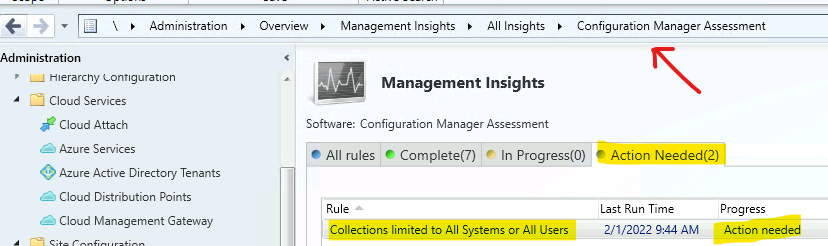
Management Insights – Collections Limited to All Systems or All Users
Let’s check the Management Insights rule to check the list of collections limited to All Systems or All Users. A rule checks whether admins created custom collections and All Systems or All Users collections configured as their limiting collection.
Navigate to \Administration\Overview\Management Insights\All Insights\Configuration Manager Assessment. Now run the rule Collections limited to All Systems or All users.
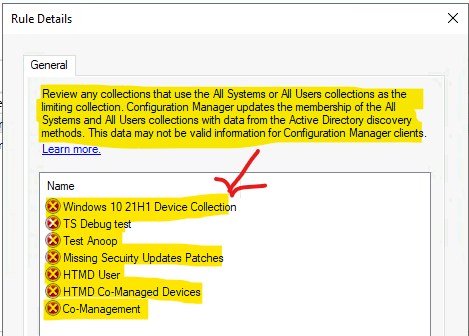
As you see below, many custom collections use the All Users collections as a limiting collection. This is not good practice for your SCCM infrastructure.
Check Limiting Collections from SCCM Console
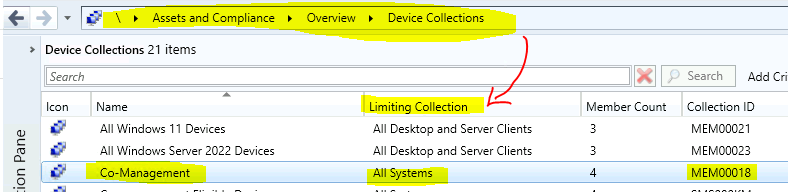
Let’s understand how to check limiting collections from SCCM Console. You can check this from the Device Collections or User Collections node.
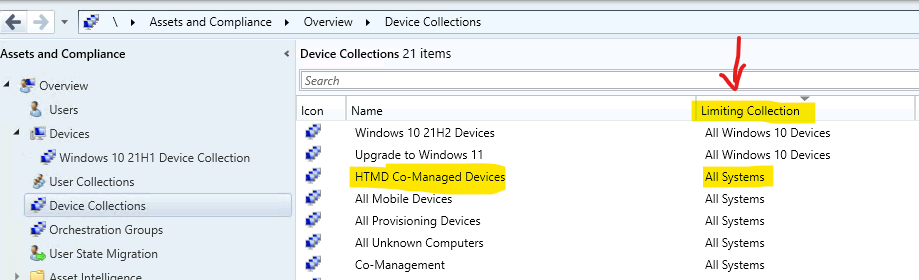
There is a column called Limiting Collection in the console, as shown in the below screenshot to check the Limiting Collection. You can check the limiting collection column to find the limiting collection details.
Why Stop Using SCCM Collections Limited to All Systems or All Users?
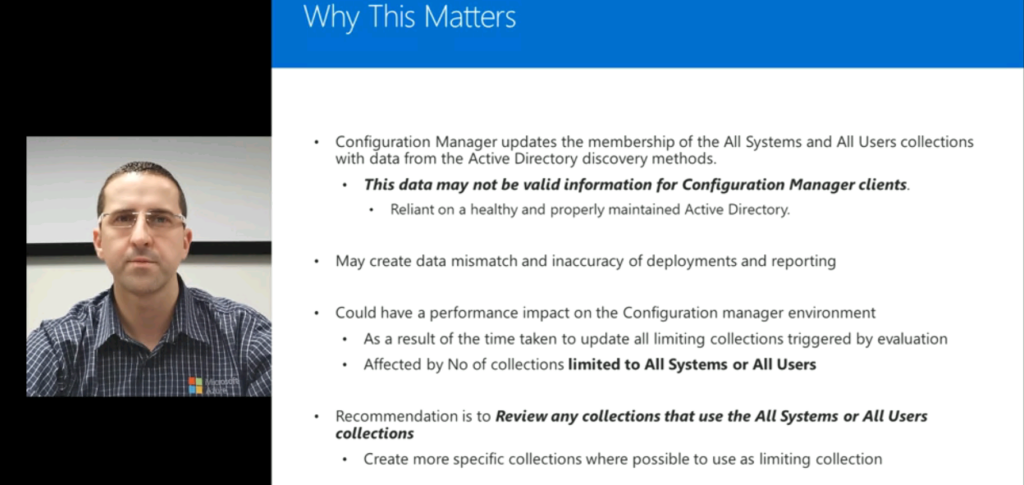
Let’s understand why to stop using SCCM collections limited to All Systems or All Users. Jose Rodrigues (Microsoft PFE) provided the details on this topic, as you can see in the below screenshot.
Let’s understand All Systems and All Users collections first. These collections are all in one collection for all the users and the device records for your SCCM environment. Both these collections are updated regularly based on the data coming from Active Directory Discovery.
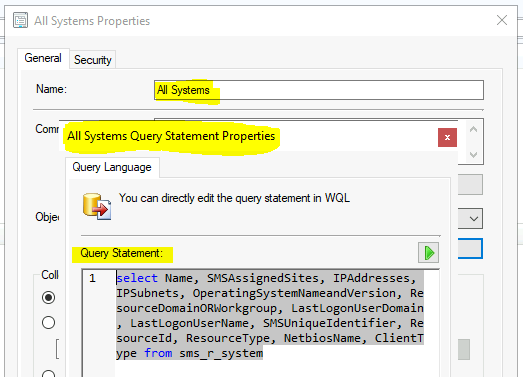
WQL Query for All Systems collection is given below. This All Systems collection doesn’t have any limiting collection, but the data comes from different discovery methods. The most prominent one is Active Directory discovery.
select Name, SMSAssignedSites, IPAddresses, IPSubnets, OperatingSystemNameandVersion, ResourceDomainORWorkgroup, LastLogonUserDomain, LastLogonUserName, SMSUniqueIdentifier, ResourceId, ResourceType, NetbiosName, ClientType from sms_r_system
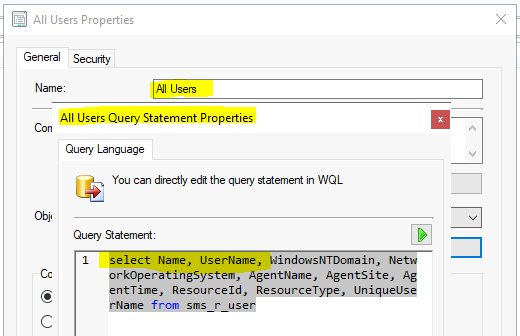
The WQL query for All Users Collection is given below. This All Systems collection doesn’t have any limiting collection, but the data comes from Active Directory discovery.
select Name, UserName, WindowsNTDomain, NetworkOperatingSystem, AgentName, AgentSite, AgentTime, ResourceId, ResourceType, UniqueUserName from sms_r_user
Mismatch and Inaccurate Results for SCCM Deployments & Report
Let’s discuss the data mismatch that can cause inaccurate results for SCCM deployments & reports. As per Microsoft, you should not use All Systems or All Users collection as limiting collections for all the customs collections.
Use All Systems or All Users collection as limiting collections for all the customs collections. You might get into data mismatch and inaccurate results for deployments and reports. This is mainly because of the data coming into these two collections via Active Directory discovery.
NOTE! – All is good if you have well maintained and clean Active Directory. In most scenarios, I have not seen a well-maintained and clean AD.
SCCM Performance Issues because of Limiting Collections
The “Limiting Collections” configurations could cause SCCM performance issues for the SCCM environment. I think that is one of the reasons Microsoft created a Management Insights rule specifically for limiting collections.
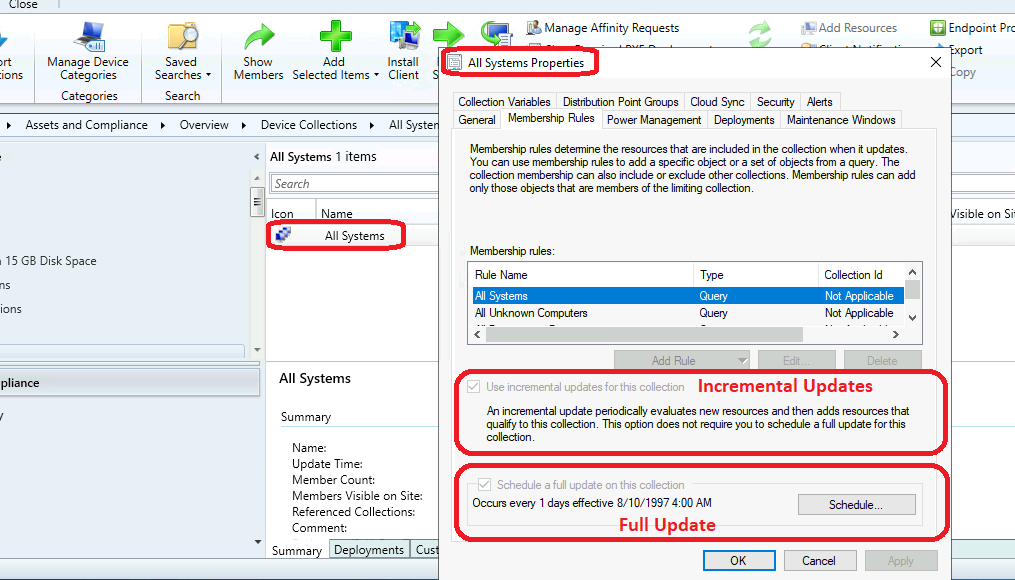
The performance impact to the SCCM infra is because of the evaluation time taken to update all the limiting collection. Whenever there is an evaluation triggered for custom collection, the update is triggered for the limiting collection.
So if you have many custom collections that are limited to the All Systems and All Users collection, these two collections will be updated frequently, and this could cause performance issues for the SCCM (a.k.a ConfigMgr) hierarchy.
Collection Evaluation details – ConfigMgr Collection Full Incremental Evaluation Status
Recommendations for Limiting Collection
Let’s check the recommendations when you use All Systems or All Users Collection as limiting Collections.
- Make sure that there is regular cleanup is performed on Active Directory.
- Make sure the proper SCCM AD discovery configurations are in place. Try to be specific with OUs for SCCM system and User AD discovery.
- Review all the collection that use the All Systems or All Users Collections to select more specific collection whereever possible as Limiting Collection.
Fix SCCM Limiting Collection Issue
You can fix SCCM limiting Collection issue highlighted in Management Insights using the following method. Otherwise, you can use the PowerShell commandlets to fix the issue.
It would help if you stopped using SCCM collections limited to All Systems or All Users to fix the SCCM limiting collections issues such as performance and data mismatch that can cause inaccurate results in SCCM deployment reports.
Navigate through – \Assets and Compliance\Overview\Device Collections and select collections limited to All Systems collection.
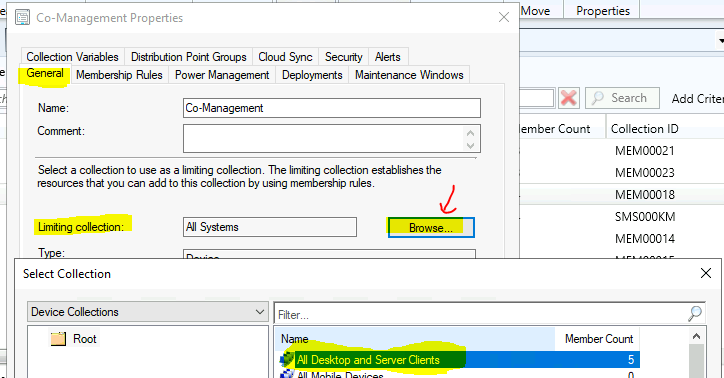
You will need to click on the Browse button to change the Limiting Collection from the General tab of Collection properties.
Select the appropriate collection from the Select Collection window as a new limiting collection and click on the OK, and OK complete the process.
NOTE! – Repeat this process for all the Collections for which All Systems or All Users configured as limiting collection.




Discussion