






Disable or Enable Keyboard Shortcut to Temporarily Unmute in Microsoft Teams
Microsoft recently rolled out the option to disable or enable keyboard shortcuts to temporarily unmute during Microsoft Teams meetings. Let’s learn how to disable or enable the keyboard shortcut to unmute your mice temporarily.
Normally, Teams admin can control these settings from the following portal named Microsoft Teams Admin Center https://admin.teams.microsoft.com/. You also learn whether this type of policy is available in Microsoft Team’s admin center or not.
There are two types of Microsoft Teams variants with Windows 11. Microsoft Teams consumer version is called Windows 11 chat application, the free chat version. Chat app might replace the consumer version of Skype.
In this post, we discuss Teams Work or School version settings Keyboard shortcuts to temporarily unmute. You don’t have a central management portal for policy settings features for Windows 11 chat applications powered by Microsoft Teams.

Microsoft Teams business version has a lot more control and settings and central policy management options than Windows 11 chat app.
- Simplify Windows Devices to Run Only the Required Applications using Intune
- Enhance macOS Compliance with Custom Security and Compliance Checks to Improve Device Security using Microsoft Intune
- Manage Samsung Galaxy Firmware Versions to Improve Security and Compliance using Microsoft Intune
- MS Intune Adds Windows Registry Data Collection to Device Inventory for Single Values All Key Values and Subkeys
- Updated Windows Device Sync Experience Enhances Per-Device Troubleshooting
Disable or Enable Read Receipts for Windows 11 Chat Application
You can use the following option to Disable or Enable Read receipts for Windows 11 Chat Application. The following setting is only applicable for Windows 11 chat powered by Microsoft Teams (consumer version).
- Click on the 3 dots (horizondal) near the profile picture.
- Click on the Settings tab.
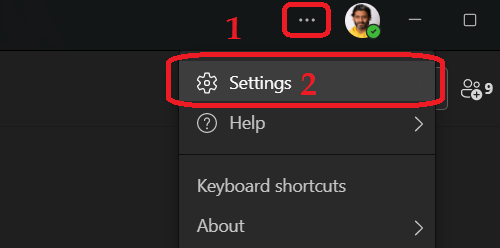
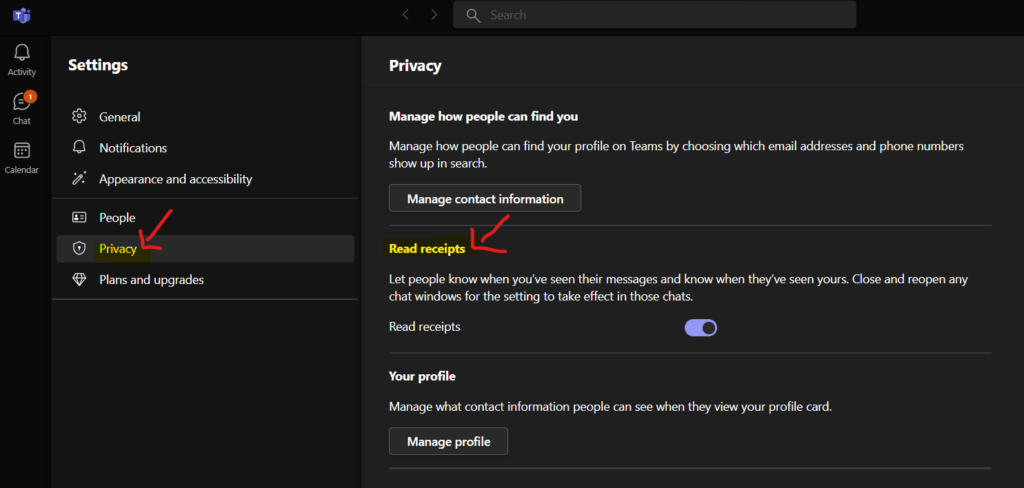
You can navigate to the Privacy tab as shown in the below screenshot from the settings page. On the right-side pane of Windows 11 Chat or Teams consumer version to enable or disable read receipts.
- Click on the Privacy tab from Settings page.
- On the right-side pane there is a slide button to Enable or Disable read receipt.
NOTE! – Close and reopen any chat windows for the setting to take effect in those chats.
What is the purpose of the Read Receipts?
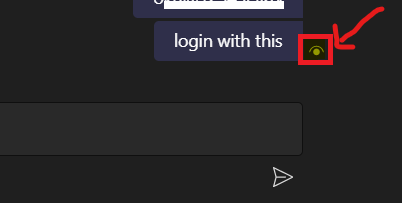
What are Microsoft Teams Read Receipts? Let people know when you’ve seen their messages and let you know when they’ve seen your message. The following screenshot gives you an idea about the read symbol if the other person read or saw your message.
The Read receipts are useful in some scenarios in Microsoft Teams. I normally prefer to keep read receipts disabled for Microsoft Teams. I prefer to disable read receipts to avoid additional pressure of immediate response.
How to Temporarily Unmute your mic during Microsoft Teams Meeting
Microsoft Teams application gives an end-user option to Disable or Enable Keyboard Shortcut to Temporarily Unmute in Microsoft Teams.
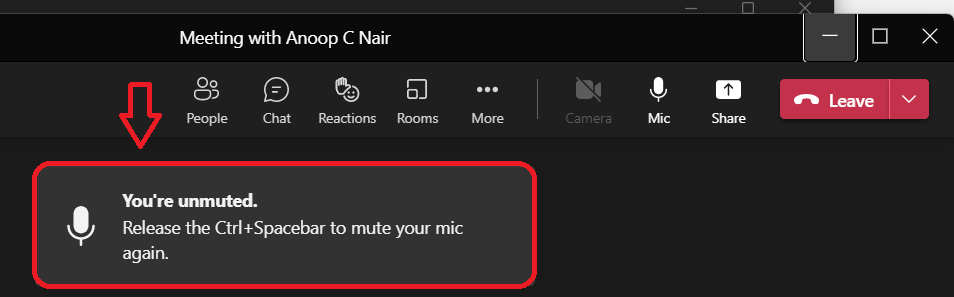
Let’s learn how to temporarily unmute your mic during Microsoft Teams meeting? You can use the following keyboard shortcut to unmute when you are in a Microsoft Teams Meeting for responding to something immediately.
I have seen many school students complain that they are not able to unmute when the teacher asks questions. This could be because of system performance issues or something else. Hopefully, this shortcut to temporarily unmute the Microsoft Teams app option helps students unmute immediately for answering teachers’ questions.
The following are the options to immediately unmute (and mute) when you are in a Microsoft Teams meeting.
- Press and hold Ctrl + Spacebar to temporarily UNMUTE your mic during a meeting.
- Release the Ctrl + Spacebar to MUTE your mic again.
Enable Keyboard Shortcut to Temporarily Unmute in Teams Meeting
Do you think the keyboard shortcut Ctrl + Spacebar option is useful for you? Personally, as an end-user, yes is my answer. If so, you can keep this enabled, which is the default option for all Microsoft Teams users. More details on how to disable this keyboard shortcut are in the below section.
As an end-user, you have an option to enable or disable the Ctrl + Spacebar shortcut from your settings page in MS Teams, as explained below. The following steps will help you enable (if it’s already disabled) the new UNMUTE shortcut options.
- Open the Microsoft Teams (Work or School) App from Start Menu on Windows 11 or Windows 10 device.
- Or alternatively use search box to find and launch Microsoft Teams (Work or School) app.
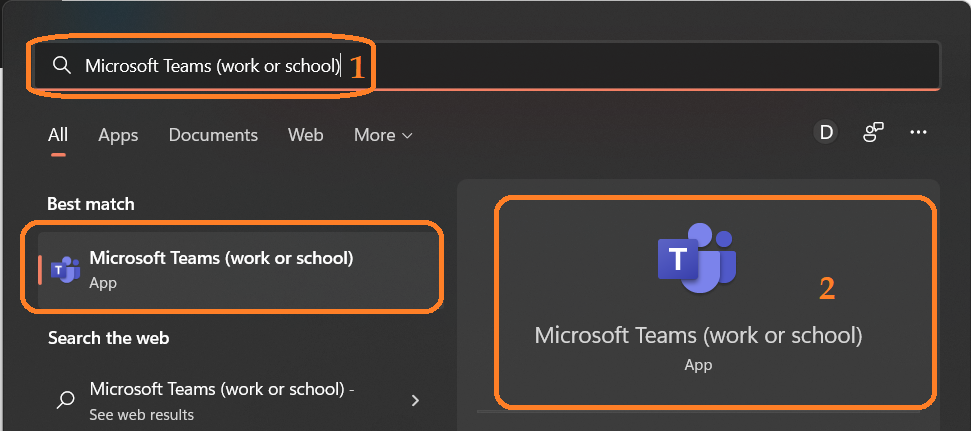
You need to go to the settings page from the Teams apps and configure your privacy setting.
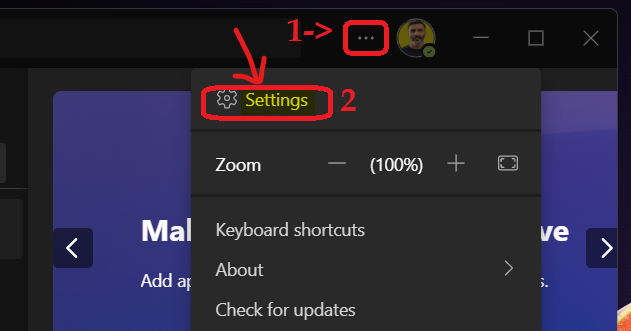
- Click on 3 horizondal dots near the profile picture or profile icon as shown below.
- Click on Settings option to open the Settings page from Microsoft Teams (work or school).
NOTE! – These privacy settings are not available for Windows 11 Chat application powered by Microsoft Teams.
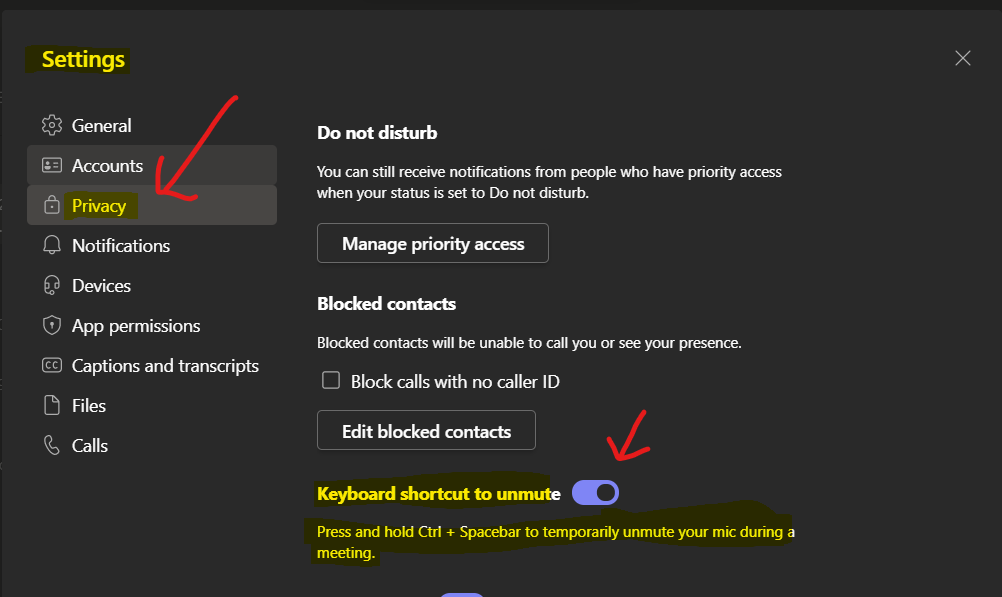
Scroll down from the Privacy tab until you reach the Keyboard shortcut to the UNMUTE menu on the right-side pane. You can move the toggle bar to enable or disable the keyboard shortcuts to UNMUTE.
- Click on the Privacy Tab.
- Scroll down to Keyboard shortcut to UNMUTE section.
- By default this setting is ENABLED. Slide (move) the toggle bar as shown in the below picture to right side to enable this feature if it was already disabled.
Disable Keyboard Shortcut to Temporarily Unmute during Teams Meeting
Let’s see how to disable Keyboard Shortcut to Temporarily Unmute in Microsoft Teams. You need to follow the steps mentioned in the above section of the post.
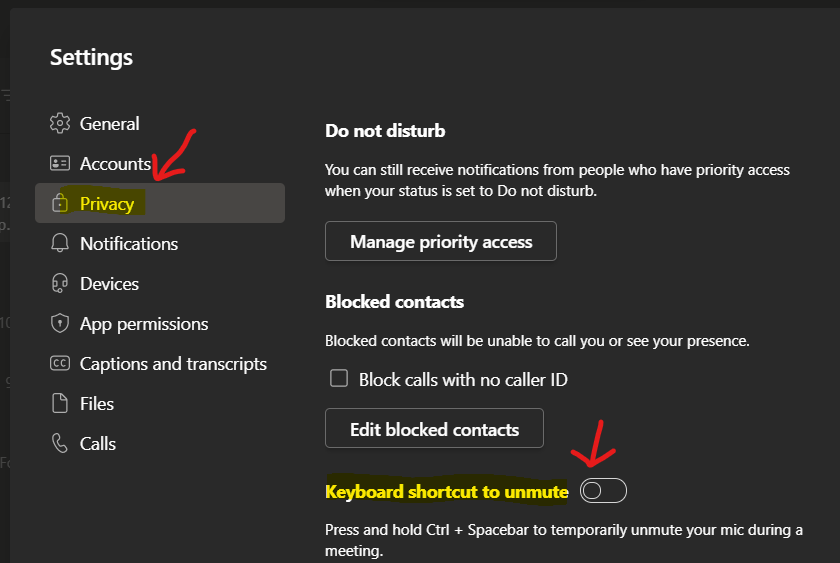
- Follow the steps mentioned in the above section of the post until you reach the Keyboard Shortcut to Unmute option from the Privacy tab.
- Slide (move) the toggle bar as shown in the below picture to the left side to disable Keyboard Shortcut to temporarily Unmute during the Team meetings.
NOTE! – I couldn’t make this UNMUTE keyboard shortcut setting disabled work even after making the above configurations to disable from the Privacy tab. I have even restarted the Teams application and tried again without any success. Are you able to make this work?
I have tested this with two different Teams tenants, but the same result.
Microsoft Teams Temporarily Unmute on Mac Devices
Let’s see the options for Microsoft Teams Temporarily Unmute on Mac Devices. I have also shared the normal unmute/mute keyboard shortcuts during Teams meetings.
For the macOS Teams client, the option to unmute temporarily is Option Key + Spacebar. The normal keyboard shortcuts to unmute yourself during Teams meeting are not changed for both Mac and Windows devices.
- Windows keyboard shortcuts to Unmute/Mute = Ctrl + Shift + M
- Mac Keyboard Shortcut to Unmute/Mute during Teams Meeting = Command + Shift + M
Teams Admin Center Messaging Policy to Disable Temporarily Unmute
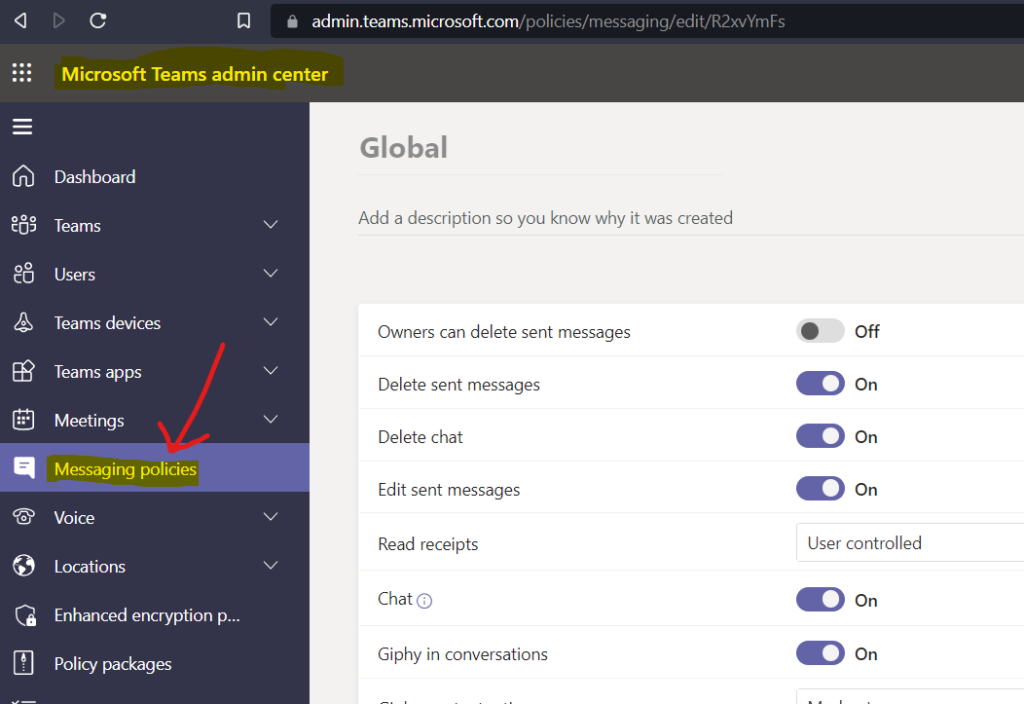
I have checked the Teams Admin center global policy to configure the default preferences for temporarily unmute settings/features. I couldn’t find any “Microsoft Teams” global policy to configure the preferences for this temporarily Unmute feature.
As you see in the screenshot, no default policy configuration is available to control (disable or enable or user-controlled) the Temporarily Unmute feature from Teams Admin Center Messaging Policies.




Discussion