


Skip to content
Turn On or Off File Explorer Check Boxes to Select Files Folders in Windows 11

Turn On or Off File Explorer Check Boxes to Select Files Folders in Windows 11

Written By Jitesh Kumar
Last Updated April 28, 2022
Posted In Windows 11
SHARE

In this post, you will learn to turn On or Off File Explorer Check Boxes to select Files and Folders in Windows 11. Checkboxes in File Explorer are used for selecting multiple items, and the user can choose depending on their requirements.

Latest Updated postWindows 11 New File Explorer Experience New Features Design Details

In Windows 11, File Explorer you will get the Item check boxes that look like a small square in each File Explorer layout mode, including a list and detailed views.

In Windows 11, File Explorer checkboxes appear whenever you select files, folders that make file management easier, especially when you are using a touch screen device.

Patch My PC

You can use the check box to make selecting multiple files easier to perform various activities like, Copy, Move and Delete.

You can also check out this blog post to Set File Explorer to open This PC instead of Quick Access in Windows 11. Many of us might prefer a classic experience while using file explorer; We have an option to turn off this feature. Here’s how.

Turn On or Off Use Check Boxes to Select Items in Layout and View Options

Let’s follow the steps below to turn on or off the Checkboxes option in files, folders –

  • In Windows 11 device, Open File Explorer

Press the Windows + E keyboard shortcut to open File Explorer.

  • Click the Layout and view options menu and Select the Show submenu and Check (Default) or Uncheck the Item Checkboxes option.
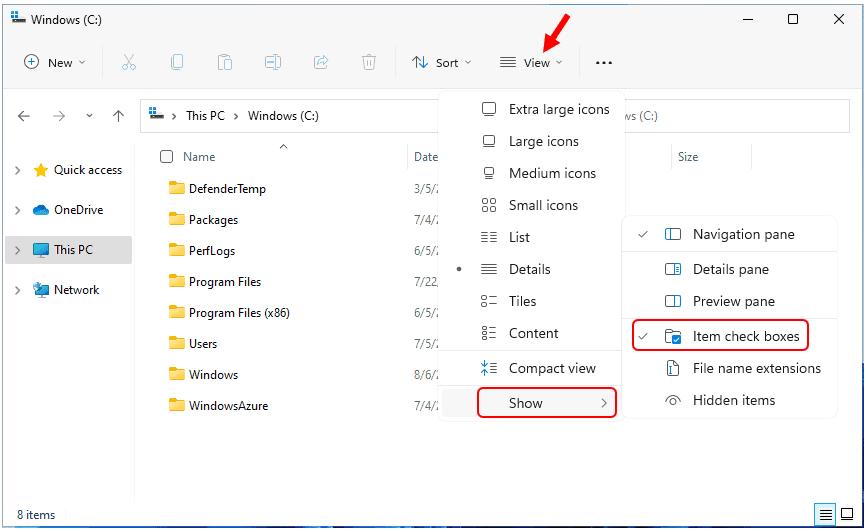
Windows 11 – Folder Options > View Turn On or Off File Explorer Check Boxes to Select Files Folders in Windows 11
Turn On or Off File Explorer CheckBoxes to Select Files Folders in Windows 11 1

Turn On or Off Use Check Boxes to Select Items in File Explorer Options

The following steps will be taken to turn On or Off Use CheckBoxes to Select Items –

  • In Windows 11 device, Open File Explorer
  • Click on the See more (three-dotted) menu and select the Options.
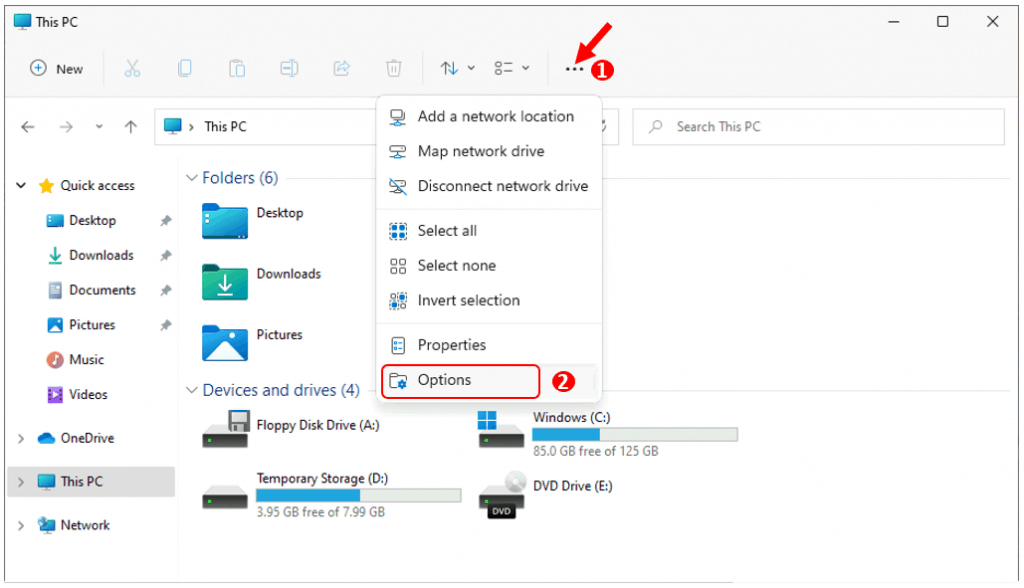
Turn On or Off File Explorer Check Boxes to Select Files Folders in Windows 11
Turn On or Off File Explorer Check Boxes to Select Files Folders in Windows 11 2

Windows 11 – File Explorer > Options

  • In the View tab, Under the Advanced settings section. Check (Default) or Uncheck. Use checkboxes to select items, and click on Apply, then OK.
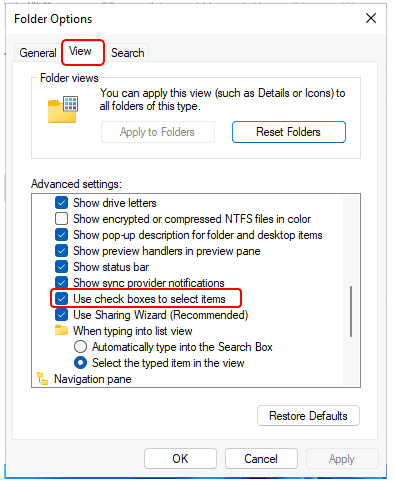
Windows 11 – Folder Options > View Turn On or Off File Explorer Check Boxes to Select Files Folders in Windows 11
Windows 11 – Folder Options > View Turn On or Off File Explorer Check Boxes to Select Files Folders in Windows 11 3

End Users Experience

This is the default setting when the option Use checkboxes to select items turned On; You will be experienced that in Windows File Explorer, there is a checkbox to the left of the file or folder names.
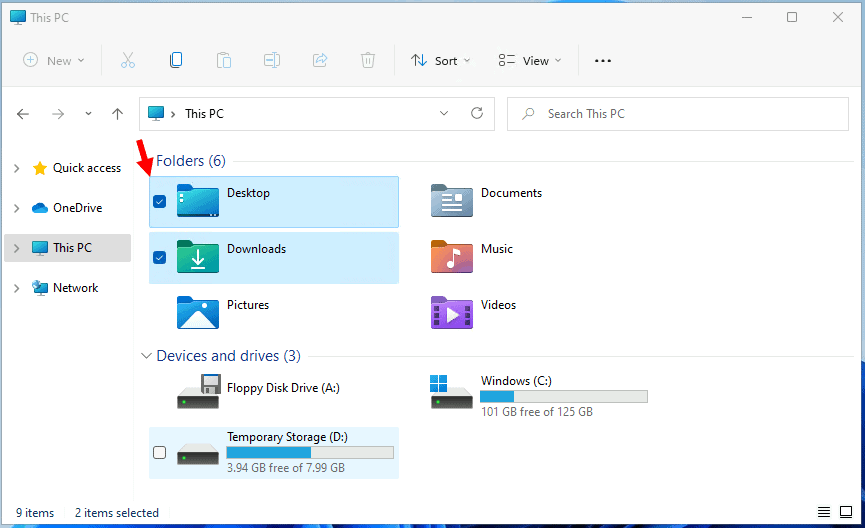
Turn On or Off File Explorer Check Boxes to Select Files Folders in Windows 11

Users Experience – Turned On Use CheckBoxes to Select Items

When you Use check boxes to select items turned Off, you will get no option to select the file or folders in File Explorer.
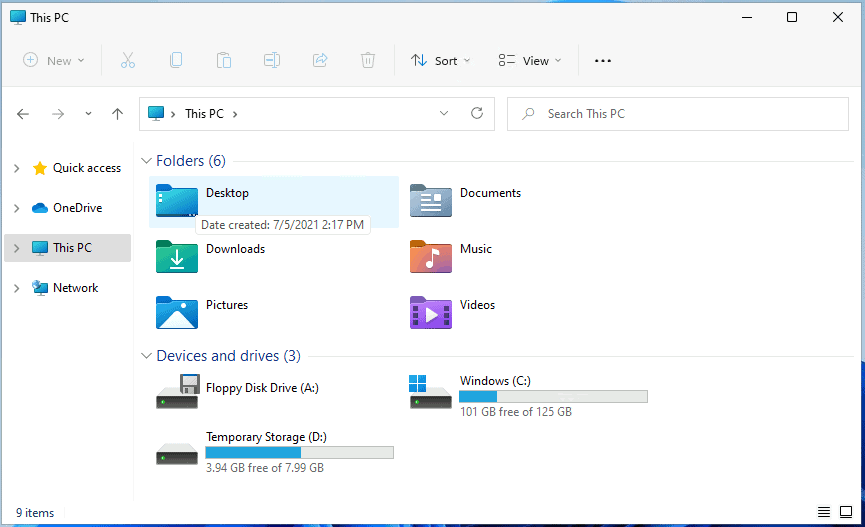
Turn On or Off File Explorer Check Boxes to Select Files Folders in Windows 11

Users Experience – Turned Off Use CheckBoxes to Select Items

Author

Written by

Jitesh has over 5 years of working experience in the IT Industry. He writes and shares his experiences related to Microsoft device management technologies and IT Infrastructure management. His primary focus area is Windows 10 Deployment solution with Configuration Manager, Microsoft Deployment Toolkit (MDT), and Microsoft Intune.

Discussion

Join the discussion

Your email address will not be published. Required fields are marked *

Related guides

Security

Microsoft Fixes 570 Security Vulnerabilities and 3 Zero-Day Vulnerabilities in July 2026 Patch Tuesday

Key Takeaways Microsoft Fixes 570 Security Vulnerabilities and 3 Zero-Day Vulnerabilities in July 2026 Patch Tuesday! Microsoft fixed 3 zero-day vulnerabilities as part of the July 2026 Patch Tuesday updates. Two of them, CVE-2026-56164 (Microsoft SharePoint Server Elevation of Privilege) and CVE-2026-56155 (Active Directory Federation Services Elevation of Privilege), were actively exploited before the security […]

AC Anoop C Nair 29 min read
Intune

Windows 11 KB5101650 KB5099414 July 2026 Patch and 3 Zero Day Vulnerabilities and 570 Flaws

Key Takeaways Windows 11 KB5101650 KB5099414 July 2026 Patch and 3 Zero Day Vulnerabilities and 570 Flaws! In the July 2026 Patch, Microsoft introduced new features designed to improve the overall Windows experience. The update adds enhancements to Windows Update for more flexible update management and introduces Point-in-Time Restore, providing an additional recovery option for […]

AC Anoop C Nair 9 min read
Windows 11

Boost Productivity with Zoom Workplace on Windows 11 | Setup Guide for Meetings Chat Calls and Collaboration

Key Takeaways Hey, let’s learn about Boost Productivity with Zoom Workplace on Windows 11 | Setup Guide for Meetings Chat Calls and Collaboration. Zoom workplace is an AI-powered collaboration app used for online meetings, team collaboration, and video calls. This application helps to conduct meetings Including chat and messaging, screen sharing and Calendar Integration. Boost […]

AC Anoop C Nair 35 min read
Windows 11

13 Windows AI Features to Turn Off for Better Privacy

Key takeaways Hey, let’s discuss about 13 Windows AI features to turn off for better privacy. AI is widely used in modern systems such as Windows 11 to automate tasks, improve productivity, and enhance user experience. However, AI also has several disadvantages. It may raise privacy concerns because personal data can be collected and analysed […]

AC Anoop C Nair 15 min read


