






Turn On or Off File Explorer Check Boxes to Select Files Folders in Windows 11
In this post, you will learn to turn On or Off File Explorer Check Boxes to select Files and Folders in Windows 11. Checkboxes in File Explorer are used for selecting multiple items, and the user can choose depending on their requirements.
Latest Updated post – Windows 11 New File Explorer Experience New Features Design Details
In Windows 11, File Explorer you will get the Item check boxes that look like a small square in each File Explorer layout mode, including a list and detailed views.
In Windows 11, File Explorer checkboxes appear whenever you select files, folders that make file management easier, especially when you are using a touch screen device.

You can use the check box to make selecting multiple files easier to perform various activities like, Copy, Move and Delete.
You can also check out this blog post to Set File Explorer to open This PC instead of Quick Access in Windows 11. Many of us might prefer a classic experience while using file explorer; We have an option to turn off this feature. Here’s how.
Turn On or Off Use Check Boxes to Select Items in Layout and View Options
Let’s follow the steps below to turn on or off the Checkboxes option in files, folders –
- In Windows 11 device, Open File Explorer.
Press the Windows + E keyboard shortcut to open File Explorer.
- Click the Layout and view options menu and Select the Show submenu and Check (Default) or Uncheck the Item Checkboxes option.
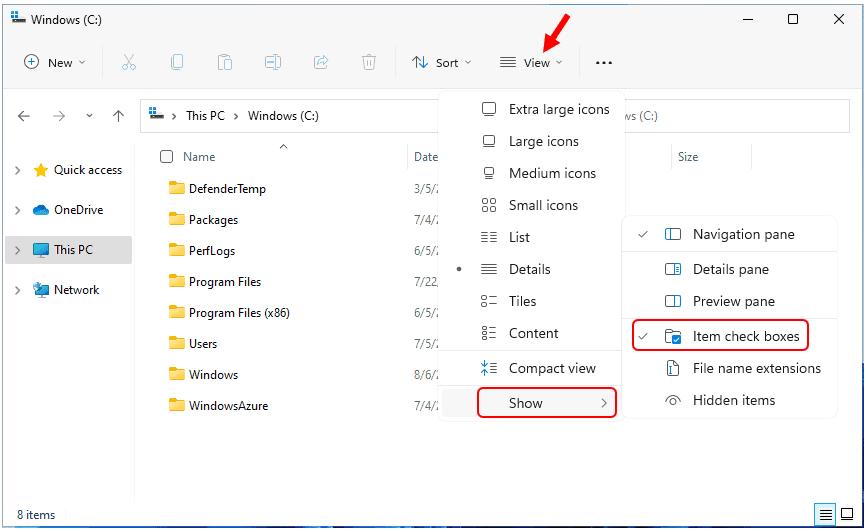
Turn On or Off Use Check Boxes to Select Items in File Explorer Options
The following steps will be taken to turn On or Off Use CheckBoxes to Select Items –
- In Windows 11 device, Open File Explorer.
- Click on the See more (three-dotted) menu and select the Options.
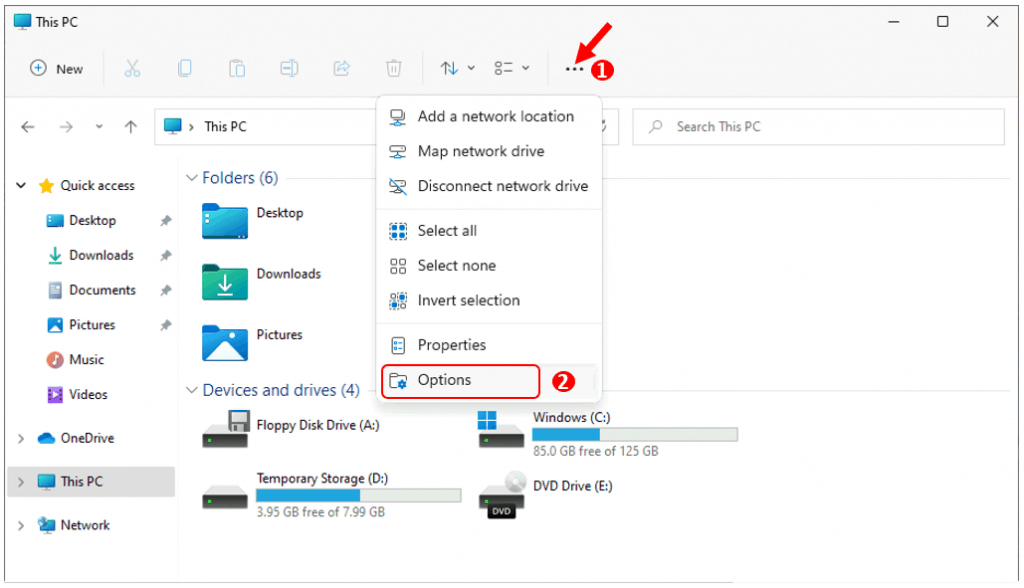
Windows 11 – File Explorer > Options
- In the View tab, Under the Advanced settings section. Check (Default) or Uncheck. Use checkboxes to select items, and click on Apply, then OK.
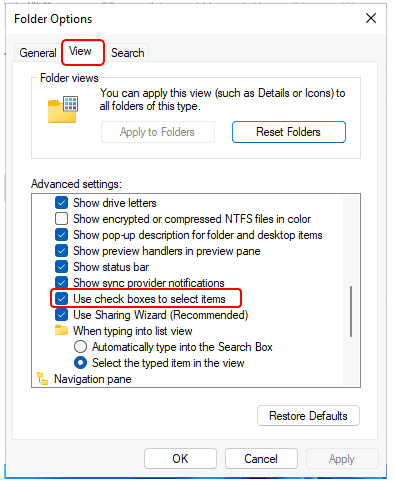
End Users Experience
This is the default setting when the option Use checkboxes to select items turned On; You will be experienced that in Windows File Explorer, there is a checkbox to the left of the file or folder names.
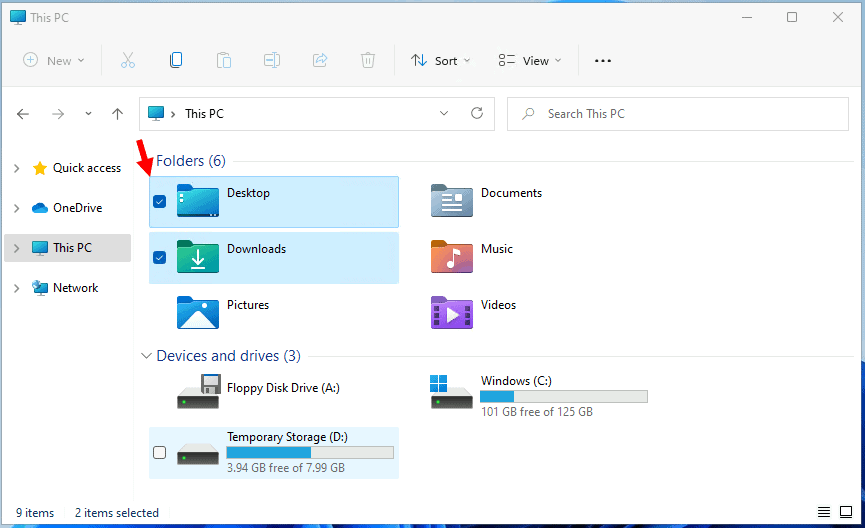
Users Experience – Turned On Use CheckBoxes to Select Items
When you Use check boxes to select items turned Off, you will get no option to select the file or folders in File Explorer.
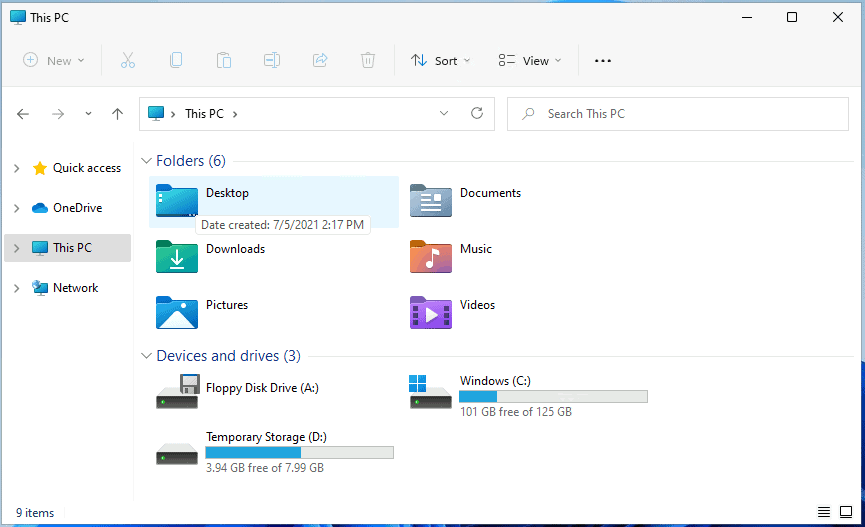
Users Experience – Turned Off Use CheckBoxes to Select Items




Discussion