






Protect Security Settings with Tamper Protection in Windows
Let’s learn how you can protect security settings with Tamper Protection in Windows. Tamper Protection is a security feature that uses real-time threat information to determine the potential risks of software and suspicious activities.
Tamper Protection in Windows Security helps prevent malicious apps from changing important Microsoft Defender Antivirus settings, including real-time protection and cloud-delivered protection.
It essentially locks Microsoft Defender Antivirus to its secure, default values, and prevents your security settings from being changed through apps and methods such as:
- Configuring settings in Registry Editor on your Windows device
- Changing settings through PowerShell cmdlets
- Editing or removing security settings through Group Policy
Microsoft recently announced new security features for Windows 11 that will help protect hybrid work, with the great addition of Pluton, Default App Control, Default Cred Protection, Phishing, and Personal Data Encryption. Here’s a look at New Security Features for Windows 11.

- Install Microsoft Windows Defender Application Guard for Edge
- Block Potentially Unwanted Applications in Windows | Microsoft Defender
- Best Antivirus for Windows 11 Microsoft Defender | App Browser Protection | Firewall Protection
Protect Security Settings with Tamper Protection in Windows
You can manage temper protection using the Microsoft 365 Defender or Microsoft Endpoint Manager Portal for your environment. Let’s follow the steps to manage tamper protection on an individual windows device –
- In Windows 10 or 11 devices, In the search box, type Windows Security and then select Windows Security in the list of results.
Important – You must be signed in to the device as an administrator to turn on or off Tamper Protection.
- In Windows Security, select Virus & threat protection.
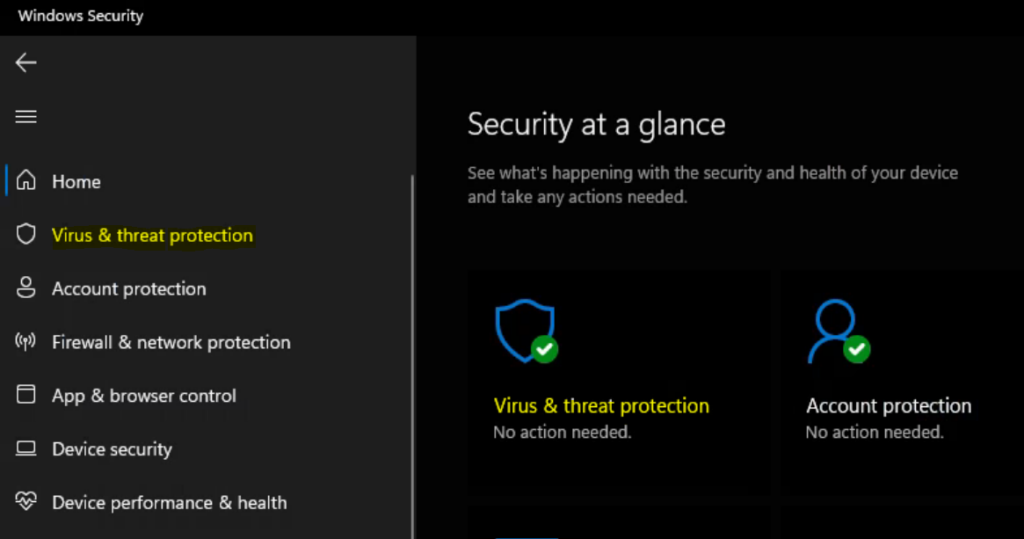
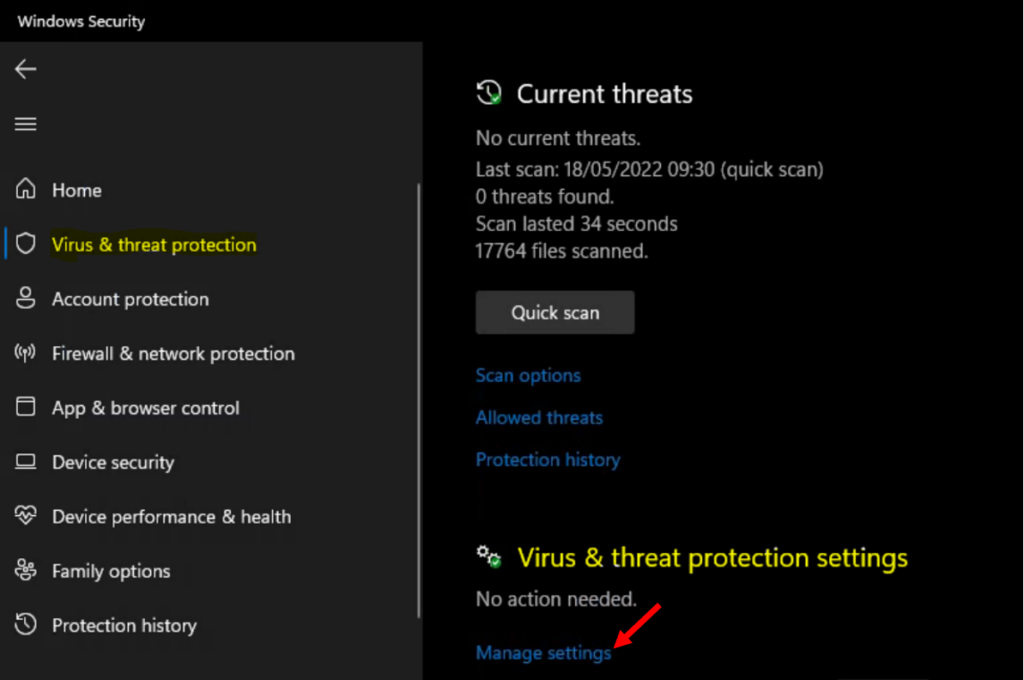
Scroll down to the Virus & threat protection settings, and select Manage settings.
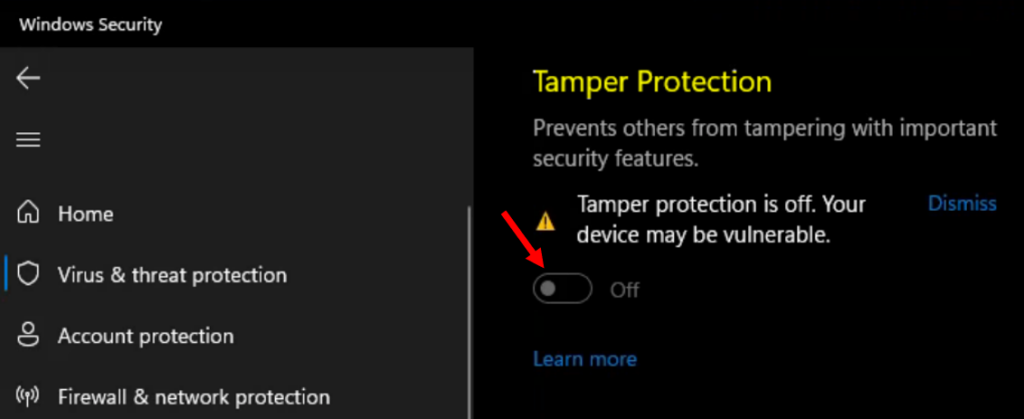
Here you can change the Tamper Protection setting to On or Off. If UAC prompts you, select Yes to continue.
Note – If Tamper Protection is turned on and you’re an administrator on your computer, you can still change these settings in the Windows Security app. However, other apps can’t change these settings.
Turn On or Off Tamper Protection using Registry
The following steps help you to turn on-off tamper protection via Registry –
You can use the Search button in the Taskbar to launch the registry editor in Windows 10 or 11.
Important – We recommend you create a backup before editing the Registry.
Note – Since adding the registry value manually may lead to an issue, it will take time to process for the system admin. You can also copy the below command and create a batch file to automate the settings.
- Open Notepad, Copy and paste the registry value below into the text editor.
Set the Dword value in the below registry path to “5” to enable Tamper Protection or “0” to disable Tamper Protection.
Enable Tamper Protection
Windows Registry Editor Version 5.00

[HKEY_LOCAL_MACHINE\SOFTWARE\Microsoft\Windows Defender\Features]
"TamperProtection"=dword:00000005
Disable Tamper Protection
Windows Registry Editor Version 5.00

[HKEY_LOCAL_MACHINE\SOFTWARE\Microsoft\Windows Defender\Features]
"TamperProtection"=dword:00000005
In the File menu, select Save As and click Browse to your preferred folder or location. In the File name box, provide the appropriate name “FileName.reg” with the .reg extension and Choose to Save as type “All” from the drop-down list. Click Save.
The registry file will appear on your saved location. To start the execution, Double click or Right-click and select the Open option or press Enter on the protected .reg file content to merge into the local Registry.
In the File menu, select Save As and click Browse to your preferred folder or location. In the File name box, provide the appropriate name “FileName.reg” with the .reg extension and Choose to Save as type “All” from the drop-down list. Click Save.
A warning box with the following messages prompted, Click Yes to continue.
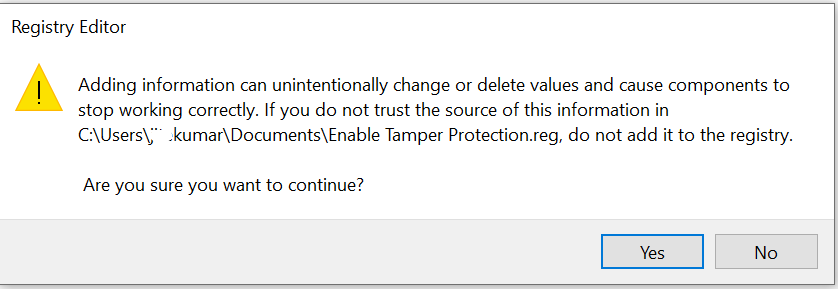
Once Information in the path of the .reg file has been successfully entered into the Registry below prompt will appear. Click OK.
Restart your PC to apply the changes, and validate the changes from windows security.




Discussion