






How to Use Microsoft Safety Scanner MSERT In Windows
Let’s learn how you can use Microsoft Safety Scanner MSERT in Windows. Microsoft Safety Scanner is a scan tool designed to find and remove malware from Windows computers.
The Microsoft Safety Scanner is a free stand-alone virus scanner used to remove malware or potentially unwanted software from a system. Safety Scanner only scans when manually triggered and is available for use 10 days after being downloaded.
It is recommended that you always download the latest version of this tool before each scan. Download it and run a scan to find malware and try to reverse changes made by identified threats.
The MSERT tool does not replace your antimalware product, For Windows 10 and Windows 11 include Windows Security, which provides the latest antivirus protection with Microsoft Defender. Defender protection is tightly integrated with cloud intelligence to protect Windows 11 PCs.

You can also learn more about the free tool Windows Malicious Software Removal MSRT. Microsoft releases a new version of the Microsoft Malicious Software Removal Tool Windows Malicious Software Removal Tool (MSRT) every month.
- Protect Security Settings with Tamper Protection in Windows
- Block Potentially Unwanted Applications in Windows | Microsoft Defender
- Best Antivirus for Windows 11 Microsoft Defender | App Browser Protection | Firewall Protection
Download Microsoft Safety Scanner
Let’s download and use the Microsoft Safety Scanner.
- Download Microsoft Safety Scanner (32-bit) – https://go.microsoft.com/fwlink/?LinkId=212733
- Download Microsoft Safety Scanner (64-bit) – https://go.microsoft.com/fwlink/?LinkId=212732
Run Microsoft Safety Scanner
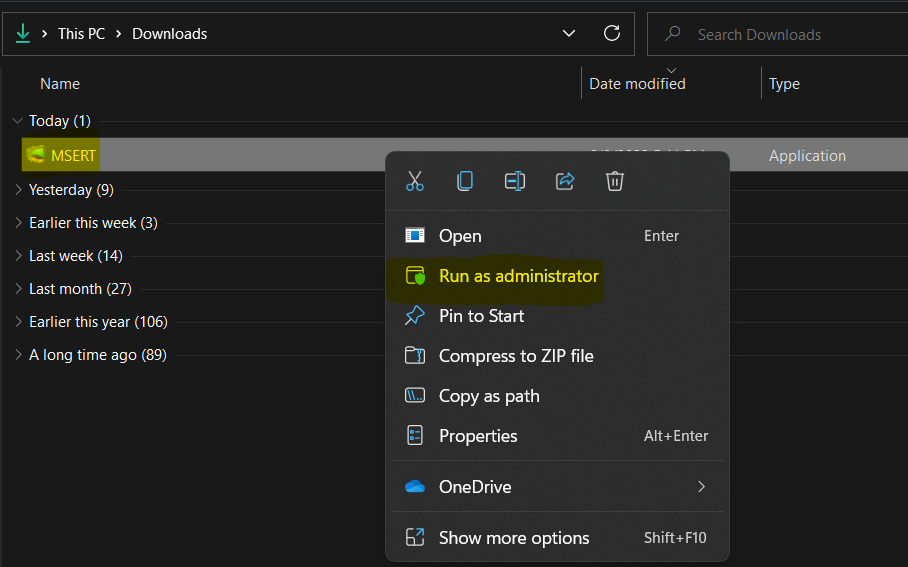
Once you have downloaded the file Microsoft Safety Scanner Tool (MSERT). Right-click and select Run as administrator.
Note: Microsoft Safety Scanner is a portable executable and does not appear in the Windows Start menu or as an icon on the desktop. To remove this tool, you need to delete the downloaded msert.exe file.
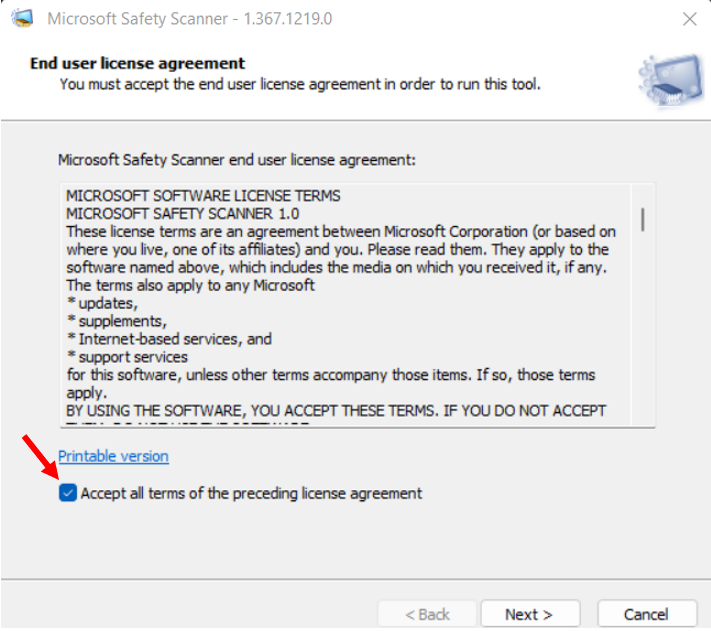
Check the Accept all terms of the preceding license agreement box, and click on Next.
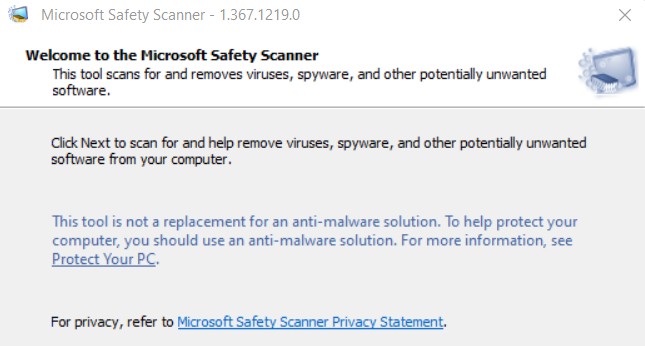
Click on Next to scan for and help remove viruses, spyware, and other potentially unwanted software from your computer.
Important Note: This tool does not replace your antimalware product. For real-time protection with automatic updates, use Microsoft Defender Antivirus on Windows.
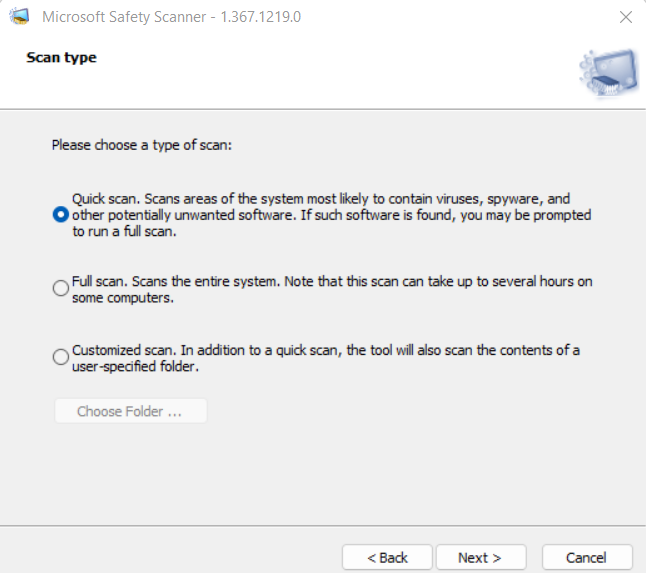
Choose the type of scan (Quick, Full, or Customized scan) you want to be performed, and click on Next.
- Quick scan: Scans areas of the system most likely to contain viruses, spyware, and other potentially unwanted software. If such software is found, you may be prompted to run a full scan.
- Full scan: Scans the entire system, Note that this scan can take up to several hours on some computers.
- Customized scan: In addition to a quick scan, the tool will also scan the contents of a user-specified folder.
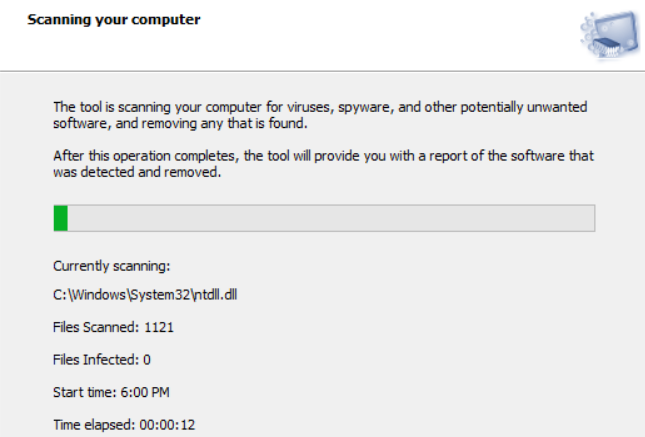
Once you complete the steps, The tool starts scanning your computer, and The process will take time to complete. After this operation completes, the tool will provide you with a report of the detected and removed software.
The scanning process includes :
- Current Step Scanning
- File Scanned
- Files Infected
- Start Time
- Time Elapsed
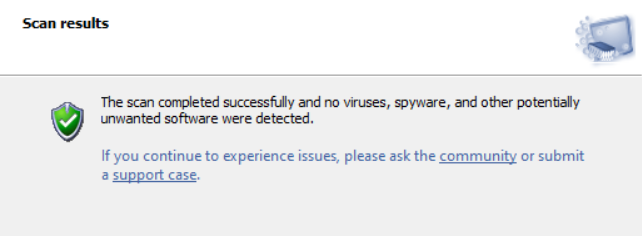
Here, you can review the scan results displayed on the screen. The scan completed successfully, and no viruses, spyware, and other potentially unwanted software were detected. Click Finish to exit from wizard.
Microsoft Safety Scanner saves a log file of everything it does. View the log file located at %SystemRoot%\debug\msert.log for detailed detection results. You can open it up in Notepad to get more information.




Microsoft Safety Scanner does not save in the log file msert.log of anything it does!