






How to Create Nested Azure AD Dynamic Groups
Microsoft announced the support to create nested Azure AD Dynamic Groups. This is one of the most awaited features from the Azure AD team. The memberOf is the new attribute got introduced to support the nesting of AAD Groups.
The preview release of nested Azure AD dynamic groups is not fully developed while writing this post, so there would change expected. One of the main changes coming soon would be (I guess) memberOf isn’t yet supported in the rule builder.
The memberOf attribute supports Security groups, Microsoft 365 groups, and On-Prem AD groups synced to Azure Azure Active Directory. Some preview limitations include the AAD tenant being limited to 500 dynamic groups using the memberOf attribute.
Intune already supports nested Azure AD groups using the Membership -> Assigned option. This assigned option is similar to adding AD security groups to SCCM Collection using the direct rule. You can’t see all the members of the AD groups when you use the Assigned option.

- Create AAD Dynamic Groups Based On Domain Join Type Hybrid Azure AD And Azure AD
- Create AAD Dynamic Groups Based On MDM Intune SCCM Management
Nesting of Azure AD Groups using Membership Rule Assigned
Let’s see how to perform nesting of Azure AD Groups using the Membership Rule called is Assigned. This scenario of nesting AAD groups is supported for Intune. However, these are not supported for some of the Office 365 services.
You can create the AAD assigned group using other AAD groups as members. Follow the steps to create this type of nesting of Azure AD groups.
- Login to Portal.Azure.com and search for Azure AD.
- Navigate to the Groups node -> Click on the New Group button.
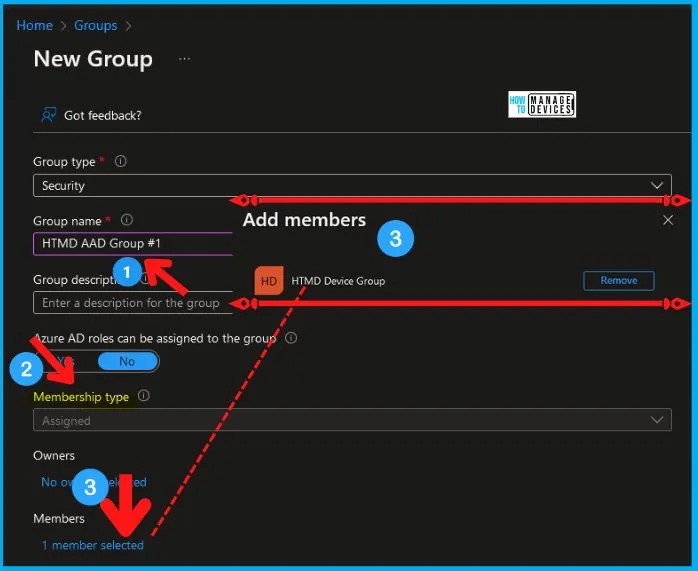
- Group Type -> Security
- Group Name -> HTMD AAD Group #1
- Membership Type -> Assigned
- Click on the No members selected link as shown in the below screenshot.
- Search for Azure AD groups that you want to add from Add Members blade -> Click on Add button to add the groups as members.
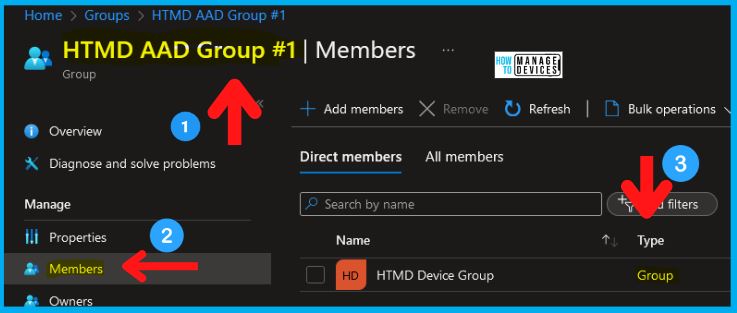
Once the AAD group is created with other AAD groups as members. This is similar to the direct membership rule in the SCCM collection using the AD group as a member.
Create Nested Azure AD Dynamic Groups using memberOf Attribute
Let’s create a nested Azure AD Dynamic Groups using the memberOf attribute. There is no memberOf attribute in the drop-down options in the Azure AD Group rule builder workflow yet. I hope this will be coming soon.
You need to get the AAD Group object ID details as the prerequisite before creating nested AAD Dynamic Device Groups using the memberOf attribute. You can use the following method to get those details from the Azure portal or Graph Explorer.
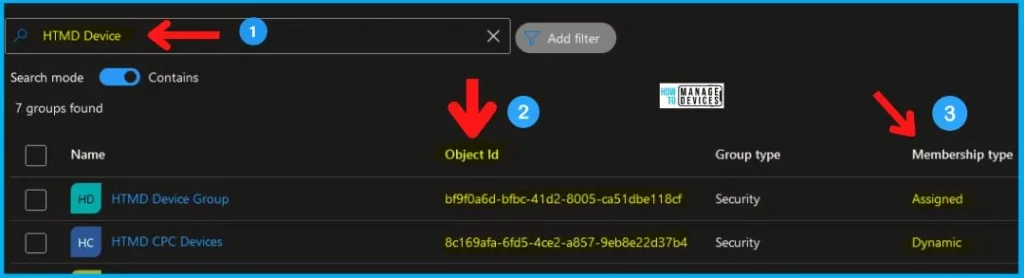
- Navigate to Azure AD -> Groups -> All groups.
- Search for the Groups that you want to get the Object ID details.
- Check for the Object ID column against each AAD group and copy the details.
- I have selected one Assigned and Dynamic device group for this example.
HTMD Device Group Object ID-> bf9f0a6d-bfbc-41d2-8005-ca51dbe118cf
HTMD CPC Devices Object ID -> 8c169afa-6fd5-4ce2-a857-9eb8e22d37b4
You can also use Graph API to get the object ID details of Azure AD groups. The following Graph API query for the AAD group is to get details of the group HTMD Device Group. You can copy the id attribute (Object ID) from the JSON response, as shown in the below screenshot.
https://graph.microsoft.com/v1.0/groups/?$filter=(displayName eq 'HTMD Device Group')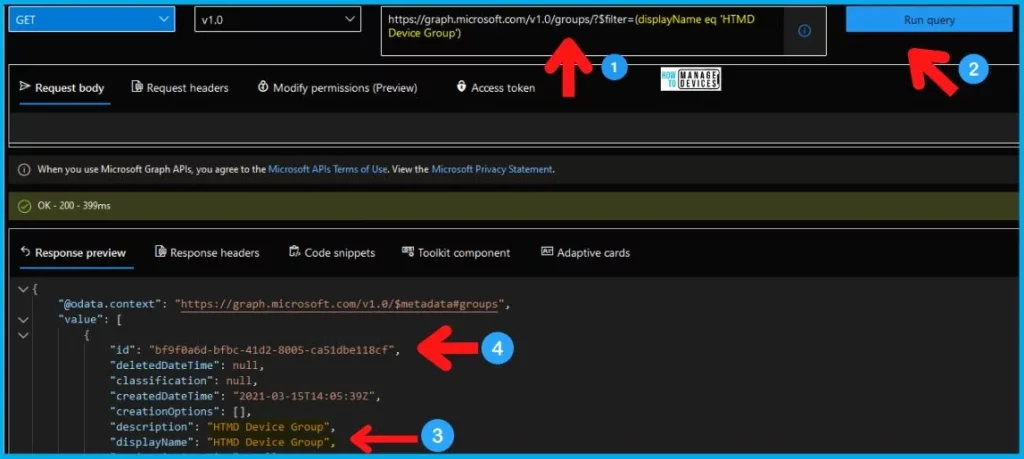
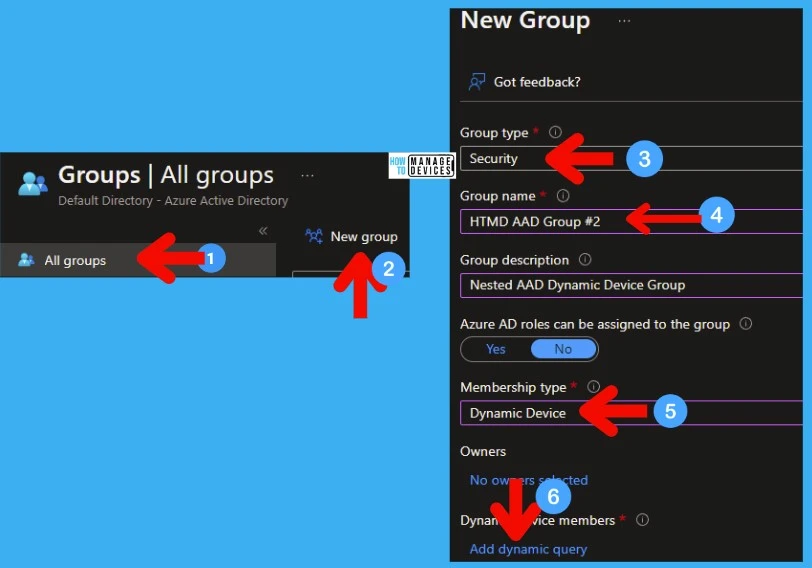
You need to use the AAD dynamic group query rule editor to create nested Azure AD groups using the memberOf attribute. The Global Administrator, Intune Administrator, or User Administrator role permissions is needed to perform this activity. Follow the steps:
- Navigate to Azure AD -> Groups -> All groups.
- Click on the New group button.
- The group type -> Security or Microsoft 365
- The Membership type -> Dynamic Device (for this example). But you can use Dynamic User as well.
- Select Add Dynamic Query to start building the query rule.
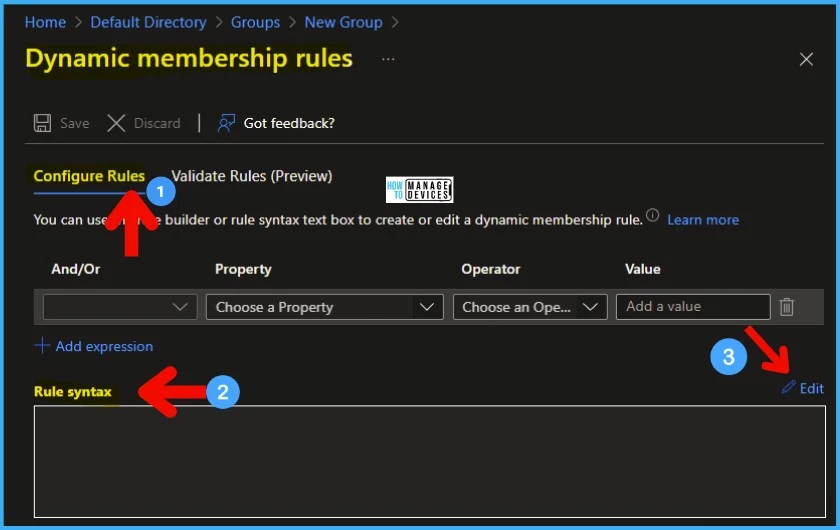
You can’t find memberOf property on Configure Rules -> Choose Property drop-down list? Yes, that is coming soon; until then, you need to use the Rule Syntax box below to build AAD dynamic group queries.
- Click on the Edit button to continue.
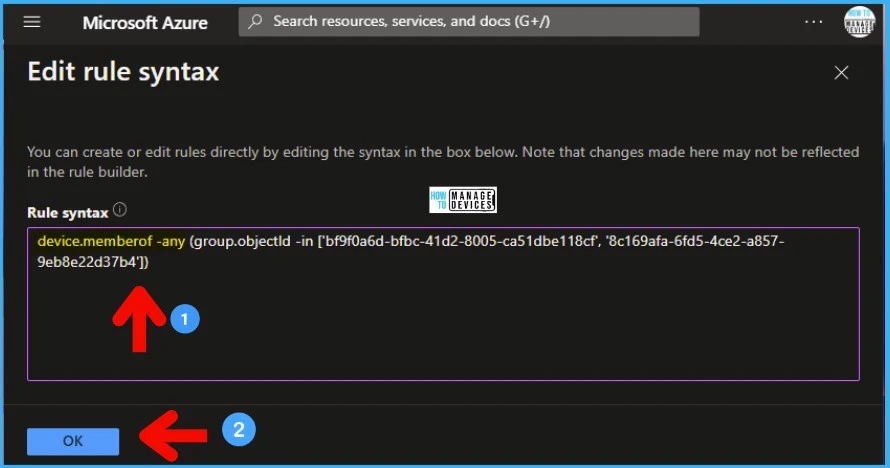
You can directly create or edit a dynamic membership rule by specifying the rule syntax. I have created a query for Nested Azure AD Dynamic Device Group. I have used the Object IDs mentioned in the above paragraph to create this nested dynamic device group query.
NOTE! – You can create or edit rules directly by editing the syntax in the box below. Note that changes made here may not be reflected in the rule builder.
- Copy the below query and paste it into the box.
- Click OK to continue.
- Click on the Save button to save the query.
device.memberof -any (group.objectId -in ['bf9f0a6d-bfbc-41d2-8005-ca51dbe118cf', '8c169afa-6fd5-4ce2-a857-9eb8e22d37b4'])Preview limitations of nested AAD groups – MemberOf can’t be used with other rules. For example, a rule that states dynamic group A should contain members of group B and also should contain only users located in Redmond will fail. More details are available in the MS documentation.
Microsoft already documented some other sample nested Azure AD dynamic user/device group queries.
| memberOf | Any string value (valid group object ID) | (user.memberof -any (group.objectId -in [‘value’])) |
| memberOf | Any string value (valid group object ID) | (device.memberof -any (group.objectId -in [‘value’])) |
Validation of Nested Azure AD Dynamic Groups Issue
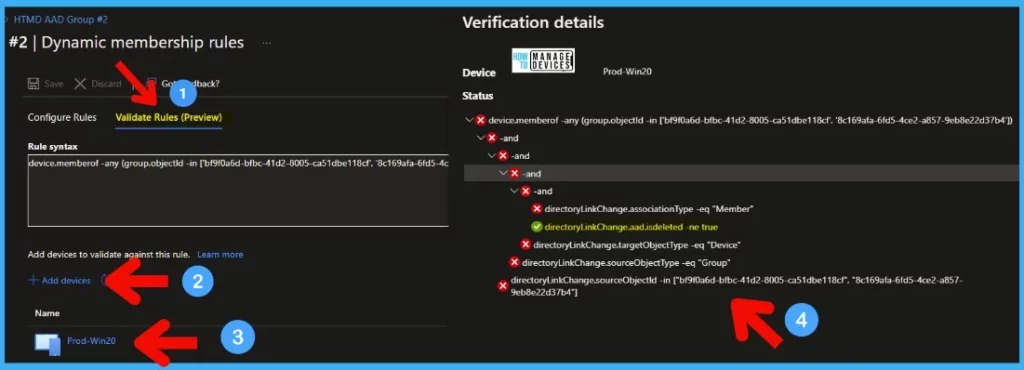
I don’t think validation of nested Azure AD dynamic groups is working. I have done a quick test on the validation part, and it seems not to be working as expected. But those devices I used for validation are added to the dynamic group membership.
Again, this is the first public preview version of the nested AAD dynamic group. These issues will be fixed soon in the next releases of this feature.
Additional Operator support for Nested AAD Dynamic Group
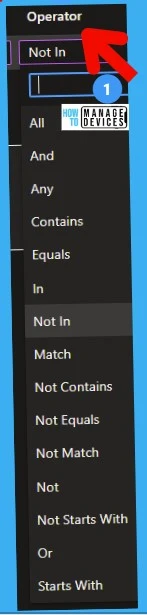
There is limited support for nested AAD dynamic groups. This could be one of the reasons Microsoft is not yet ready to support memberof attributes with query builder workflow. The following are the supported operators available in the query builder, but these are not yet supported with the memberOf attribute.
Results – Nested AAD Dynamic Device Groups
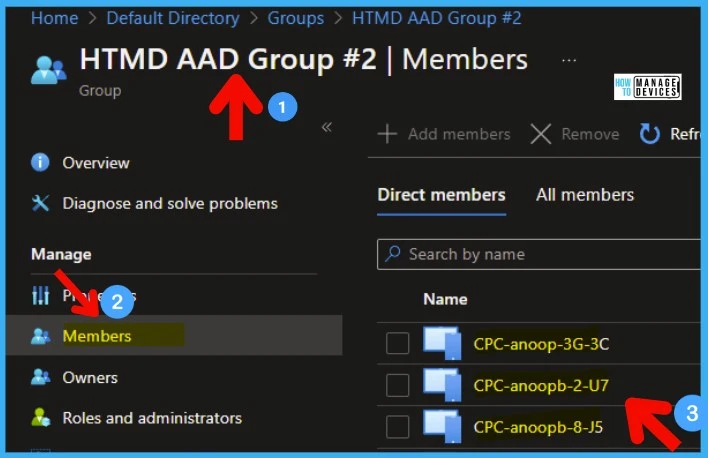
Let’s check the results of nested Azure AD dynamic device groups. You can check the Members node from the Dynamic AAD nested group created. The other two Azure AD device groups members are added to this new nested dynamic AAD group.
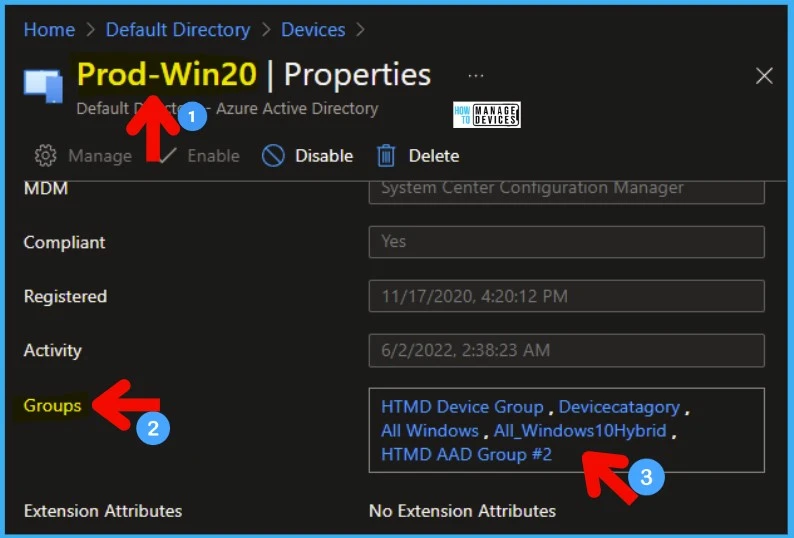
You can take one example of a device, Prod-Win20. This device is part of the “HTMD Device Group” AAD group, and hence this device is also part of the new nested AAD Dynamic Device group “HTMD AAD Group #2.”
Author
Anoop is Microsoft MVP! He is a Solution Architect in enterprise client management with over 17 years of experience (calculation done in 2018) in IT. He is Blogger, Speaker, and Local User Group Community leader. His main focus is on Device Management technologies like SCCM 2012, Current Branch, and Intune. He writes about technologies like SCCM, SCOM, Windows 10, Azure AD, Microsoft Intune, RMS, Hyper-V, etc.


Discussion