






How to Add SCCM Reports In Favorites
In this post, you will learn how to add SCCM Reports in Favorites. Configuration Manager ships with several hundred reports by default, and you may have added more to that list. You can now add a report as favorites.
Instead of continually searching for reports you commonly use, starting in ConfigMgr version 2103, you can make a report a favorite. This action allows you to access it from the new Favorites node quickly.
Reporting helps you gather, organize information about the wealth of Configuration Manager data in your organization. You can duplicate and modify the default reports to meet your requirements, or you can create custom reports.
ConfigMgr has many built-in reports covering many reporting and troubleshooting tasks you might want to do. You can also use the SQL statements in these reports to help you write ConfigMgr custom reports.

Reporting in ConfigMgr provides a set of tools and resources that help you with out-of-box reports, and these reports help in troubleshooting as well. Let’s check how to Launch ConfigMgr Reports. If you have trouble opening default SCCM reports, you can refer to Fix Report Server cannot Open a Connection Error ConfigMgr
- ConfigMgr SCCM List of Default Reports
- SCCM Community Hub – Download Scripts Reports Top 10
- SCCM SQL Reports with Approvers Email Address and Require Approval Details of Application Deployments
Prerequisites for Report Favorites
Review the following prerequisites for the SCCM reports to make sure it meets your needs:
- Ensure you are running with the supported SCCM Version 2103 or later.
- The version of SQL Server Reporting Services on the site’s reporting service point needs to be SQL Server 2017 or later.
How to Add SCCM Reports In Favorites
Let’s follow the steps to add SCCM reports as favorites –
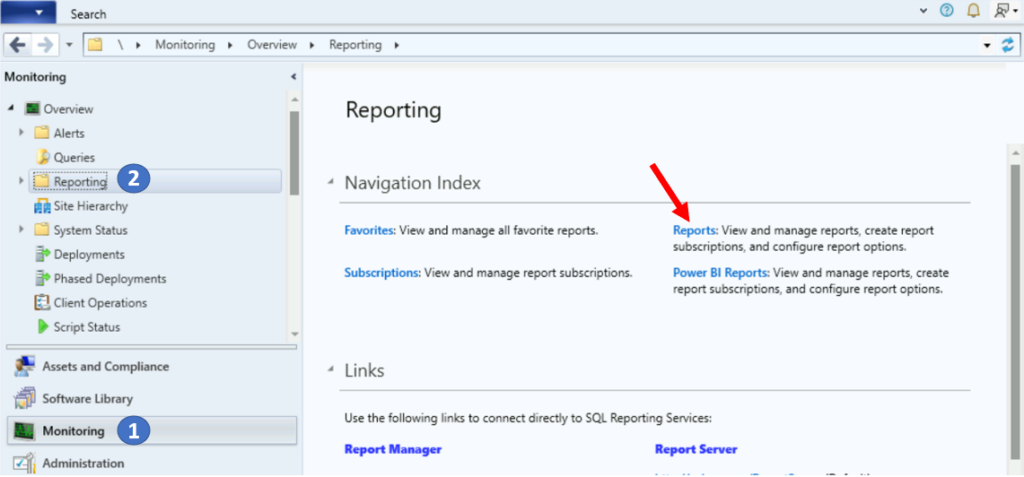
In the Configuration Manager console, navigate to the Monitoring > Reporting and select either the Reports or Power BI Reports node.
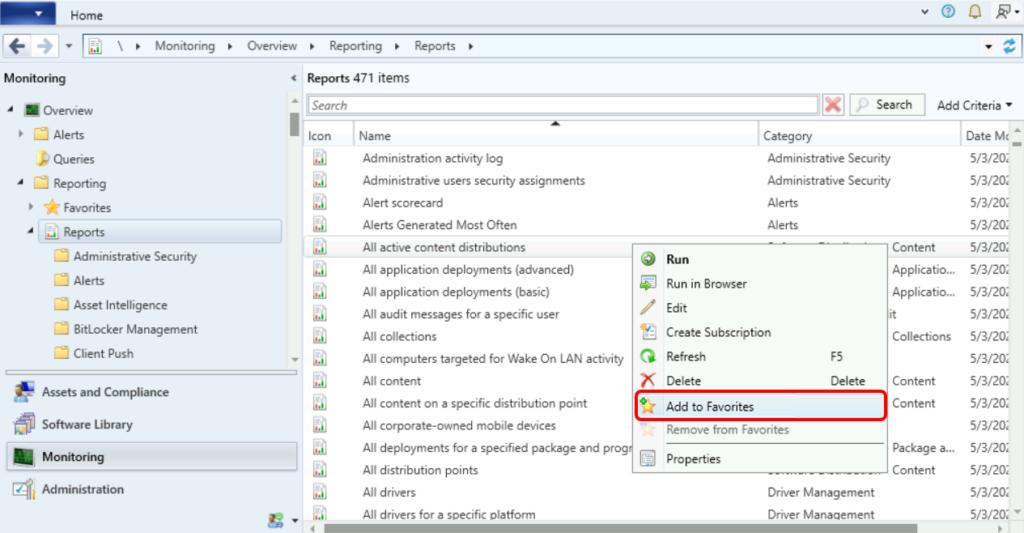
Select a report that you frequently use. Right click on the report and, select Add to Favorites.
You will see a prompt message that confirms “Added Reports to favorites”. The report’s icon changes to a yellow star, indicating it’s a favorite. The list of favorites is per user, not per site or hierarchy.
Note: You can select more than one report to add them all as favorites.
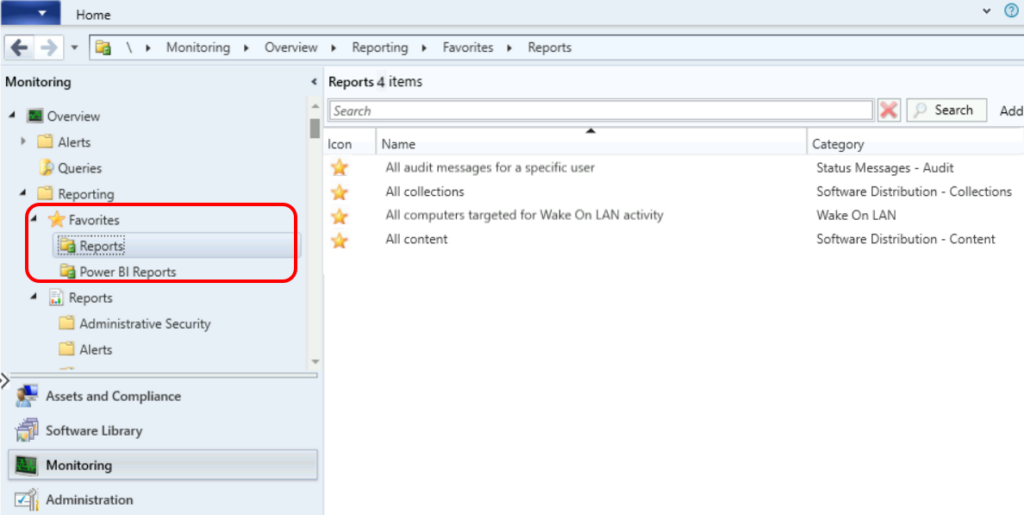
To view the added reports to favorites, In the Reporting node, expand the Favorites node. Select either the Reports or Power BI Reports node to view your list of favorites.
To remove a report from the list of favorites, select it, and then select Remove from Favorites. When you remove a favorite, Configuration Manager doesn’t delete the report.
Launch Favorite SCCM Reports in Browser
You can directly connect to your favorite SCCM reports in your browser. For example, https://servername/Reports/favorites.
- Navigate to \Monitoring\Overview\Reporting\Favourites\Reports.
- Select the added available reports.
- Click on Run in Browser button from ribbon menu.




Discussion