






Create AAD Dynamic Groups based on Domain Join Type Hybrid Azure AD and Azure AD
Let’s find out how to create AAD Dynamic groups based on domain join type, i.e., Hybrid Azure and Azure AD. I think this would be very helpful to manage Hybrid AAD joined Azure Virtual Desktop (AVD) and Windows 365 virtual workplace deployments.
The DeviceTrustType attribute in Azure AD device property is a big win for MEM admin. This new AAD device property attribute is spotted and highlighted by Scott Duffey, Microsoft PM, on Twitter.
Jordan Dahl is the Microsoft Azure AD PM who worked on this feature and the new nested Azure AD dynamic group feature. I have shared a comprehensive step-by-step guide on a preview version of the nested Azure AD dynamic group feature.
It was difficult to segregate Hybrid Azure AD, and Azure AD joined devices based on domain join type without the DeviceTrustType attribute. This new attribute to segregate join type will help many real-world scenarios when you have AVD and Windows 365 Hybrid AAD joined VMs, and Azure AD joined physical devices.

Read More -> Create AAD Dynamic Groups based on MDM (Intune & SCCM Management)
Domain Join Type: Intune Filters Vs. Azure AD Dynamic group
Let’s understand why most Intune admins are not fond of Azure AG dynamic groups. Domain Join Type is another example where we can discuss Intune Filters Vs. Azure AD Dynamic group topic.
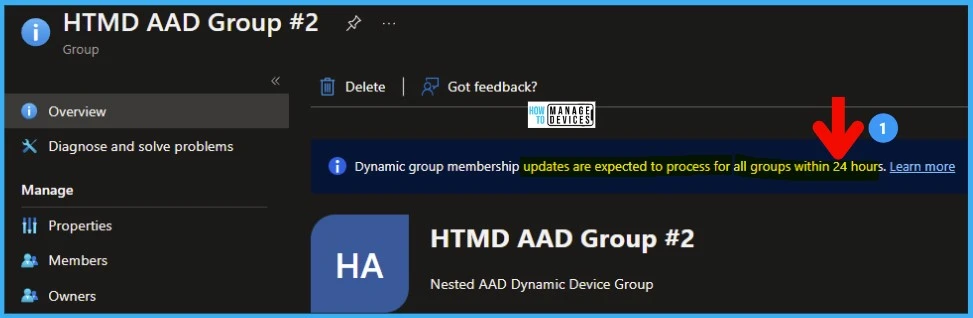
I know there are a lot of comments on Azure AD dynamic groups that are unreliable for production scenarios of Intune app and policy deployments. The SLA to update Azure AD dynamic groups is 24 hours.
I have not seen the AAD group update issue apart from some Windows Autopilot scenarios. But again, I think 99% of the time, and groups get updated immediately. I have not seen this issue specifically for Windows 365/AVD deployments. I don’t know if this is because of the size of some other character sticks of the AAD group.
The AAD dynamic group update takes a long time, and Intune filters take immediate effect. This is why most Intune admins would love to rely on Intune Filters instead of Azure AD Dynamic groups. Intune filter based on domain join type is not available yet.
How to Create AAD Dynamic Groups for Hybrid Azure AD Joined Devices
Let’s create Azure AD dynamic groups for Hybrid Azure AD joined devices. You can now use DeviceTrustType to create Hybrid Azure AD joined dynamic device groups. This is helpful to segregate AAD joined, and Hybrid AD joined devices.
You can create the AAD dynamic device group using the domain join type. Follow the steps to create this type of Hybrid Azure AD joined devices group.
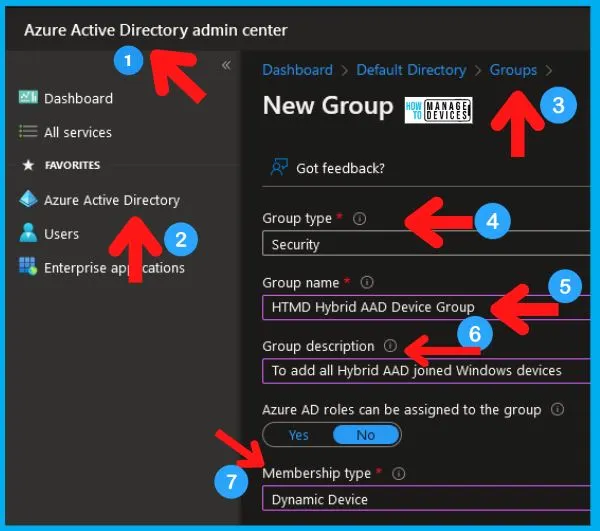
- Login to AAD.Portal.Azure.com.
- Navigate to the Azure Active Directory -> Groups node -> Click on the New Group button.
- Group Type -> Security
- Group Name -> HTMD Hybrid AAD Device Group
- Group Description -> To add all Hybrid AAD joined Windows devices
- Membership Type -> Dynamic Device
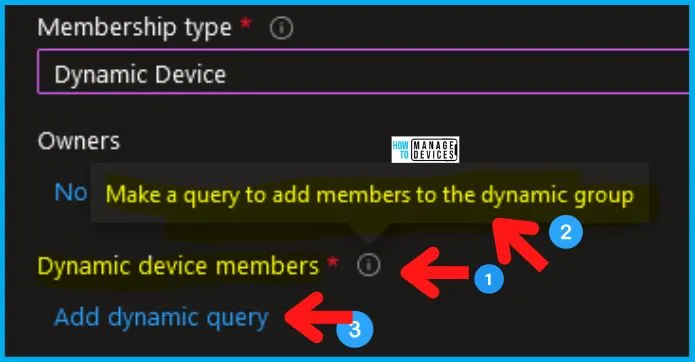
Click on the Dynamic device members -> Add dynamic query link as shown in the below screenshot. You now need to make a query to add members to the dynamic group for Hybrid Azure AD devices.
NOTE! – You need to select membership type as Dynamic Device or User to have Add Dynamic Query in this blade to appear.
There are two options to build the Azure AD dynamic group query. You can use the rule builder or rule syntax text box to create or edit an AAD device group dynamic membership rule.
- Rule Builder -> Graphical interface – Easy to create the dynamic query.
- Rule Syntax -> Advanced technical users for complex queries.
You need to follow the steps mentioned below to use Azure AD dynamic group Rule Builder to create dynamic query rules for Hybrid Azure AD joined devices.
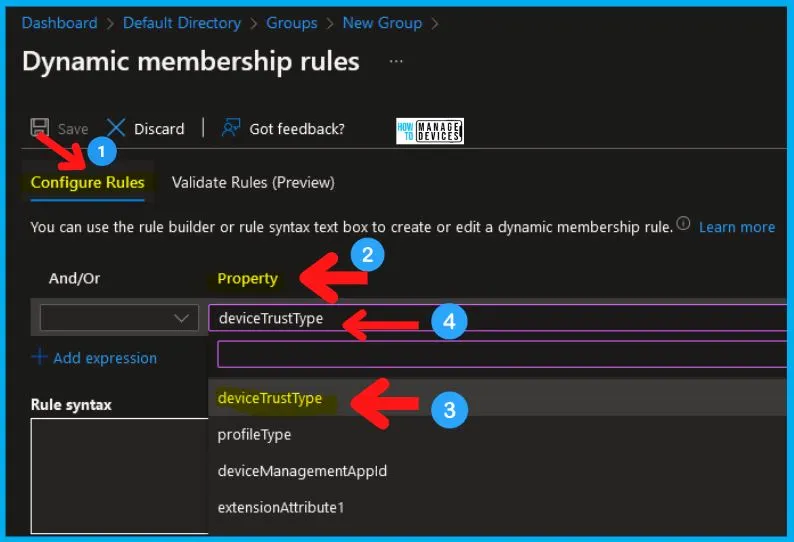
- Under Configure Rules -> Choose Property drop-down list.
- Select deviceTrustType as the property from the drop-down list.
It’s time to choose an operator now for the devicetrustType policy. I have selected Equals from the operator drop-down menu.
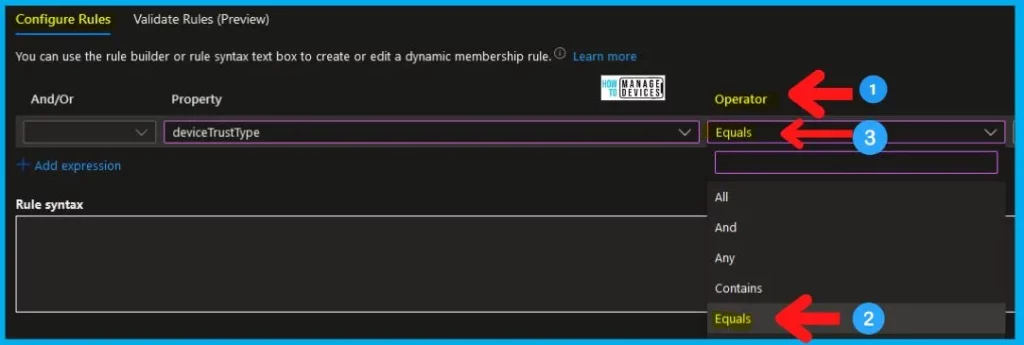
Let’s look at the value of the property deviceTrustType that you want to look for in the Hybrid Azure AD Joined scenario. The value that you want to look for is ServerAD for Hybrid AAD joined devices.

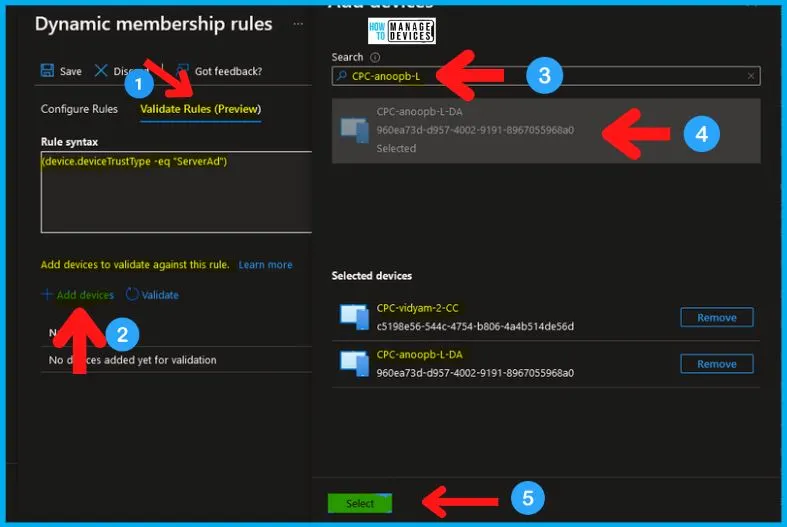
You can click on the Validate Rules tab to validate the dynamic query just created. Follow the steps to validate the query with Azure AD Joined and Hybrid Azure AD joined devices.
Dynamic Query for Hybrid AAD joined devices = (device.deviceTrustType -eq “ServerAd”)
- Click on Validate Rules tab once the query rule is built as per the above steps.
- Click on Add Devices link to add Azure AD Joined, and Hybrid Azure AD joined devices.
- Search for AAD Joined, and HAAD joined devices.
- Select both domain join type devices and click on the Select button.
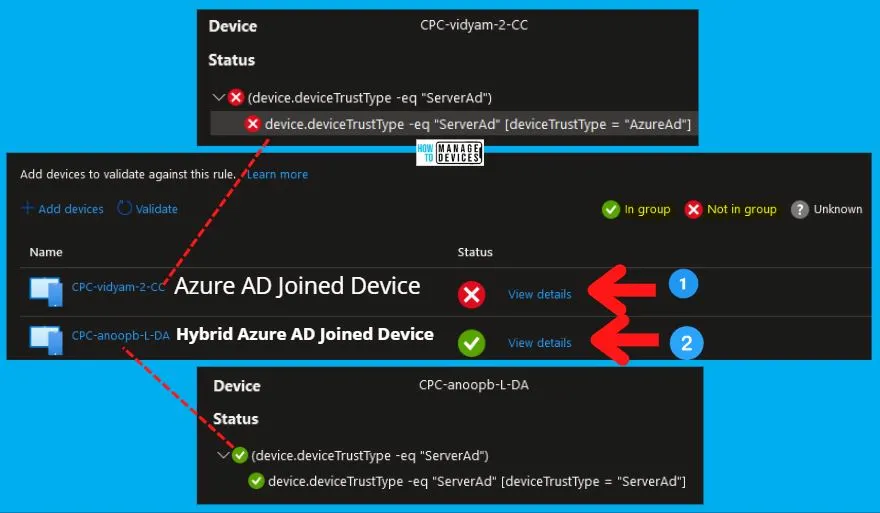
Let’s check the results of the validation rules now. I have added one Hybrid joined and Azure AD joined device. So it’s expected to get the following results. The AAD group dynamic query that is created is accurate!
- CPC-vidyam-2-CC -> Not in Hybrid Azure AD joined group because this device is Azure AD joined.
- CPC-anoopb-L-DA -> In Hybrid Azure AD joined the group because this device is Hybrid Azure AD joined.
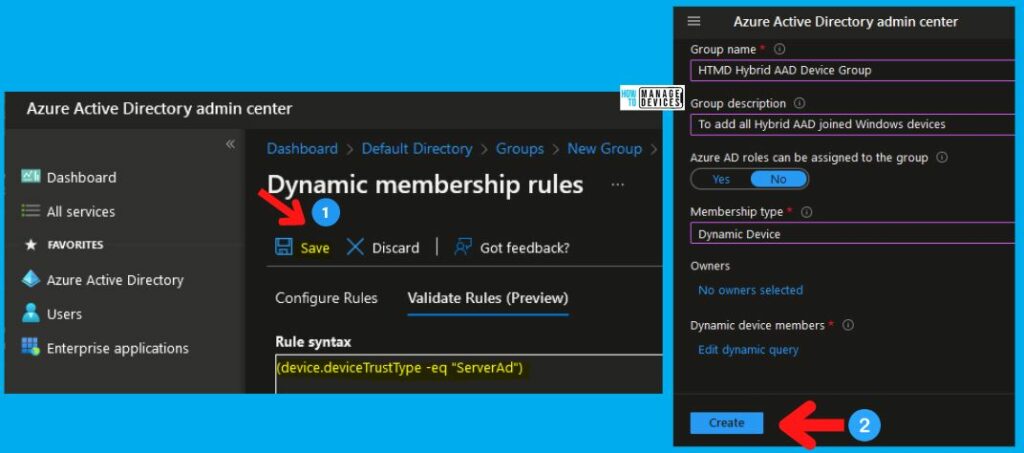
You need to click the Save and the Create buttons to complete the Hybrid Azure AD dynamic device group creation process.
How to Create Azure AD Joined Devices Azure AD Dynamic Group
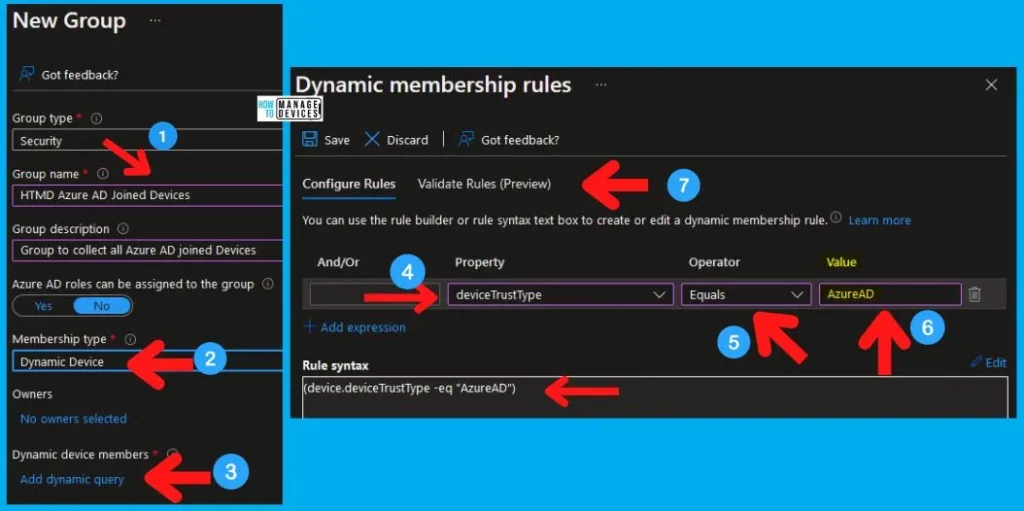
Let’s try to create Azure AD Joined Devices Azure AD Dynamic group. This section of the post is going to be pretty easy because you need to follow the same steps that are explained above.
The only step you need to change is the value of the deviceTrustType attribute. You need to follow all the same steps explained above.
- Create a new AAD dynamic group for Azure AD joined devices (just follow the steps mentioned in the above section of the post)
- Add the dynamic rule as discussed before.
Check out the value of the property deviceTrustType that you want to look for in the Azure AD Joined scenario. The value that you want to look for is AzureAD for Hybrid AAD joined devices.
Azure AD Group Dynamic query for Azure AD joined devices -> (device.deviceTrustType -eq “AzureAD”)
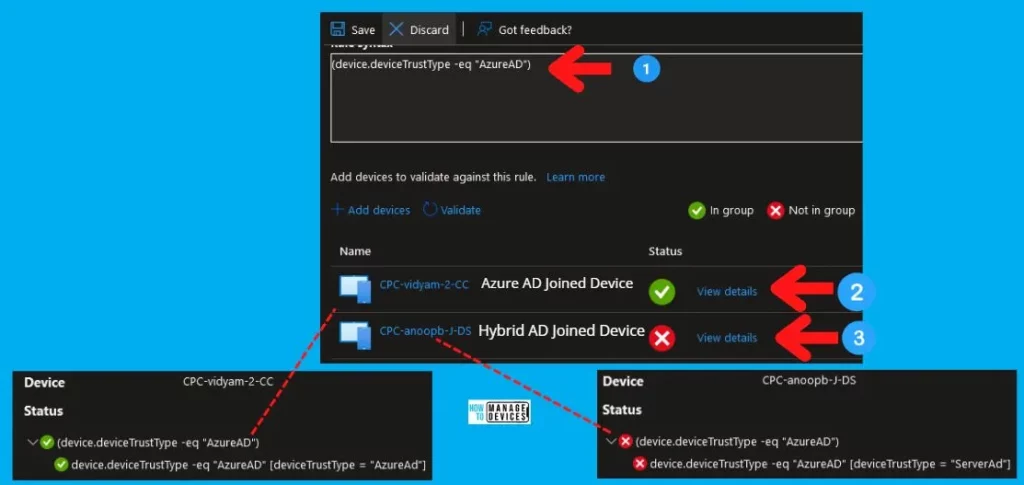
The validation rules are the next step you need to perform to confirm that the dynamic query for Azure AD joined devices is correct!
- CPC-anoopb-L-DA -> Not in Azure AD joined the group because this device is Hybrid Azure AD joined.
- CPC-vidyam-2-CC -> In Azure AD joined the group because this device is Azure AD joined.
You need to click on the Save and the Create buttons to complete the Azure AD dynamic device group creation process.
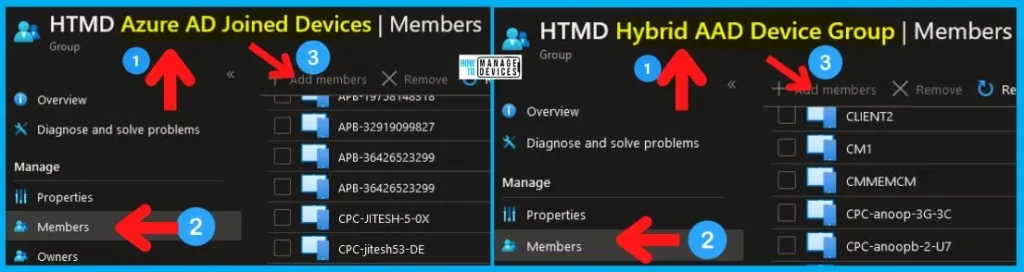
Results – Hybrid Azure AD and Azure AD Joined Devices AAD Groups
In this post, I have covered the two scenarios to create Azure AD dynamic device groups based on domain join type.
- Hybrid Azure AD Joined
- Azure AD Joined
In my quick testing, both work fine. I didn’t wait for 24 hours to get these Azure AD device groups updated. The validation rules also worked just fine.
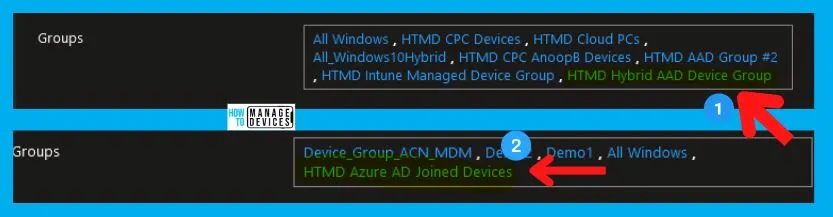
You can check the device properties and confirm whether that is working or not. I have verified one device from each Azure AD and Hybrid Azure AD dynamic device group. It shows the correct groups in the device properties, as shown in the screenshot below.
Author
Anoop is Microsoft MVP! He is a Solution Architect in enterprise client management with over 17 years of IT experience (calculation done in 2018). He is Blogger, Speaker, and Local User Group Community leader. His main focus is on Device Management technologies like SCCM 2012, Current Branch, and Intune. He writes about technologies like SCCM, SCOM, Windows 10, Azure AD, Microsoft Intune, RMS, Hyper-V, etc.


Need to do accountenabled = True and possibly managementType = MDM to eliminate Autopilot devices that haven’t been deployed. I just did both since for some reason some of my Autopilot devices got enabled:
(device.deviceTrustType -eq “AzureAD”) and (device.accountEnabled -eq True) and (device.managementType -eq “MDM”)
And if you are dealing with an SCCM co-managed environment and wish to split those up then there are these groups you can use:
NAME: DYN-Devices-AAD-Joined-Win-Intune-Managed-Not-HYB-Or-Autopilot-SN
DESC: Include all Non-Hybrid AAD joined Windows Intune Managed devices except Autopilot Serial Number devices
DYN RULE: (device.accountEnabled -eq True) -and (device.deviceOSType -startsWith “Windows”) -and (device.managementType -eq “MDM”) -and (device.deviceManagementAppId -contains “0000”) -and (device.deviceTrustType -eq “AzureAD”)
NAME: DYN-Devices-AAD-Joined-Win-SCCM-Managed-Not-HYB-Or-Autopilot-SN
DESC: Include all Non-Hybrid AAD joined Windows SCCM Managed devices except Autopilot Serial Number devices
DYN RULE: (device.accountEnabled -eq True) -and (device.deviceOSType -startsWith “Windows”) -and (device.managementType -eq “MDM”) -and (device.deviceManagementAppId -contains “54b9”) -and (device.deviceTrustType -eq “AzureAD”)