






Create MS Edge SCCM Device Collection using WQL Query
Let’s check how to create MS Edge SCCM device collection using a WQL query. I have already shared the SQL query to find the details for Microsoft Edge from your SCCM infrastructure.
You can use MS Edge based dynamic device collections for many scenarios. Internet Explorer is already out of support for most Windows 10 operating systems from 15th June 2022 onwards.
The SCCM collection for a particular version of Edge browser would be interesting to cover some of the policy deployment and reporting scenarios. This collection is based on hardware inventory data from the client devices.
Let’s try to create individual collections based on each application installed to reduce the impact of collection evaluation and performance issues. It would be best if you tried to use the implicit uninstall feature introduced with the SCCM 2107 rather than using collection based on the installed application.

I have explained the process of installing the Microsoft Edge browser application in the following guide -> Deploy Microsoft Edge Chromium Browser using SCCM or Intune.
- ConfigMgr Resource Explorer Deep Dive Helps to Troubleshoot and Fix Issues
- Enable SCCM Resource Explorer from Intune Portal | ConfigMgr
- ConfigMgr Collection Based On Active Directory OU
Validate Microsoft Edge Version Installed on Windows 11 or Windows 10
Let’s validate the version of the Microsoft Edge browser application installed on any Windows Operating system such as Windows 10, Windows 11, Server 2022, etc.
There are two different ways to identify the version of the Microsoft Edge Browser application without using SCCM/ ConfigMgr. You can use the Registry to confirm the version. There are two options, Command Prompt and PowerShell commands to verify the MS Edge version details.
reg query HKCU\Software\Microsoft\Edge\BLBeacon /v version
(Get-ItemProperty -Path HKCU:\Software\Microsoft\Edge\BLBeacon -Name version).version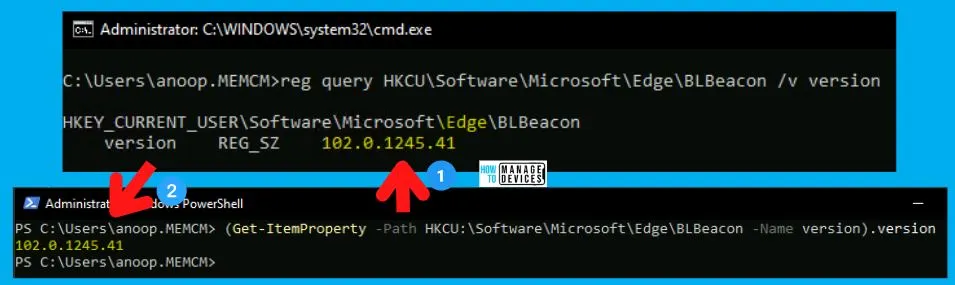
Check Installed Application Details from Resource Explorer
You need to check where exactly the Microsoft Edge inventory or details are stored in SCCM. You need to use the ConfigMgr resource explorer.
- Launch SCCM Console.
- Navigate to \Assets and Compliance\Overview\Devices\ and select one device.
- Right-click on one of the devices, select Start and click on Resource Explorer.
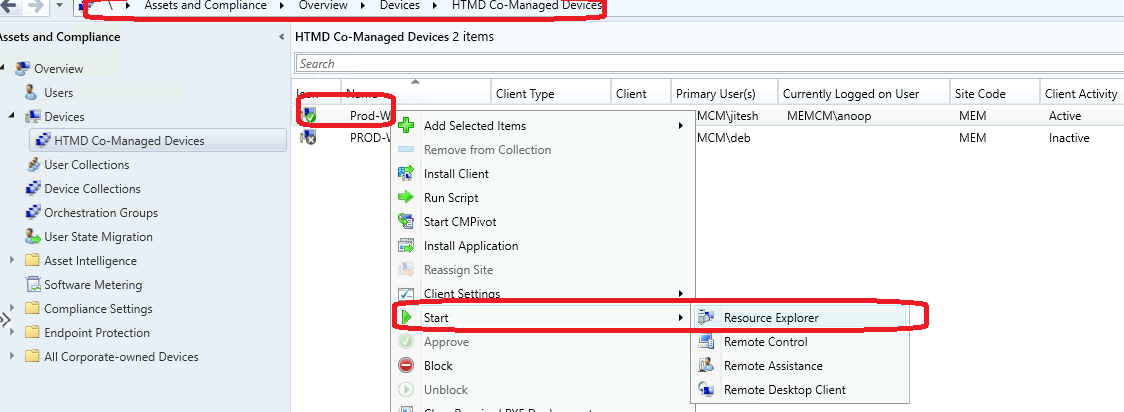
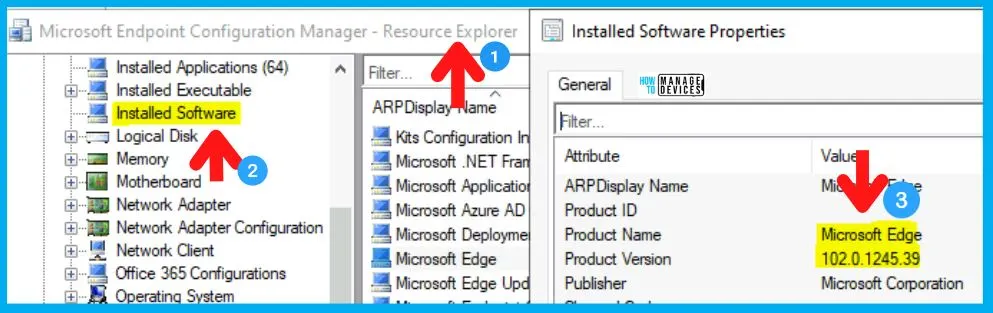
You need to check the Hardware History section from resource explorer and Navigate to Installed Software – Current node to get the list of applications/software installed on Windows 11 or Windows 10 PC.
Ultimately, I have decided to use Installed Software (node) to get the Edge browser details. I don’t get confused between the nodes called Installed Applications and Installed Applications (64) because it won’t give the consolidated list of x86 Vs. x64 versions of apps.
Create MS Edge SCCM Device Collection using WQL Query
Let’s try to create MS Edge SCCM Device Collection using WQL Query. The dynamic device collection created based on Microsoft Edge installed Windows PC helps target IE mode for the Edge configurations, etc.
You should use requirement rules and supersedence features in the Configuration Manager (SCCM) application model to upgrade the Microsoft Edge version of Windows PCs. You can also MS Edge patching method to update using SCCM.
- Open SCCM Admin console.
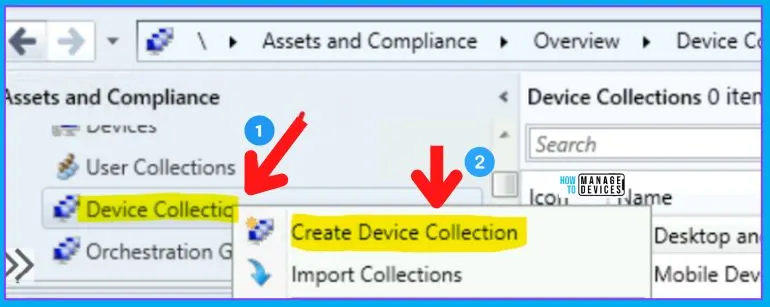
- Navigate to \Assets and Compliance\Overview\Device Collections.
- Right Click Device Collection node and select Create Device Collection.
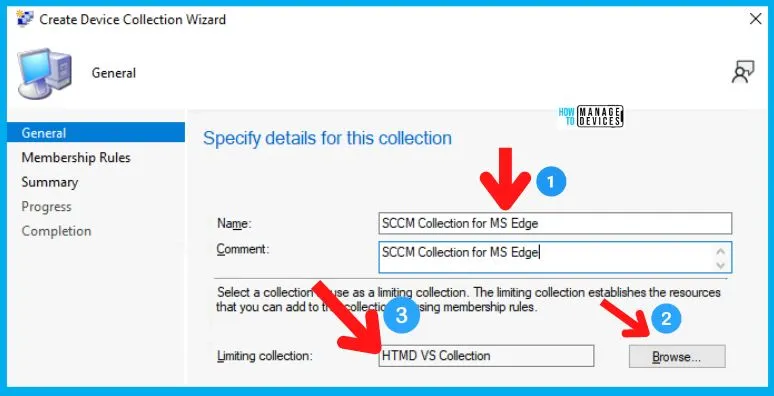
Let’s specify the basic details of the device collection.
- Enter the Name Of the Collection – SCCM Collection for MS Edge.
- Enter the Description of the Collection – HTMD MS Edge Chrome Installed Devices – Installed Software.
- Select the Limiting collection – Select a collection to use as a limiting collection.
What is SCCM Limiting Collection? The limiting collection establishes the resources you can add to this collection using membership rules. And click on the Next button to continue.
Create Collection Query – Microsoft Edge Browser Version Installed Devices
In this section of the post, let’s check how to create a WQL Query to create a collection based on the version of the Microsoft Edge installed on Windows 10 or Windows 11 devices.
The membership rules determine the resources included in the collection and when it updates. You can use membership rules to add specific attributes or a set of attributes from the list of WMI tables. In this case, it’s based on the version of the MS Edge browser application installed on Windows 10 or Windows 11 devices.
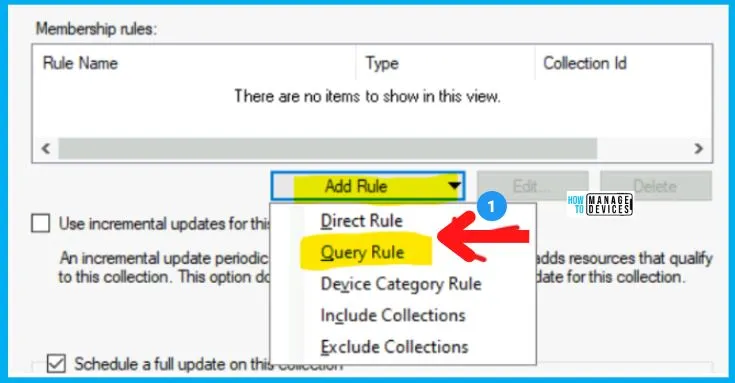
- From the Membership Rules page of the Create User Collection Wizard, in the Add Rule list,
- Select the type Query Rule membership rule for this collection.
NOTE! – You can configure multiple query rules for each collection. Select Query Rule to continue with the creation of dynamic device collection.
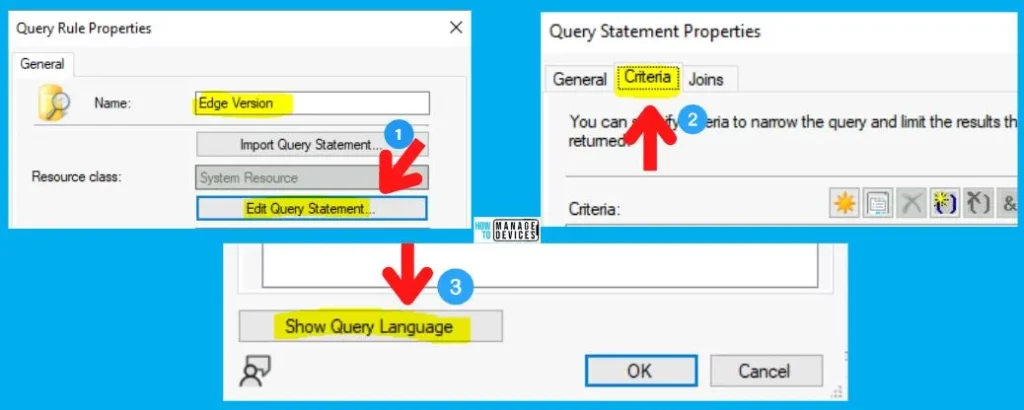
On the Query Rule Properties window, specify the following information, such as the MS Edge query name, resource class, etc.
- Enter the Unique Name of the Query – HTMD Query-based installed software.
- Select the Resource Class as System Resource for device collection.
- Click on the Edit Query Statement button to continue building dynamic queries from Query Statement Properties.
- Click on the Criteria tab to continue.
Once you are in the Criteria tab, you need to click on the Show Query Language button.
The WQL query to find the Windows 10 or Windows 11 devices with a particular version of the Microsoft Edge Browser application is given below. You just need to copy the query to the Query Statement Properties window, as shown in the screenshot below.
NOTE! – WQL query is the subset of SQL queries used for WMI Related activities.
select * from SMS_R_System inner join SMS_G_System_INSTALLED_SOFTWARE on SMS_G_System_INSTALLED_SOFTWARE.ResourceId = SMS_R_System.ResourceId where SMS_G_System_INSTALLED_SOFTWARE.ProductName = "Microsoft Edge" and SMS_G_System_INSTALLED_SOFTWARE.ProductVersion >= "102.0.1245.33"
How to Verify MS Edge Browser Version Query
Let’s validate MS Edge WQL Query with the Query Results Preview option in SCCM. This tool helps confirm whether the WQL query (Dynamic query) is working fine or not.
- Click on the GREEN video play button from the Query Statement Properties window.
- Click on the RUN button from the Query Results Preview window to get the results of the WQL query.
- Check the results and if it’s ok, click on the Close button.
I see query results preview gives the Product name, version, etc., details of Microsoft Edge, 102.0.1245.33, etc. Always use the Limit Row Return option to limit the results to 500 or 5000 entries rather than showing all the entries.

Finish Creation of SCCM Collection based on Installed Application
Let’s complete the process of creating the SCCM Dynamic Device Collection based on the MS Edge version in this section of the post.
- Click the OK and OK buttons to complete the dynamic query creation process.
- Click on the Next button to continue. I normally keep the default Full Update Schedule for the collection. Also, it’s better to avoid using the option “Use Incremental updates for this collection.”
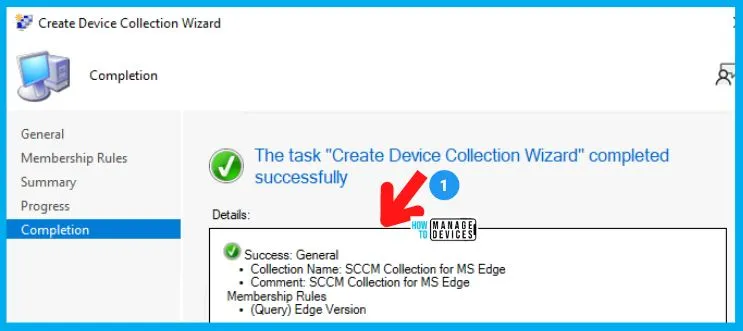
Let’s complete the dynamic device collection based on the installed application creation process by clicking on the Next button three (3) times and the Close button.
Troubleshooting – FIX SCCM Collection based on the Microsoft Edge version issues?
Let’s see how to start troubleshooting and FIX SCCM Collection based on the Microsoft Edge version issues? The following are some of the tips where you can start troubleshooting.
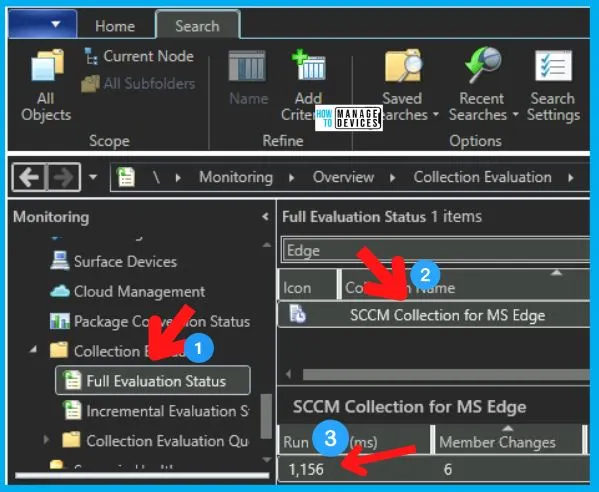
- You can check the collection evaluation details from the console “\Monitoring\Overview\Collection Evaluation” node. You can get more information from the CollEval.log as part of the SCCM Server-side log file.
In this example, the Collection ID = MEM0002D. Check out the Run Time (ms) taken to complete the Full evaluation of the Microsoft Edge collection, and the Run Time is 1156.
If the devices are not getting added to the collection automatically (even after the successful collection evaluation), it’s time to check a few things:
- Go back to resource explorer and confirm the device has the correct version of MS Edge.
- Verify whether the Client’s health is ok or not.
- Confirm Client is sending Hardware Inventory.
Results
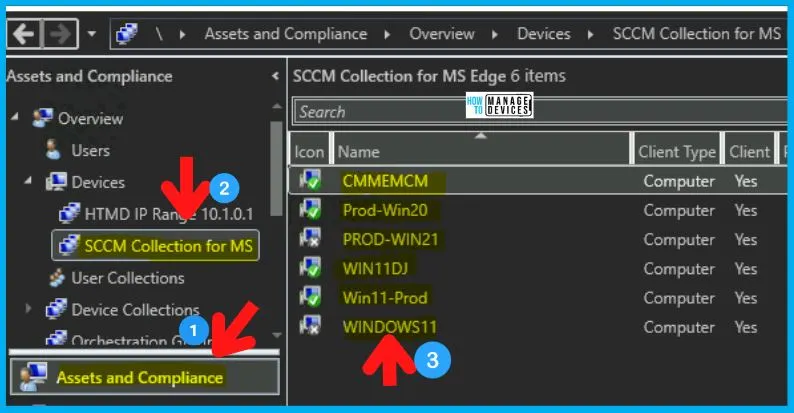
You can now check whether all the devices with MS Edge browser application versions less than or equal to (>=) 102.0.1245.33 is part of the newly created collection.
- 6 devices are part of the MS Edge Dynamic Device collection
Microsoft Edge release notes for Stable Channel | Microsoft Docs
Author
Anoop is Microsoft MVP! He is a Solution Architect in enterprise client management with more than 20 years of IT experience (calculation done in 2021). He is Blogger, Speaker, and Local User Group HTMD Community leader. His main focus is on Device Management technologies like SCCM 2012, Current Branch, and Intune. He writes about ConfigMgr, Windows 11, Windows 10, Azure AD, Microsoft Intune, Windows 365, AVD, etc.




Discussion