






Sync Issue between Intune and Log Analytics Fixed?
Sync Issue between Intune and Log Analytics Fixed? It seems there is a data flow issue between Diagnostics Settings and Log Analytics. Let’s check the sync issue between Intune Diagnostics Settings and Log Analytics.
There are reports that after Intune 2206 service release, the sync between IntuneDiagnostics Settings and Log Analytics stopped working. I have noticed this behavior before. Intune Diagnostics Settings Content failed to load Error is another issue that I have noticed.
I have also noticed a strange behavior when I try to access Log Analytics Workspace from the MEM Admin center portal. It seems something is broken there. You can still open Log Analytics Workspace directly from the Azure portal without any trouble.
I have explained how to setup sync between Intune Diagnostics Settings and Log Analytics. This sync helps to send all the Intune platform data to the Log Analytics workspace. This helps to run Intune KQL queries for troubleshooting issues.

Read More -> Intune Diagnostics Settings and Log Analytics Sync Details
Sync Issue between Intune Diagnostics Settings Log Analytics
Let’s check what the sync issue reported between Intune Diagnostics Settings and Log Analytics is? Joseph Kaster reported on Twitter that data flow issues between Intune and log analytics using the diagnostic settings under reports?
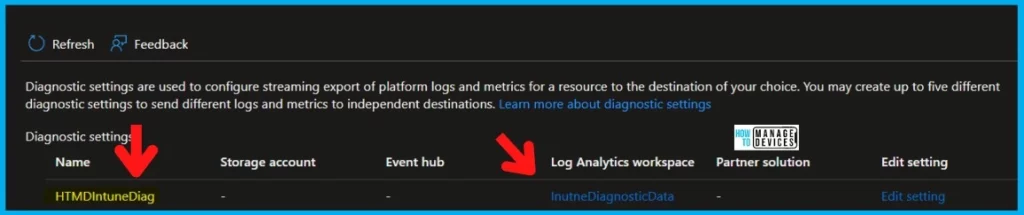
He thinks the data flow between Log Analytics and Intune stopped after the 2206 service release. Microsoft has not confirmed anything on this point yet. However, Intune Support Team on Twitter acknowledged that they would look into the issue and report back.
Martin Lim also reported the same issue on Twitter. As per him, Device information can be saved to a log analytics workspace. Normally Device Information gets exported to Log Analytics Workspace every 24 hours or less, but the last export occurred on June 30th.
How to Confirm Data Flow between Intune and Log Analytics are Working?
Let’s check how to Confirm Data Flow between Intune and Log Analytics is Working? You can check this by going to log analytics workspace from Azure Portal and checking whether there is any new device reported in the last 24 hours.
You can also check whether any Intune Audit Logs have been reported in the last 24 hours to confirm the same. You can confirm the Intune MEM portal audit logs and compare them with Log Analytics workspace audit logs.
- Intune MEM portal Audit Logs -> Intune Audit Logs Track Who Created Updated Device Compliance Policy
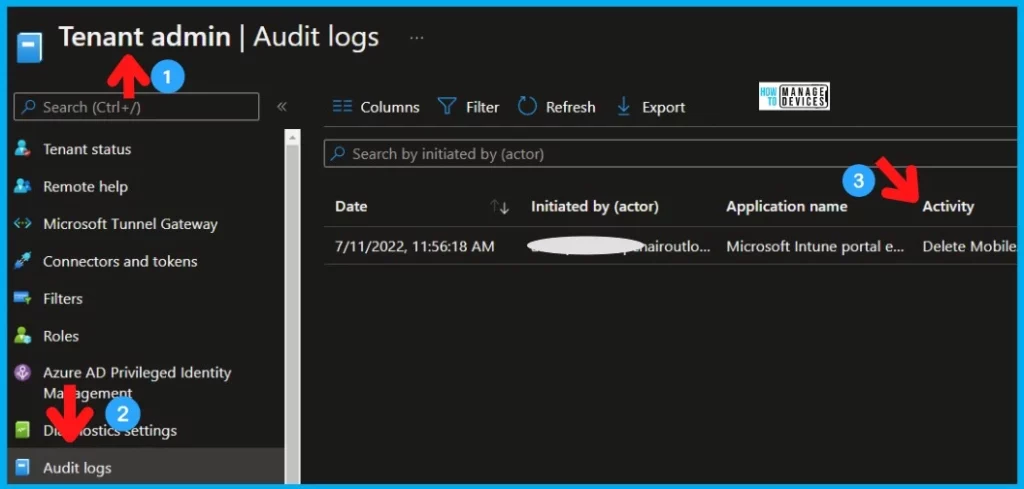
NOTE! – Normally, the Intune audit log data flow to the Log Analytics workspace takes time, and it’s not always immediate. My last testing took less than 10 minutes to replicate audit logs from Intune to Log Analytics.
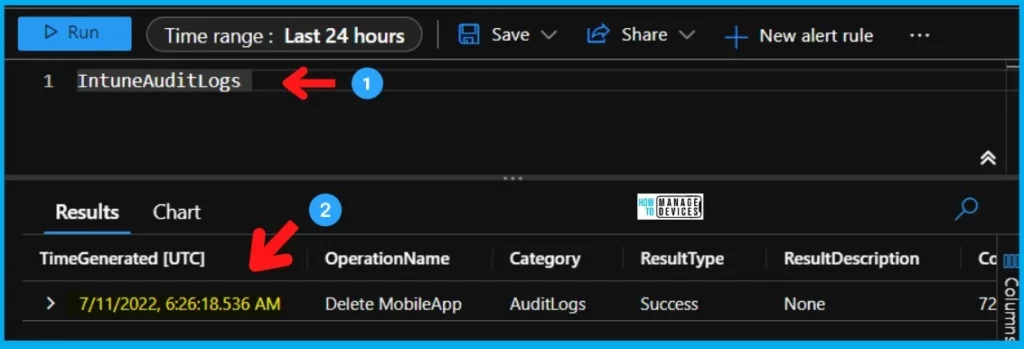
But when you look at the log analytics workspace Intune Audit logs table for the last 24 hours, nothing is showing up there. This means there is a data transfer delay or issue reported on Twitter. In this scenario, I don’t see any issue in data transfer between log analytics and Intune.
There is a time difference between the above screenshot from MEM and Log Analytics screenshot below. This time difference is because the MEM portal shows time in the local timezone of admin, and Log Analytics shows in the UTC timezone.
Intune Diagnostics Settings Content failed to load Error
I started getting the Intune Diagnostics Settings Content failed to load Error whenever I tried to open Log Analytics Workspace from Intune MEM admin center Tenant Admin and Reports nodes.
The following is the error that I have received. It seems there is no specific error code recorded. After closing and reopening the MEM admin center portal, the following issue went away.
Manual require of the following modules failed; ["ReactViews/Logs.ReactView" : {Error: Couldn't load "ReactViews/Logs.ReactView" at "https://afd.hosting.portal.azure.net/omsworkspace/Content/Dynamic/74ND_7IFD9O-.js" as the following exception was thrown; {"message":"Cannot read properties of undefined (reading 'getUserInfo')","stack":"TypeError: Cannot read properties of undefined (reading 'getUserInfo')\n at window.getUserInfoPromise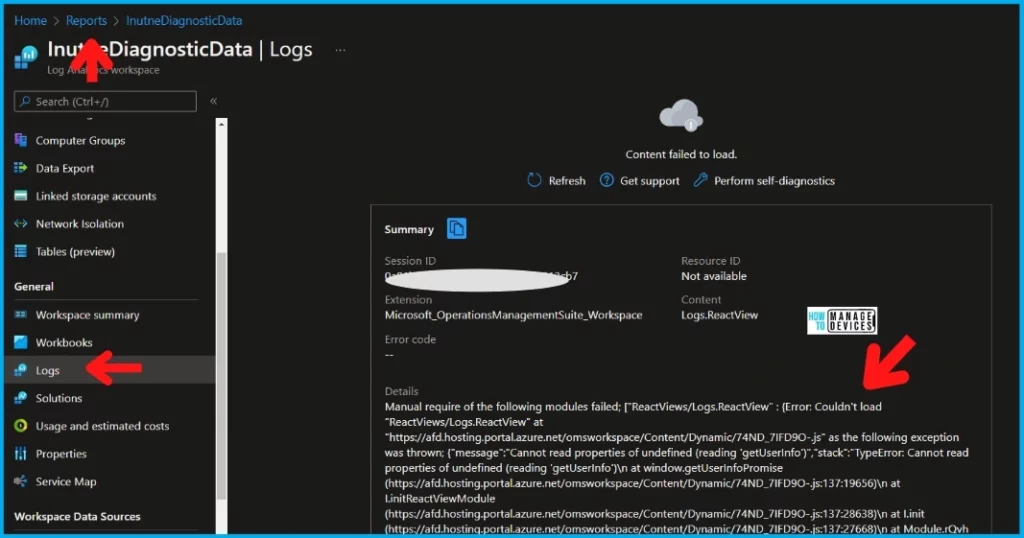
MEM Intune Self-Diagnostics to check the Portal Issues
MEM Intune Self-Diagnostics helps to check the Portal Issues. The link to Intune self-diagnostics portal is given below. I think this is a good starting point to identify or run diagnostics.
I have tried Running the following self-diagnostics tasks from the MEM portal, which will help you find the root cause and resolution for your error. It seems there is an issue with Service Health Insights.
However, Self-Diagnostics Confirms the availability of portal services such as Azure Resource Manager, Azure Active Directory, and Microsoft Graph. These diagnostics didn’t provide any errors or details apart from the Service Health Insights error.
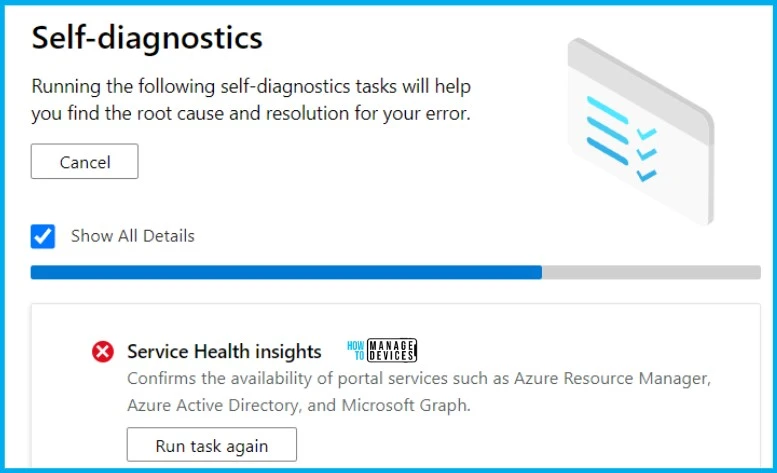
The following are some of the diagnostics tasks run by Intune Self-Diagnostics portal. The first one is Service Health insights. This helps to confirm the availability of portal services such as Azure Resource Manager, Azure Active Directory, and Microsoft Graph.
- All connections responded successfully.
- No endpoints were found for diagnostics.
Verify connectivity to Azure domains – Check your connection to Azure Resource Manager and other portal dependencies.
Verify the manifest – Ensures the availability of the portal manifest and verifies we can connect to Cosmos DB.
- Verify read/write functionality to session storage – Check whether session storage is supported and functioning properly.
Verify read/write functionality to local storage – Check whether local storage is supported and functioning properly.
- Load an iframe – Ensures that iframes are available within the portal.
- Create web workers – Ensures that web workers are functional and communicating as designed.
Verify persistence of cookies – Check those cookies can be retrieved from the browser and are not stripped on a POST request.
- Verify the persistence of the request body – Check that the request body is not stripped on a POST request.
Author
Anoop is Microsoft MVP! He is a Device Management Admin with more than 21 years of experience (calculation done in 2022) in IT. He is Blogger, Speaker, and Local User Group HTMD Community leader. His main focus is on Device Management technologies like SCCM 2012, Current Branch, and Intune. He writes about ConfigMgr, Windows 11, Windows 10, Azure AD, Microsoft Intune, Windows 365, AVD, etc.


Discussion