






Best Method to Manage Bitlocker Using SCCM | ConfigMgr
Let’s see the best method to Manage Bitlocker using SCCM. You can use ConfigMgr to manage BitLocker Drive Encryption (BDE) for on-premises Windows 11 or Windows 10 clients to Active Directory.
SCCM Bitlocker management provides full BitLocker lifecycle management that can replace the use of Microsoft BitLocker Administration and Monitoring (MBAM). Let’s have a look into the Default BitLocker reports available in ConfigMgr 2010 version.
Microsoft introduced integrated BitLocker functionality into ConfigMgr with version 1910. You can navigate to \Assets and Compliance\Overview\Endpoint Protection\BitLocker Management workspace in the SCCM console and configure BitLocker policies.
You can Plan and configure BitLocker management policies by going through Microsoft documentation. In this post, I’m going to cover the BitLocker configuration guide.

Prerequisites to Manage Bitlocker Using SCCM
The main General prerequisite is you must be in a Full Administrator role on ConfigMgr. To use default reports in ConfigMgr console for Bitlocker management, reporting services point site system role is required.
Prerequisites required for clients
- The device must have a TPM chip and it should be enabled from the BIOS settings.
- As per Microsoft’s recommendation, TPM version 2.0 or later is required. All Bitlocker functionality may not support in the TPM chip version 1.2.
- The computer must supports USB devices during startup and the hard disk requires a BIOS to compatible with TPM.
Prerequisites for the recovery service
ConfigMgr 2010 and earlier versions, to encrypt the recovery keys across the network from the Configuration Manager client to the management point the Bitlocker recovery service requires the HTTPS method. Use one of the options below.
- HTTPS-enable the IIS website on the management point that hosts the recovery service.
- Configure the management point for HTTPS.
You need one management point not in a replica configuration to use recovery service in ConfigMgr 2010 and earlier version. But the Bitlocker recovery service installs on a management point that uses a database replica, clients cannot escrow recovery keys and Bitlocker will not encrypt the drive. You must need to disable the Bitlocker recovery service in the management point with a database replica.
Note! ConfigMgr 2103 onwards, the recovery service supports management points that use a database replica.
Let’s check the option in SCCM on how we can configure Bitlocker. You can navigate to \Assets and Compliance\Overview\Endpoint Protection\BitLocker Management workspace in the SCCM console and configure BitLocker policies.
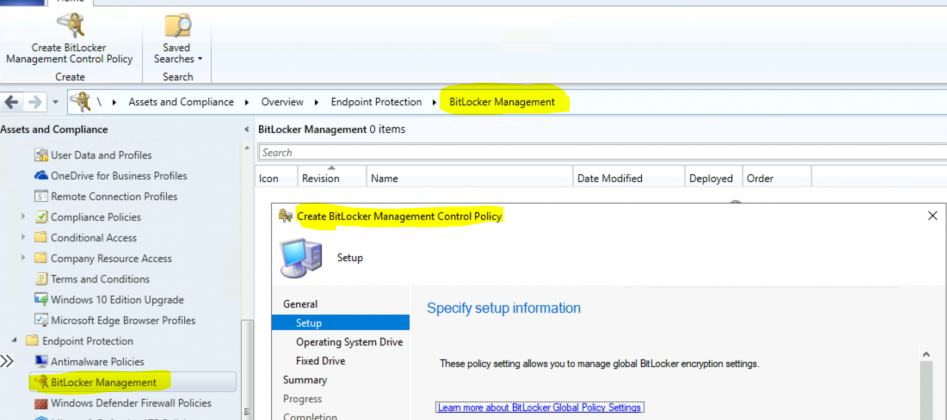
Right Click on the Bitlocker Management > Create Bitlocker Management Control Policy
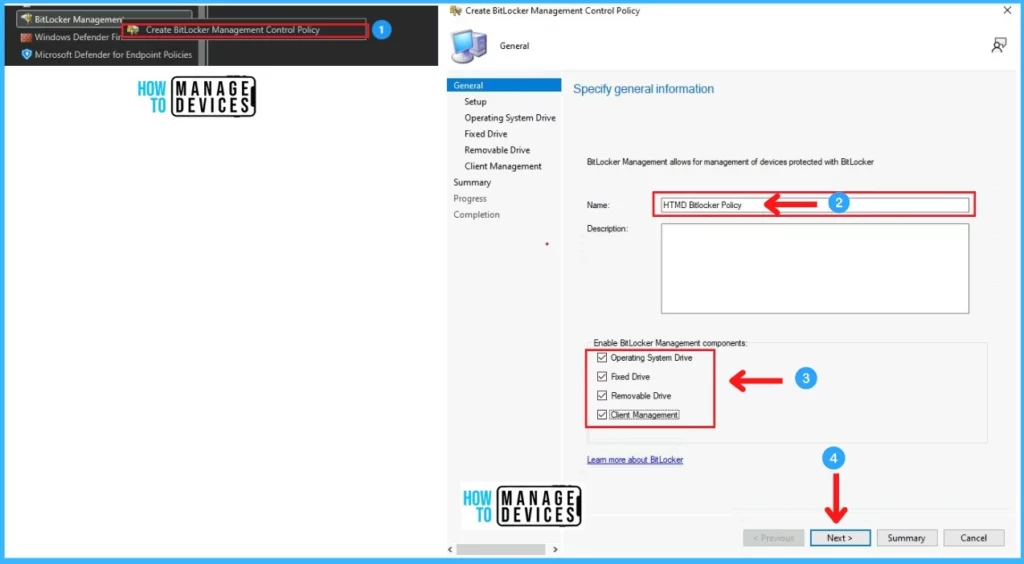
Provide the Name of the Policy and Check all the boxes according to your requirement. Then Click Next.
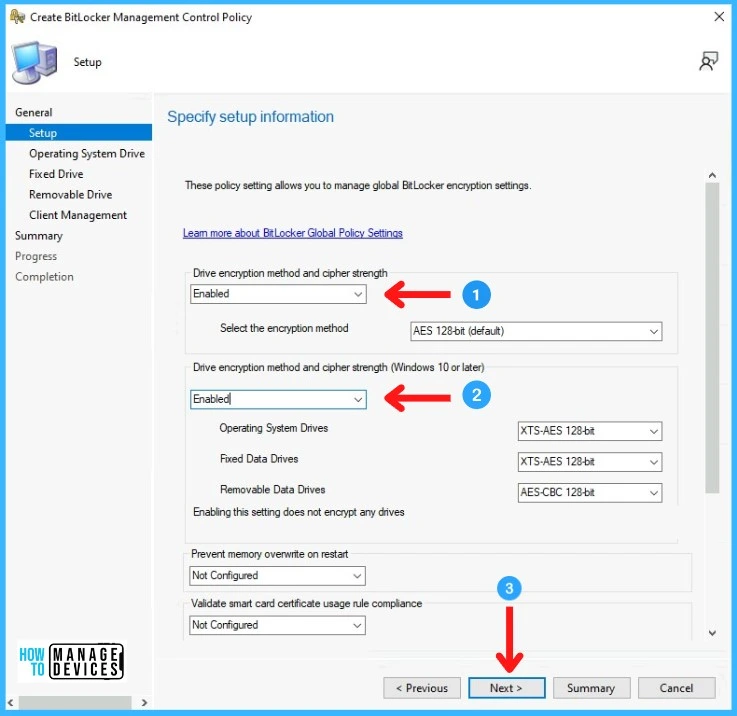
On the Setup tab enable the policy which you want according to your requirement and click Next.
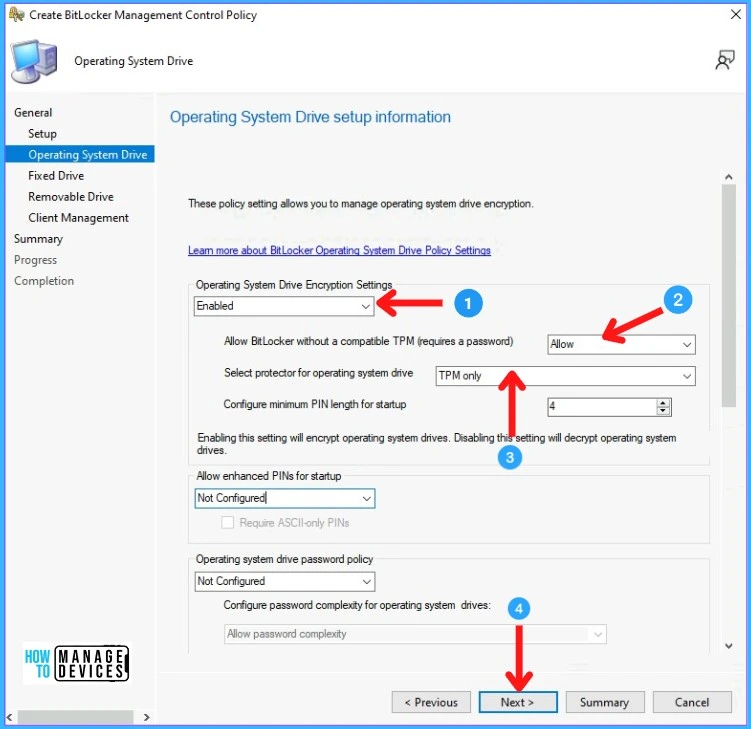
In the Operating System Drive tab Enable the “Operating System Drive Encryption Settings“.
Also, check the other settings according to the requirement and click Next.
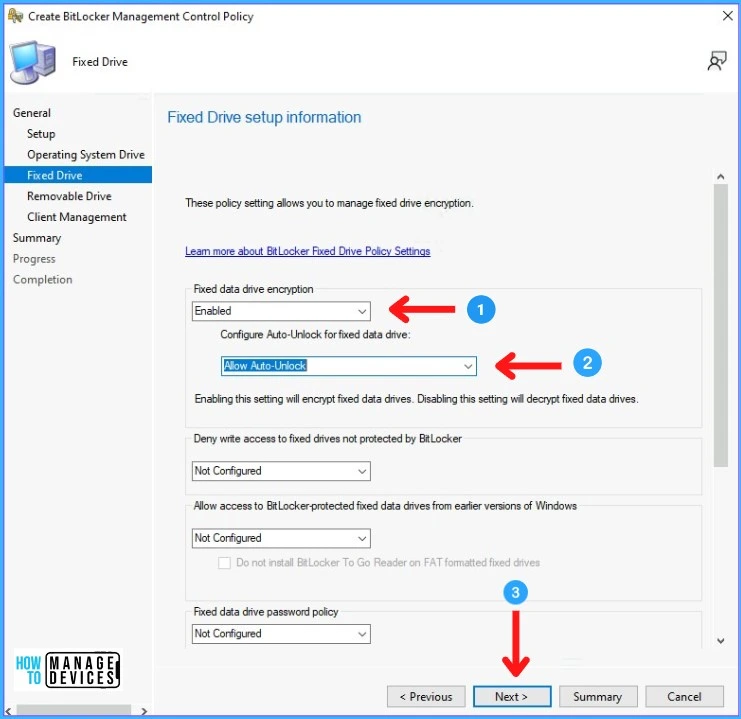
In the Fixed Drive tab check the settings below and Click Next.
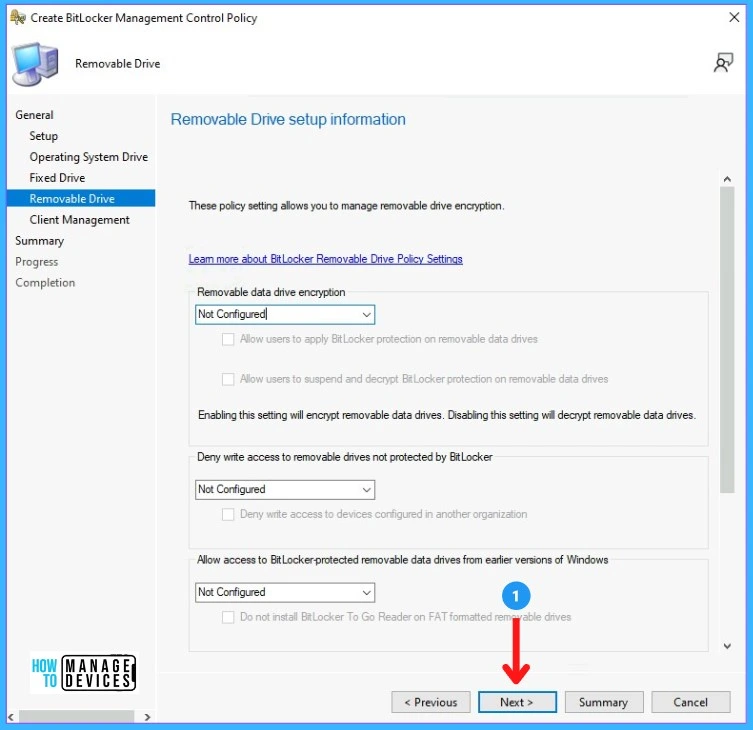
Here in this Removable Drive tab, I have not configured the policy. If you wish you set you can do and click Next.
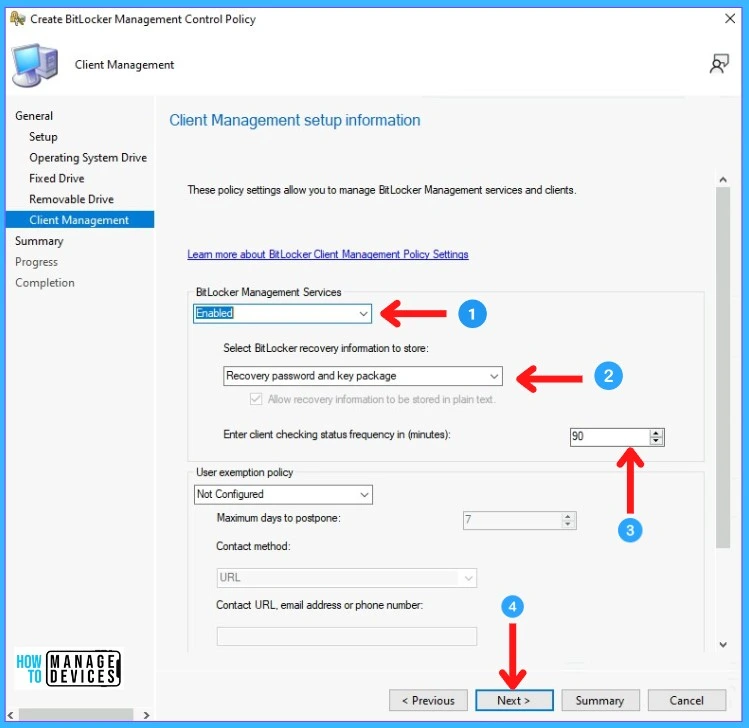
In the Client Management tab, you can Enabled the policy Bitlocker Management Services and other settings you can change to your requirement. Click Next.
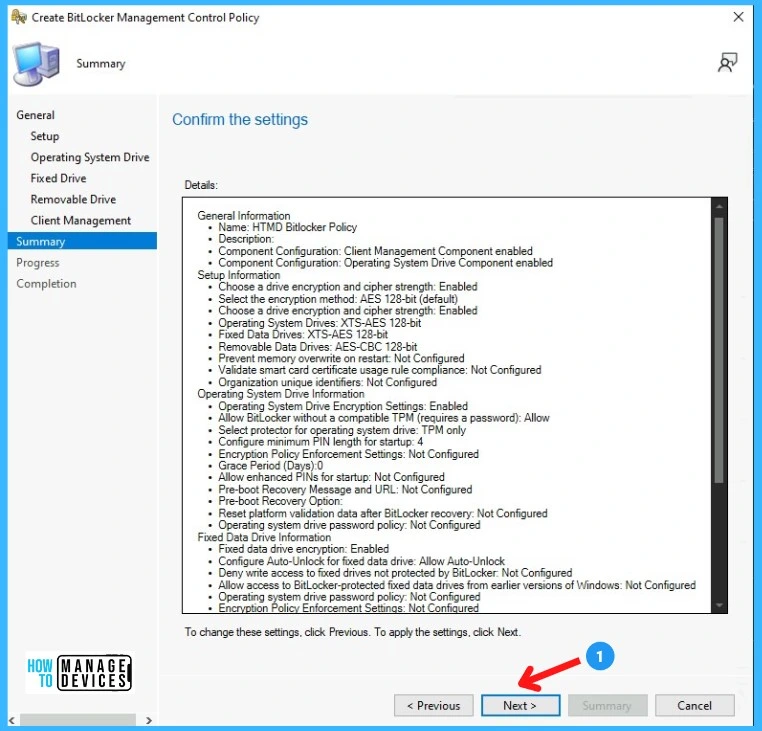
Verify the settings you created and click Next.
After the process is complete click on Close.
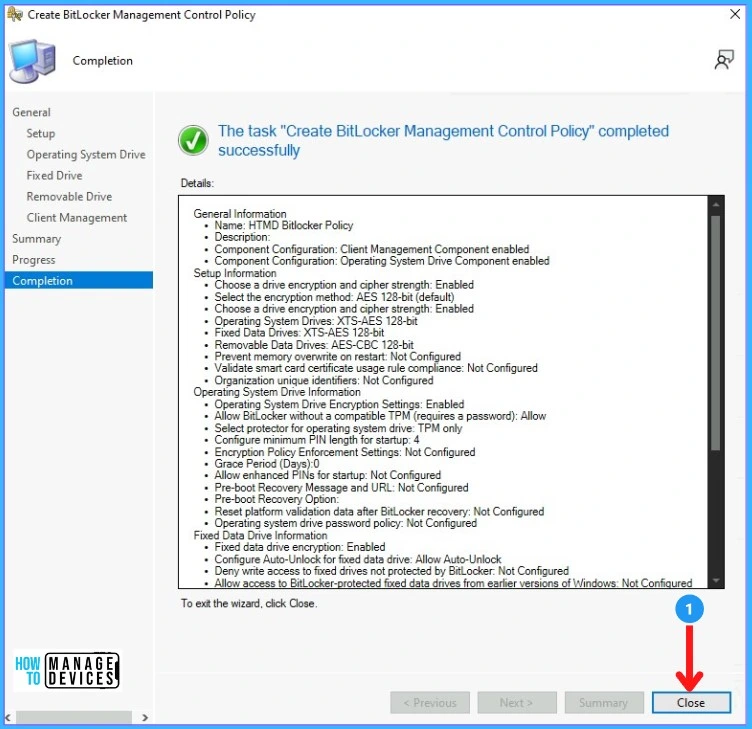
How to Deploy Bitlocker Policy
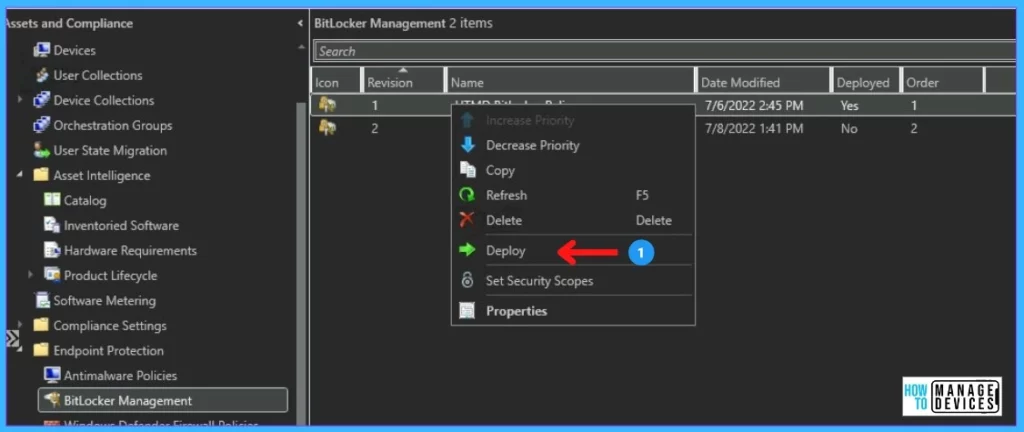
After the policy is created let’s see how we can deploy the policy on the devices. To deploy the policy you can navigate to \Assets and Compliance\Overview\Endpoint Protection\BitLocker Management.
Select the policy you created > Right Click > Deploy.
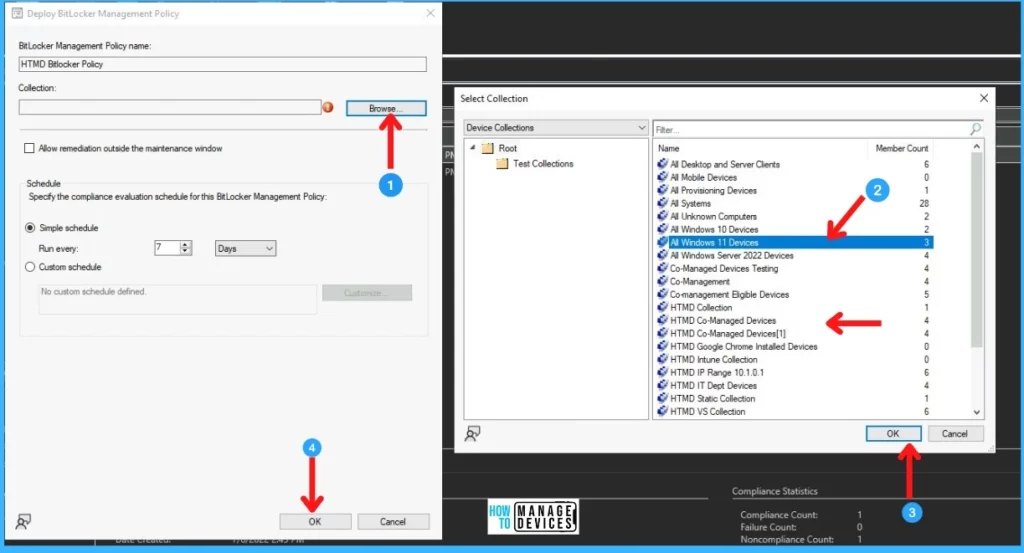
Select the Device Collection where you want to deploy > Click Ok.
You can change the deployment Schedule in how many days you want to run the policy.
Result of Bitlocker Policy
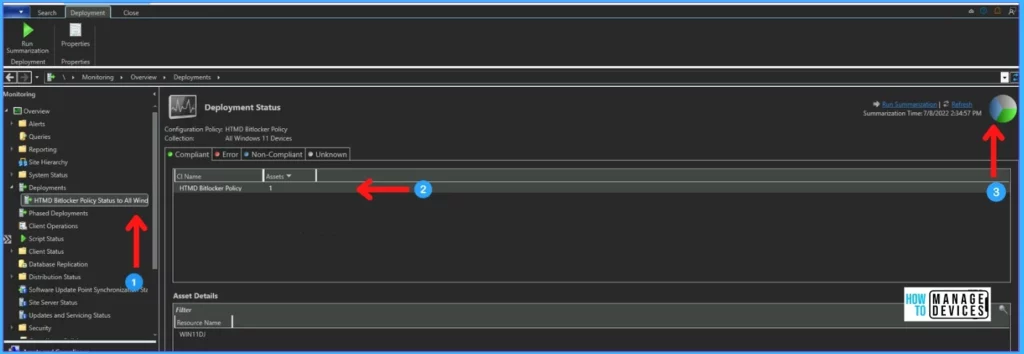
To check the deployment status of Bitlocker policy in ConfigMgr you can navigate to \Monitoring\Overview\Deployments
Then search the Bitlocker policy you created on the deployments.
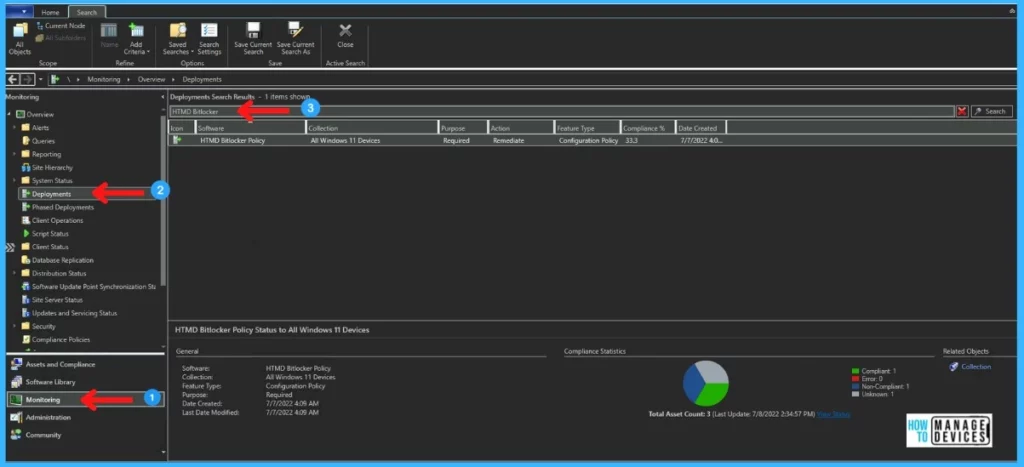
Double Click on the deployment and you will see detailed results of the deployment.
That’s it for today’s post. Thank you for your patience in reading this post. Keep connected with the HTMD group.




We set this up and it seems to work, however if we have to decrypt a drive, it doesn’t encrypt it again.
Hello everything is fine ? I have a question, if I have several bitlocker policies applied to different collections, when I change the order of the policy, what is sccm’s action?
for example: I changed the order of a policy to 1 and another to 2, before they were like 3 and 5, will it rescan the policies and change their status?