






How to use Intune Service Health and Message Center for Faster Troubleshooting
Key Takeaways
- Monitor Intune Service Health to quickly identify active incidents, advisories, and service disruptions affecting your tenant.
- Check Service Health before troubleshooting or creating a support ticket to verify if Microsoft is already investigating a known issue.
- Stay updated with the Intune Message Center for announcements about new features, service changes, maintenance, and upcoming updates.
- Review tenant-specific health information to determine whether an issue is isolated to your organization or part of a broader Microsoft service incident.
- Reduce downtime and improve IT operations by using Service Health and Message Center to make informed decisions about troubleshooting, deployments, and user communication.
The Microsoft Intune admin center provides a centralized Service Health and Message Center experience, allowing administrators to monitor active incidents, service advisories, and tenant-specific issues. Before troubleshooting or contacting Microsoft Support, you can check Service Health to determine whether a known service issue is affecting your environment. The Message Center also keeps you informed about feature updates, maintenance, and important service announcements.
Table of Content
How to Use Intune Service Health and Message Center for Faster Troubleshooting
Intune Service Health helps administrators quickly identify service disruptions, review incident status, and track resolution progress from a single location in the Microsoft Intune admin center. Combined with the Intune Message Center, it provides timely communications about upcoming changes, new features, and service updates, enabling IT teams to reduce troubleshooting time and make informed deployment decisions.
- Intune Device Health Attestation Report
- MS Teams Login Issue with Intune MAM Enrolled iOS Devices
- How To Start Troubleshooting Intune Issues | Fix Intune Issues With Easy Steps
View Intune Service Health and Message Center
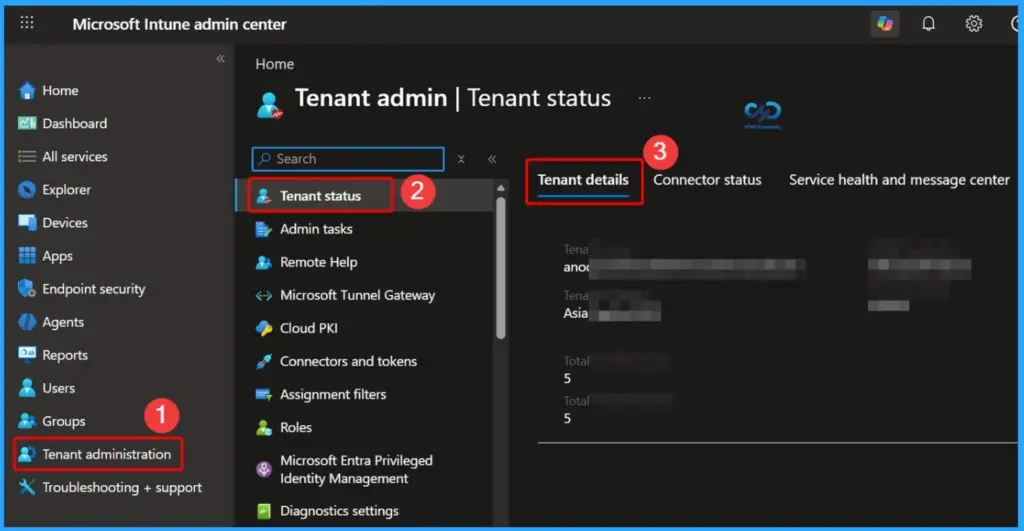
Follow these steps to view Intune Service Health messages and Message Center communications for your tenant in the Microsoft Intune admin center. Sign in to the Microsoft Intune admin center at https://intune.microsoft.com.
- In the left navigation pane, select Tenant administration.
- Under Tenant administration, select Tenant status.
The Tenant Status page provides a centralized overview of your Microsoft Intune environment. It displays important tenant information such as the Tenant Name, Tenant Location, MDM Authority, Account Status, Service Release version, Total Enrolled Devices, Total Licensed Users, and Total Intune Licenses.

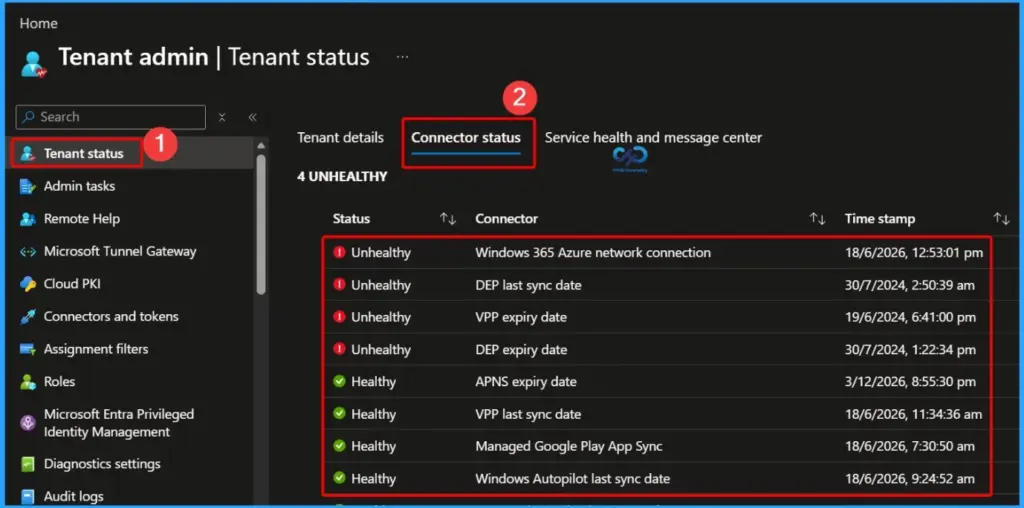
Connector Status
The Connector Status section provides a consolidated view of the health and synchronization status of all connectors configured in your Microsoft Intune tenant. It helps administrators quickly identify whether a connector is Healthy or Unhealthy, along with the latest synchronization or status timestamp.
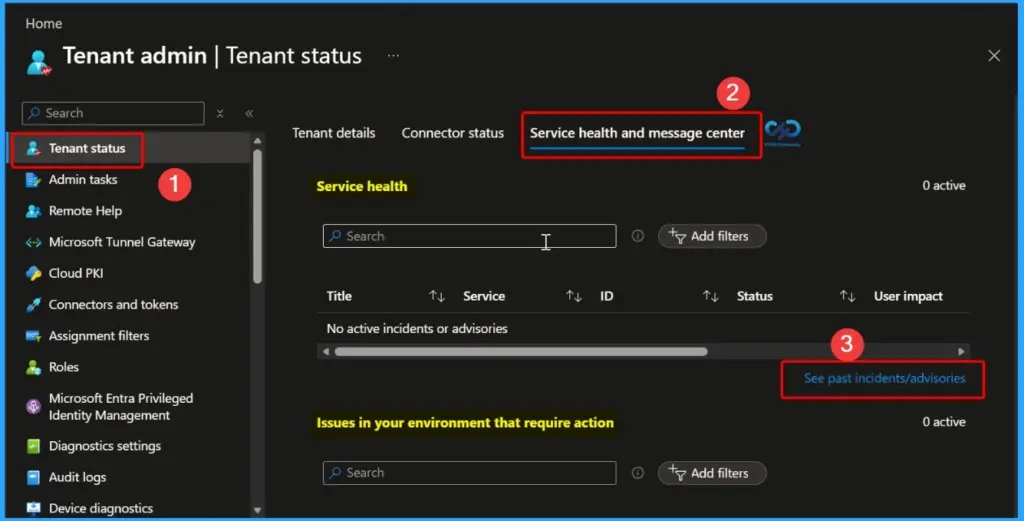
Service Health and Message Center
The Service Health and Message Center section provides a centralized view of the current health of Microsoft Intune and related Microsoft services for your tenant. The Service Health tab displays active service incidents and advisories that may impact your environment.
- If you want to see the past incidents and advisories, you can click the hyperlink below {3}
| Service health and message center |
|---|
| Service health |
| Issues in your environment that require action |
| Message center |
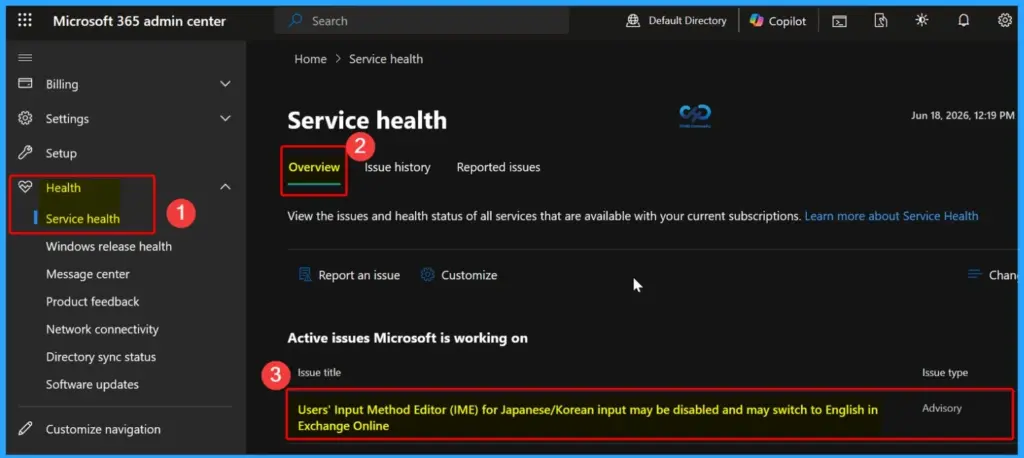
Microsoft 365 Service Health Dashboard
After clicking the hyperlink, you can be redirected to the Microsoft 365 Service Health dashboard. It provides administrators with a centralised view of the health status of Microsoft cloud services. From Health > Service health, you can access the Overview, Issue History, and Reported Issues tabs to monitor active service incidents, review previously resolved issues, and report new problems.
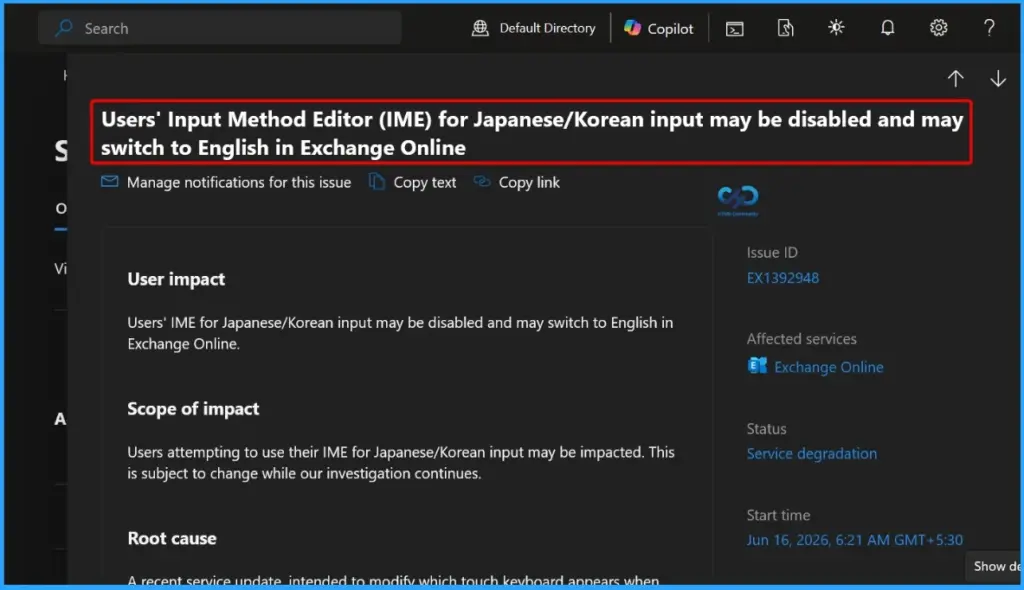
Click the Issue Title
If you click the Issue title, you will get more details of the issue. Selecting an active incident opens a detailed view that helps administrators understand the issue and its impact. The incident page includes the Issue ID, Affected Service, Current Status, and Start Time, along with a detailed description of the User Impact, Scope of Impact, and Root Cause (when available).
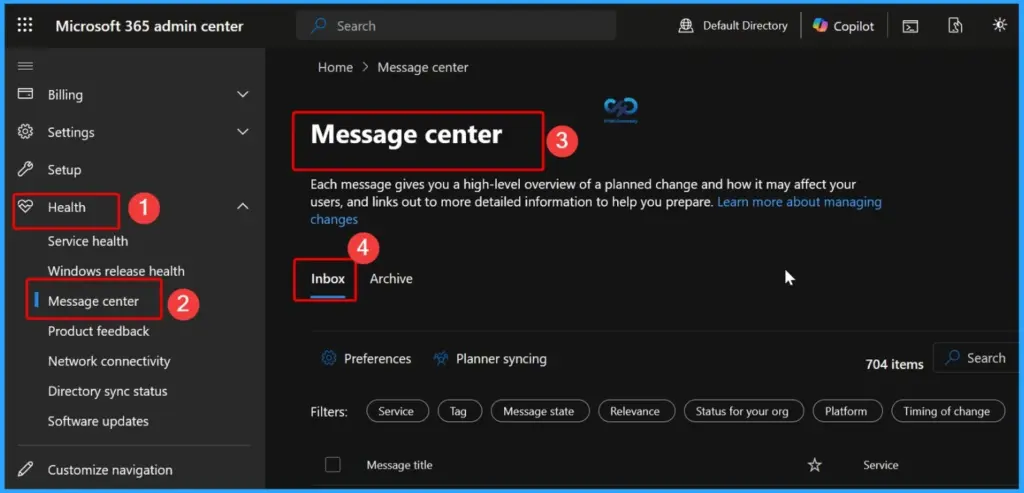
Microsoft 365 Message Center
The Microsoft 365 Message Center is the central location for viewing important communications and announcements from Microsoft. You can access it by navigating to Health > Message Center in the Microsoft 365 admin center.
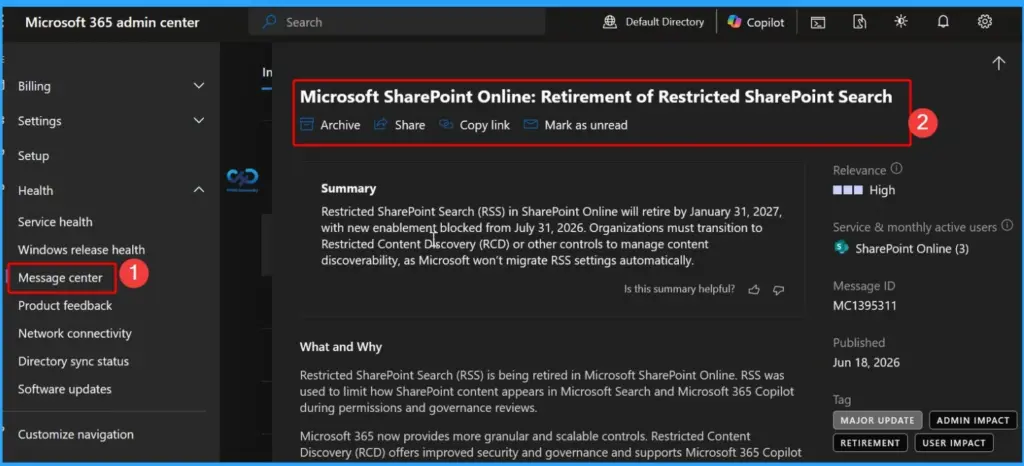
View Detailed Message Center Announcements
Selecting a message in the Microsoft 365 Message Center opens a detailed view with comprehensive information about the announcement. Each message includes a Summary, What and Why, Timeline, Published Date, Message ID, Service, Relevance, and Tags to help administrators understand the change and its impact
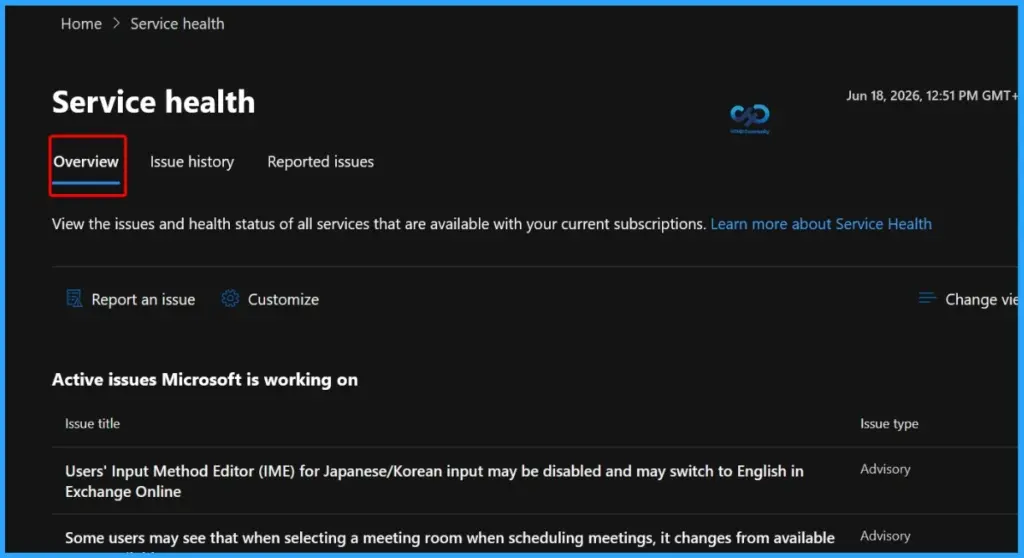
Service Health Overview
The Overview tab in the Microsoft 365 Service Health dashboard provides a real-time summary of the health status of all Microsoft cloud services included in your organisation’s subscriptions. It displays the current date and time, lists active service incidents and advisories, and highlights issues that Microsoft is actively investigating or resolving.
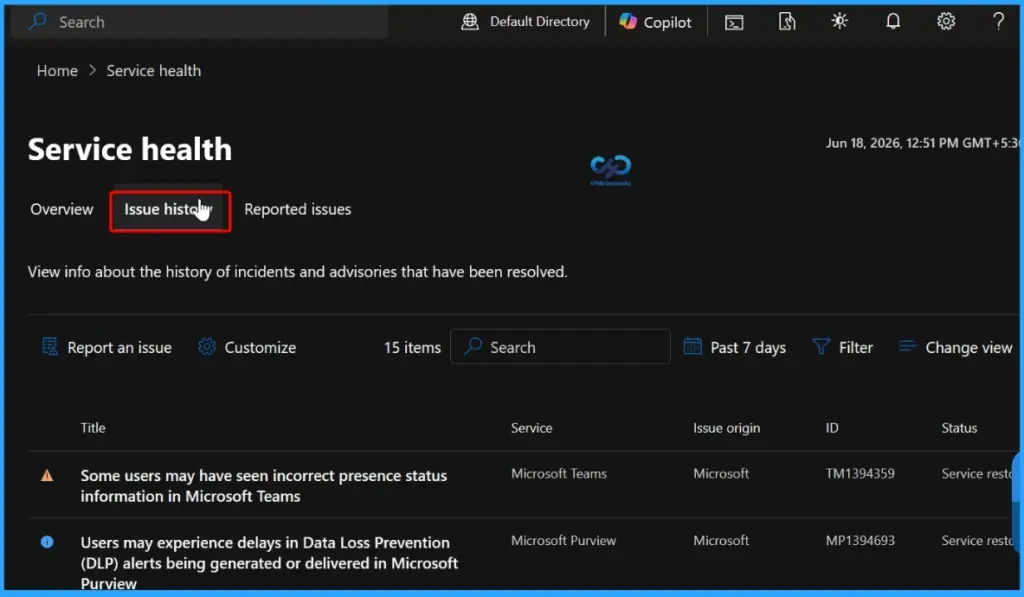
Issue History
The Issue History tab in the Microsoft 365 Service Health dashboard provides a record of previously resolved service incidents and advisories. Administrators can review past issues to understand what services were affected, the duration of the incident, the impact on users, and the actions Microsoft took to resolve the problem.
Reported Issues
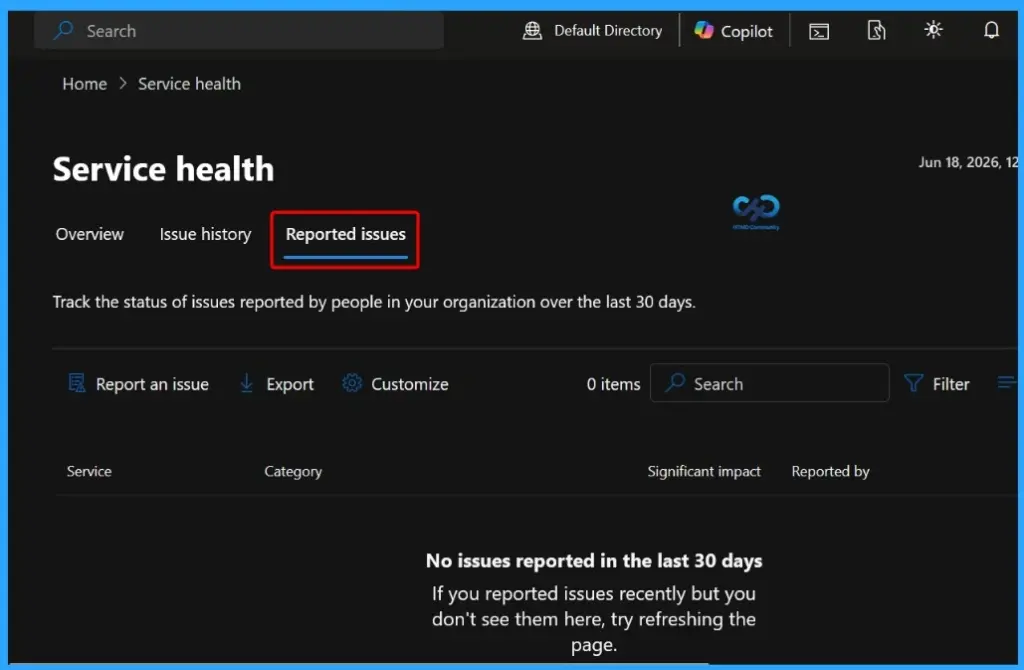
The Reported Issues tab in the Microsoft 365 Service Health dashboard displays service issues that have been reported by your organization. It allows administrators to track the status of submitted reports, monitor Microsoft’s investigation progress, and review updates as they become available.
Need Further Assistance or Have Technical Questions?
Join the LinkedIn Page and Telegram group to get the latest step-by-step guides and news updates. Join our Meetup Page to participate in User group meetings. Also, join the WhatsApp Community and the Whatsapp channel to get the latest news on Microsoft Technologies. We are there on Reddit as well.
Author
About Author – Jitesh, Microsoft MVP, has over six years of working experience in the IT Industry. He writes and shares his experiences related to Microsoft device management technologies and IT Infrastructure management. His primary focus is Windows 10/11 Deployment solution with Configuration Manager, Microsoft Deployment Toolkit (MDT), and Microsoft Intune.


Discussion