






List of Intune Devices with Patch Deployment Status and Country Details using KQL queries
Learn how to get a list of Intune Devices within patch deployment status and country details using KQL queries. Let’s get patch deployment status (Not Started, Unknown, Last Scan, etc.) from Intune managed devices.
The following details of devices, such as deployment status, country, Alert Status, etc., are important with Intune Patching process and troubleshooting. To get these details from clients, you need to enable Update Compliance.
Troubleshooting on Intune patch issue is one of the primary scenarios for this post. Reporting on Intune patch deployments is discussed in the previous post. Also, many community-driven PowerBI dashboards are available to produce detailed reports.
Let’s see how to join two tables from Update compliance, such as UCCClient and UCUpdateAlert, to get the country details of the device along with Alert Classification and Alert Sub type details. Most of these are achieved using KQL queries.

- Intune Diagnostics Settings Log Analytics KQL Queries
- Intune Report For AAD Joined Vs. Hybrid AAD Joined Devices Using KQL Query
List of Update Compliance Tables
The following is the list of Update Compliance tables available with the Update Compliance solution. You can get more details on Update Compliance setup and configuration details from the following post -> Configure Update Compliance Patch Management Reports Using Intune And Log Analytics.
| Table Name | Description |
|---|---|
| UCClient | This event acts as an individual device’s record, containing data like the current build installed, the device’s name, the OS Edition, active hours (quantitative), and so on. |
| UCClientReadinessStatus | Status message for a UC client device indicates update readiness of the given device for a specific target version. |
| UCClientUpdateStatus | Update Compliance – Update Event that combines the latest client-based data with the latest service-based data to create a complete picture for one device (client) and one update. |
| UCDeviceAlert | These alerts are activated due to an issue that is device-specific and not specific to a specific update and a specific device. |
| UCServiceUpdateStatus | Update Event that comes directly from the service side and only tells the “service-side” of the story for one device (client) and one update in one deployment. As such, this event is stripped of certain fields to show data in near real-time. |
| UCUpdateAlert | Alert for both Client and Service Update will contain information that needs attention relative to one device (client), one update, and one deployment (if relevant). |
| WaaSDeploymentStatus | Records track a specific update’s installation progress of a particular device. Multiple WaaSDeploymentStatus records can exist simultaneously for a given device, as each form is specific to a given update and its type. |
| WaaSUpdateStatus | Records contain device-centric data and act as the device record for Update Compliance. Each description in daily snapshots maps to a single device in a single tenant. |
| WUDOAggregatedStatus | Records provide information, across all devices, on their bandwidth utilization for a specific content type in the event they use Delivery Optimization over the past 28 days. |
| WUDOStatus | Records provide information, for a single device, on their bandwidth utilization for a specific content type in the event they use Delivery Optimization and other information to create more detailed reports and splice on certain common characteristics. |
Video Tutorial – Join Update Compliance Tables using KQL Queries
Let’s see how to join Update Compliance tables using KQL queries.
Log Analytics Workspace
You need to log in to Log Analytics Workspace, where the Update Compliance data is collected from the client devices using telemetry. The Windows 10 or Windows 11 client collects the telemetry data and sends this across to the log analytics space.
- Login to Portal.Azure.com -> Search “log analytics workspaces.”
- Open Log Analytics Workspaces Azure Service.
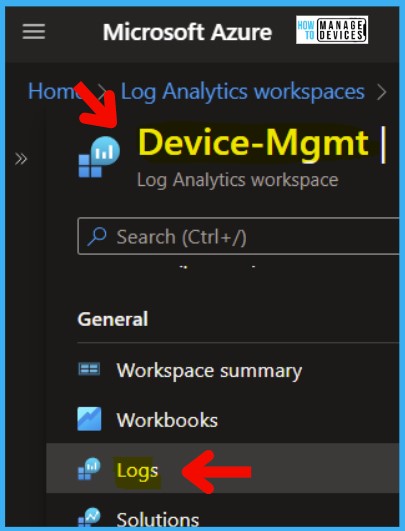
- Select the workspace you created (e.g., Device-Mgmt) and Navigate to Logs blade.
- Close the Queries popup blade.
- Check whether the Tables listed above are already there or not.
NOTE! – If the tables are not created, you need to wait until they get populated. It takes 48 hours to get the telemetry data from Windows devices and the Update Compliance to process it before putting those into the tables.
Intune Patch Report with Not Started Status
Let’s check the Intune Patch Report with the not Started Status and unknown status devices. You can use very Powerful options in the KQL query to filter out and add additional details to the results.
NOTE! – You need to know KQL queries to get these results. I have given the details below, so you don’t need to worry much about the details for now.
To get the details of Intune patch deployment status, you need to use the WaaSDeploymentStatus table from Update Compliance. Follow the steps explained below.
- Paste the KQL query as shown in the screenshot below.
- The default Time Range is set to 24 hours. You can change to the last hour, last 4 hours, or custom time range.
- Click the Run button to get the list of devices with NOT Started patch deployment status.
WaaSDeploymentStatus | where DetailedStatus !contains "UpdateSuccessful"
| project Computer, UpdateCategory, LastScan, DetailedStatus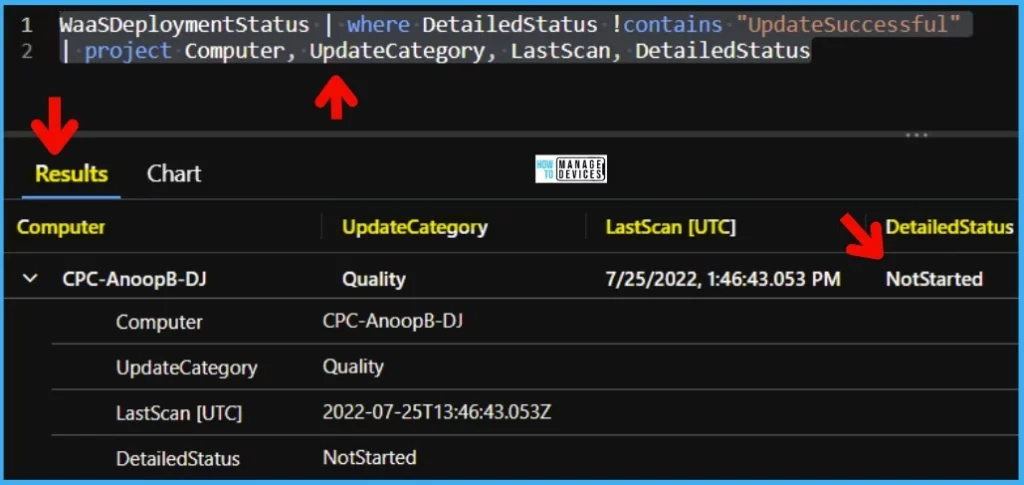
You can use the following KQL query as an example to drill down on the Detailed Status of Windows Update deployment. In this scenario, I tried to get the list of devices where deployment status is set to NotStarted.
WaaSDeploymentStatus | where DetailedStatus contains "NotStarted"
| project Computer, UpdateCategory, LastScan, DetailedStatus
Intune Devices with Patch Deployment Status is Unknown
Let’s try to get the details of Intune devices with the patch Deployment Status is Unknown. You can use the same table WaaSDeploymentStatus to get the devices with unknown deployment status. Follow the below steps to get the list of devices with unknown deployment status.
- Paste the KQL query as shown in the screenshot below.
- The default Time Range is set to 24 hours. You can change if you want to the last hour, last 4 hours, or custom time range.
- Click on the Run button to get the list of devices with Unknown patch deployment status.
WaaSDeploymentStatus | where DeploymentStatus == "Unknown"
| project Computer, UpdateCategory, LastScan, DeploymentStatus,
    DetailedStatus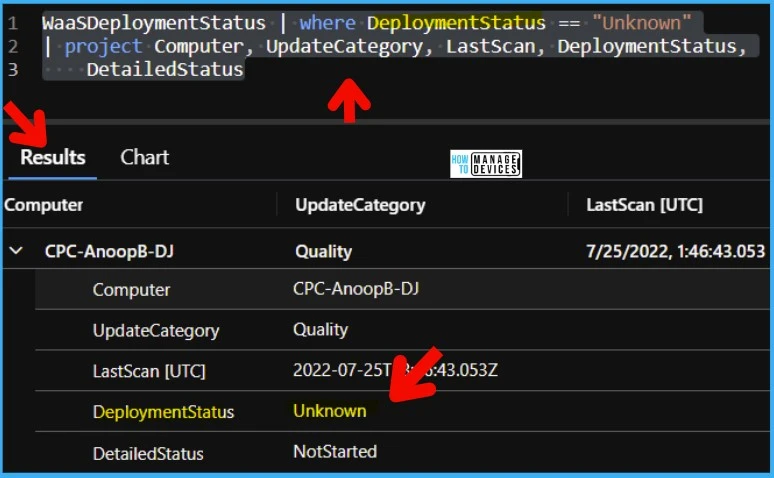
List of Intune Devices with Patch Deployment Status and Country Details
Let’s get the list of Intune devices with patch deployment status and country details using the KQL query given below. I have joined two tables to get these details from Update Compliance.
- UCClient
- UCUpdateAlert
I have joined these tables base on the common column called AzureADDeviceId. There are other common columns between these tables, but I thought this column would be more accurate.
A row is created in the resulting set that includes columns from both tables for each row in UCClient, where the value in AzureADDeviceId has the same value in the AzureADDeviceId column in UCUpdateAlert.
This is just a sample KQL query to get the list of devices with DeviceName, Alert Classification, Alert Subtype, Country, OS Version, and Time Generated.
UCClient
| distinct AzureADDeviceId, Country, OSBuildNumber, OSVersion, DeviceFamily
| join kind=inner (
    UCUpdateAlert
    | where AlertClassification == "Error"
    | project AlertClassification, AlertSubtype, DeviceName, ResolvedTime, AzureADDeviceId, TimeGenerated
) on AzureADDeviceId
| project DeviceName, AlertClassification, AlertSubtype, Country, OSVersion, TimeGenerated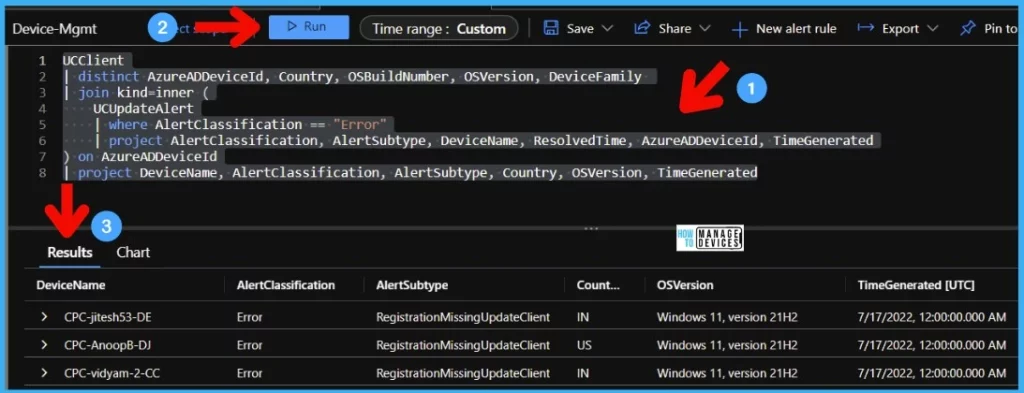
Resource – Tutorial: Kusto queries | Microsoft Docs
Author
Anoop C Nair is Microsoft MVP! He is a Device Management Admin with more than 20 years of experience (calculation done in 2021) in IT. He is Blogger, Speaker, and Local User Group HTMD Community leader. His main focus is on Device Management technologies like SCCM 2012, Current Branch, and Intune. He writes about ConfigMgr, Windows 11, Windows 10, Azure AD, Microsoft Intune, Windows 365, AVD, etc.


Discussion