






Windows Autopatch Audit Logs | How to Track Change Details
Let’s try to understand more about Windows Autopatch audit logs. You can find the audit logs in the Endpoint Manager admin center portal. The Audit logs for Autopatch are essential because many automated activities are happening behind the scenes.
Windows Autopatch is a cloud service that automates Windows, Microsoft 365 Apps for enterprise, Microsoft Edge, and Microsoft Teams updates to improve security and productivity across your organization.
The goal of Windows Autopatch is to deliver software updates to registered devices; the service frees up IT and minimizes disruptions to your end users. Once a device is registered with the service.
Windows Autopatch reporting and messaging capabilities are designed to allow visibility into update status, and device health, and offer insights into your estate.

Once any actions are performed for Windows Autopatch in the Intune Admin Center, you can directly visit audit logs to see recent actions. I have also noticed that Audit logs in the MEM portal are very short-lived or removed immediately from the dashboard.
- Windows Autopatch Implementation Guide
- Deregister Devices from Autopatch Service in Intune
- Windows Autopatch Service Health Status In Intune MEM Portal
Where Is Windows Autopatch Audit Logs located?
You can find Windows Autopatch audit logs in the MEM Admin center portal. The admin needs to have a Global admin, Intune Service Admin (Intune Administrator), or Administrators assigned to an Intune role with Audit data for read-only access.
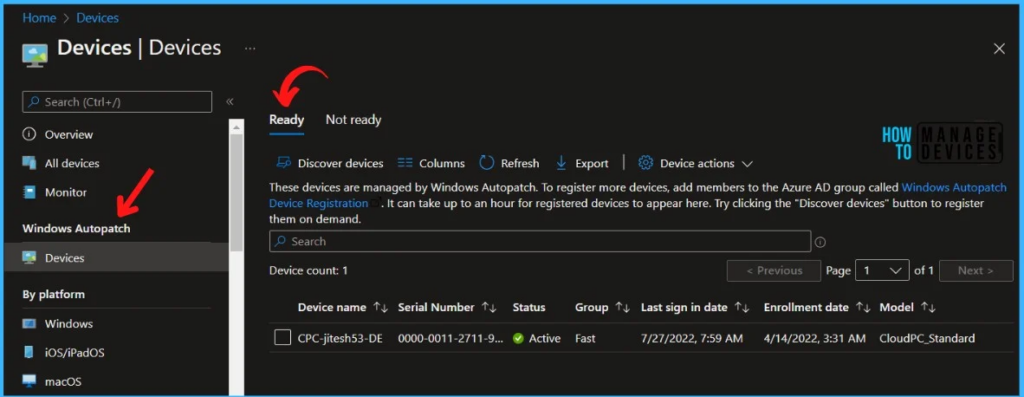
What are the Details Available In Windows Autopatch Audit Logs
The following are some of the categories available for MEM portal audit logs. We have noticed that Audit logs in the MEM portal are very short-lived, or it’s getting removed automatically from the Audit logs node. However, you can filter the details based on your requirements.
Here you can find audit logs in the MEM Admin center portal –
- Sign in to the Microsoft Endpoint Manager admin center https://endpoint.microsoft.com.
- Select Tenant administration > Audit logs.
You will find the following details in the Audit logs node –
- Date -> Date of the activities.
- Initiated by -> Who Initiated the Action? Admin or Application?
- Application Name -> The API name of the application.
- Activity Details -> The API details with Object ID.
- Activity -> Patch Device Configuration, etc…
- Target – Profile Name (Modern Workplace Update Policy – Windows Autopatch]
- Category – Software Updates
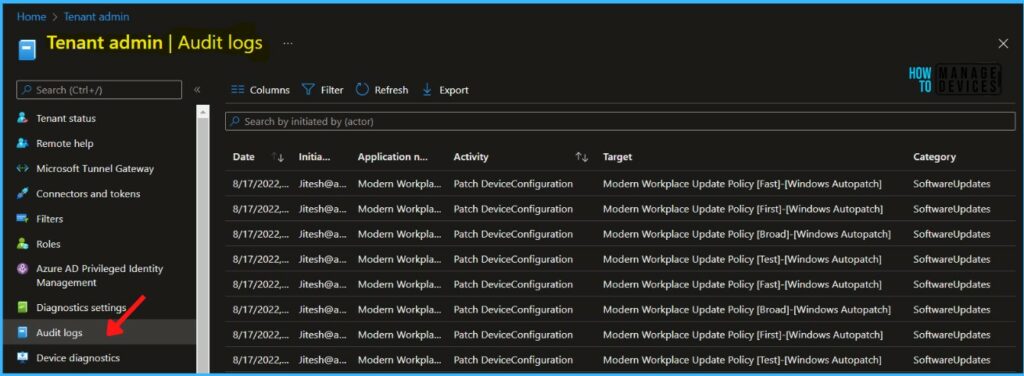
The Windows Autopatch Release Management provides you more clarity on the Quality, and Feature updates install schedules in Intune portal.
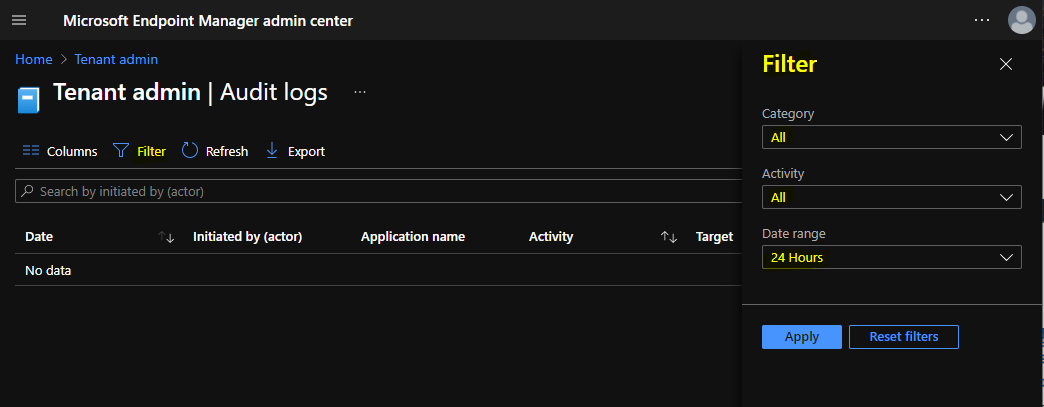
To filter the results, You need to click on Filter and select the following options to get the details for created device compliance policy and click Apply –
- Category: Software Updates
- Activity: the options listed here either you can select All or
- Patch DeviceConfiguration
- Date range: you can choose logs for the previous year, month, week, or day.
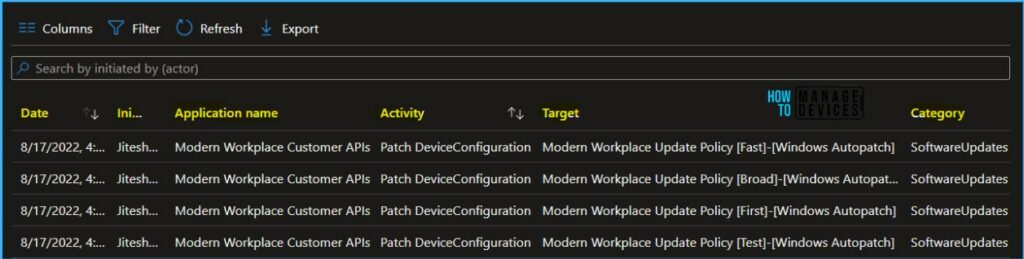
The following are details available for MEM portal audit logs. You can select an item in the list to see the activity details.
Here you can see the activity details for the activity Patch Device Configuration, and You will get the audit log details for who Pause Windows Quality Update for Windows Autopatch.
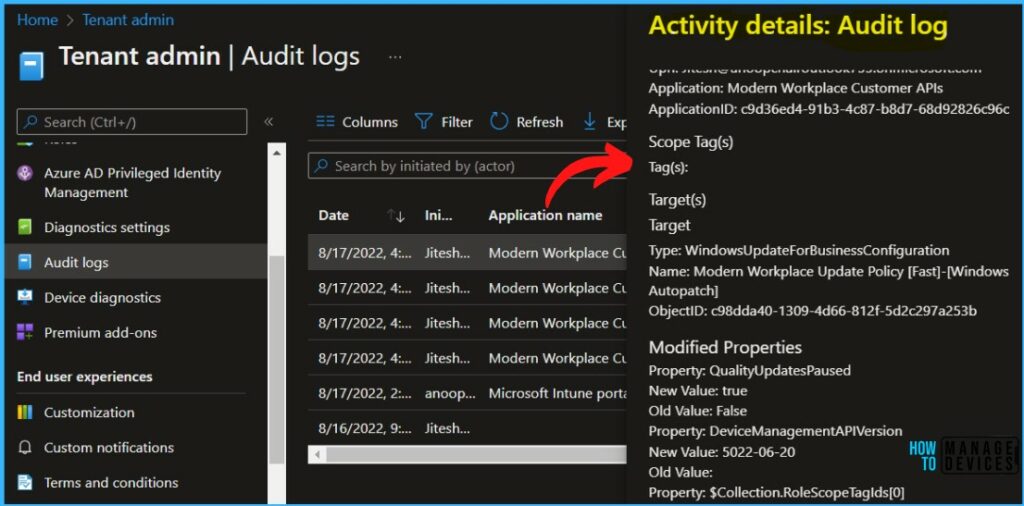
Activity
Date: Wed, 17 Aug 2022 10:41:03 GMT
Name: Update Windows Update for Business configuration.
CorrelationID: 84ab6731-9624-48c2-a11c-0c0cfb75b7e6
Category: SoftwareUpdates
Component: SoftwareUpdateConfiguration
Activity Status
Status: Success
Operation Type: Patch
Activity Type: Patch DeviceConfiguration
Initiated By (Actor)
Type: ItPro
Upn: Jitesh@HTMD.onmicrosoft.com
Application: Modern Workplace Customer APIs
ApplicationID: c9d36ed4-91b3-4c87-b8d7-68d92826c96c
Scope Tag(s)
Tag(s):
Target(s)
Target
Type: WindowsUpdateForBusinessConfiguration
Name: Modern Workplace Update Policy [Fast]-[Windows Autopatch]
ObjectID: c98dda40-1309-4d66-812f-5d2c297a253b
Modified Properties
Property: QualityUpdatesPaused
New Value: true
Old Value: False
Property: DeviceManagementAPIVersion
New Value: 5022-06-20
Old Value:
Property: $Collection.RoleScopeTagIds[0]
New Value:
Old Value: Default
Resume Windows Quality Update – Windows Autopatch Audit Logs
The following are some of the categories available for MEM portal audit logs. You can select an item in the list to see the activity details –
- Date – Date of the activities.
- Initiated by (actor) – Who Initiated the Action?
- Application name – The API name of the application (Modern Workplace Customer APIs)
- Activity – The API details with the Object ID (Patch DeviceConfiguration)
- Target – Profile Name (Modern Workplace Update Policy-[Windows Autopatch])
- Category – Patch DeviceConfiguration
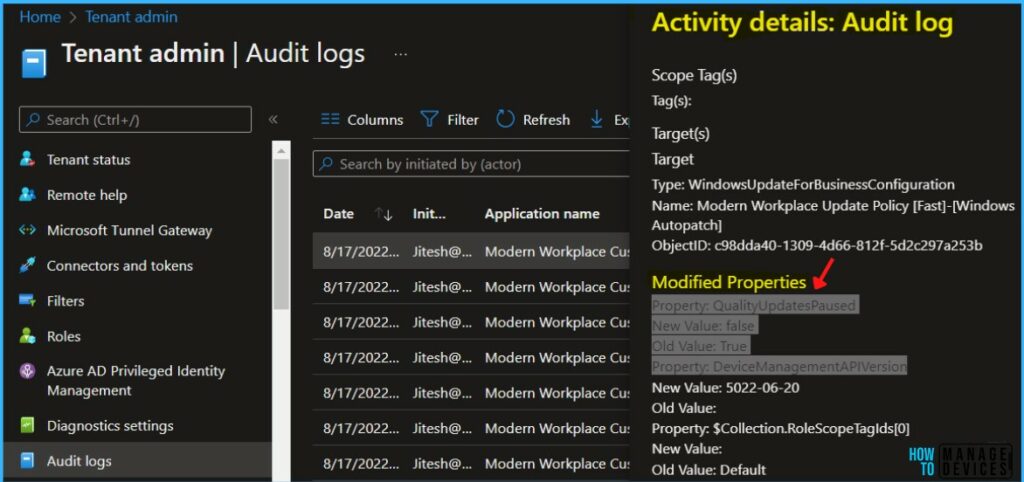
Activity
Date: Wed, 17 Aug 2022 11:19:20 GMT
Name: Update Windows Update for Business configuration.
CorrelationID: aebff24d-401e-480f-83d2-ca8e14ae9284
Category: SoftwareUpdates
Component: SoftwareUpdateConfiguration
Activity Status
Status: Success
Operation Type: Patch
Activity Type: Patch DeviceConfiguration
Initiated By (Actor)
Type: ItPro
Upn: Jitesh@HTMD.onmicrosoft.com
Application: Modern Workplace Customer APIs
ApplicationID: c9d36ed4-91b3-4c87-b8d7-68d92826c96c
Scope Tag(s)
Tag(s):
Target(s)
Target
Type: WindowsUpdateForBusinessConfiguration
Name: Modern Workplace Update Policy [Fast]-[Windows Autopatch]
ObjectID: c98dda40-1309-4d66-812f-5d2c297a253b
Modified Properties
Property: QualityUpdatesPaused
New Value: false
Old Value: True
Property: DeviceManagementAPIVersion
New Value: 5022-06-20
Old Value:
Property: $Collection.RoleScopeTagIds[0]
New Value:
Old Value: Default
Windows Autopatch uses four Azure Active Directory groups that are used to segment devices into update rings –
- Modern Workplace Devices – Test
- Modern Workplace Devices – First
- Modern Workplace Devices – Fast
- Modern Workplace Devices – Broad
Each update ring has a different purpose and is assigned a set of policies to control the rollout of updates in each management area.
In the Windows Autopatch Audit logs target, you may experience the different update rings listed based on the changes made.


Discussion