






Best way to Activate Internet Printing through Setting Catalog Via Intune
Hi, let’s discuss the best way to activate Internet Printing through the Settings Catalog via Intune. Intune is one of the leading cloud services, and the Settings Catalog is one of its key features. With the Settings Catalog, administrators can set up different types of policies within their organization.
It is essential at times to enable or disable certain policies as needed. By creating policies, an admin can enhance productivity and efficiency within an organization, positively impacting its overall performance. In this guide, we will discuss the essential policy of enabling internet printing for printers.
Enabling Internet printing on a server makes it possible for printers to be accessed and managed over the web, but it requires IIS (Internet Information Services) and specific configurations to work. The policy setting mainly affects the server-side configuration, not the print client.
If you enable this setting, Internet printing is activated on the server. This policy only controls the server side of Internet printing, deciding if printers can be accessed online. It does not stop a computer from printing over the Internet.

Table of Contents
What is the Purpose of the Internet Printing Policy Setting?
What Happens the Internet Printing policy Setting Disabled?
What Happens the Internet Printing policy Setting Enabled?
Best way to Activate Internet Printing – CSP Details
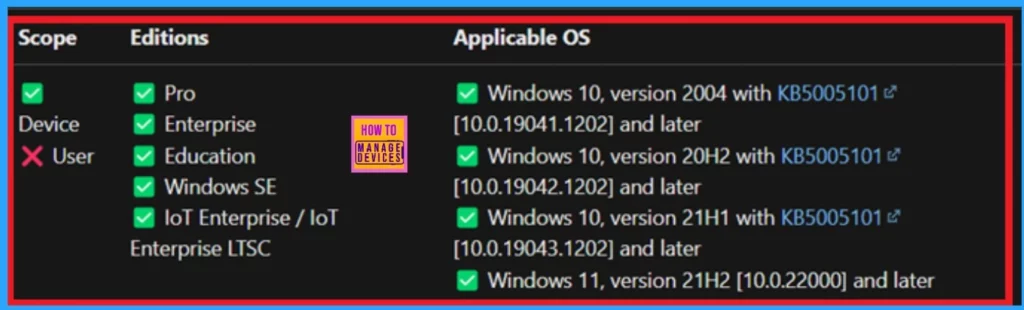
We discussed various aspects of activating internet printing and setting catalog. Now, we need to focus on the CSP details, these details are very important. In Intune, CSP (Configuration Service Provider) helps manage and set up settings on Windows devices.
| Scope | Editions | Application OS |
|---|---|---|
| Applicable for Device | Pro | Windows 10, version 2004 with KB5005101 [10.0.19041.1202] and later |
| Not applicable for User | Enterprise | Windows 10, version 20H2 with KB5005101 [10.0.19042.1202] and later |
| Education | Windows 10, version 21H1 with KB5005101 [10.0.19043.1202] and later | |
| Windows SE | Windows 11, version 21H2 [10.0.22000] and later | |
| IoT Enterprise / IoT Enterprise LTSC |
- Network Requirements for PowerShell Scripts and Win32 Apps Coming to the Microsoft Intune
- Deploy using Intune to Turn Off Notifications Network Usage Policy
- Policy to Turn Off Downloading of Print Drivers Over HTTP using Intune
How to Do
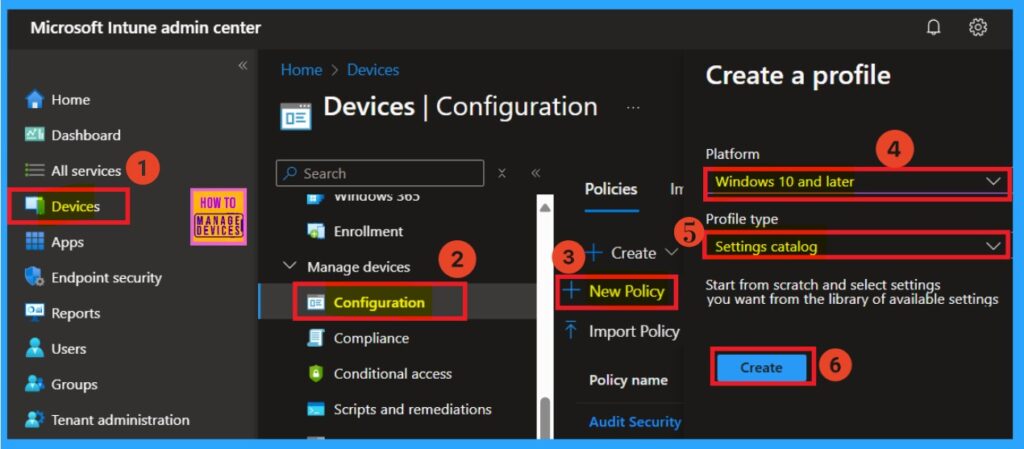
Now, let’s discuss how to deploy the policy for activating Internet Printing. First Log into the Microsoft Intune admin center with your credentials. Next, navigate to the Devices section, click Configurations, and create a new policy.
When you click on the “New Policy” option, the “Create a Profile” window will appear. In this window, you’ll need to choose the platform. I selected “Windows 10 and Later.” Then, you must choose the profile type; I picked “Settings Catalog” from the list. Finally, I clicked the “Create” button.
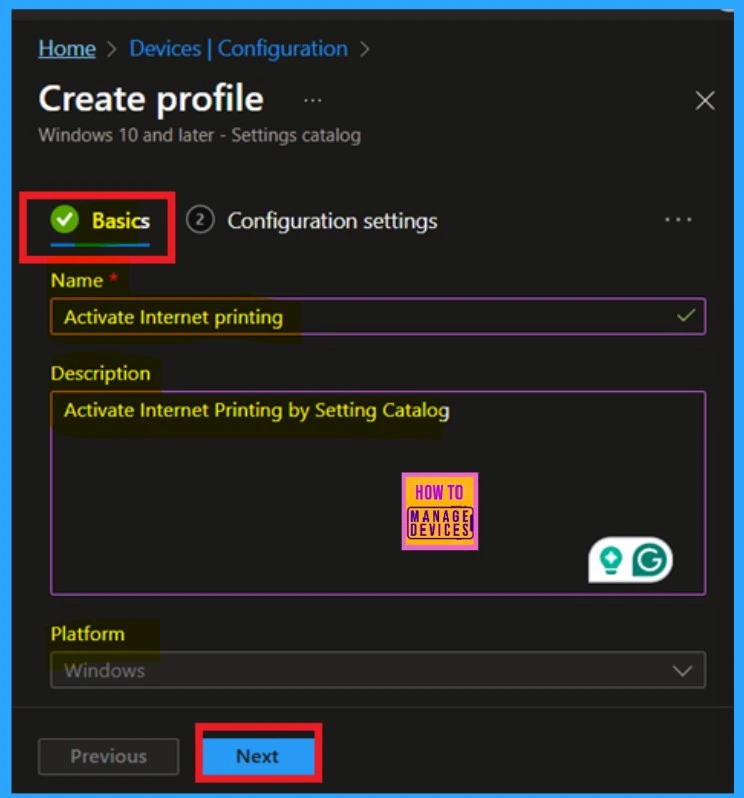
Basics
The next step you have to deal with that Basic in the basics. This section is where you enter the basic details of a policy. You can provide a name, description, and platform options for the policy. I added the name “Activate Internet Printing. Additionally, you can add a description, which will help you understand the policy better later. The platform is already set to Windows, so you don’t need to make any changes there.
- Once you’re done, click on Next.
Configuration Settings
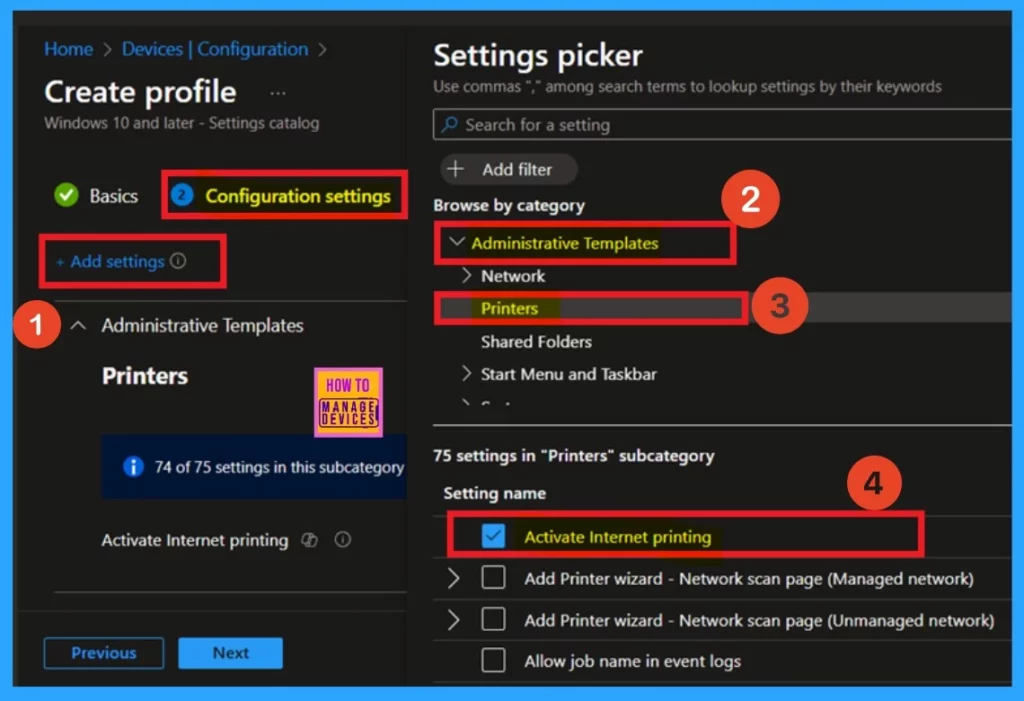
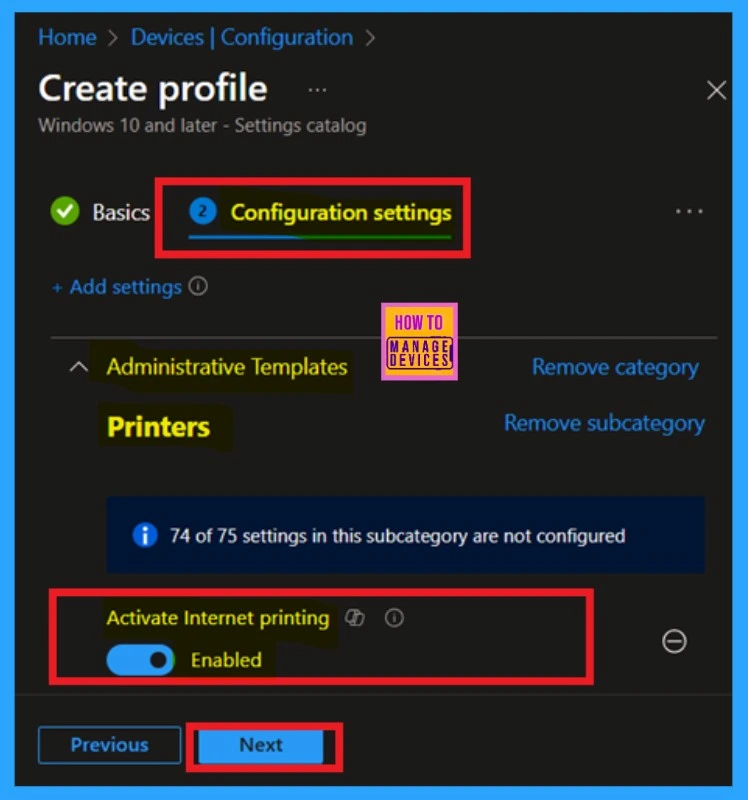
When you click Next, you will access the configuration settings crucial to the policy creation process. Here, you can set the appropriate settings for your policy. You’ll see an option in Add Settings. Click on this hyperlink, and a settings picker window will appear.
In this window, you can select a category. In the category section, you need to expand the “Administrative Templates.” Within the Administrative Templates, you’ll find various setting options. Select Printers from this list. When you click Printers,” you’ll see a section labelled “Settings Name,” displaying different settings.
- You can click on “Activate Internet Printing.” After selecting this option, you can easily close the settings picker window.
When you close the settings picker, you will be directed to the configuration settings. Here, you can enable or disable the activated printing option, which is currently disabled. To turn on the internet printer, simply toggle the button from left to right. (If you have any doubts, please refer to my screenshot.)
- After making these changes, click on “Next.”
Scope Tags
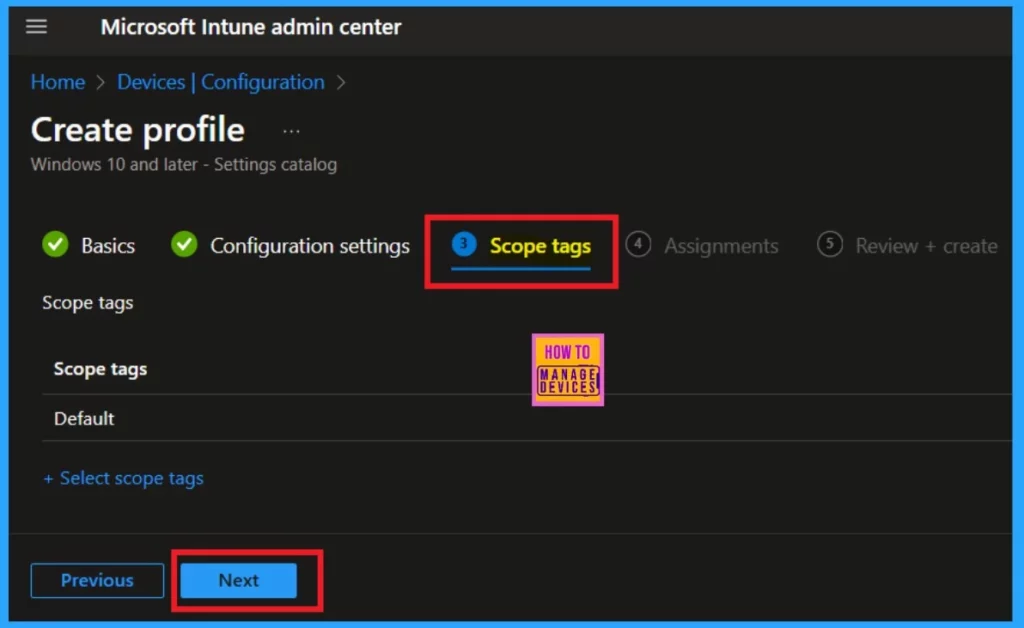
The next section is the scope tag. While you don’t need to take any action here, it’s important to note that the special scope tag is essential in every policy creation. If you want to set a scope tag, click on the Select Scope Tags hyperlink, which will allow you to add scope tags to the policy.
- Since I am skipping this policy, I will click on the Next section.
Assignments
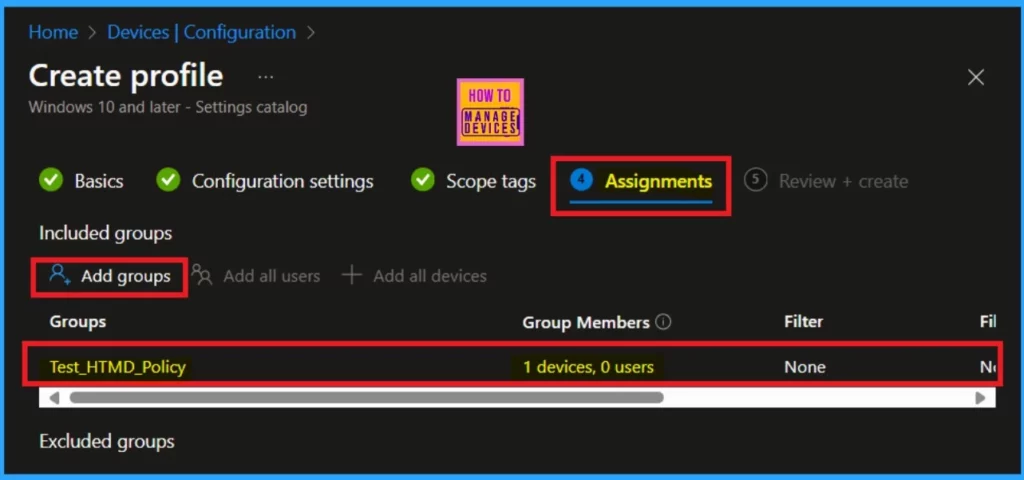
The next step is very important. In this section, you need to assign a group to the policy. The purpose of creating a policy is to apply specific settings for a Specific group. Here, you can find the option to “Include Group.” Click on that option, and you will see a list of available groups. You can select the appropriate groups from the list or create a new group if needed.
Review + Create
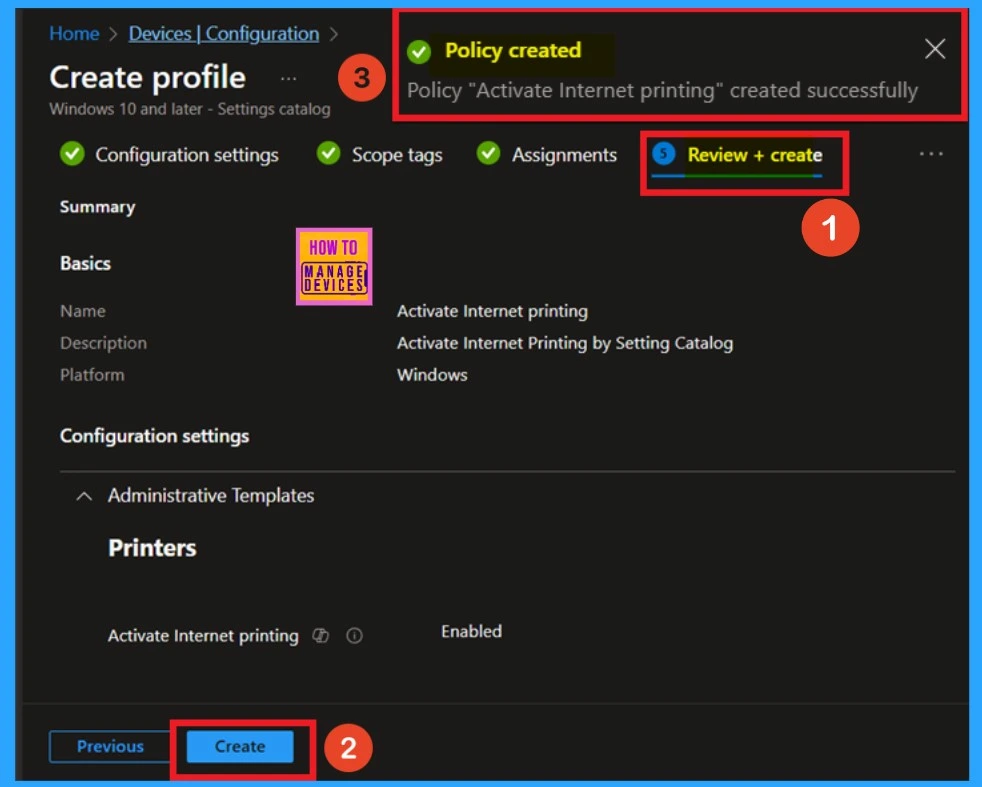
The “Review + Create” page summarises all the details related to your policy creation. You can view the policy’s name and descriptions. Once you have reviewed all the information, you can click on the Create option. After that, you will receive a notification confirming that your policy has been created successfully.
Monitor Status
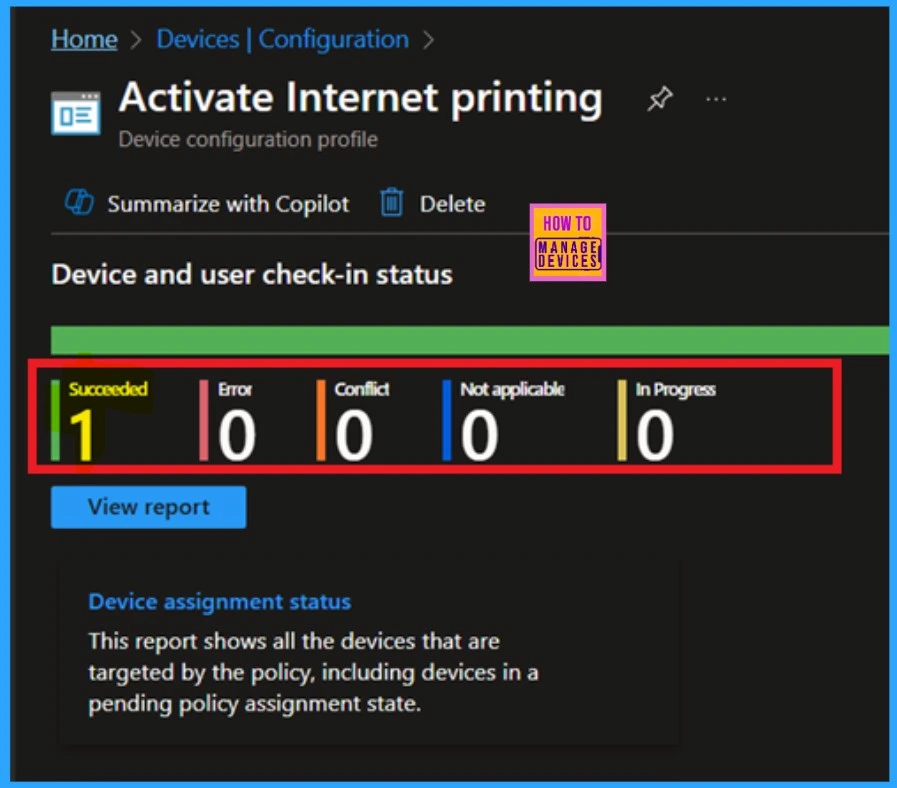
Monitoring status of a policy after it has been created is essential to ensure that it was successfully implemented and to identify any errors or conflicts that may have occurred. To check the monitoring status, navigate to the Devices section, then go to Configurations, and search for the policy you created.
- Once you find it, click on the policy to view an overview of its status.
- you’d need to wait for about 8 hours to receive the monitor results.
- you can reduce this waiting period by using the company portal sync option
Client Side Verification
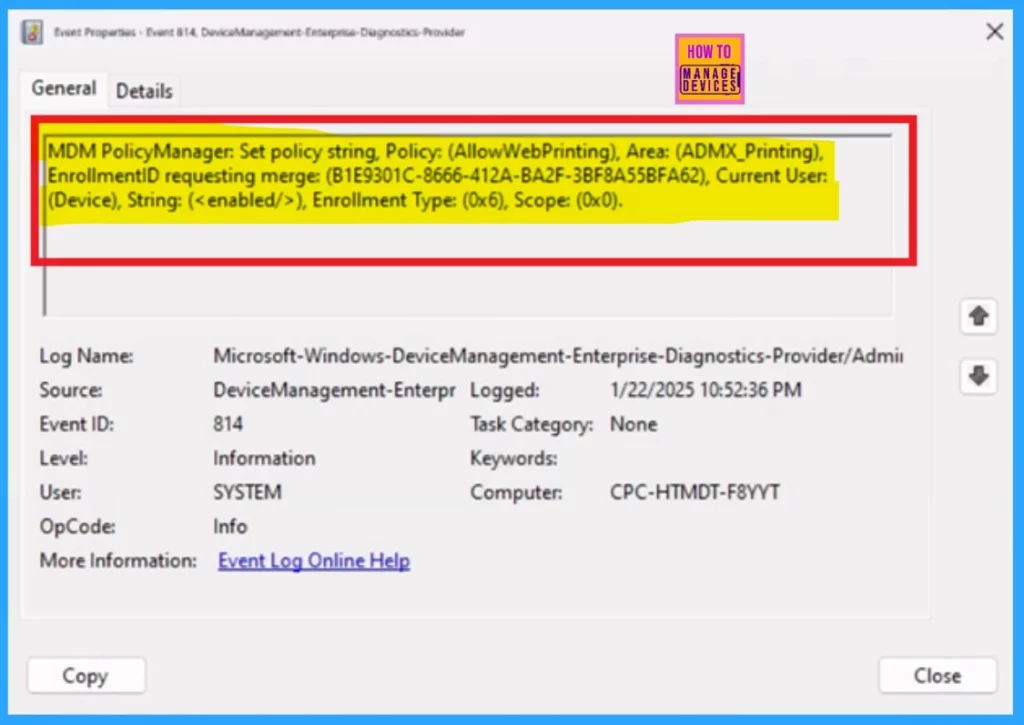
To verify the client-side status, you can use the Event Viewer. Navigate to Applications and Services Logs > Microsoft > Windows > Devicemanagement-Enterprise-Diagnostics-Provider > Admin. From there, search for Event ID 814, which shows a successful result.
| Policy Details |
|---|
| MDM PolicyManager: Set policy string, Policy: (AllowWebPrinting), Area: (ADMX_Printing), EnrollmentiD requesting merge: (B1E9301C-8666-412A-BA2F-3BF8A55BFA62), Current User: (Device), String: (), Enrollment Type: (0x6), Scope: (0x0). |
Need Further Assistance or Have Technical Questions?
Join the LinkedIn Page and Telegram group to get the latest step-by-step guides and news updates. Join our Meetup Page to participate in User group meetings. Also, Join the WhatsApp Community to get the latest news on Microsoft Technologies. We are there on Reddit as well.
Author
Anoop C Nair has been Microsoft MVP for 10 consecutive years from 2015 onwards. He is a Workplace Solution Architect with more than 22+ years of experience in Workplace technologies. He is a Blogger, Speaker, and Local User Group Community leader. His primary focus is on Device Management technologies like SCCM and Intune. He writes about technologies like Intune, SCCM, Windows, Cloud PC, Windows, Entra, Microsoft Security, Career, etc.


Discussion