






Add Admin Contact for Windows Autopatch Service In Intune Portal
In this post, you will learn how to Add Admin Contact for Windows Autopatch Service in Intune MEM Portal. You must provide a set of admin contacts when you onboard with Windows Autopatch. To streamline communication, you can add an additional contact to the lists to make decisions for your Windows Autopatch environment.
Windows Autopatch is an enterprise service generally available for customers that removes the need for organizations to plan and operate the update process. The Windows Autopatch allows automated patch management for all supported versions of Windows 10 or 11 Enterprise, Professional editions, and Windows 365 for Enterprise.
There are several ways that Windows Autopatch service communicates with customers. You already have added admin contacts in the Microsoft Endpoint Manager admin center during the Windows Autopatch enrollment process. You can validate the added contact list for accuracy.
The Windows Autopatch Message Center allows you to view informational communications from the Autopatch service team, and Communications include messages about changes that have recently happened to the Autopatch service or are on the way for your tenant.

Windows Autopatch reporting is designed to allow visibility into update status and device health and offer insights into your estate. Check More details on Windows Autopatch Quality Updates Report In Intune MEM Portal.
- Windows Autopatch Implementation Guide
- Deregister Devices from Autopatch Service in Intune MEM Portal
Validate Admin Contacts Information Added during Windows Autopatch Enrollment
Once you have completed the Windows Autopatch enrollment, you can add and verify the admin contact information, which is essential for the Windows Autopatch Service Engineering Team to communicate with its customers.
In MEM Portal, Select Tenant administration and in the Windows Autopatch. Click on Admin Contacts and validate the added details during the Windows Autopatch enrollment. You can also edit contact and add the required information.
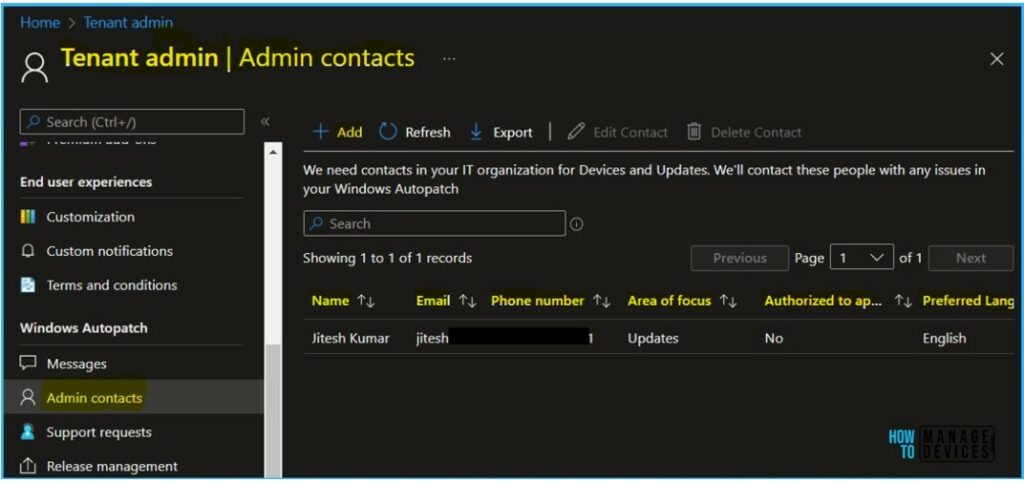
You must have an admin contact for each specified area of focus. The Windows Autopatch Service Engineering Team will contact these individuals for assistance with troubleshooting your support request.
Admin contacts should be the best person or group to answer questions and make decisions for different focus areas.
Area of focus for Windows Autopatch
Your admin contacts will receive notifications about support request updates and new messages. These areas include the following –
- Devices ->
- Device registration
- Device health
- Updates ->
- Windows quality updates
- Windows feature updates
- Microsoft 365 Apps for enterprise updates
- Microsoft Edge updates
- Microsoft Teams updates
Add Admin Contact for Windows Autopatch Service In Intune Portal
Let’s follow the steps to add Admin Contact for Windows Autopatch Service –
Sign in to the Microsoft Endpoint Manager admin center https://endpoint.microsoft.com.
Select Tenant administration and in the Windows Autopatch. The Windows Autopatch tenant status page is a centralized hub where you can view important details about your tenant. Details include:
- Messages are where you quickly look in to get communication and the latest updates about Windows Autopatch Service Health Status.
- Admin contacts are from where you will be able to add additional IT admins accounts.
- Support requests are from where you will be able to raise support tickets for Windows Autopatch Services.
- Release management is from where you get to see targeted update status, and you will get the ability to pause or resume updates.
In the Windows Autopatch, select Admin contacts.
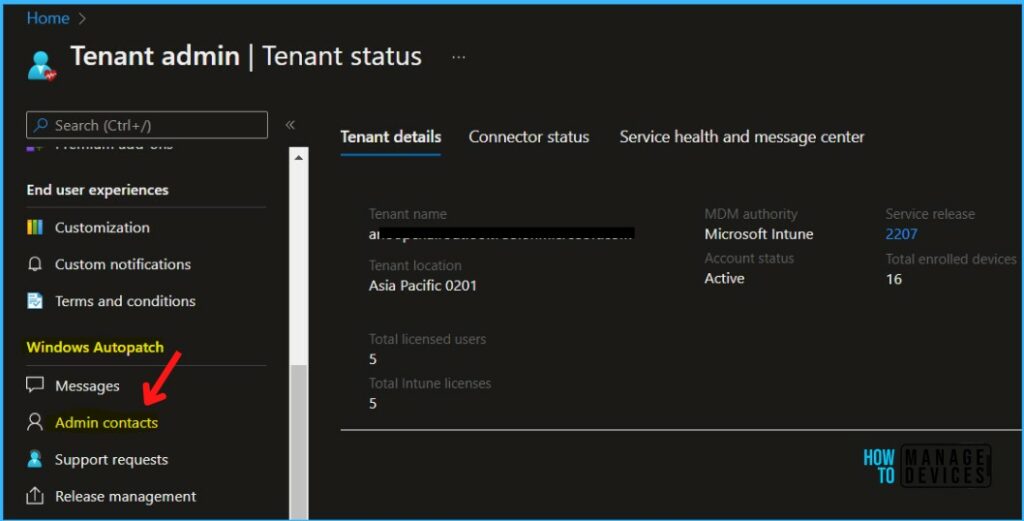
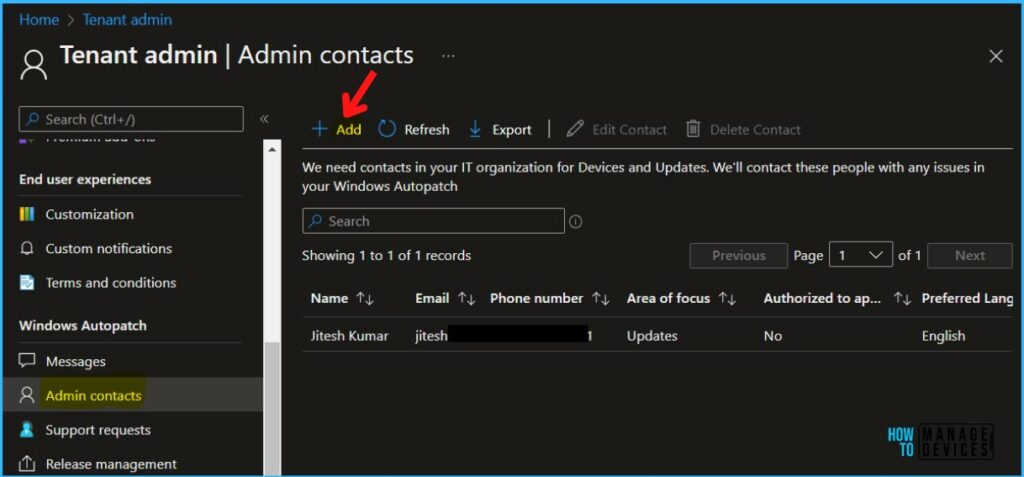
Under Windows Autopatch, Select Admin Contacts, and Click on +Add.
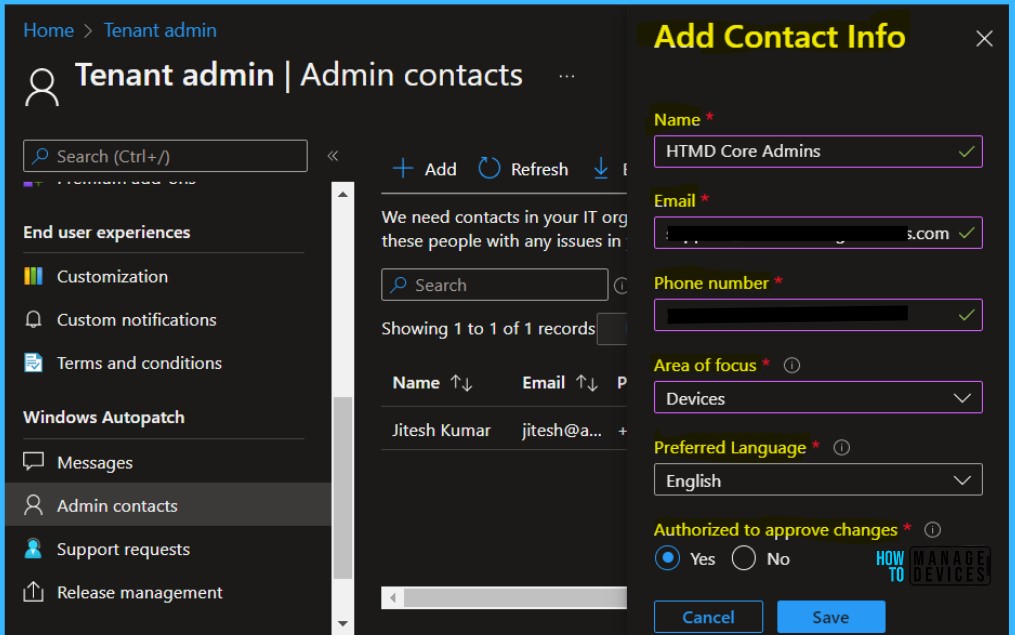
Enter the contact details, including Name, Email, Phone number, and Preferred language. Select an Area of focus, either Devices or Updates, based on your requirements and enter details of the contact’s knowledge and authority in the specified area of focus.
Select Save to add the contact. For a support ticket, the ticket’s primary contact’s preferred language will determine the language used for email communications.
Important – Whoever you choose as admin contacts, must have the knowledge and authority to make decisions for your Windows Autopatch environment. The Windows Autopatch Service Engineering Team will contact these admin contacts for questions involving support requests.
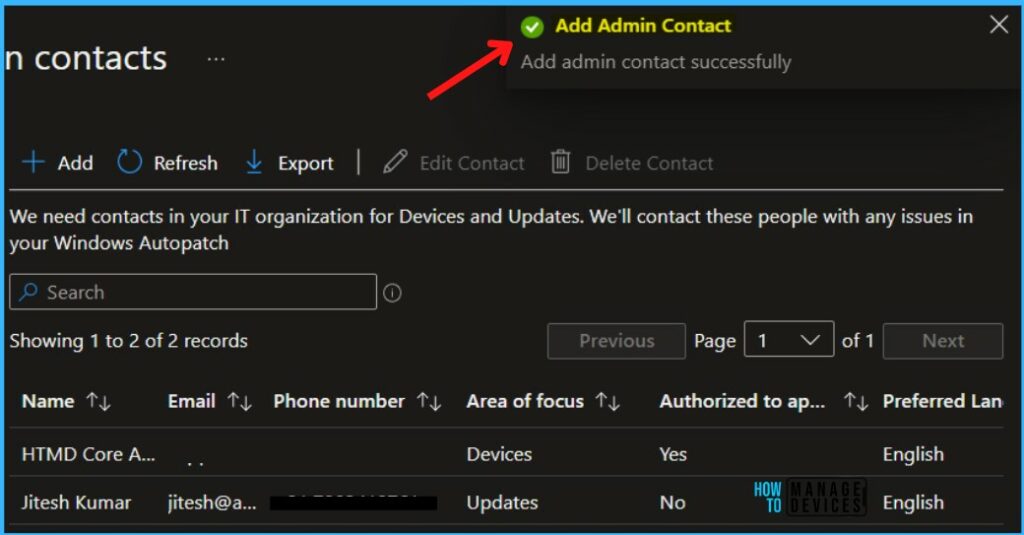
A notification will appear automatically in the top right-hand corner with a message. You can see that Add admin contact successfully.
The added Admin Contacts details will appear under Windows Autopatch > Admin Contacts, Here you can also view a list of all the admin contacts added previously.
Note – The Delete Contact option is grayed out, Once you added the contact you can modify the details.


Discussion