






Add Custom Widgets to Windows 11 Desktop Screen
Let’s check how to Add Custom Widgets to Windows 11 Desktop screens using the 3rd party application. It’s nice to have custom widgets options on Windows 11 desktop screens.
You can use the shortcut key WIN + W to launch the default Windows 11 widgets. But in this post, I’m going to share about Windows 11 custom widgets options.
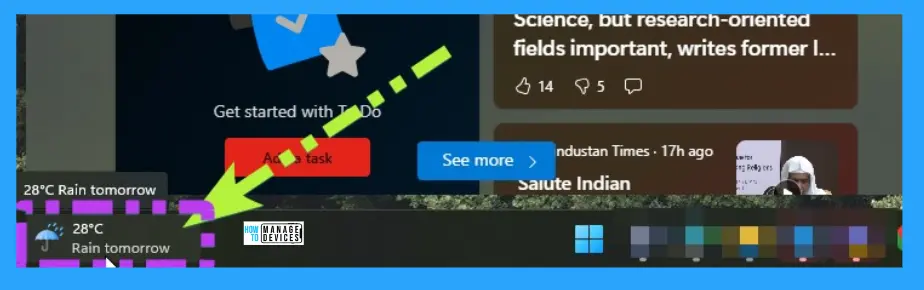
Microsoft added the Widgets button to the taskbar by default. Windows 11 Widgets bring you closer to the information you want.
It helps to connect to the calendar, weather, local traffic, Microsoft To-Do lists, photos from OneDrive, sports, stock watchlist, and tips. More details on New Widgets Experience in Windows.

| Home Screen Options | Use to |
|---|---|
| My feed | Where you can scroll through the contents |
| Watch | Watch more videos from the Microsoft site |
| Play | It allows you to play games |
| Add Widget | Add a new application to the Widget board |
| Refresh | It allows freshening up the Widget |
| Expand to Full view | It helps to Expand the Widget Screen |
| Settings | It allows Settings for the Widget |
Windows 11 custom widgets will be on a desktop screen, and it’s not part of the default widgets. I think the custom features of this 3rd party widget make it useful.
Windows 11 was released on the 4th of Oct 2021, and we already have a custom widget solution!
- Windows 11 Family Safety Widget
- What is Windows 11 Entertainment widget?
- Windows 11 Version Numbers Build Numbers Major Minor Build Rev
NOTE! – Is these custom widgets option has the potential to replace Live Tiles? We don’t know yet. I felt this when I use Picture Widget.
Add Custom Widgets to Windows 11
Before going into the solution to add Custom Widgets to Windows 11 Desktop Screen, let’s check the end-user experience of custom widgets.
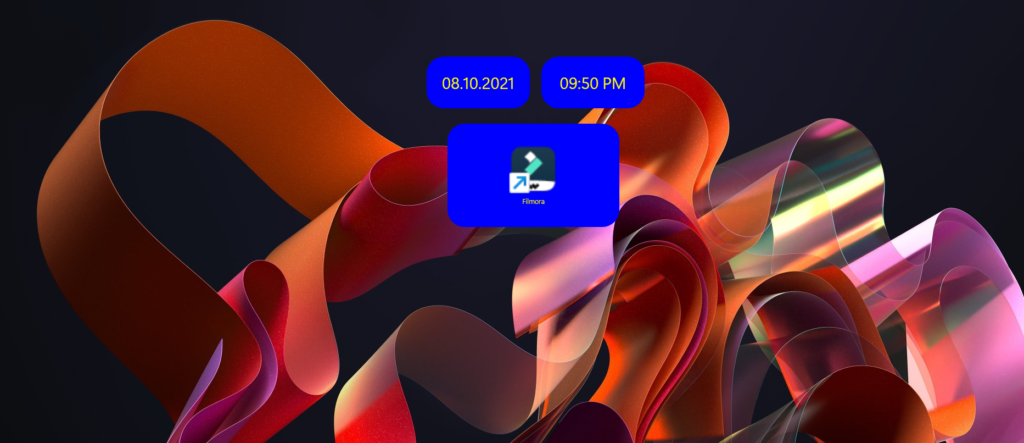
The following screenshot will give you an idea about custom widgets in Windows 11. The three boxes that you can see on my desktop are created using the custom widgets application.
The first one is the Custom widgets to show the current Date. The second widget is to show the current time on Windows 11 Desktop screen. I see this is useful when I have multiple screens and multiple desktop screens.
The third custom widget is a shortcut of an application. I don’t know how much useful this would be instead of using desktop shortcuts. I’m not going to use short cut of the application widgets yet.
The customization and sizing options of these custom widgets are very useful. Let’s perform some adjustments/customization with the Time and Date widgets to make it more useful.
You can learn more details about making customizations in the following section of the post.
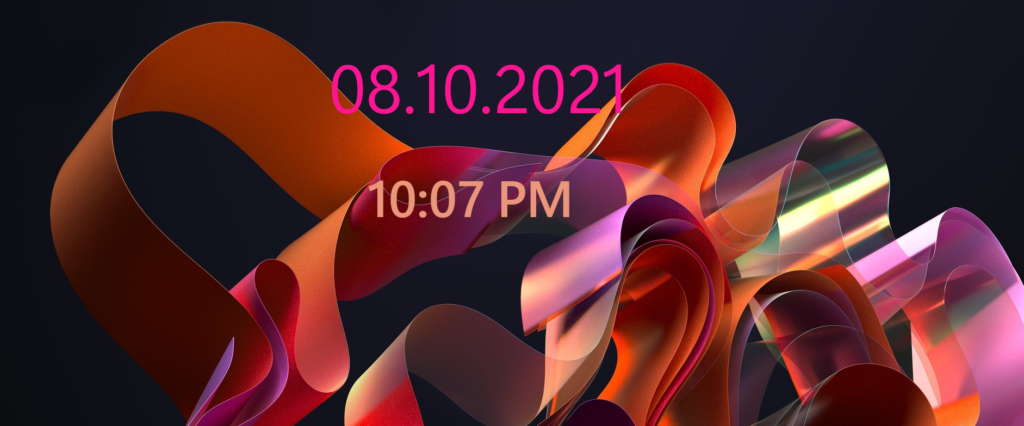
You have many customization options like background colour, foreground colour, font size, different fonts, etc. are available to make widgets native to Windows 11 desktops. The following screenshot is just a simple example of this.
BeWidgets to Add Custom Widgets to Windows 11 Desktop Screen
The BeWidgets is the application you can install from Microsoft Store to get all these amazing custom widget options for Windows 11. I had had an issue with the Microsoft Store device limit when I tried to install this app.
Download Link – https://www.microsoft.com/store/productId/9NQ07FG50H2Q
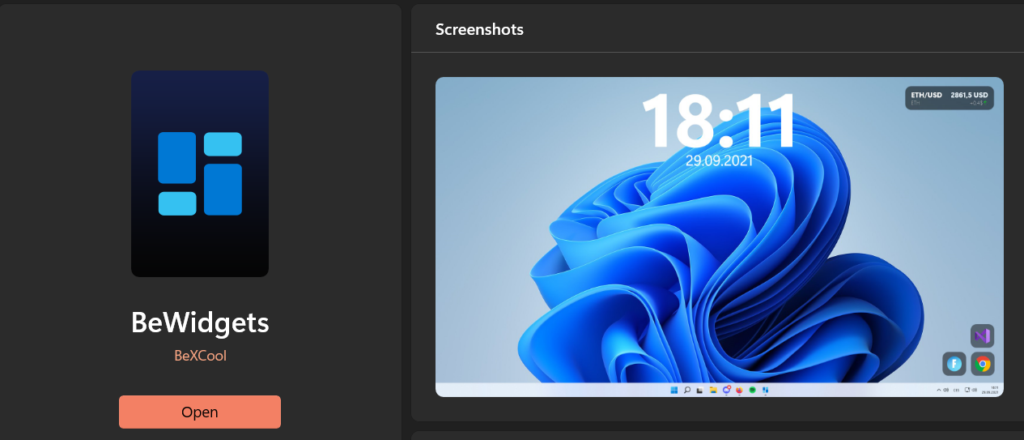
You get a lot of customization options in this application. I’m not planning to cover this app’s end-to-end functionalities because it’s going to evolve very quickly. So there will be more out of box widgets options available sooner than later.
At this point, you only have 5 custom widgets options in Windows 11 using this BeWidgets application.
- Time Widget
- Date Widget
- Picture Widget
- Finance WIdget
- Application Shortcut Widget




good job – one of my gadgets replaced
It would be useful if we could set a timezone for the time widget – I currently have 3x on my desktop all for different parts of the world – it could be as simple as adding the ability to for example – current time +/- XXhrs
Keep up the good work
Calender next I hope once you have added my suggestion to the time widget
Regards
I fail to fully comprehend… Too many click points advertisements.