






Add Language Packs Offline In Windows Image Using DISM
Let’s learn how to add language packs offline in Windows Image using DISM. There are several methods to deploy Windows 10 or Windows 11 language packs. Here you will see the steps to add language packs for Windows Image Via DISM (Offline Servicing).
Deployment Image Servicing and Management (DISM) is a command-line tool used to update offline Windows images. There are two ways to install or remove packages offline with DISM. You can either apply an unattend answer file to the offline image, or you can add or remove the package directly from the command prompt.
Microsoft also Introduced Local Experience Packs (LXPs), which are modern language packs delivered through the Microsoft Store or Microsoft Store for Business. So you no longer have to wait for feature update releases to deliver improved translations to you.
You can create Windows images with LIP by installing the appropriate LXP from the language pack ISOs for full languages (aka SKU languages), Microsoft has not yet retired the legacy language packs (lp.cab), so you will need to continue to add lp.cab for full languages to the OS image using DISM.

The four steps process helps you to keep your Windows Image (WIM) file updated –
Modify an image offline: Start with an image file (either .wim or .ffu format). Mount the file using DISM. It appears as a group of folders. Modify it using DISM, adding drivers, languages, and more. Use DISM to unmount and commit the changes back to the original image file. Apply it to new devices.
- Intune Learn to Deploy Windows 10 Language Pack Step by Step | MEM
- How to Deploy Windows App Win32 Using Intune |Language Pack
Download Language Packs
If you have an Enterprise subscription, we recommend that you download language pack media from MSDN or VLSC (Volume Licensing Service Center).
To select and download multiple language packs at once, select MultiLanguage. If you only need one language pack, select the individual language pack.
The results will return the currently available ISO images containing language packs and local experience packs.
Important – Identify the image index before you proceed further to add Windows update. You can get more details about the Image Index. Here we are extracting the Windows 10 Enterprise Edition; you must specify /index:3.
Mount an Image – Add Language Packs Offline
Mount the Windows image (Install.wim) – Use DISM to mount the image into a temporary location on your PC.
- Open a command prompt or DISM (Deployment and Imaging Tools Environment) with administrator privileges.
- Type the following command for creating an empty folder/directory to mount the offline Windows image (Wim).
In this example – The directory is created inside the D drive named _Mount and WIM File location “D:\Win10 21H2\install.wim” Make sure that you adjust the paths as per your environment.
Note: Don’t mount images to protected folders, such as your User\Documents folder.
mkdir D:\_Mount

Dism /mount-wim /wimfile:"D:\Win10 21H2\install.wim" /mountdir:D:\_Mount /index:3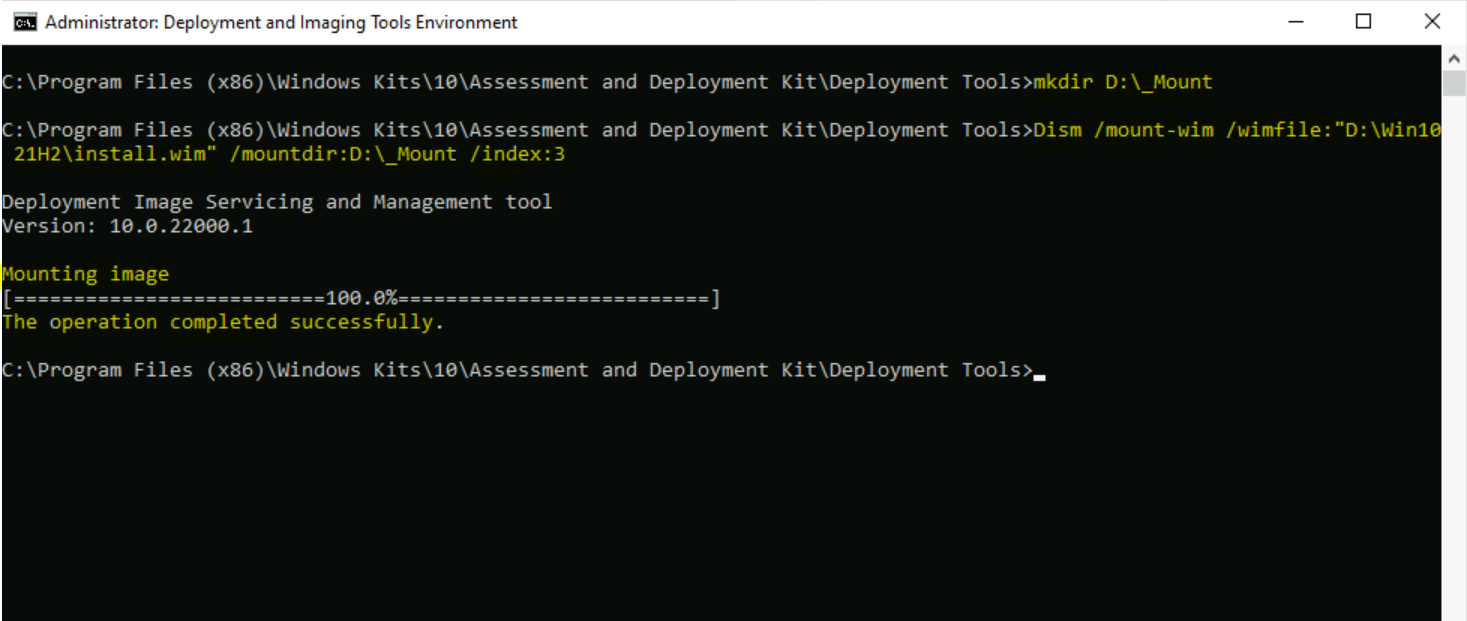
Add a Language package to an image – To achieve full localization of target language during OSD, generally, we install LP.cab files in an offline image using DISM.
Note – It is recommended that you copy the language packs to your computer before adding the language packs to the image.
To apply the download language pack (.cab) to your mounted image. Type the following command to install language packs to the image.
For example, the following command shows how to add a French language pack: /packagepath:<path_to_Language_Packs_directory>
Dism /image:D:\_Mount /add-package /packagepath:"D:\LanguagePack\fr-fr.cab"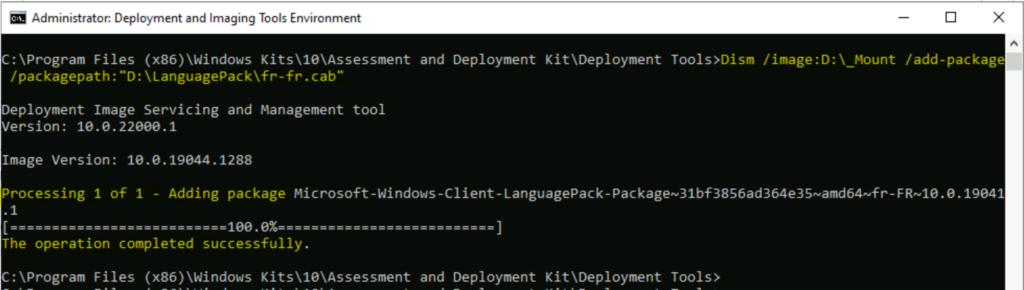
Validate Language Packs Installation – Add Language Packs Offline
/Get-Intl: Displays information about international settings and languages.
- Use the
/Image:<path_to_offline_image_directory>option to display information about international settings and languages in the offline image.
Dism /image:D:\_Mount /get-intl

Output -> Execution Status
Reporting offline international settings.

Default system UI language : en-US
System locale : en-US
Default time zone : Pacific Standard Time
User locale for default user : en-US
Location : United States (GEOID = 244)
Active keyboard(s) : 0409:00000409
Keyboard layered driver : Not installed.

Installed language(s): en-US
  Type : Fully localized language.
Installed language(s): fr-FR
  Type : Partially localized language, MUI type.
  Fallback Languages en-US

The operation completed successfully.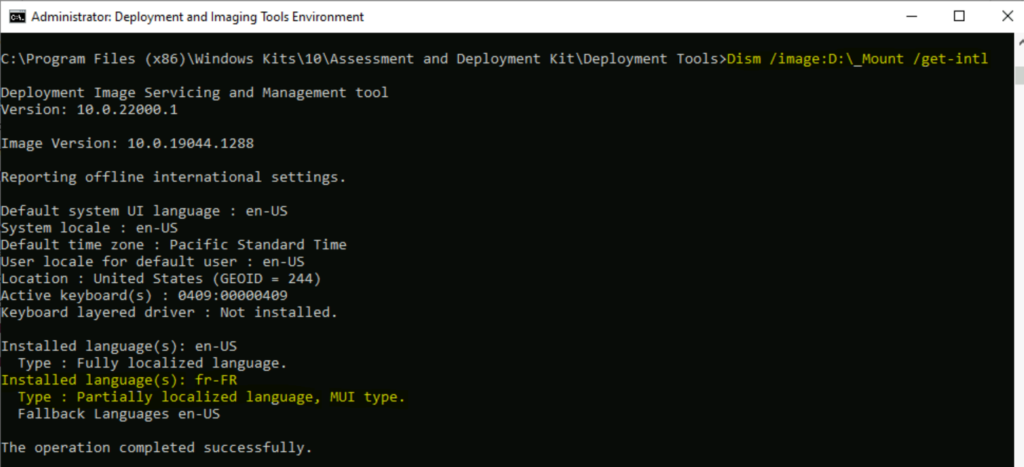
Unmount Windows Image – Add Language Packs Offline
After you modify a mounted image, you must unmount it. If you mount your image with the default read/write permissions, you can commit your changes. This makes your modifications a permanent part of the image.
To save changes you make to the image, use the /commit option when you use DISM to unmount the image.
Dism /unmount-wim /mountdir:D:\_Mount /commit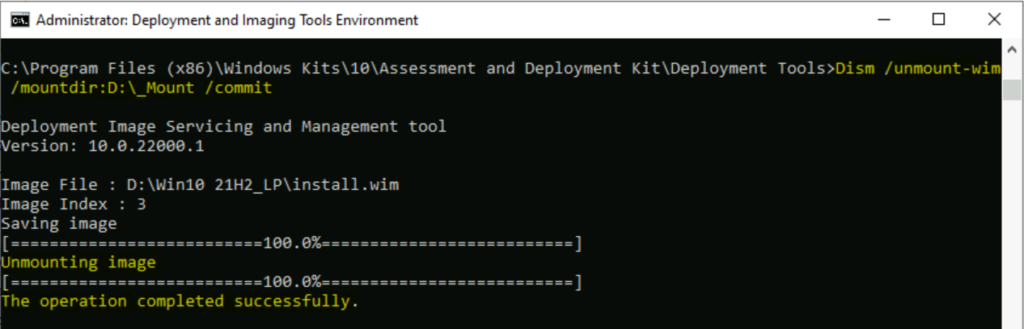
Add a language to an existing language list
This example adds the language French (France) to the language list of the user.
Run the following PowerShell commands with user context to complete the process –
- Get-WinUserLanguageList : Get a language list for the current account.
- Set-WinUserLanguageList : Sets the language list and associated properties for the current user account.
Substitute in the command above with the actual language tag (ex: “fr-FR”) for the language (ex: “French (France)” you want to set as your display language.
- The first command gets the user language list by using the Get-WinUserLanguageList cmdlet. The command stores the result in the $OldList variable.
- The second command adds a language to the object in $OldList.
- The final command sets the language list of the current user to the revised value of $OldList.
$OldList = Get-WinUserLanguageList
$OldList.Add("fr-FR")
Set-WinUserLanguageList $OldList -Force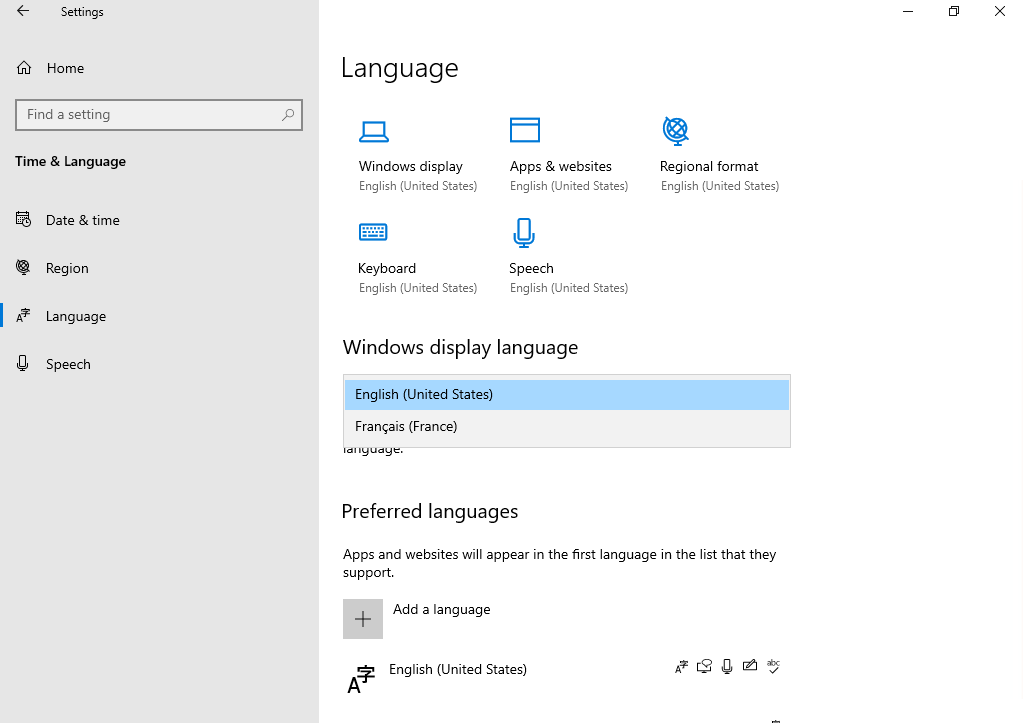
Troubleshooting – If you experiencing any issue while injecting language packs with any of the command lines from DISM, you can locate the log file in C:\Windows\Logs\DISM for more details.




Olá, tudo bem? O seu tutorial é excelente e muito me ajudou em um projeto da empresa, porém encontro dificuldade de injetar os packages lp em uma imagem do Windows versão 21H2 via DISM com mensagem de que os “lp.cab” inglês e Chinês que quero injetar na imagem não são compatíveis com a versão escolhida, que é a 21H2. Como existe uma grande quantidade de tipos de idiomas oferecidos estou confuso e não consegui finalizar este projeto. Você teria com a sua experiência encontrado algo similiar e me dar uma luz considerando a tua grande experiência na área?
should I add all the 5 packages like speech, basic, etc…… for one language ? I am working on zh-HK language
does it work on win7?
How can I do this for Windows 7? I’m trying to install Japanese on it. Thanks!