






How to Fix Windows 11 System Components Issues using Repair Terminate and Reset options
Hi, Let’s check how to fix Windows 11 System Components issues using the Repair, Terminate, and Reset options for system components to fix issues. As you all know, Windows 11 is the latest operating system. It has always had a place because of its amazing features. Its features and performance offer great improvement for users.
Windows 11 offers the best security enhancements for users and many performance features, so we can consider it to have the best security features. The Windows components are another level feature that ensures smooth functioning and an extraordinary experience throughout Windows 11.
I think you all know about the system components option. This settings page also provides the same as the installed apps page. This option enhances the user experience. System Components in Windows 11 are essential apps and extensions needed for the system to work properly.
You can now access other settings, like the Advanced option. This option allows users to manage and customize features for specific tasks or set up advanced system components in our operating system. So, in this post, we can discuss the overall view on this setting option.

Table of Contents
What is the Windows 11 System Components Advanced Option?
How to Fix Windows 11 System Components Issues using Repair Terminate and Reset options
Above, we discussed an overall view of System components and their advanced options. System components in Windows 11 are the important apps, extensions, and features that make the operating system work properly. This includes built-in apps like File Explorer, Phone Link, and Microsoft Store and extensions.
- System components are like core applications of Windows 11
- An advanced option is available for each system component
- Advanced option allowing more settings options like reset repair also provide more details of that specified system component
- With the advanced options, users can Manage Windows 11 System Components
See More: System Settings Options in Windows 11
- How to Enable and Use Dynamic Lighting on Windows 11
- New Windows 11 23H2 Group Policy Settings List for Download
- Enable Show Desktop Button on Windows 11 Taskbar
- Easy Methods to Find the Install Date of Apps in Windows 11
- 3 Best Ways to Disable Taskbar Thumbnail Preview on Windows 11
How to Access the Repair Terminate Reset options of Windows 11 System Components
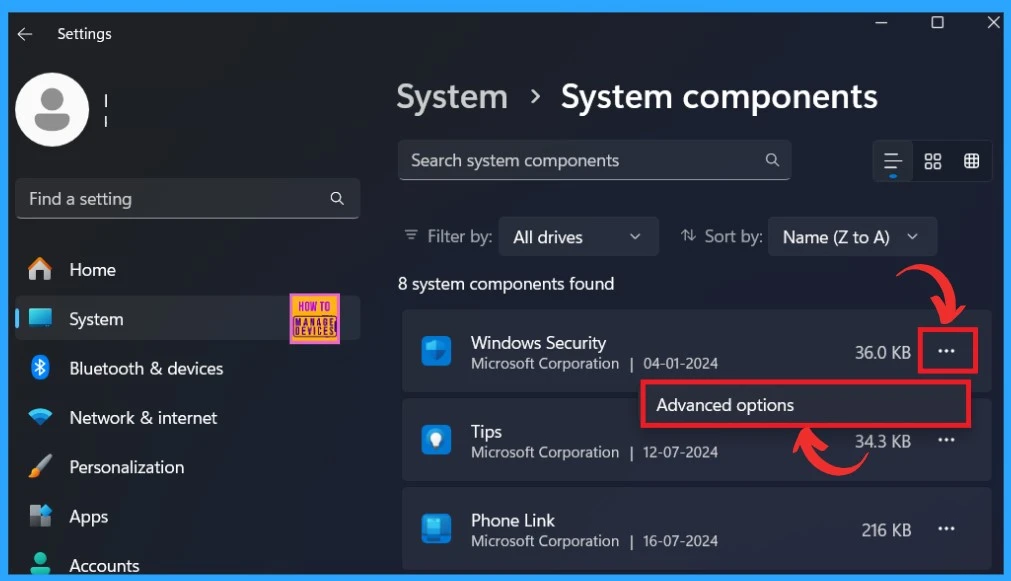
The advanced options are available on the System Components page. You must open the system settings using the Win+I keys to access this option. When the setting opens, you have to select the System>System Components. System components are preinstalled on Windows.
- Select any system component to view the advanced options
- Here I selected Windows security
- Click on the 3 dot option of the system component
- Select the Advanced Options
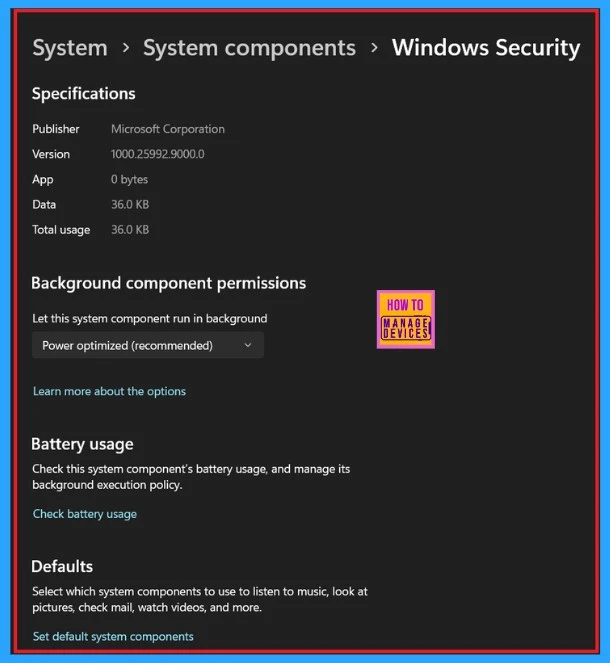
When you click on the advanced option, you will see the basic settings for the Windows components. It has a list of settings with detailed information about the system components. When you click on the advanced option first, you will see the option for Specification, which gives a small description of the apps.
- Specification showing the app’s Publisher ( Windows Components), version details, app size details, data used by the app and total usage info of the dates are included in the Specification.
- The table below is an example of the Advanced option in Windows security
| Advanced option in Windows Security | Info |
|---|---|
| Specification | It allows more info about Windows components |
| Background component permission | You can run the system component in the background in power-optimized mode. |
| Battery usage | Check the battery usage of this system component and manage its background execution policy. |
| Defaults | It allows system components to be used to listen to music, look at pictures, check mail,watch videos and more. |
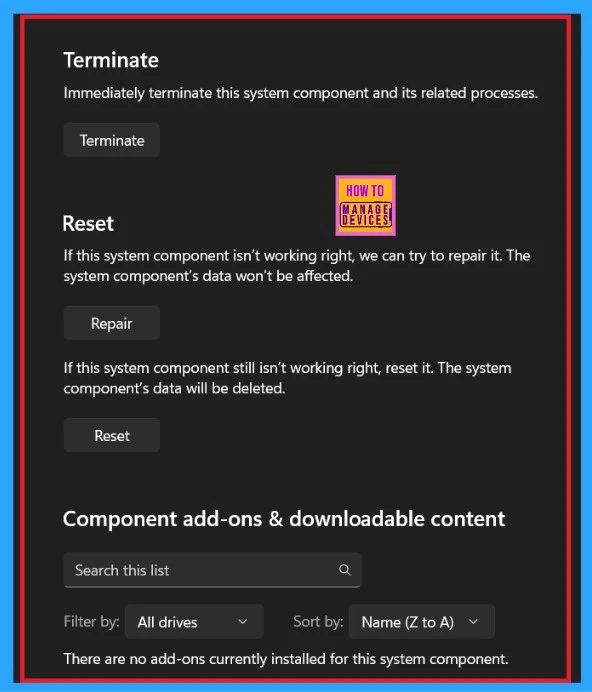
| Terminate | This will allow immediate termination of this system component and related procedure. |
| Repair | If this system component is not working properly, this option will repair it. This procedure does not affect the system component data. |
| Reset | If this system component is not working correctly, this option will reset it. After the procedure, the system component data is deleted. |
| Components add-ons and download content | You can manage Components add-ons and download content with the search bar option to search specific add-ons |
- New End Task Options from Taskbar in Windows
- How to Customize Taskbar Behaviors in Windows
- Custom Search Box on the Taskbar of Windows 11
How to Fix Windows 11 System Components using Repair Terminate Reset options
Let’s find out the following options to fix the Windows System Components!
- Repair
- Terminate
- Reset
When you scroll down to the advanced option, you can see the options for terminating, resetting, and repairing, as well as for Components add-ons and downloading content. With these options, system component management is very easy.
See More: Easy Way to Repair Reset Outlook in Windows
We are on WhatsApp now. To get the latest step-by-step guides, news, and updates, Join our Channel. Click here. HTMD WhatsApp.
Author
Anoop C Nair has been Microsoft MVP from 2015 onwards for 10 consecutive years! He is a Workplace Solution Architect with more than 22+ years of experience in Workplace technologies. He is also a Blogger, Speaker, and leader of the Local User Group Community. His main focus is on Device Management technologies like SCCM and Intune. He writes about technologies like Intune, SCCM, Windows, Cloud PC, Windows, Entra, Microsoft Security, Career, etc.




Discussion