






How to Ensure All Domain Member Secure Channel Traffic Is Always Signed or Encrypted
Key Takeaways
- Ensures all secure channel traffic is signed or encrypted
- Protects against data tampering and interception attacks
- Required for secure NTLM authentication and domain communication
- If enabled, secure channel fails if signing or encryption is not negotiated
In this post, we are discussing, How to Ensure All Domain Member Secure Channel Traffic Is Always Signed or Encrypted. This policy lets you enforce that all secure channel communications between a domain member and a domain controller are either digitally signed or encrypted. When a computer joins a domain, it establishes a secure channel using its computer account credentials, which is then used for critical operations such as authentication, SID lookups, and other domain-related services.
Table of Contents
How to Ensure All Domain Member Secure Channel Traffic Is Always Signed or Encrypted
By enabling this policy, you ensure that the system will not establish a secure channel unless signing or encryption is successfully negotiated. This strengthens security by protecting the integrity and confidentiality of domain communication and helps prevent risks such as data interception during transmission.
- How to Prevent Mapping of Client Printers in Remote Desktop Services Sessions using Intune
- Control Least Privilege App Container Sandbox for Printing Services in Edge Browser using Intune
- Enable Restrict Background Graphics Printing Mode for MS Edge using Intune Policy
Create Profile
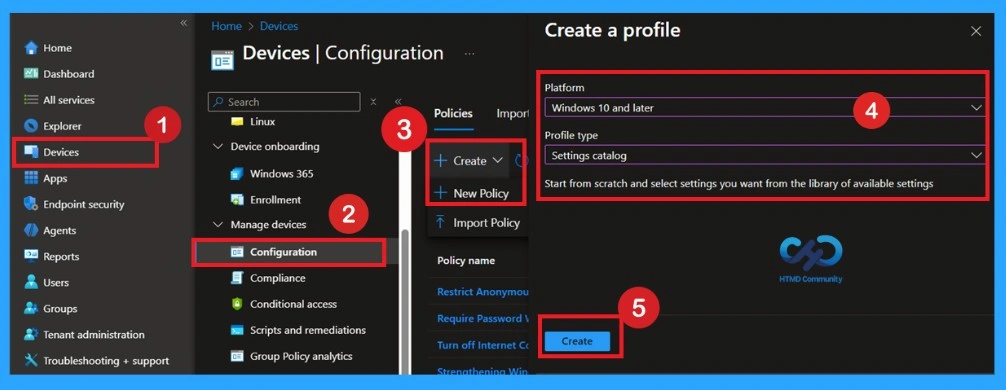
Now, let’s go through the steps to deploy this policy in Intune. First, sign in to the Microsoft Intune Admin Center with your credentials. Then, navigate to Devices > Configuration > Policies and click on Create Policy. Next, you will see the Create a Profile window. Here, you need to set up a profile for your deployment. Select Platform as Windows 10 and later and choose Profile type as Settings Catalog.
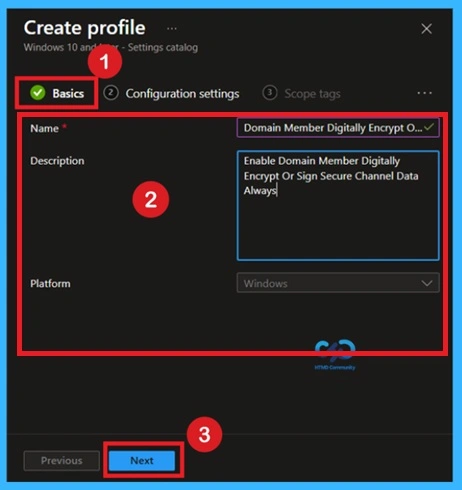
Basics the Identification Process of a Policy
The first step is the Basics tab, where you need to enter the essential details for the policy, such as the Name, Description, and Platform information. The platform will already be set to Windows by default. Simply provide a meaningful name and brief description for the policy, then click Next to proceed.

| Basic Details | Info |
|---|---|
| Name | Domain Member Digitally Encrypt or Sign Secure Channel Data Always |
| Description | Enable Domain Member Digitally Encrypt Or Sign Secure Channel Data Always |
| Platform | Windows |
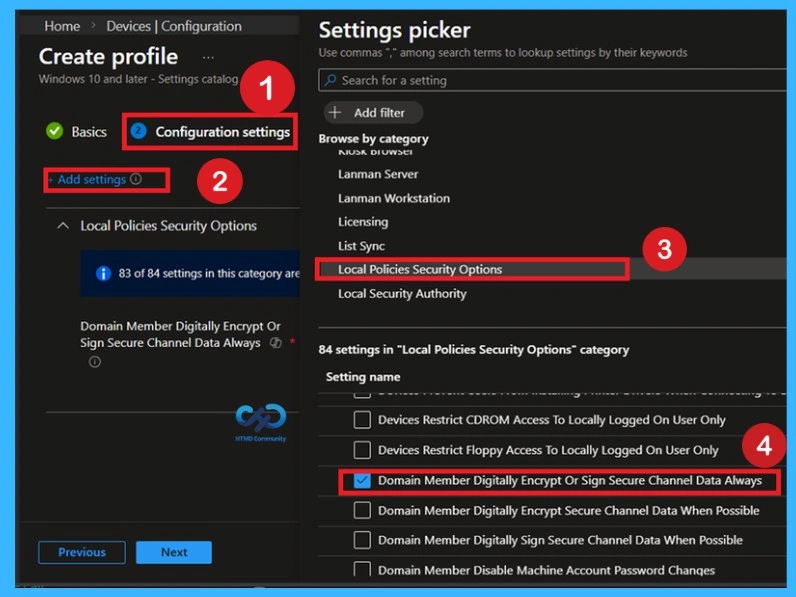
Configuration Settings
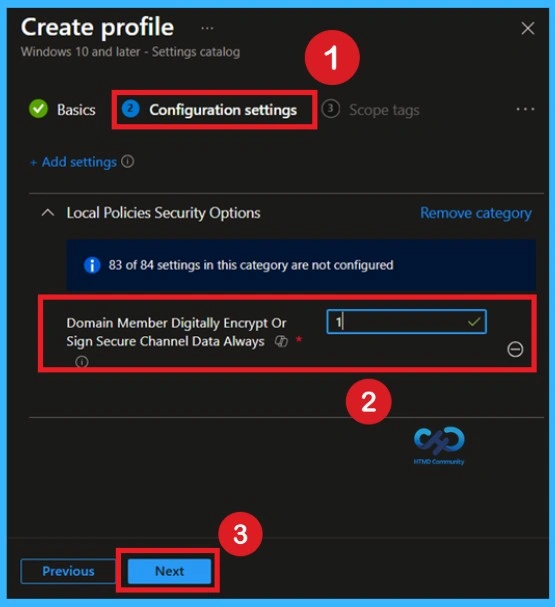
In the Configuration settings step, click on Add settings to open the Settings picker, then either search for the policy or browse through categories and select Local Policies Security Options as shown in the screen; within this category, locate “Domain Member: Digitally Encrypt Or Sign Secure Channel Data Always”, check the box to add it to your profile, and once it appears in the configuration list, set the policy value to Enabled to ensure that all secure channel communication between the domain member and domain controller is mandatorily signed or encrypted, thereby enforcing a secure communication channel.
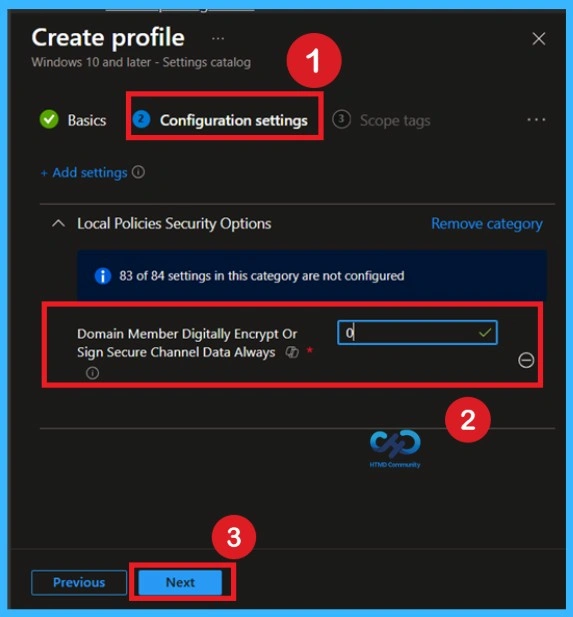
Policy Default Value -0
When the policy is set to 0 Default value, the device does not strictly enforce signing or encryption for all secure channel traffic. This allows compatibility with older systems but may expose communication to potential security risks if weaker protocols are used. If you want to continue with this, click on the Next.
Policy Enabled Value – 1
when you select the value as it enforces that all secure channel communication between the domain member and domain controller must be either digitally signed or encrypted. entering 1 activates the policy, if this policy is enabled, then the secure channel will not be established unless either signing or encryption of all secure channel traffic is negotiated and once you click Next, this setting will be applied to targeted devices.
Importance of Scope Tags
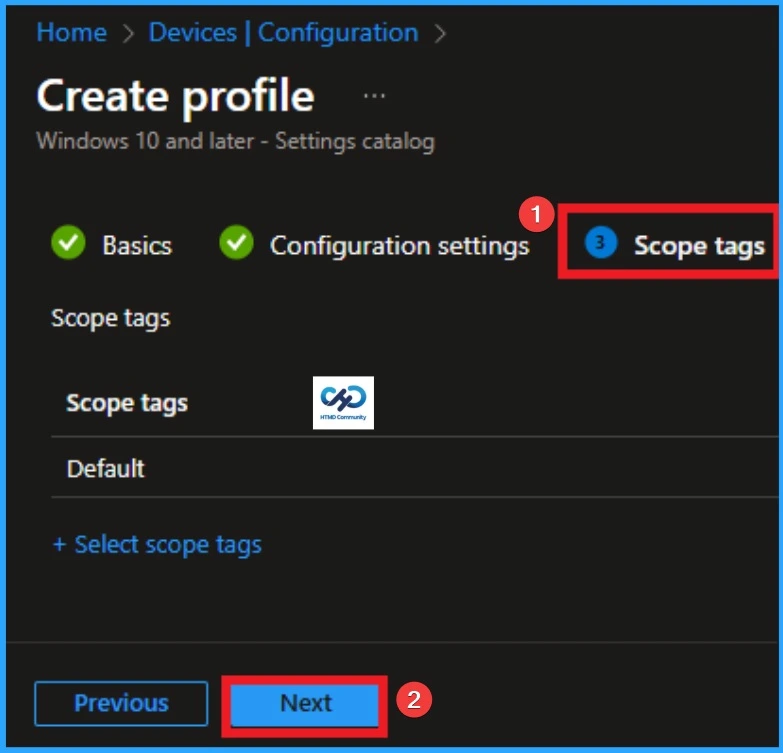
Now you are in the Scope tags section. Scope tags are used to assign policies to specific admin groups for better management and filtering. If needed, you can add a scope tag here. However, for this policy, I chose to skip this section.
What are Assignments?
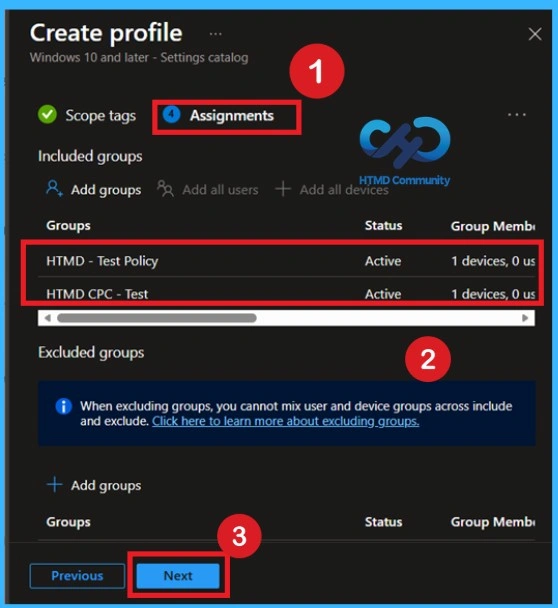
To assign the policy to specific groups, you can use the Assignment Tab. Here I click, +Add groups option under Included groups. I choose a group from the list of groups and click on the Select button. Again, I click on the Select button to continue.
Review + Create
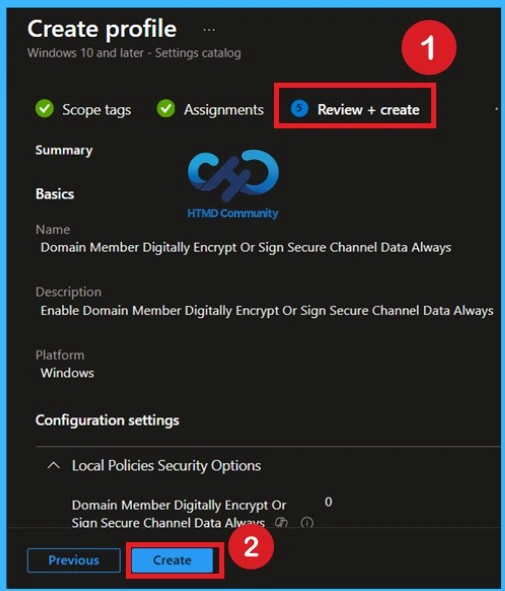
Finally, review all the configurations in the Review + create section to ensure accuracy. Once confirmed, click on Create to deploy the policy. The policy will then be applied to the targeted devices during their next Intune check-in cycle.
Monitoring Status
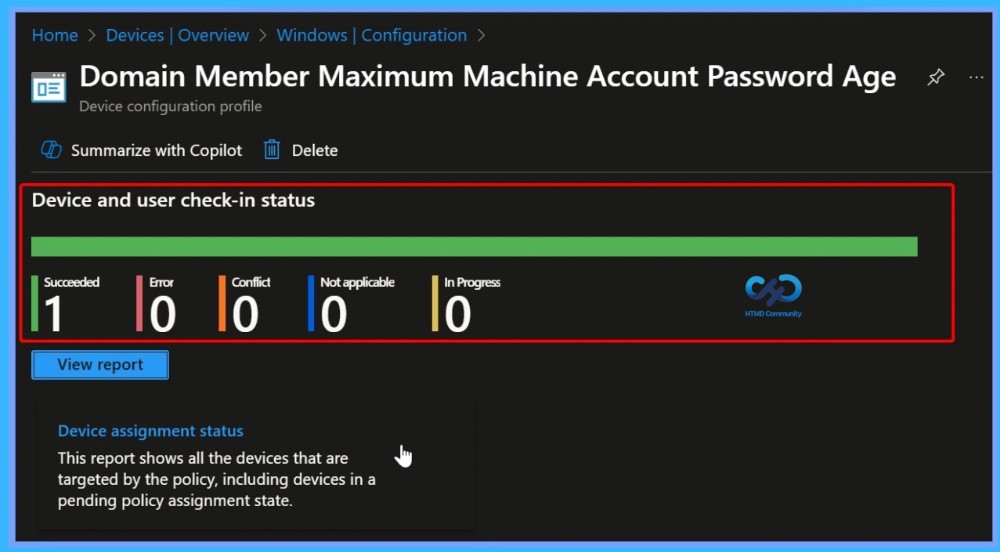
The next step is policy succeeded confirmation page called Monitoring Status page. The Monitoring Status page shows if the policy is succeeded or not. o quickly configures the policy and takes advantage of the policy sync the assigned device on Company Portal. Open the Intune Portal. Go to Devices > Configuration > Search for the Policy. Here, the policy shows as succeeded.
Client-Side Verification through Event Viewer
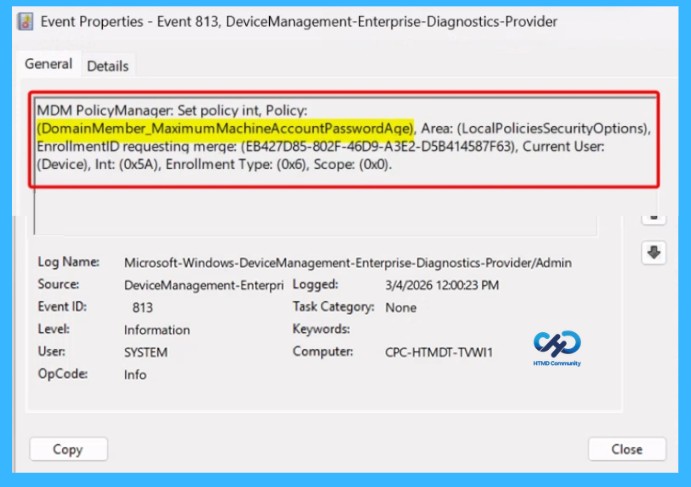
You know to confirm the policy is successful or not, you can use the Event Viewer. First, open Event Viewer and navigate to Applications and Services Logs > Microsoft > Windows > Device Management > Enterprise Diagnostic Provider > Admin. Look for Event IDs 813 or 814, as these typically policy-related information. In the below screenshot the policy details were found under Event ID 813.
Removing the Assigned Group from this Settings
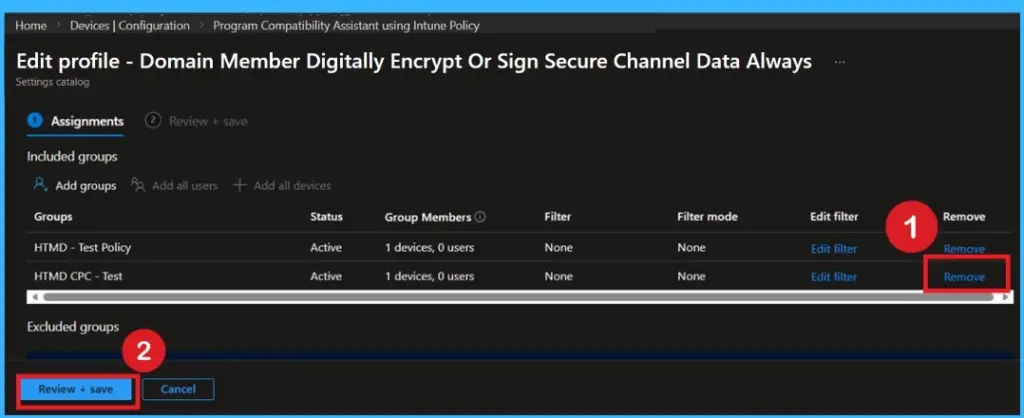
If you want to remove the Assigned group from the policy in Intune, it is possible from the Intune Portal also it is very easy procedure. To do this, open the Policy on Intune Portal and edit the Assignments tab and the Remove Policy.
For detailed information, you can refer to our previous post – Learn How to Delete or Remove App Assignment from Intune using by Step-by-Step Guide.
How to Delete the Policy that you Created
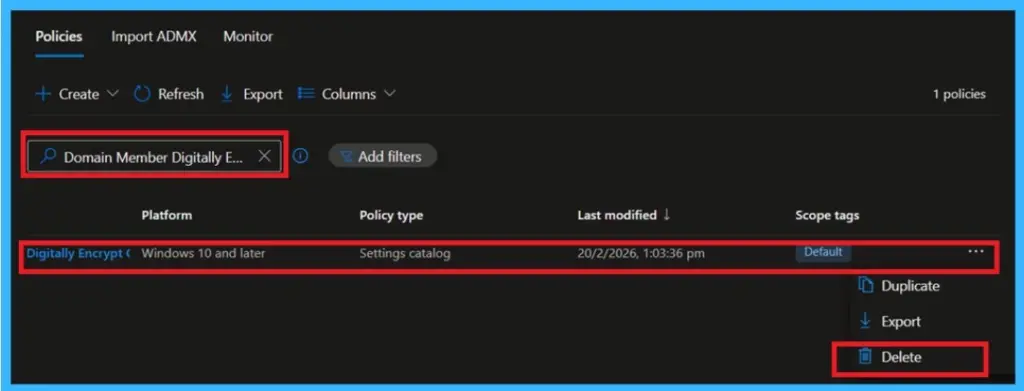
To delete a policy in Microsoft Intune, first sign in to the Microsoft Intune Admin Center. Navigate to Devices and then select Configuration. Locate and select the specific policy you want to remove. Once you’re on the policy details page, click the 3 -dot menu in the top right corner and choose Delete from the available options.
Need Further Assistance or Have Technical Questions?
Join the LinkedIn Page and Telegram group to get the latest step-by-step guides and news updates. Join our Meetup Page to participate in User group meetings. Also, join the WhatsApp Community and the Whatsapp channel to get the latest news on Microsoft Technologies. We are there on Reddit as well.
Author
Anoop C Nair is a Workplace Technology solution architect with 25+ years of experience. Microsoft Certified Trainer. Microsoft MVP from 2015 onwards for consecutive 11+ years! He is a blogger, Speaker, and Founder of HTMD Community and HTMD Conference. His main focus is on Device Management technologies like Intune, Windows, and Cloud PC. He writes about technologies like Intune, SCCM, Windows, Cloud PC, Entra, and Microsoft Security.


Discussion