






Allow or Block All Unmanaged Add-ins in OneNote using Intune Policy
Hi everyone. Today we are going to discuss the policy for allowing or blocking all unmanaged add-ins in Microsoft Intune. As you all know, Microsoft Intune is a cloud-based solution, and one of its key features is the Settings Catalog.
In the Settings Catalog, many different policies are available to manage and secure devices. One of these important categories is add-in management. Today, we will focus on the policy that controls unmanaged add-ins. Add-ins are extra tools that can be added to applications to make them more useful and help people work faster. But not every add-in is safe, works well.
To solve this, Microsoft gives a policy setting that lets administrators decide which add-ins are allowed.If you enable this policy setting, and the “List of managed add-ins” policy setting is also enabled, all add-ins are blocked except those that are configured as 1 (always enabled) or 2 (configurable by the user) in the “List of managed add-ins” policy setting.
The “List of managed add-ins” which add-ins are allowed or blocked by the organization. By enabling the add-in blocking policy, administrators effectively prevent all non-listed add-ins from running, creating a controlled environment where only approved add-ins can be used.

Table of Contents
Why is this Policy Important for Security?
What Happens if this Policy is Disabled or Not Configured?
If this policy is turned off or left unconfigured, users are free to install, enable, or disable any add-ins that are not managed by the organization. While this gives users more flexibility, it also increases risks, since IT cannot fully control which add-ins are being used.
Allow or Block All Unmanaged Add-ins in OneNote using Intune Policy
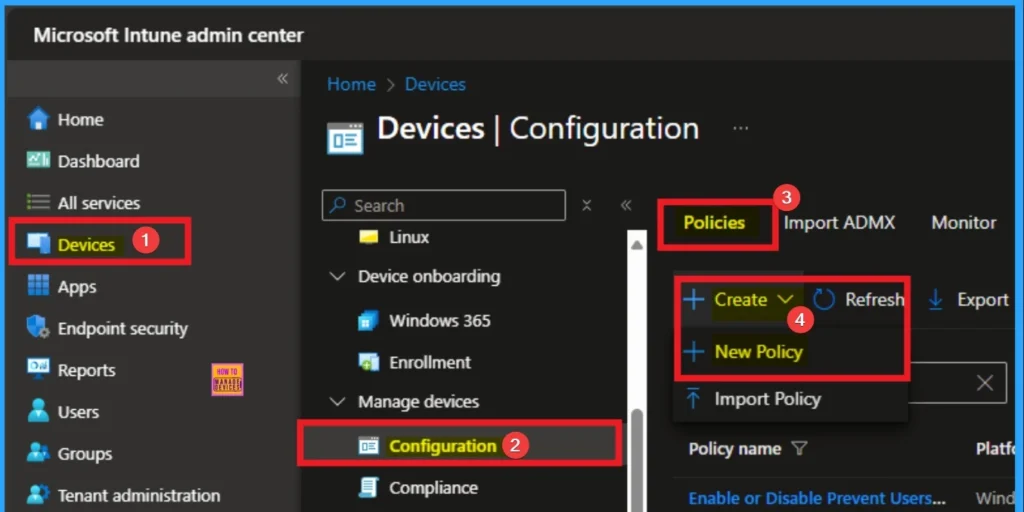
Earlier, we discussed unmanaged versions in OneNote using Intune policy. Now, let’s go through the steps to deploy this policy in Intune. First, sign in to the Microsoft Intune Admin Center with your credentials. Then, navigate to Devices > Configuration > Policies and click on Create Policy.
- Enable Disable OneNote Audio Search for User Policy using Intune
- OneNote Text Prediction for user Policy Deployment using Intune
- Enable Disable Full Screen Mode in MS Edge Browser using Intune Policy
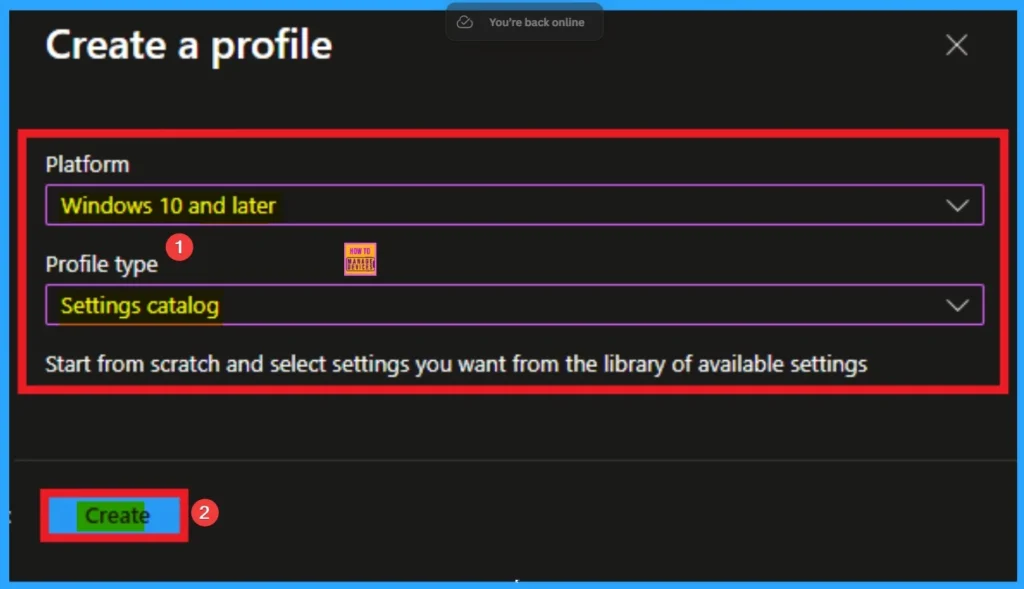
Next, you will see the Create a Profile window. Here, you need to set up a profile for your deployment. Select Platform as Windows 10 and later and choose Profile type as Settings Catalog. After that, click on Create to continue.
What is a Basic Tab
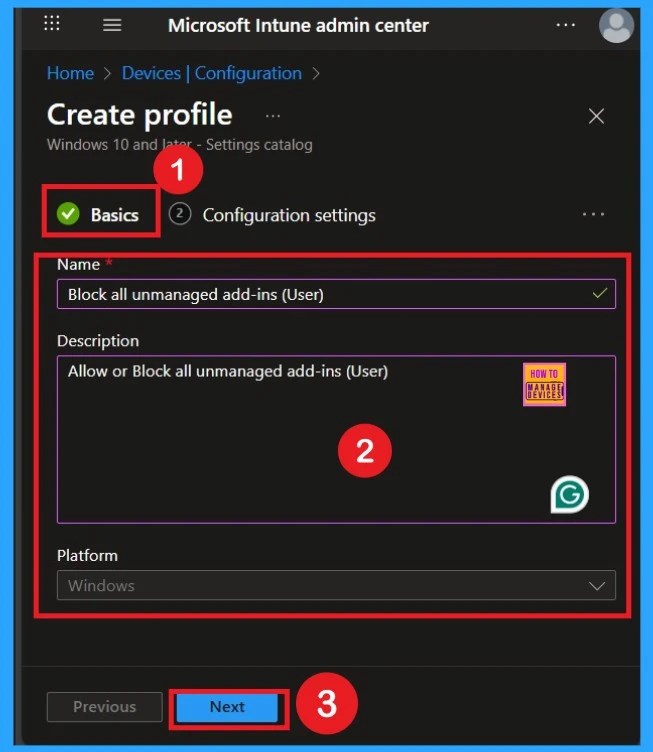
What are Basics? The Basics section is the first step when creating a policy in Intune. In this step, you need to fill in the Name, Description, and Platform details for your policy. This helps in identifying and organizing the policy later.
You can refer to the image below for clarification. Once you have entered all the required information, click on Next to continue.
Configuration Settings – Settings Picker
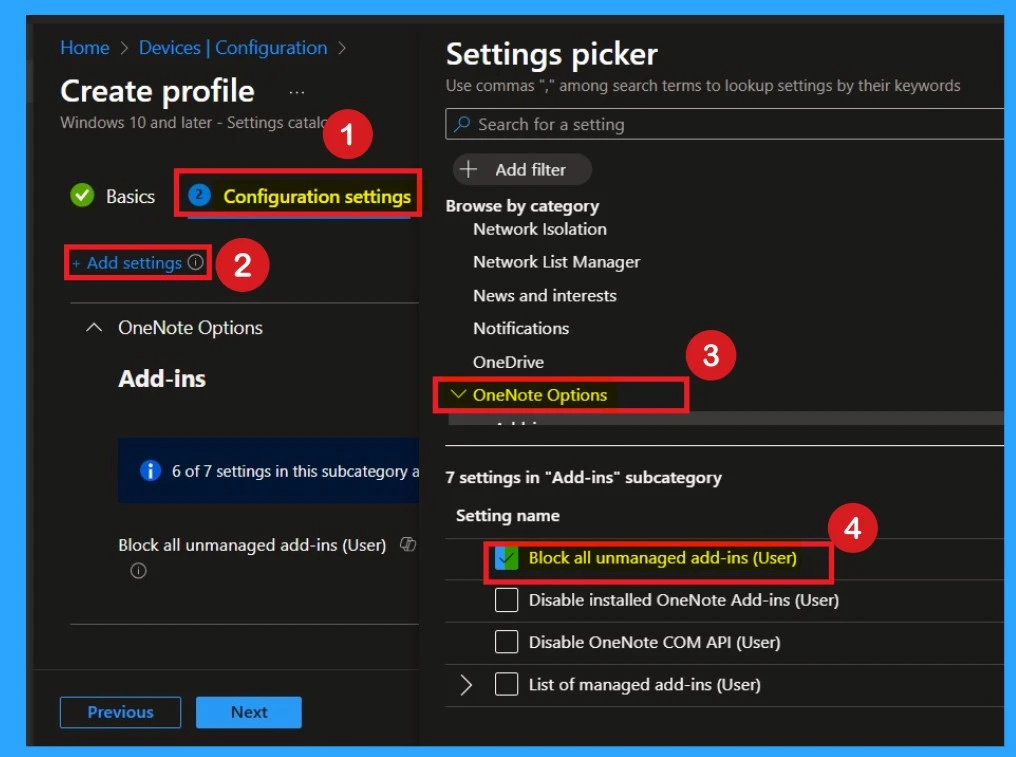
The Configuration Settings section is one of the most important parts of the deployment. Here, you will see the Add settings option as a hyperlink. Click on it to open the settings picker window.
In the settings window, select OneNote as the category. Under this category, choose the option Block or Unmanaged Add-ins for Users. Once you have made your selection, close the settings window to save your choice.
Defaulted Disable Mode
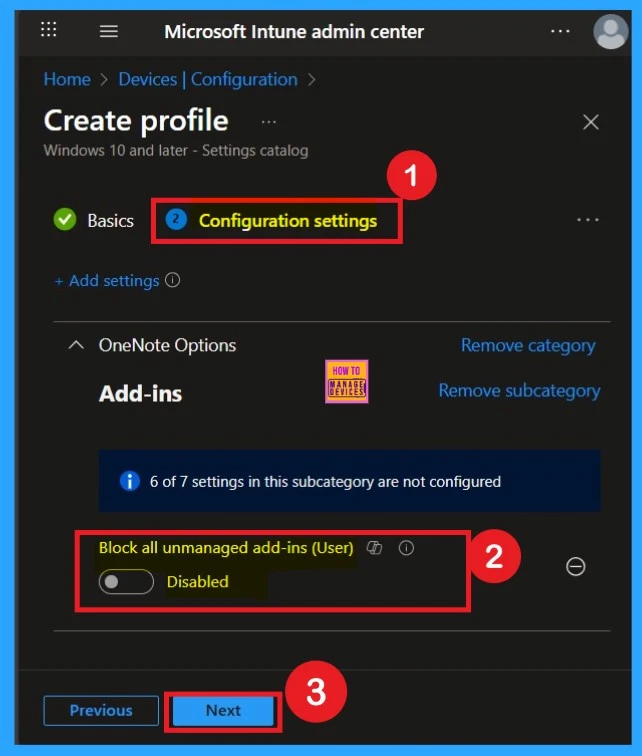
If you want to disable the policy, drag the toggle from right to left. In this mode, the toggle will turn gray, and the status will show as Disabled. This means the policy will not be applied to users. You can then click on Next to continue in the disabled mode.
Enable the Policy
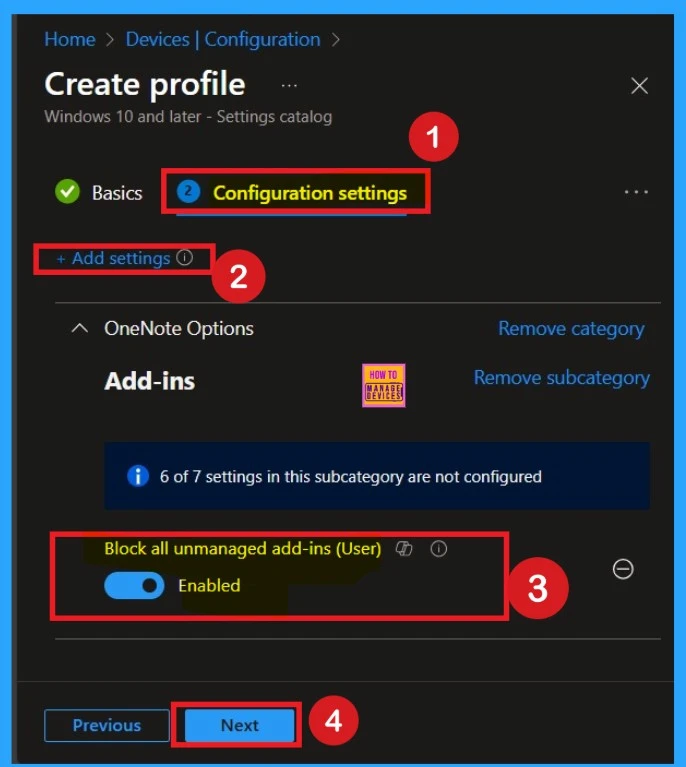
You can also enable a policy that is disabled by default. To do this, toggle the switch from left to right. Once enabled, the switch will turn blue and display the label Enabled.
Importance of Scope Tags
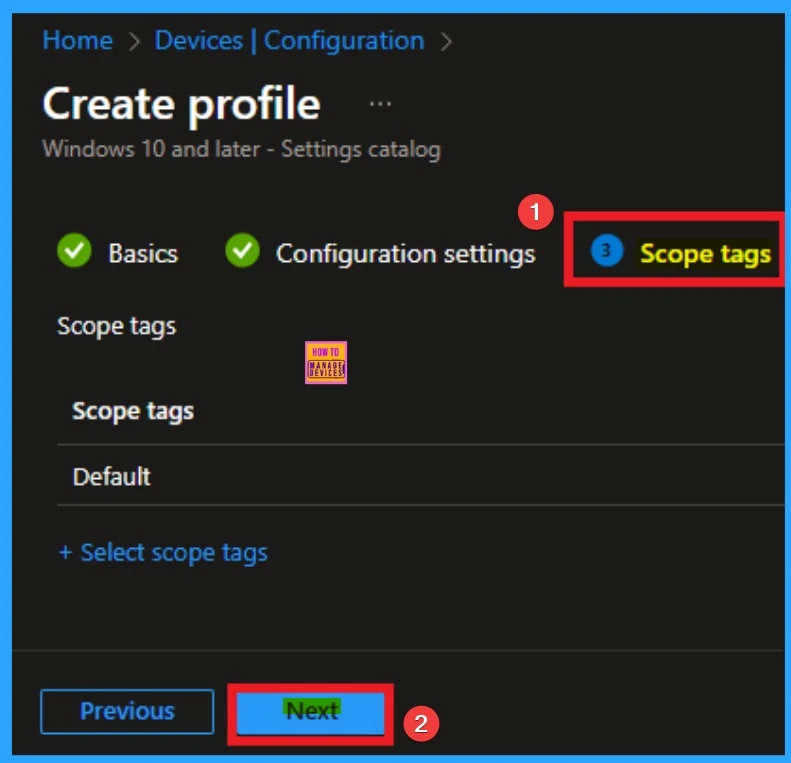
Now you are on the Scope tags section. Scope tags are used to assign policies to specific admin groups for better management and filtering. If needed, you can add a scope tag here. However, for this policy, I chose to skip this section.
What is Assignments
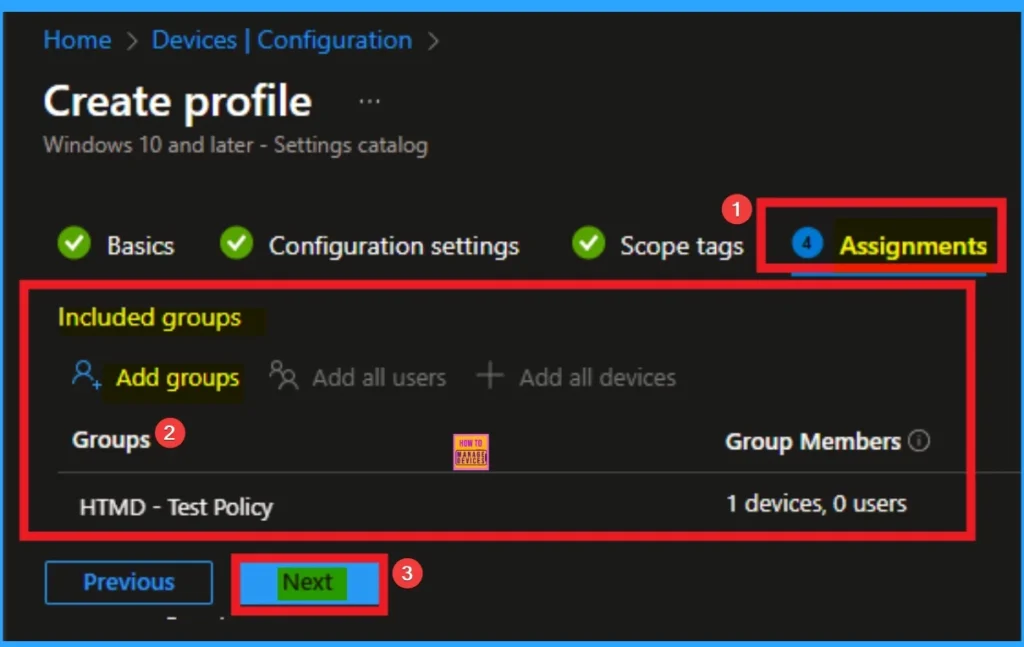
To assign the policy to specific groups, you can use the Assignment Tab. Here I click, +Add groups option under Included groups. I choose a group from the list of groups and click on the Select button. Again, I click on the Select button to continue.
The Policy Now Created – Review + Create
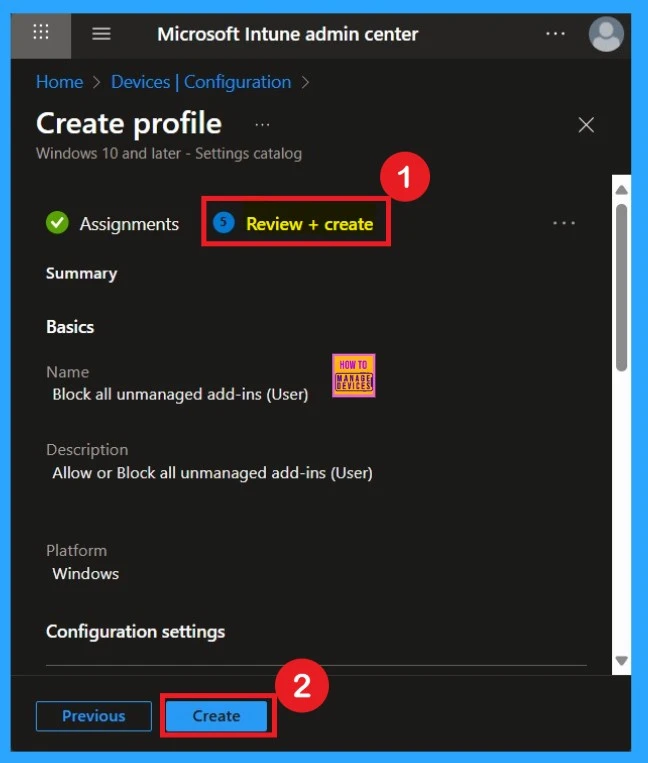
Before completing the policy creation, you can review each tab to avoid misconfiguration or policy frailer. This tabs work as a summary page. After verifying all the details, click on the Create Button. After creating the policy, you will get a success message.
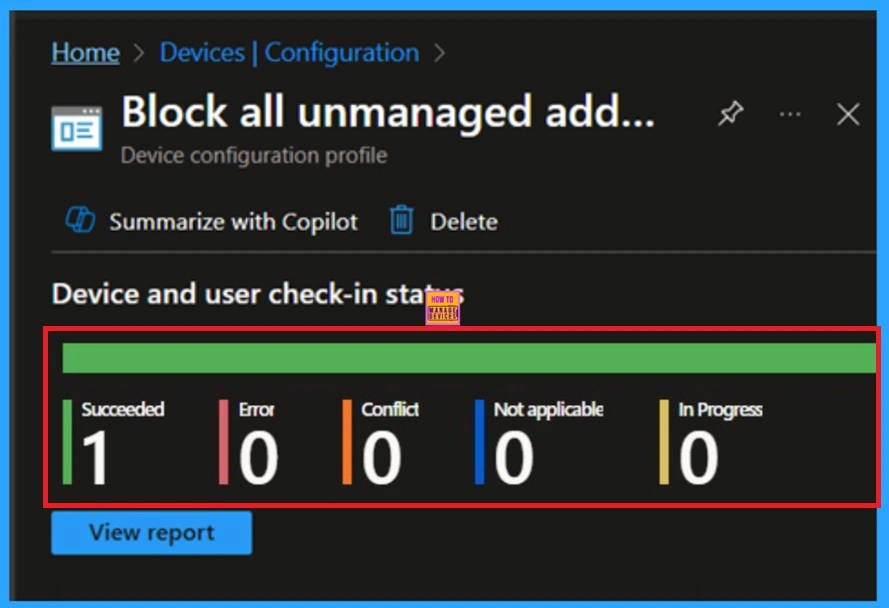
Monitoring Status
The Monitoring Status page shows if the policy is succeeded or not. o quickly configures the policy and take advantage of the policy sync the assigned device on Company Portal. Open the Intune Portal. Go to Devices > Configuration > Search for the Policy. Here, the policy shows as succeeded.
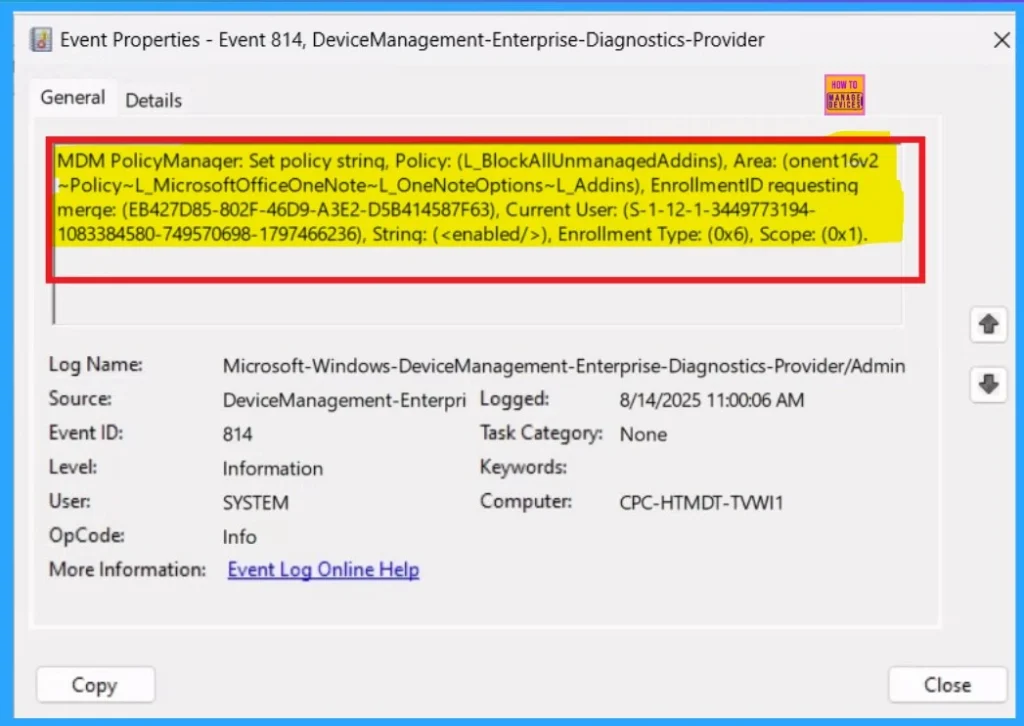
Client Side Verification
To assign the policy to specific groups, you can use the Assignment Tab. Here I click, +Add groups option under Included groups. I choose a group from the list of groups and click on the Select button. Again, I click on the Select button to continue.
| Policy Details |
|---|
| MDM PolicyManaqer: Set policy string, Policy: (L_BlockAllUnmanaqedAddins), Area: (onent16v2 ~Policy~L_MicrosoftOfficeOneNote~L_OneNoteOptions~L_Addins), EnrollmentID requesting merqe: (EB427D85-802F-46D9-A3E2-D5B414587F63), Current User: (S-1-12-1-3449773194- 1083384580-749570698-1797466236), Strinq: (), Enrollment Type: (0x6), Scope: (0x1). |
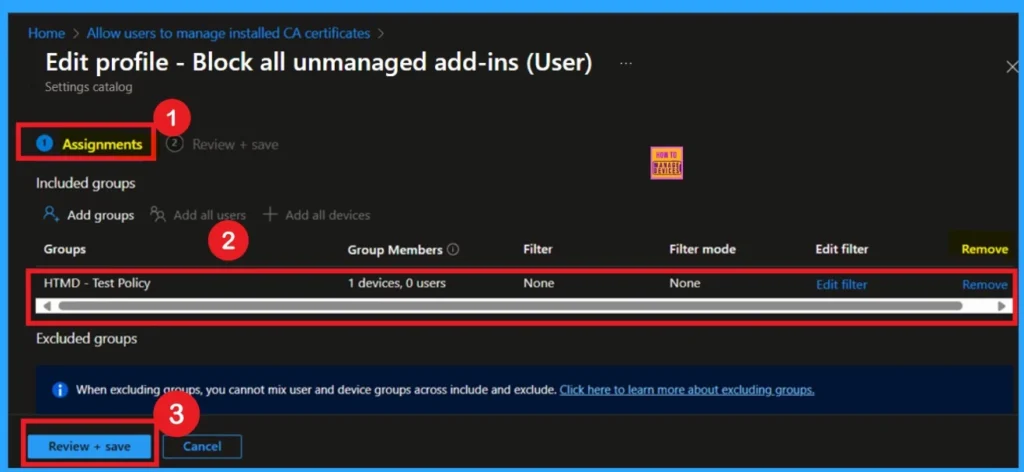
Removing the Assigned Group from this Settings
If you want to remove the Assigned group from the policy, it is possible from the Intune Portal. To do this, open the Policy on Intune Portal and edit the Assignments tab and the Remove Policy.
For detailed information, you can refer to our previous post – Learn How to Delete or Remove App Assignment from Intune using by Step-by-Step Guide.
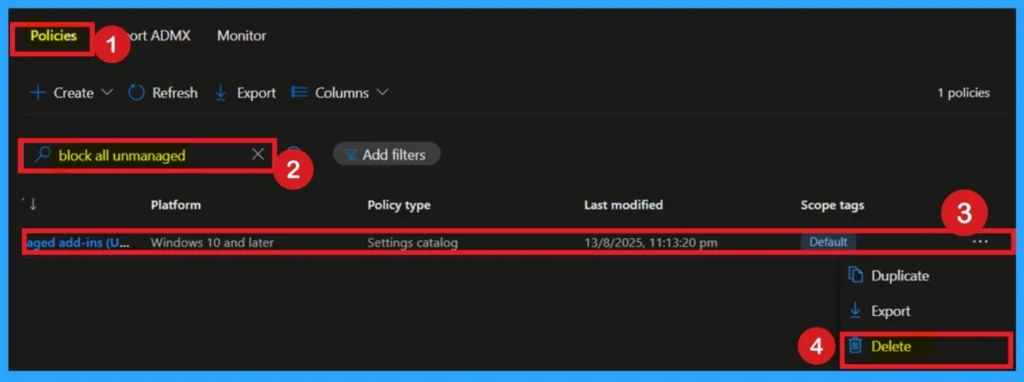
How to Delete the Policy that you created
To delete a policy in Microsoft Intune, first sign in to the Microsoft Intune Admin Center. Navigate to Devices and then select Configuration. Locate and select the specific policy you want to remove. Once you’re on the policy details page, click the 3 -dot menu in the top right corner and choose Delete from the available options.
For detailed information, you can refer to our previous post – How to Delete Allow Clipboard History Policy in Intune Step by Step Guide.
Need Further Assistance or Have Technical Questions?
Join the LinkedIn Page and Telegram group to get the latest step-by-step guides and news updates. Join our Meetup Page to participate in User group meetings. Also, Join the WhatsApp Community to get the latest news on Microsoft Technologies. We are there on Reddit as well.
Author
Anoop C Nair has been Microsoft MVP from 2015 onwards for 10 consecutive years! He is a Workplace Solution Architect with more than 22+ years of experience in Workplace technologies. He is also a Blogger, Speaker, and Local User Group Community leader. His primary focus is on Device Management technologies like SCCM and Intune. He writes about technologies like Intune, SCCM, Windows, Cloud PC, Windows, Entra, Microsoft Security, Career, etc.


Discussion