






Amazon Corretto Deployment Using SCCM | Step by Step Guide
Hello You ALL!! Here is another deployment post for all of you. Today we will learn about Amazon Corretto Deployment Using SCCM. Here we will show you a detailed step-by-step guide for deploying Amazon Correttoto on Windows 10/11 devices using SCCM (Configuration Manager).
Amazon Corretto is a no-cost, multiplatform, production-ready distribution of the Open Java Development Kit (OpenJDK). Performance enhancements and security fixes will be included in the long-term support package for Corretto.
Corretto is used by Amazon internally on thousands of production services, and its compatibility with Java SE has also been certified. Linux, Windows, and macOS are all supported by Corretto so that you can develop and run Java applications on them.
The Amazon Corretto cloud service allows you to run the same environment remotely, on-premises, and on your local computer simultaneously.

The MSI application is the best method to deploy Amazon Corretto to Windows 10/11 devices. In this Step-by-Step guide for Amazon Corretto Application Deployment using SCCM, we will use the MSI file for the deployment.
- Deployment of Amazon WorkSpaces using SCCM | MSI Application Guide
- Citrix Receiver Workspace App Deployment using SCCM
What is an MSI file?
Windows packages that contain installation information, including files to be installed and installation locations, are called MSI files. The EXE and MSI files both install and launch Windows programs. The EXE file may not always contain an installer and may launch its program when double-clicked. An MSI file, however, always includes an installer.
Amazon Corretto Deployment Using SCCM
Let’s start with the Deployment of Amazon Corretto using SCCM. As told earlier, we are using the MSI file for Amazon Corretto Deployment. You will see why the availability of MSI files for any application is always a joy for SCCM Admin. We don’t need to work on prerequisites as we used to tell you in the previous posts.
- All we have to do is download the MSI installer and the logo of the Amazon Corretto, as we know it is available for download, and our half job is done.
One can easily download the 64-bit application directly from Amazon Corretto. They have provided different setups for different environments. One can easily differentiate and choose the right setup for the Windows 64-bit architecture.
The following table gives you all the details required for the Amazon Corretto Deployment tool using SCCM. This includes the command line for Amazon Corretto silent install, Product Code, etc.
| Name | Command Line | Detection Method |
|---|---|---|
| Amazon Corretto Deployment Tool – Windows Installer (*.msi file) | Install -> msiexec /i “amazon-corretto-11.0.16.9.1-windows-x64.msi” /q | Windows Installer – {219DB4F3-6336-4381-BE4B-1265D7CD537A} |
Create Amazon Corretto Application Using SCCM Console
This MSI application deployment guide will use the SCCM admin console to create an application. To start with the Application creation part, copy the downloaded setup to the package source location of the SCCM Server.
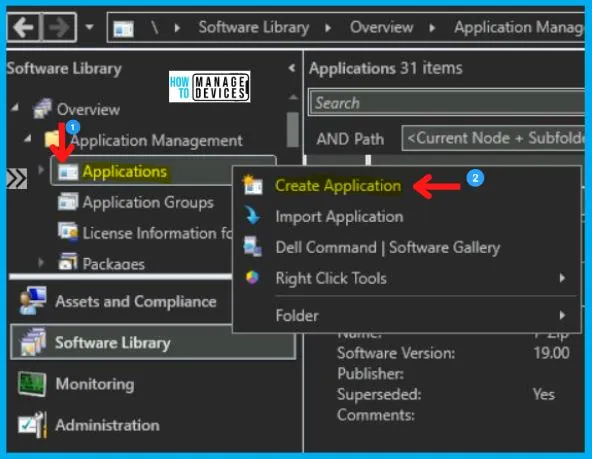
- Navigate to SCCM Console \Software Library\Overview\Application Management\Applications.
- Right-click on Applications and select Create Application.
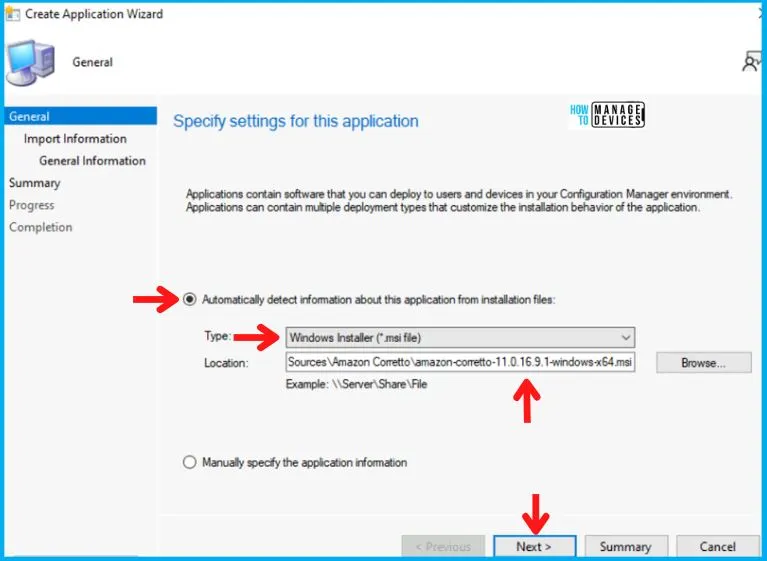
For all MSI application deployments, always Select the Automatically detect Information about the application from installation files and choose Windows Installer (.msi files) in the Type category. Also, enter the UNC Path for the application in Location and click Next.
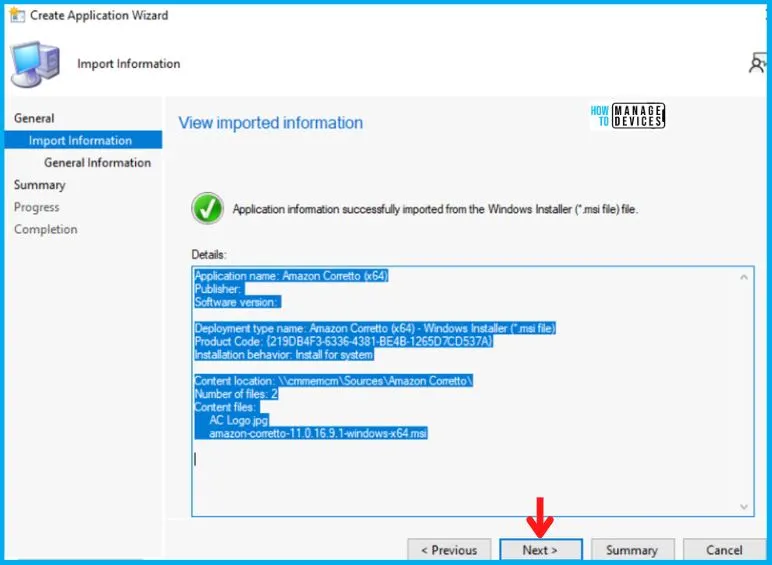
Now you will see the real Magic. As soon you click on. Next, you will see that all the information has been imported from the MSI file as shown below, and click Next.
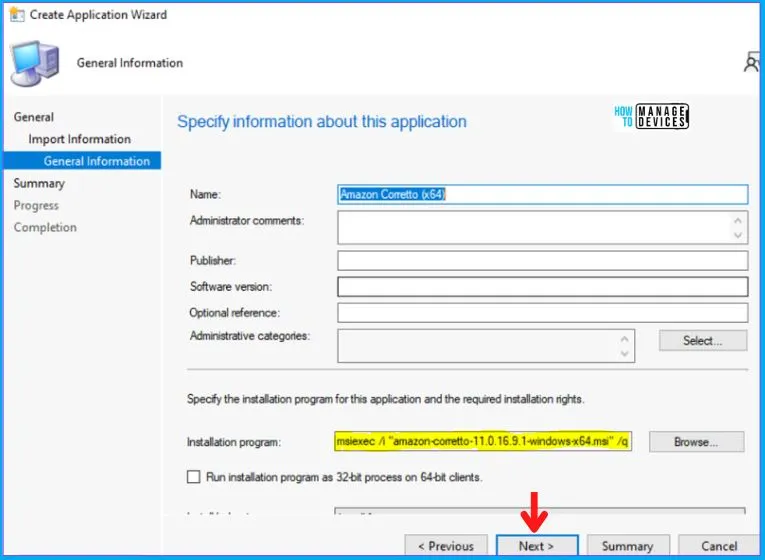
Also in the General Information Tab shown below, you will see it imports the install behavior/command (msiexec /i “amazon-corretto-11.0.16.9.1-windows-x64.msi” /q) from the installer itself.
- Silent Command Line for Amazon Corretto = msiexec /i “amazon-corretto-11.0.16.9.1-windows-x64.msi” /q
After this, click Next on the Summary Tab and end this Create Application Wizard by clicking on Close in Completion Tab.
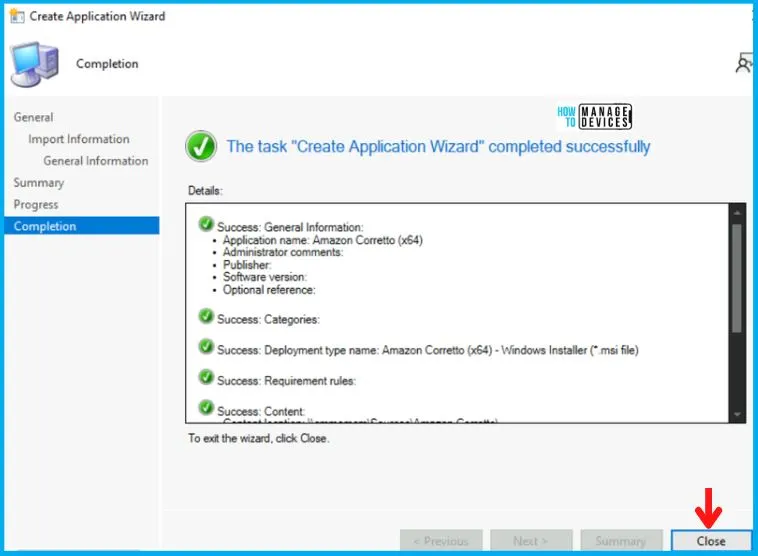
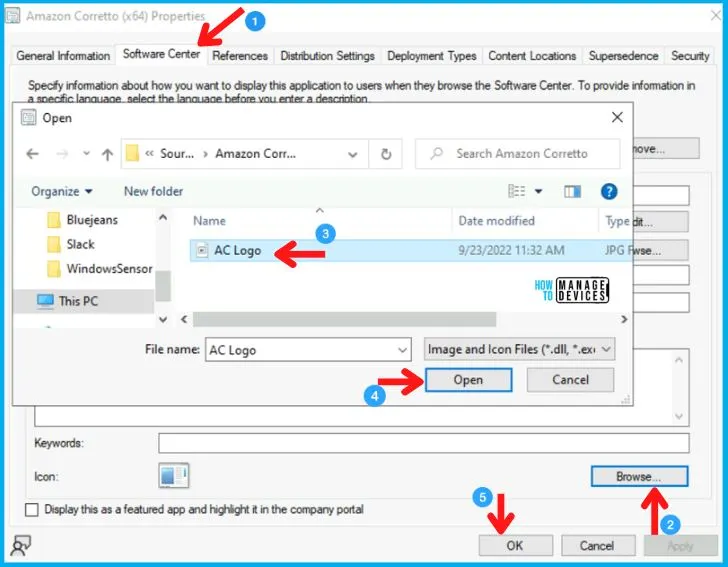
After the creation of the Application, it will appear in the Application Node. Now to Add an Icon to the Amazon Corretto, right-click on the Amazon Corretto and click on Properties.
After this choose Software Center Tab as shown below. And click on Browse in Icon and select the icon and click on Apply and OK as shown in the image below.
Distribute Amazon Corretto Application to the DP
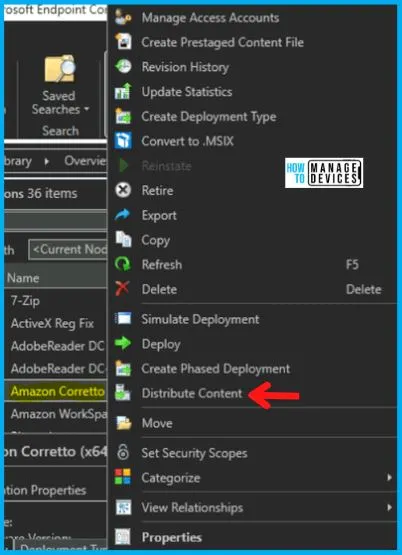
After the creation of the Application, it will appear in the Application Node. To begin with, the distribution right-clicks on the Amazon Corretto Application and clicks on Distribute Content, as shown in the picture below.
Now the Distribute Content Wizard will open, and click Next in the General Tab. Then select the Application Name in the Content Tab and Click on Next, as shown in the image below.
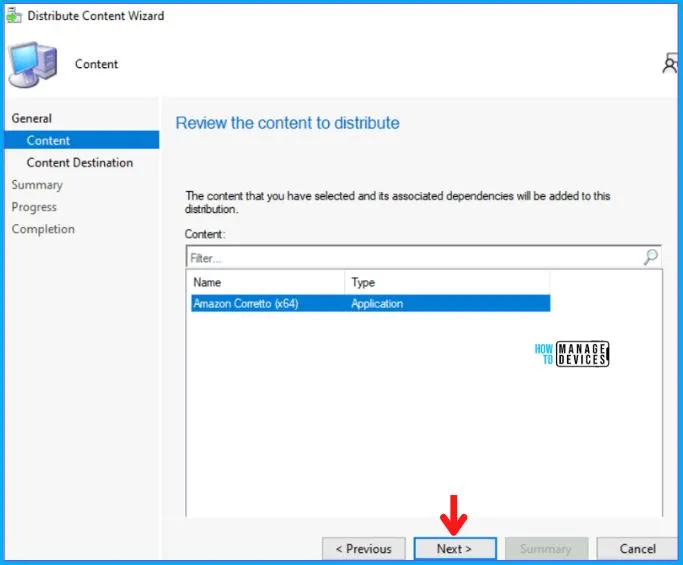
Now the Distribute Content Wizard will open, and click Next in the General Tab. Then select the Application Name in the Content Tab and Click on Next and in the Content Distribution tab click on ADD button as shown in the image below.
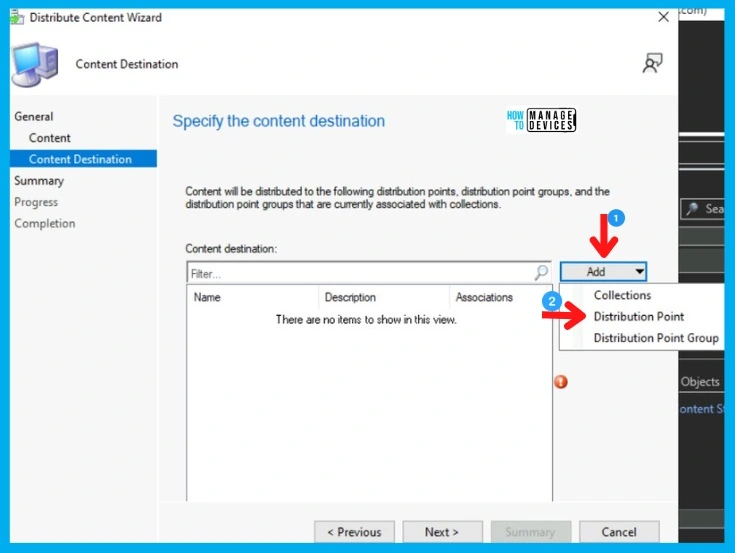
Then Add Distribution Point page will pop up, choose the Distribution Point on which you want to distribute the Application and click on OK, and then on Next.
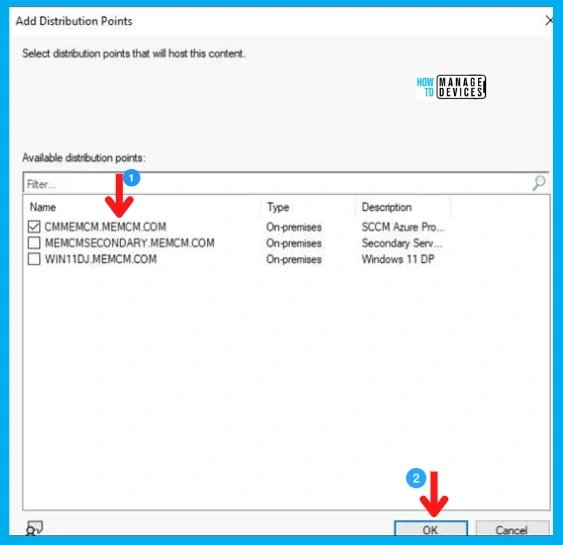
After this, Click Next on Summary Tab and complete this Distribution process by clicking Close on Completion Tab.
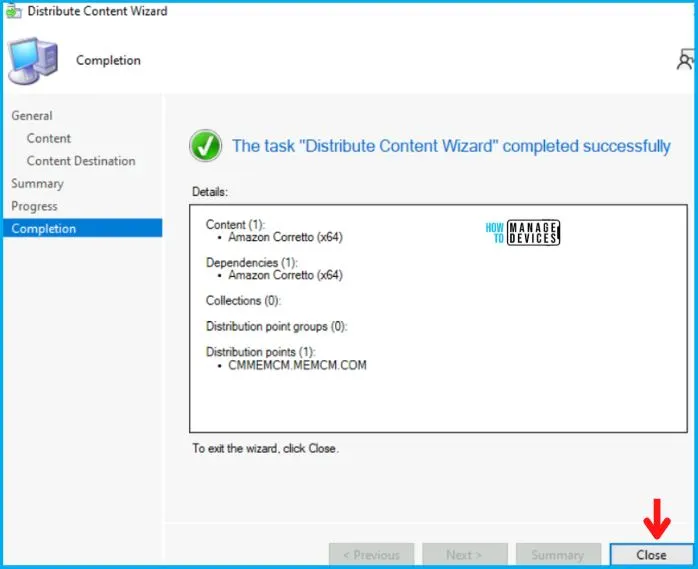
Deploy Amazon Corretto using SCCM
So as of now, we have accomplished two tasks, i.e., Application Creation and Application Distribution to the DP. Now all left is the Deployment of the Amazon Corretto on the All Windows 10 Device Collection.
- As you can see, your Application is displaying in Application Node, Right-click on Amazon Corretto and select Deploy.
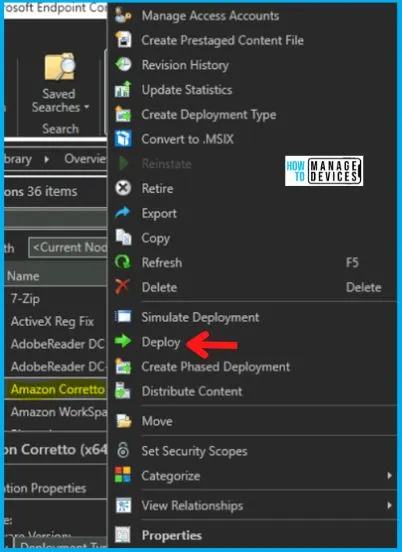
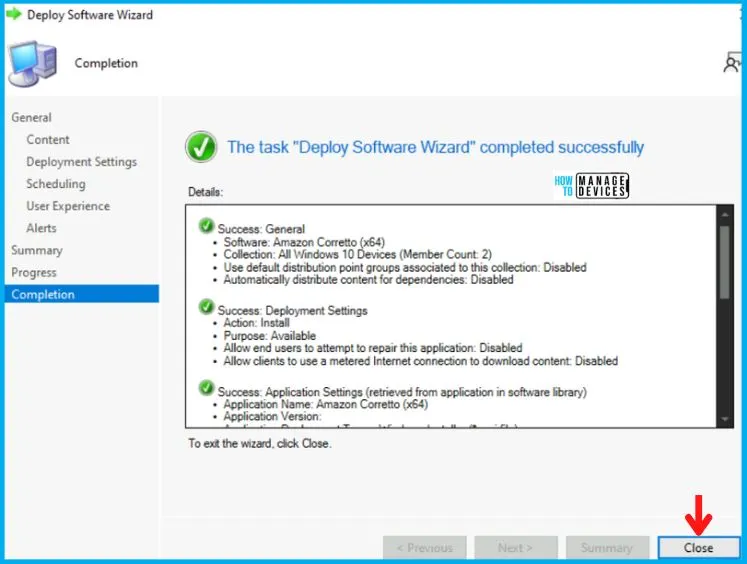
After this, Deploy Software Wizard opens, and in the General Tab, enter the Name of the Application and click on Browse to select the Collection.
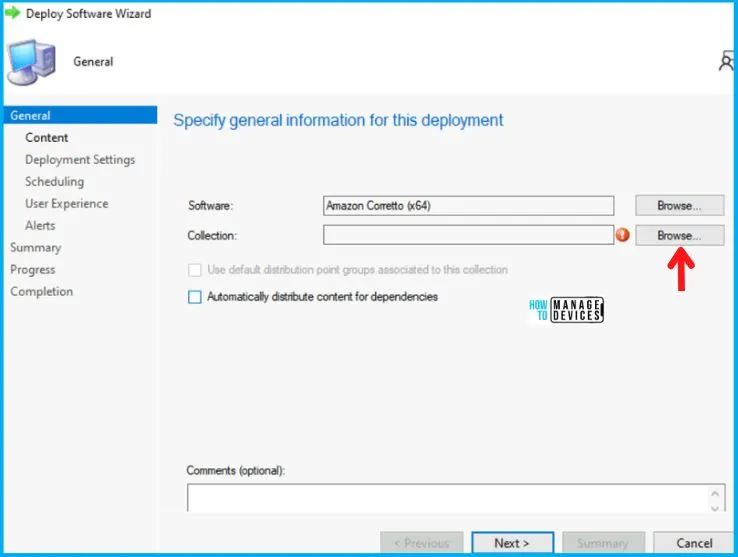
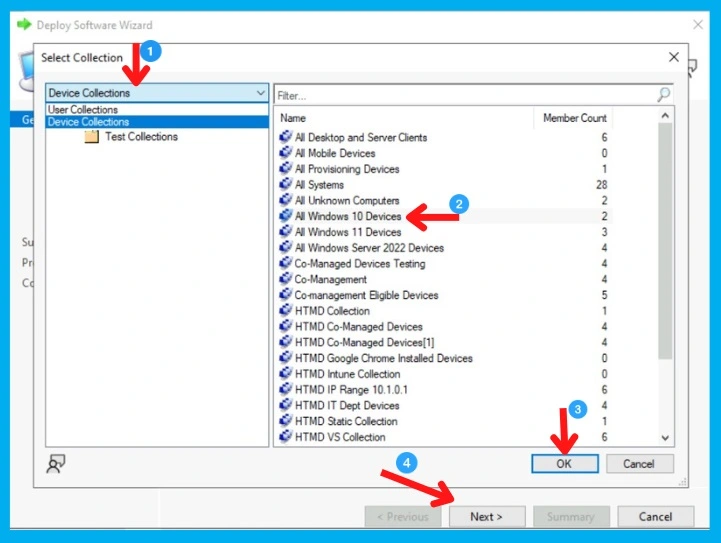
Now the Select Collection page will pop up; and choose Device Collection from the drop-down menu, and then
- Select your targeted Device Collection and click on OK, and then Next.
- Here I choose All Windows 10 Devices.
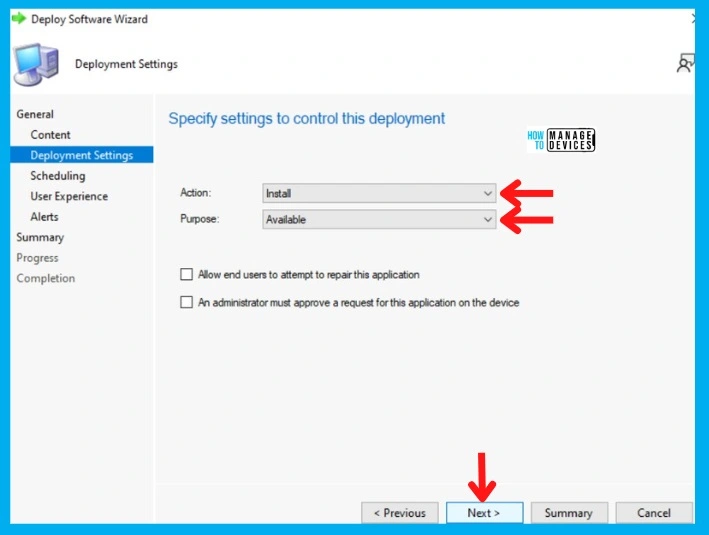
Now in the Deployment Settings Tab, select:
- Install in the Action box
- And choose Available in the Purpose category.
In the Scheduling Tab, enter the time details if you want it to be available at a specific time; otherwise, leave it as it is and click Next. After this, in the User Experience Tab,
- Select Display in Software Center and shows all notification options in the User notifications, and click on Next as shown below.
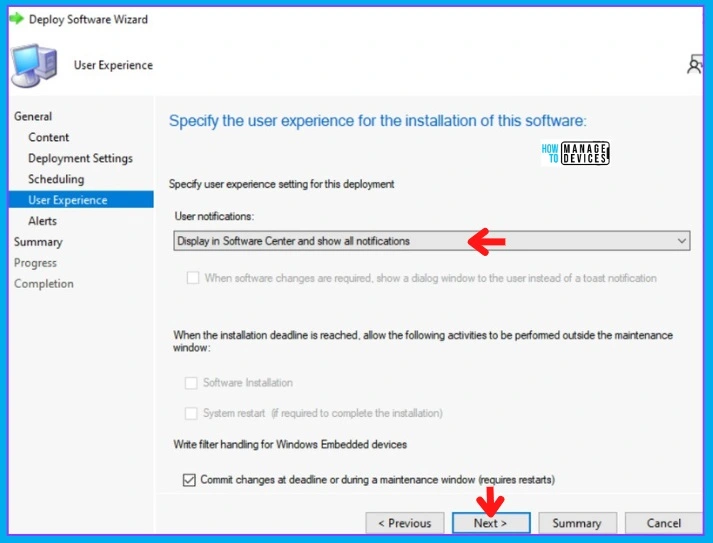
In the Alerts and Summary Tab, click on Next and to end the process, click on Close in the Completion Tab.
End User Experience
In this section, we will check the end-user experience for Amazon Corretto Application Deployment and Installation. The Amazon Corretto Application is Created, Distributed, and Deployed.
Now, if you check the Software Center of Win 10 device from the Windows 10 Device (or All Windows 11 Device) Collection, you will see the Application in Available Mode, and the user can install it as per the requirement.
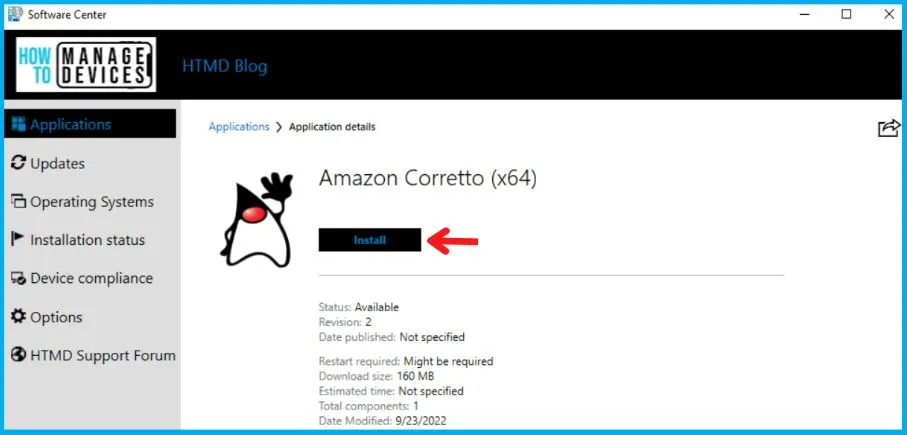
As you can see in the below screenshot, the Amazon Corretto Application is installed successfully on Windows 10/11 devices. This proves that the above MSI installer works fine for Amazon Corretto Application Installation using SCCM.
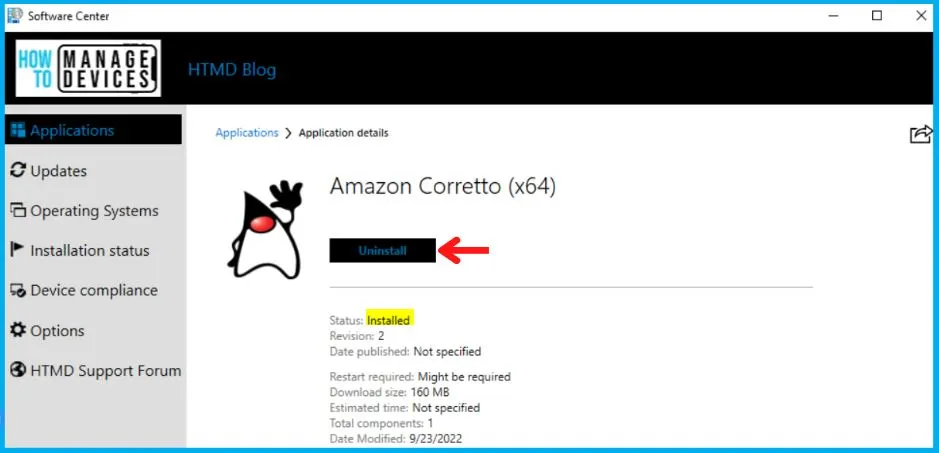
So the above picture depicts that we have finally created, Distributed, Deployed, and Installed the Amazon Corretto Application, as shown in the Software Center in the above image.
Author
Abhinav Rana is working as an SCCM Admin. He loves to help the community by sharing his knowledge. He is a BTech graduate in Information Technology.




Discussion