






Ways to Allow an App through Windows Defender Firewall
Let’s learn the Ways to Allow an App through Windows Defender Firewall. Windows Defender Firewall allows users to prevent hackers and malicious software from externally accessing a PC via the Internet or a network. It helps to protect devices by filtering network traffic that enters and exits them.
Windows Defender Firewall protects you from unauthorized access and is a good antivirus program that protects against malware. Its advanced security provides network security to Windows computers.
Protection of Apps and PC data is necessary. Windows Defender Firewall helps you secure the digital world and your computer by preventing unauthorized users from gaining access. Allowing an app through the Windows Defender firewall is very risky.
Different methods are available for allowing apps through Windows Defender Firewall. This feature is straightforward to learn and understand. This blog post will help you to allow apps through the Windows Defender firewall.

- Microsoft Defender Antivirus Periodic Scanning in Windows 11
- Microsoft Defender Offline Scan Options for Windows PCs
What are the Features of Windows Defender Firewall?
1. It used to protect against outside cyber attackers
2. It helps to prevent malicious software
3. It helps to maintain the privacy and security of computer systems and networks
Ways to Allow an App through Windows Defender Firewall
The methods available for allowing apps through Windows Defender Firewall are risky. There are 2 methods used for allowing apps through the Windows Defender firewall. The below table shows the details.
| Different methods |
|---|
| 1. Add or remove an app from the list of allowed apps |
| 2. Open or close a port |
1. Add or Remove an App from the list of allowed Apps
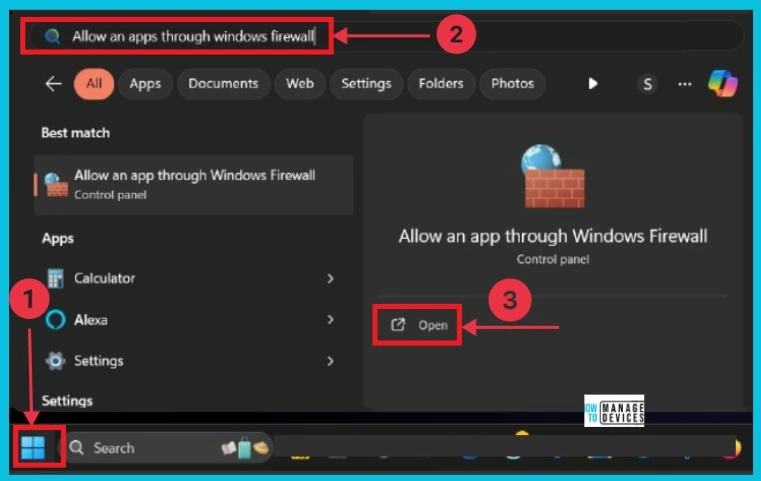
This is the first method for allowing an app. It is a less risky and easiest method for users. To do this, click the start button, search for an app through the Windows Firewall, and open it. You can also use the Search button near the Start Menu for searching this.
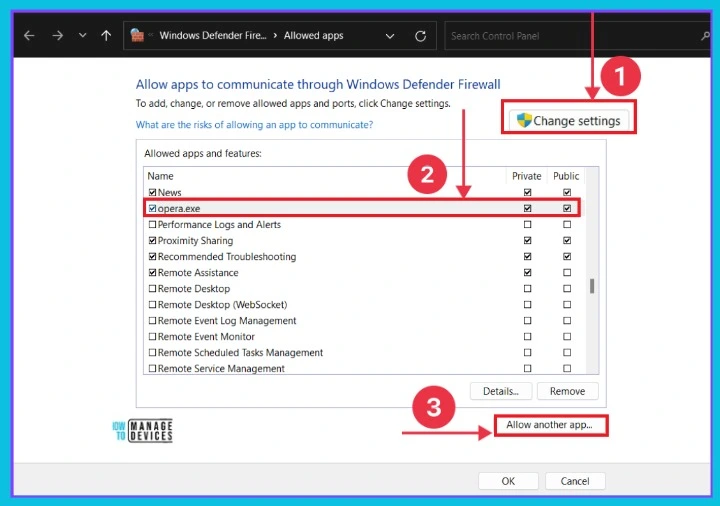
In this window, you can see several apps that can communicate through the Windows Defender Firewall. You can select an app to Allow through the Windows Defender Firewall. You can also see public and Private options in this window.
- Select an app in the below window
- Select the checkbox of Private and Public options
- Click on the Change Settings option available at the top of the window
- Then click on the Allow another app
- To add an app –
- Select the checkbox next to the app you want to add.
- Alternatively, choose “Allow another app” and enter the path for the app.
- To remove an app-
- Clear the checkbox next to the app you want to remove.
- Select “OK” to confirm the removal.
2. Open or Close a Port
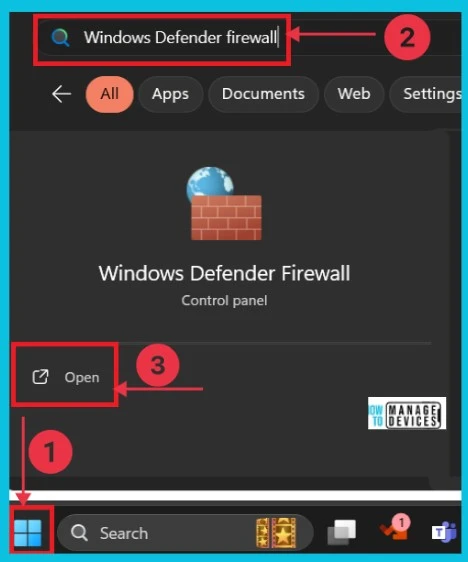
This is the second method for allowing apps through Windows Defender Firewall. It is more risky than the first method. First, you have to open Windows Defender Firewall using the Start button.
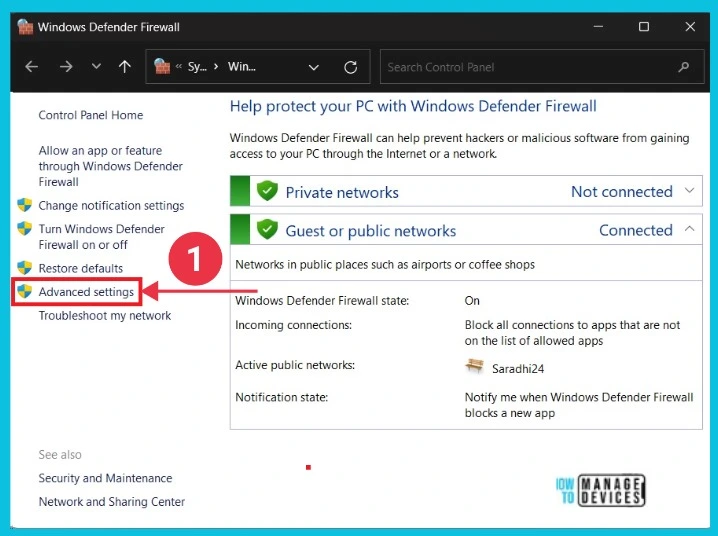
Here, you can see the Windows Defender Firewall window. You can now see different options. Click Advanced Settings to continue.
- Microsoft Defender Offline Scan Options for Windows PCs
- 3 Ways to Configure Microsoft Defender Antivirus Policies for Windows 11 using Group Policy Intune Policy
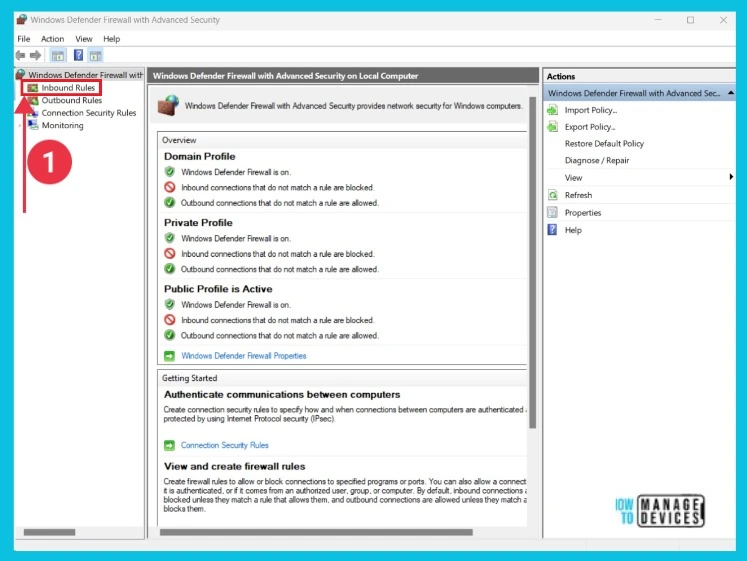
You can see a new window when you click the Advanced settings. Select Inbound Rules from the left side to continue.
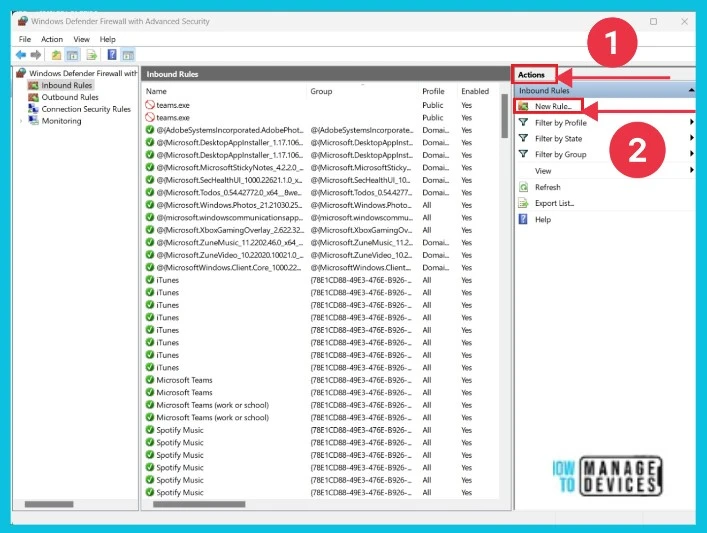
After clicking the Inbound options, a small window appears on the right side. Firstly, click Actions on the right side. Then click New Rule the second. The below screenshot shows the details.
- To close a port –
- Select the rule you want to disable from the list of rules.
- Under the “Actions” section, choose “Disable Rule.”
- This action will effectively deactivate the selected rule.
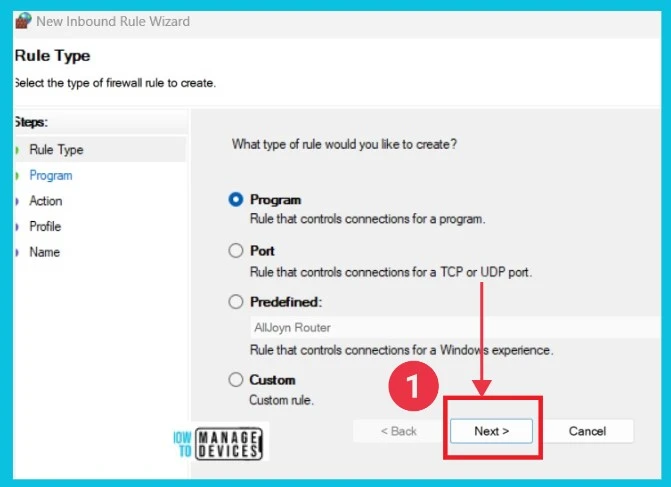
The screenshot below shows the New Inbound Rule Wizard. Here, you can see different Rule types. Click the Next option to continue the process.
We are on WhatsApp now. To get the latest step-by-step guides, news, and updates, Join our Channel. Click here. HTMD WhatsApp.
Author
Sumitha was introduced to the world of computers when she was very young. She loves to help users with their Windows 11 and related queries. She is here to share quick news, tips and tricks with Windows security.




Discussion