






Enable Disable Ask Before Closing a Window with Multiple Tabs Policy in Edge Browser using M365 Admin Center
Hey there, Let’s discuss about enable or disable Ask Before Closing a window with multiple tabs policy in Edge Browser using M365 Admin Center. We all know for what purpose the policy needs to be deployed. By deploying this policy, users don’t lose unsaved work or important tabs due to unintended browser closures.
The “Ask Before Close” policy in M365 is there to prevent accidental browser closures when multiple tabs are open. When enabled, this feature prompts users with a confirmation pop-up before exiting Edge browser, ensuring we don’t lose important tabs unintentionally.
This feature can be particularly useful in work or any research environment where multiple sessions are active. The policy can be managed via Microsoft Edge’s settings under browser behavior and features. Ask Before Close Enabled Policy enhances productivity and minimizes disruptions.
Through this blog post we will go through the step-by-step guidance of deployment of the policy configuration in the M365 Admin Center. For easy understanding relevant screenshots and deploying methods are explained in this post.

Table of Contents
How Does Ask Before Close Enabled Policy Benefit Users?
The policy Ask Before Close Enabled Prevents accidental browser closure and it helps to reduces the risk of losing multiple active sessions, through this we can improve productivity.
Enable Disable Ask Before Closing a Window with Multiple Tabs Policy in Edge Browser
This policy in Microsoft Edge allows administrators to control whether users receive a confirmation prompt before closing the browser with multiple tabs open. When enabled, this policy helps prevent accidental data loss.
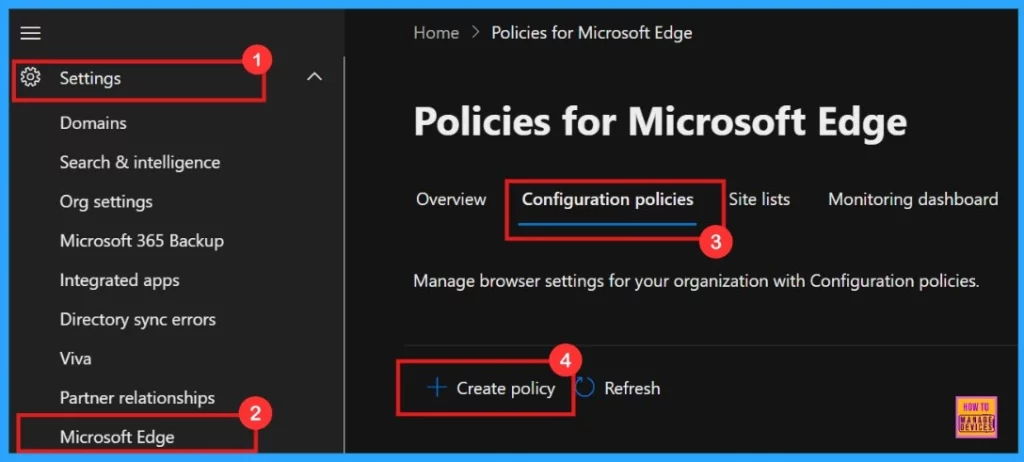
- Microsoft 365 Admin Center > Settings > Microsoft Edge > Configuration Policies > Create policy.
- Enable Disable Browser Guest Mode in Microsoft Edge Browser using M365 Admin Center
- Enable or Disable Microsoft Editor Synonyms Policy in Edge Browser using M365 Admin Center
- Enable Warning Prompt on Closing Multiple Tabs In Microsoft Edge
Basics
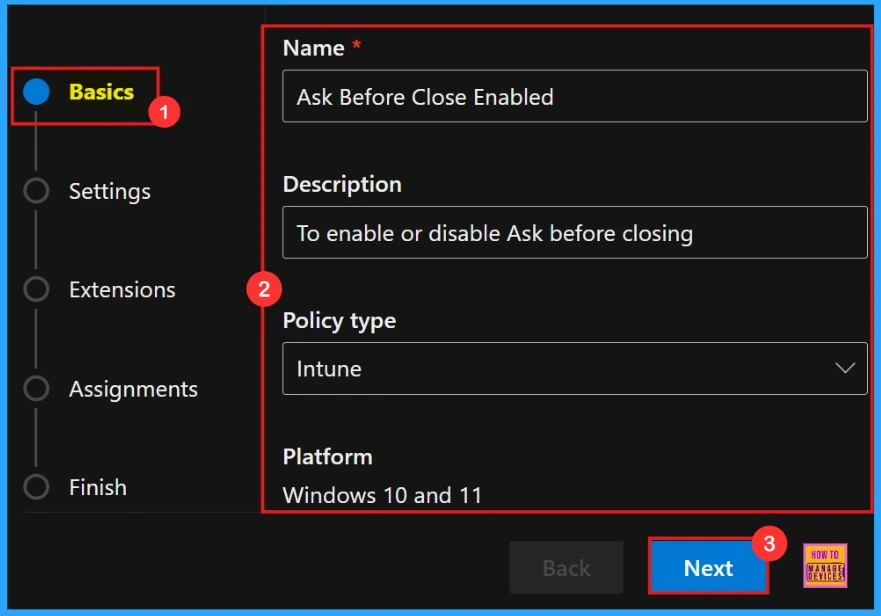
When configuring policies in the Basics section, it’s important to assign a clear, descriptive name and provide a detailed explanation for the policy. Here policy name is “Ask before close enabled”, and description “to enable or disable ask before closing”.
| Name | Description | Policy Type | Platform |
|---|---|---|---|
| Ask Before Close Enabled | To enable or disable Ask Before Close | Intune | Windows 10 and 11 |
Settings
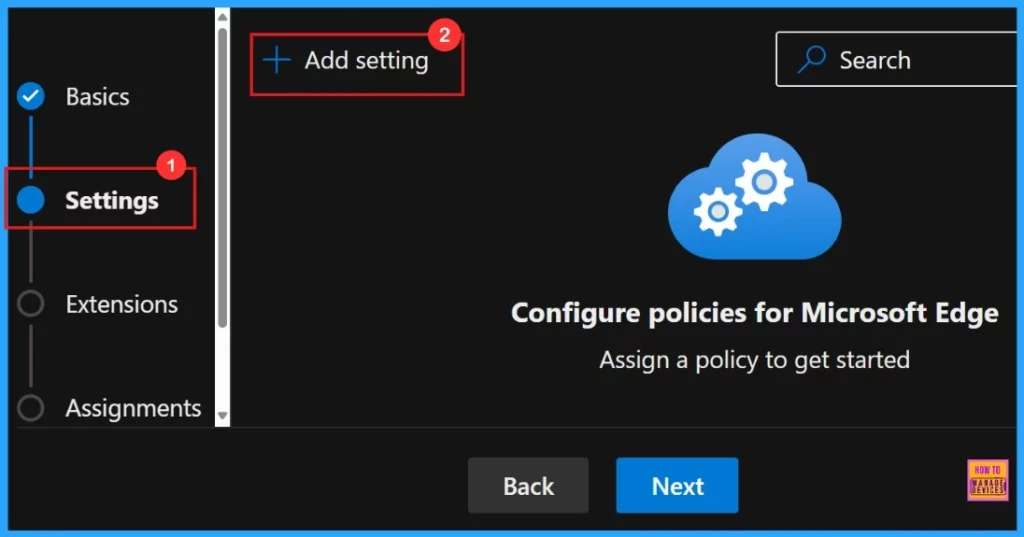
In the Settings tab of our policy configuration, need to click “Add settings“. Then we need to search for the policy we want to deploy from Additional settings.
- Add Settings
Configure a setting
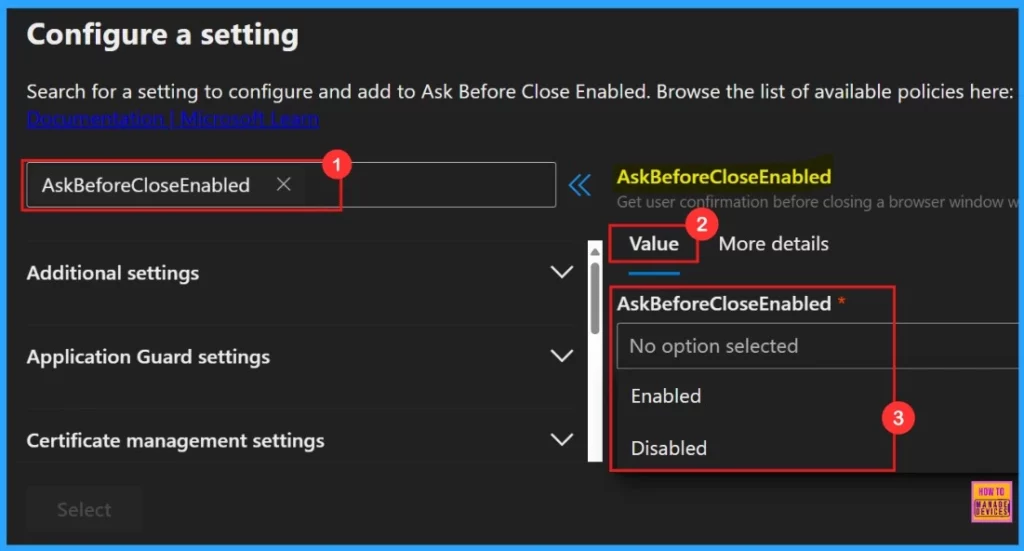
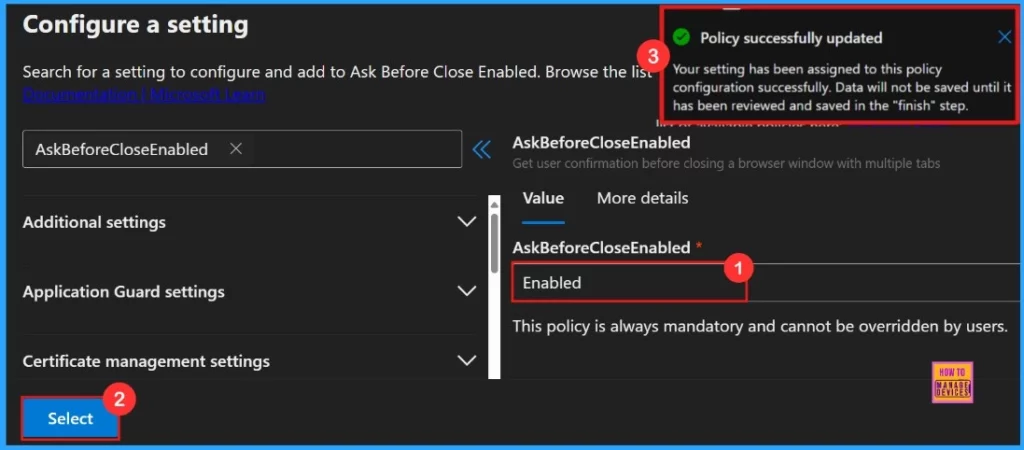
To configure the policy, search for it by name. This will open the Value tab, where we can select between Enabled and Disabled options. For our purposes, we should select Enabled to activate the policy’s protective feature, which will prompt users for confirmation before closing the browser with multiple tabs open.
if the goal is to remove this safeguard and allow immediate browser closure, the Disabled option should be selected instead.
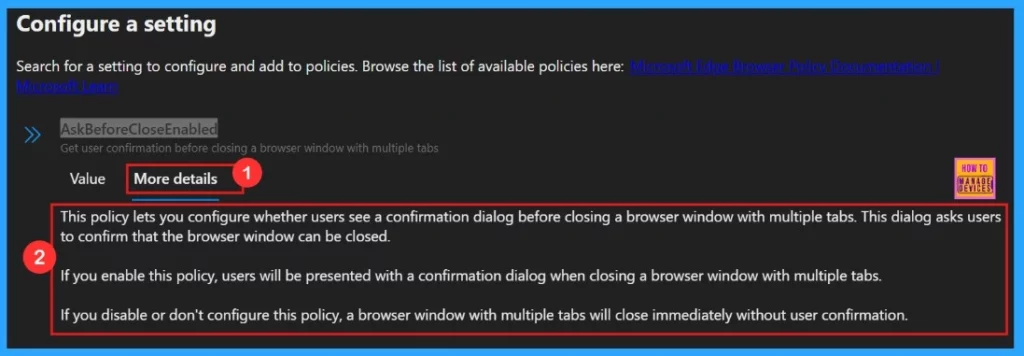
To better understand the policy’s purpose and functionality, click “More Details” to view its complete description, including technical specifications and implementation guidance.
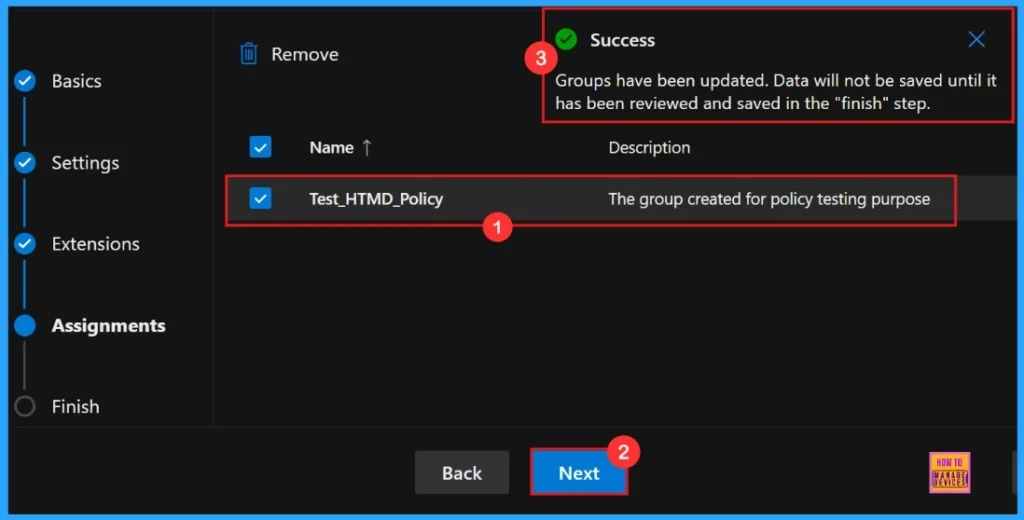
A notification confirms that the policy has been successfully updated after we click Select. Once the policy is selected, confirm the name and value in the new window.
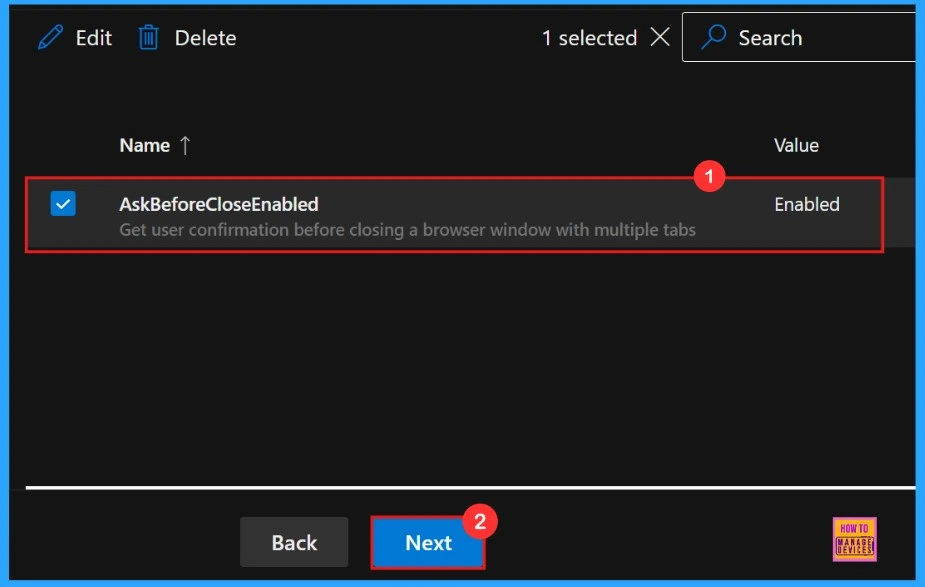
To enable the policy, simply check the box beside its name in the list, then click Next to continue with the configuration process. This action confirms our selection and moves us forward in the policy setup workflow.
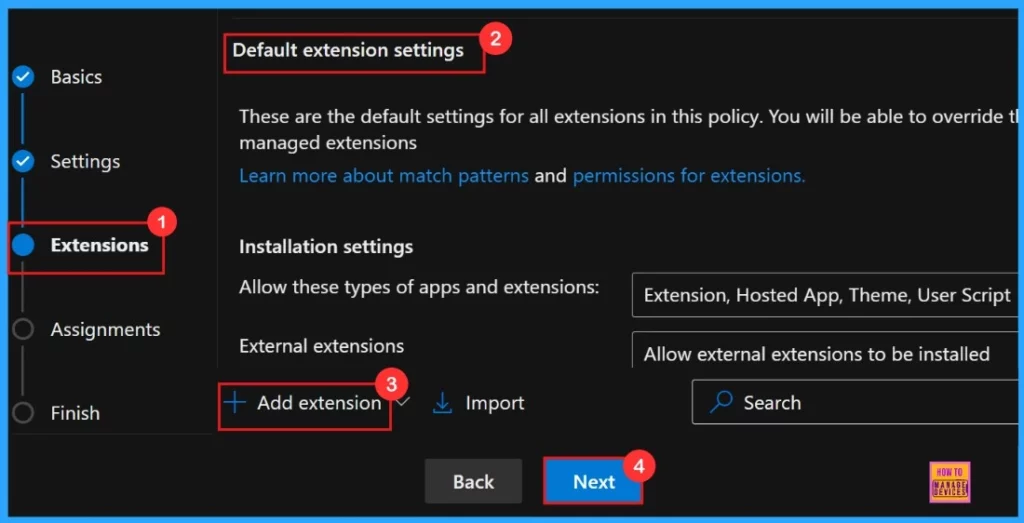
The Extensions section allows us to customize your policy by adding specific extensions, which include settings for installation, permissions, and URLs. If the policy requires additional functionality, we can add extensions by clicking + Add extension. However, if no extensions are needed, we can simply skip this section.
Assignments
The Assignments tab serves as the control center for targeting your policy deployment. By selecting a group, we can limit the policy’s application to only those users.
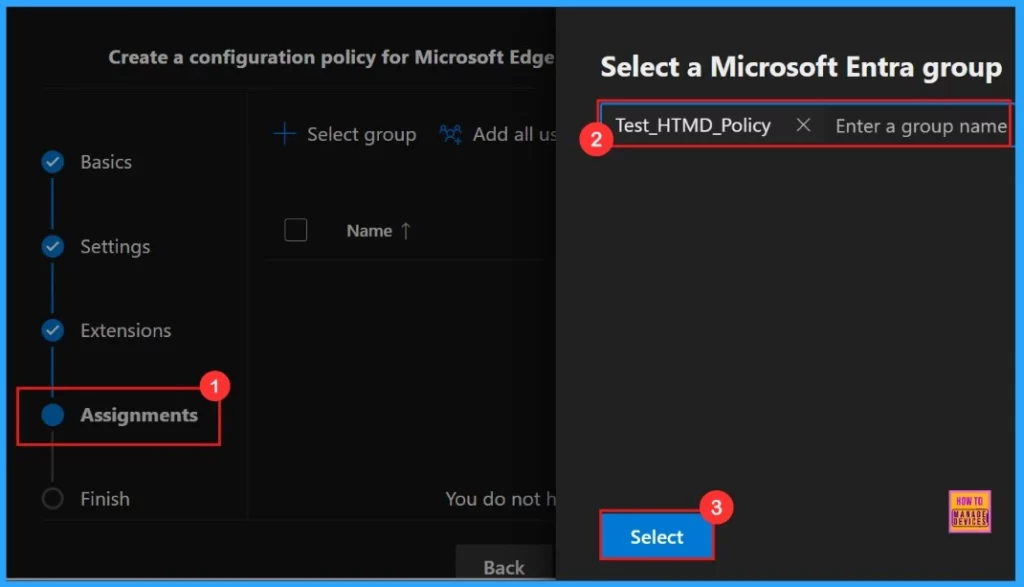
After the selection of the group from the Microsoft Entra groups, a notification will appear on the page confirming that the group has been updated. Here we assigned the group Test_HTMD_Policy.
Finish
To complete the policy configuration, click Review + create to verify all settings before final deployment. The summary screen displays our configured options including assignments, rules, and exceptions allowing for a final quality check. Once confirmed, click Create to activate the policy.

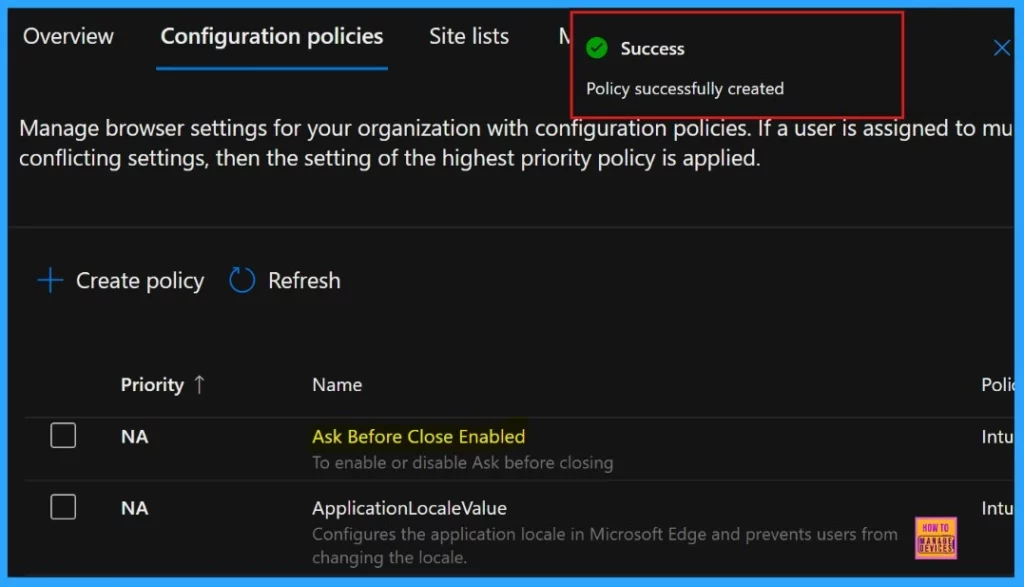
After you click on Review and Create, the portal will display a success message confirming that the policy has been created successfully. The new policy will then be visible in the Configuration Policies section.
Client Side Verification through Event Viewer
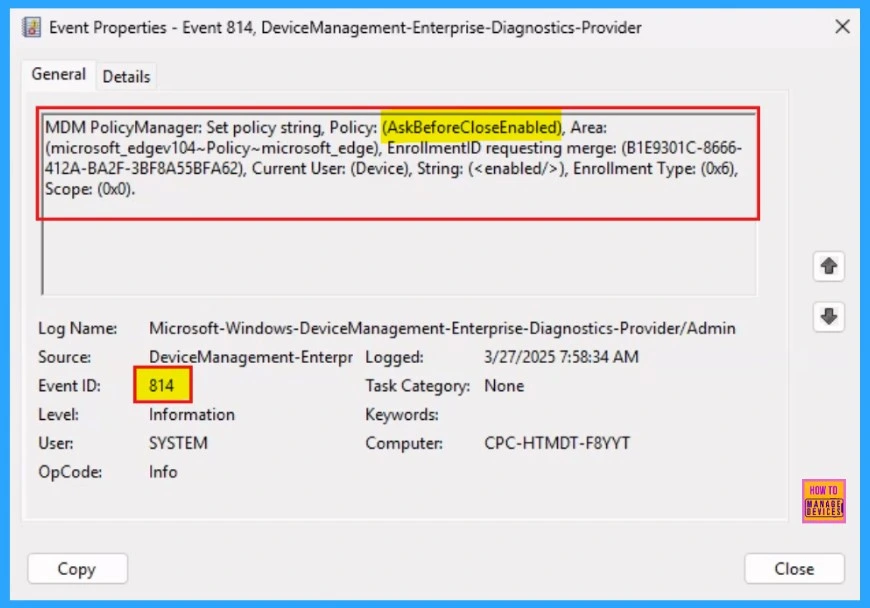
To confirm policy enforcement on individual devices, administrators can use Windows Event Viewer for client-side verification. Navigate to Applications and Services Logs > Microsoft > Windows > DeviceManagement-Enterprise-Diagnostics-Provider > Admin and filter for Event ID 814.
Device and User Check-in Status
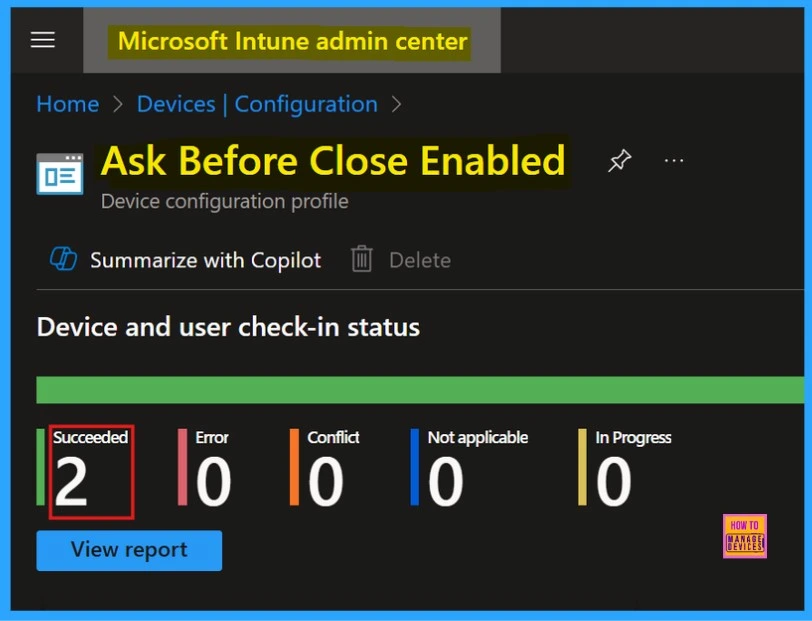
The Device and User Check-in Status provides real-time visibility into policy deployment and compliance across our organization. After manual synchronization through the company portal, we can confirm successful deployment by checking the policy’s status in the Intune Portal.
End User Experience
To find the end result of “Ask Before Close” in Edge browser, go to settings > Appearance> Turn on Ask before closing a window with multiple tabs. Then we can check it by closing multiple tabs.

Need Further Assistance or Have Technical Questions?
Join the LinkedIn Page and Telegram group to get the latest step-by-step guides and news updates. Join our Meetup Page to participate in User group meetings. Also, Join the WhatsApp Community to get the latest news on Microsoft Technologies. We are there on Reddit as well.
Author
Anoop C Nair has been Microsoft MVP for 10 consecutive years from 2015 onwards. He is a Workplace Solution Architect with more than 22+ years of experience in Workplace technologies. He is a Blogger, Speaker, and Local User Group Community leader. His primary focus is on Device Management technologies like SCCM and Intune. He writes about technologies like Intune, SCCM, Windows, Cloud PC, Windows, Entra, Microsoft Security, Career, etc.




Discussion