






How to Automate Day Windows Update Reboots with Intune
Let’s discuss How to Automate Time Windows Update Reboots with Intune. Scheduled Install Day Policy setting is part of the Update rings for Windows 10 and later policy in Microsoft Intune. It allows administrators to specify the day of the week when automatic scheduled reboots for Windows quality (monthly) and feature (semi-annual) updates will occur.
This policies function is to Defines the day of the week when updates are automatically installed and the device performs a scheduled reboot to complete the installation if no user is present. When a Windows Update (quality or feature) is available, Windows downloads it in the background. The update installation may occur automatically.
If the device is configured to use this setting, Windows will attempt the final installation and mandatory reboot during the Scheduled Install Time on the specified Scheduled Install Day (e.g., 3:00 AM every Sunday). If the device is being actively used by a user, Windows will typically prompt the user with notifications and attempt to respect Active Hours before performing the mandatory, scheduled reboot.
By enabling this settings, admins can minimize user disruption. By setting the install day to an off-peak time like Sunday at 3:00 AM IT ensures the required reboot happens when virtually no users are working, preventing unexpected reboots in the middle of a workday.

Table of Contents
How to Automate Day Windows Update Reboots with Intune
Enables the IT admin to schedule the day of the update installation. The data type is a integer. With this policy in Intune, you can specify a day for update installation which is convenient for your organization.
- How to Control Quality Update Installations with up to 30 Day Deferral using Intune Policy
- How to Configure Engaged Restart Snooze options for End Users during Monthly Patch Cycle using Intune
- Easy way to Block Pause Updates Ability in Windows Update for Business via Intune
Sign with Intune Portal
As an Admin you can easily configure this policy on your tenant. For this Sign in to the Microsoft Intune Portal with Credentials. Navigate to Devices > Configuration > + Create > New Policy
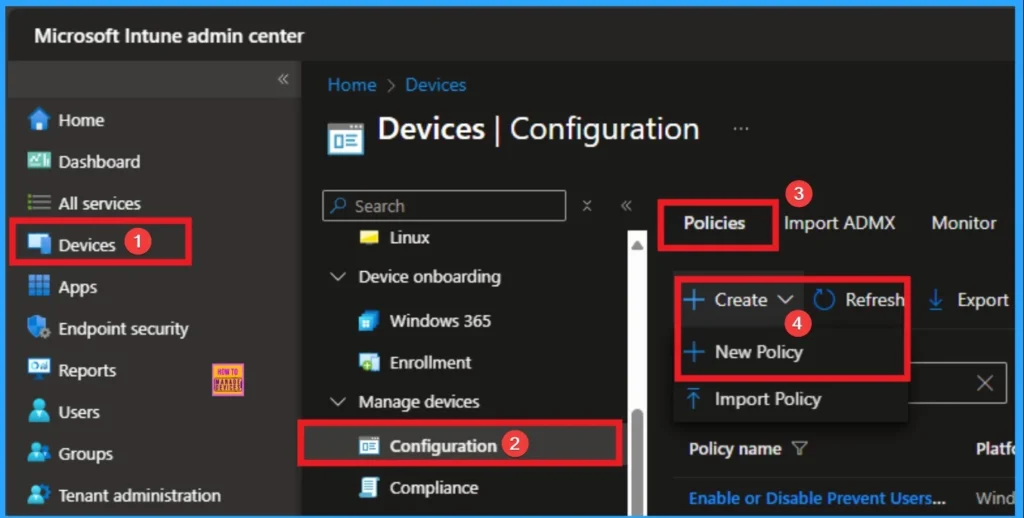
Profile Choosing Step
After that you can choose appropriate platform and profile type. This is necessary step for policy creation and you cannot change profile and platform after creating profile. Here I would like to configure the policy to Windows 10 and later platform and settings catalog profile. Then click on the Create button.
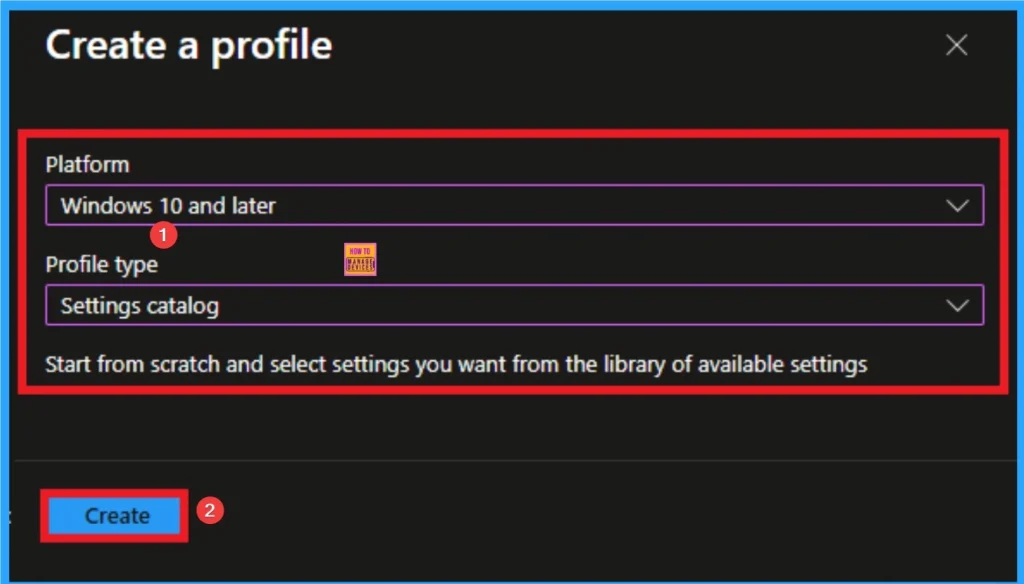
Begin Policy with Basic Tab
Basic Tab is the first tab that helps users to give identity for policy. For this you can add Name and description for the settings you want to select for policy creation. Here is Name is mandatory and description is optional. After adding this click on the Next button.
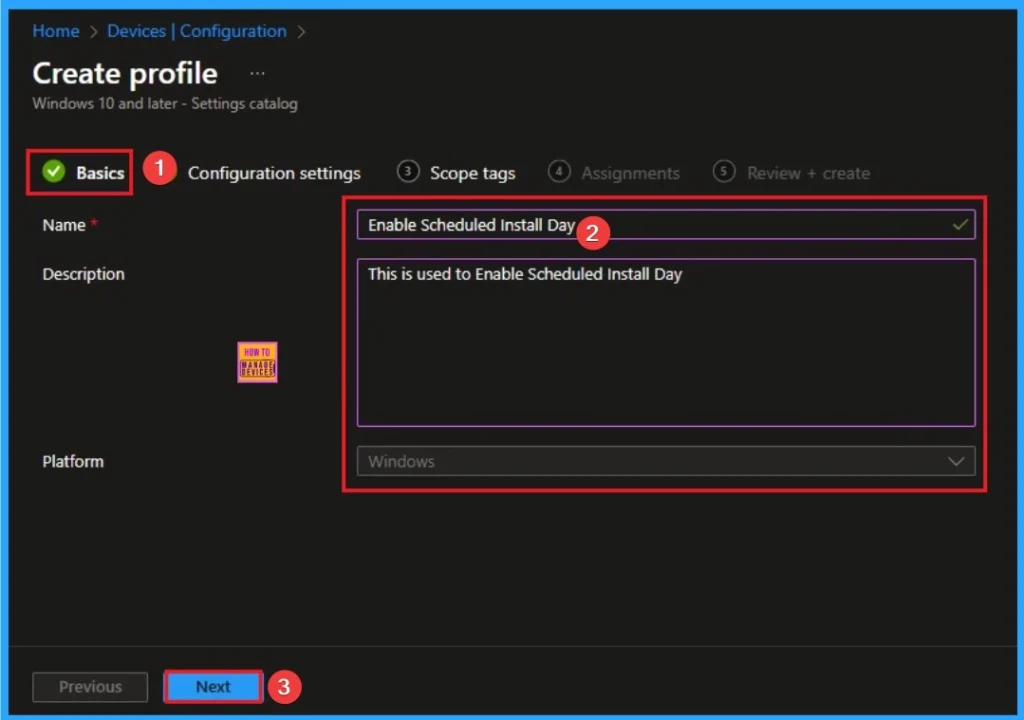
Configure Enterprise Proxy Servers Policy
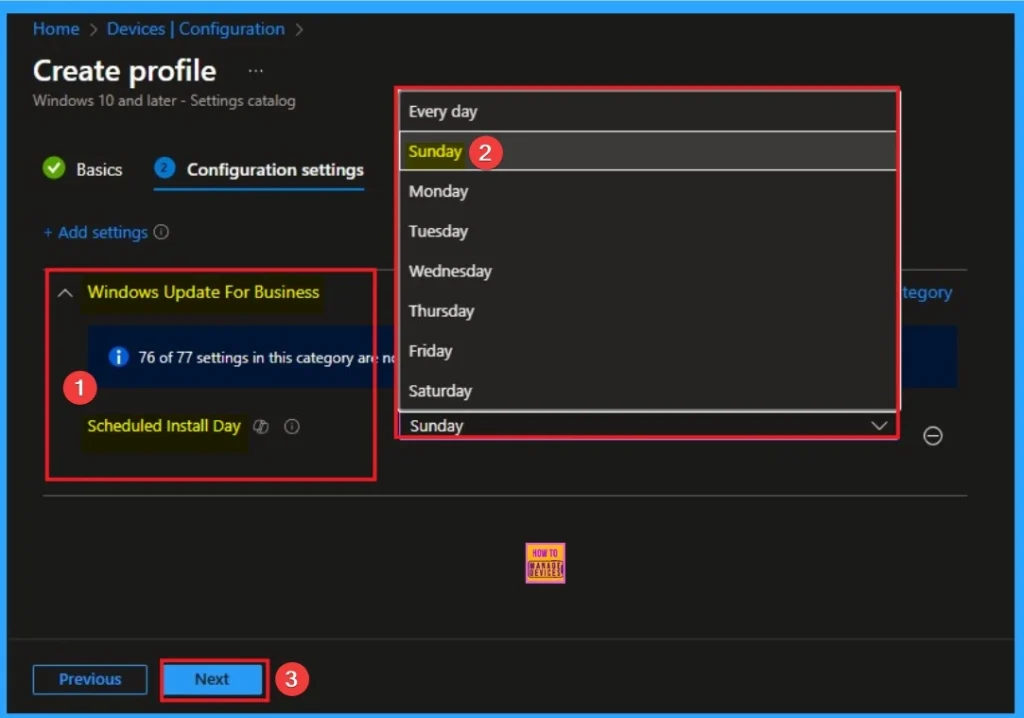
After that you will get Configuration settings tab which helps you to access specific settings. To get the settings click on the +Add settings hyperlink and select specific settings from Settings Picker. Here, I would like to select the settings by browsing by Category. I choose Windows Update For Business. Then, I choose Scheduled Install Day settings.
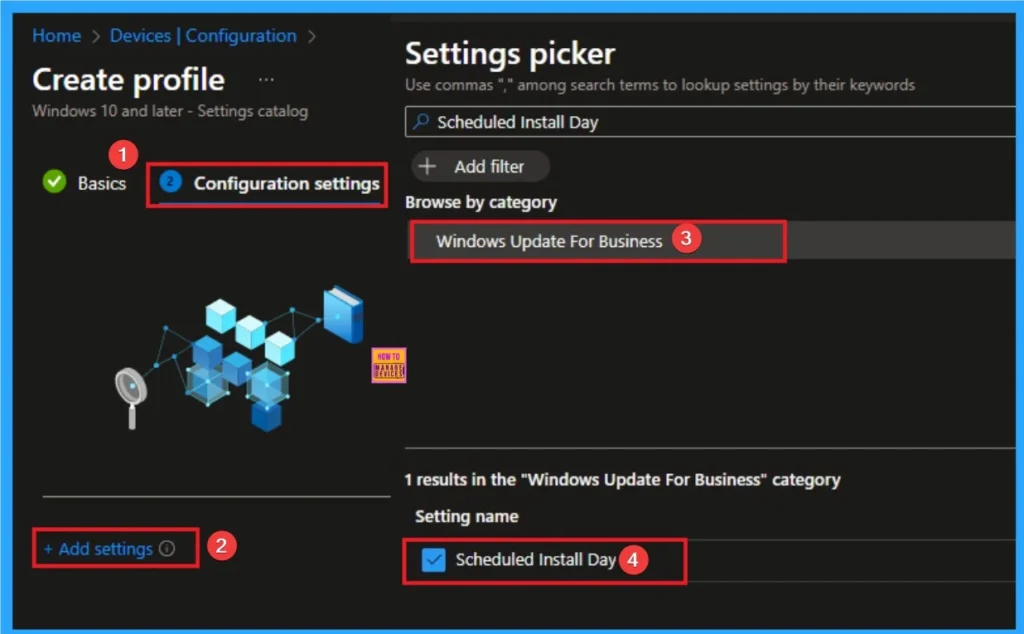
Add Value
To specify a day for Update Installation you have 7 days like Sunday to Monday. Here i would like to choose Sunday for Update Installation which is most common choice for corporate devices. Because, Sunday night/Monday morning is the lowest-use time for most businesses, ensuring the device is ready before the start of the work week.
Adding Scope Tags
Scope Tag is not a mandatory step for policy creation. But you can add Scope tags for visibility restrictions. Here, I don’t add scope tags for Enterprise IP Range Policy. Click on the Next button.

Selecting Group from the Assignment Tab
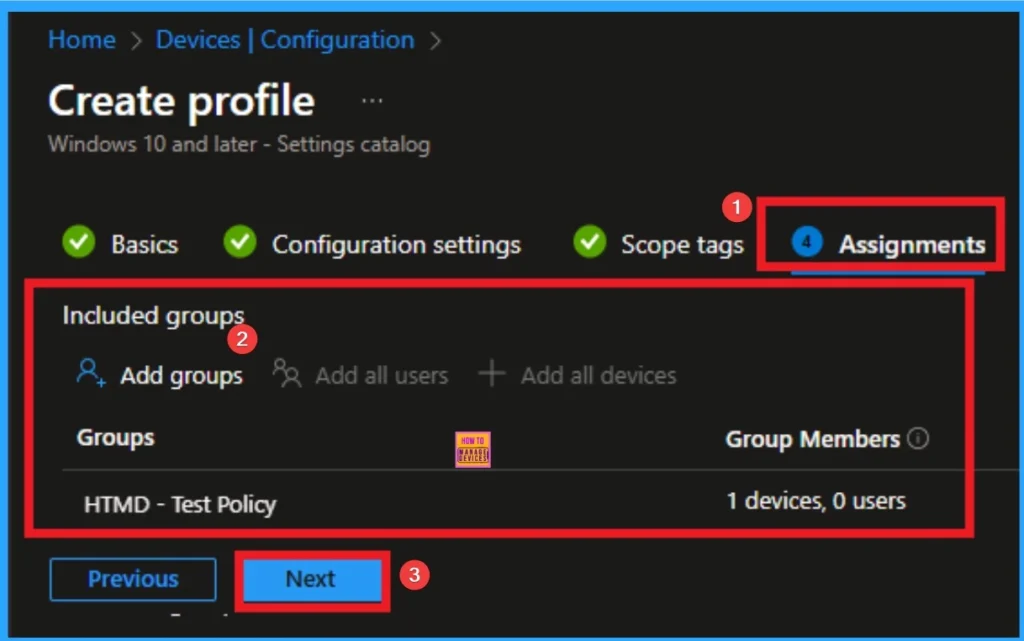
To assign the policy to specific groups, you can use the Assignment Tab. Here I click, +Add groups option under Included groups. I choose a group from the list of groups and click on the Select button. Again, I click on the Select button to continue.
Review + Create
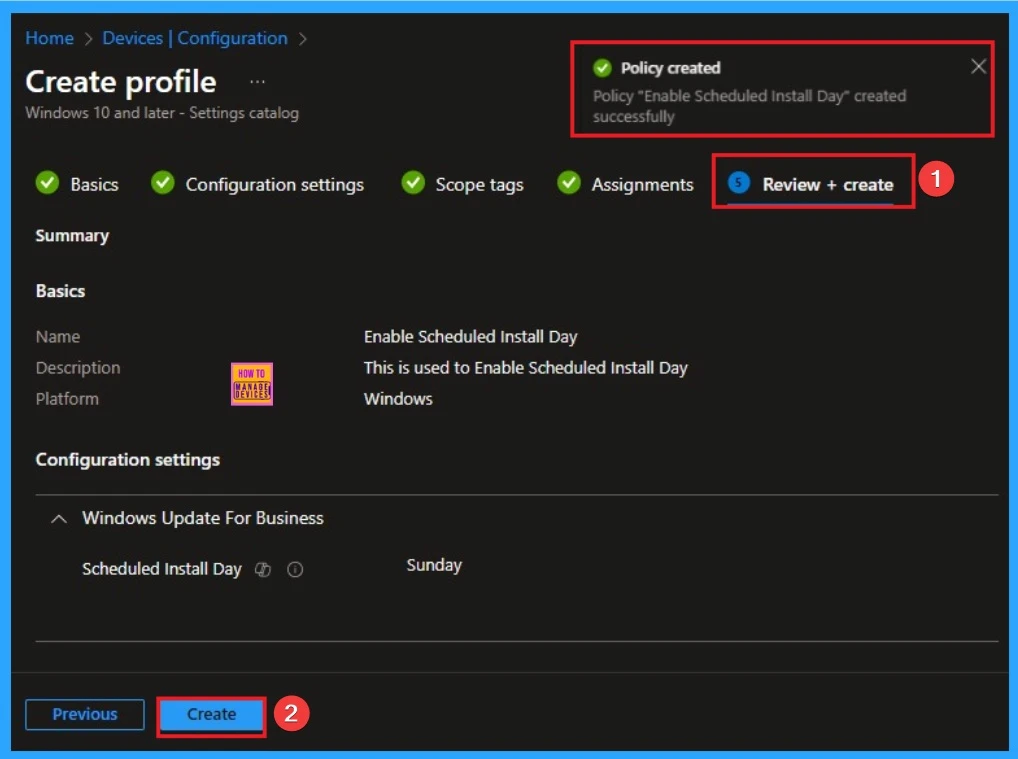
The Review + Create tab is the last step of policy creation. On this tab, you can verify every detail of the policy which are added in the previous steps (basic configuration settings, scope tag assignments s etc). If you want to make any changes, click on the previous button; otherwise, you can click on the Create button.
Device Check-in Status
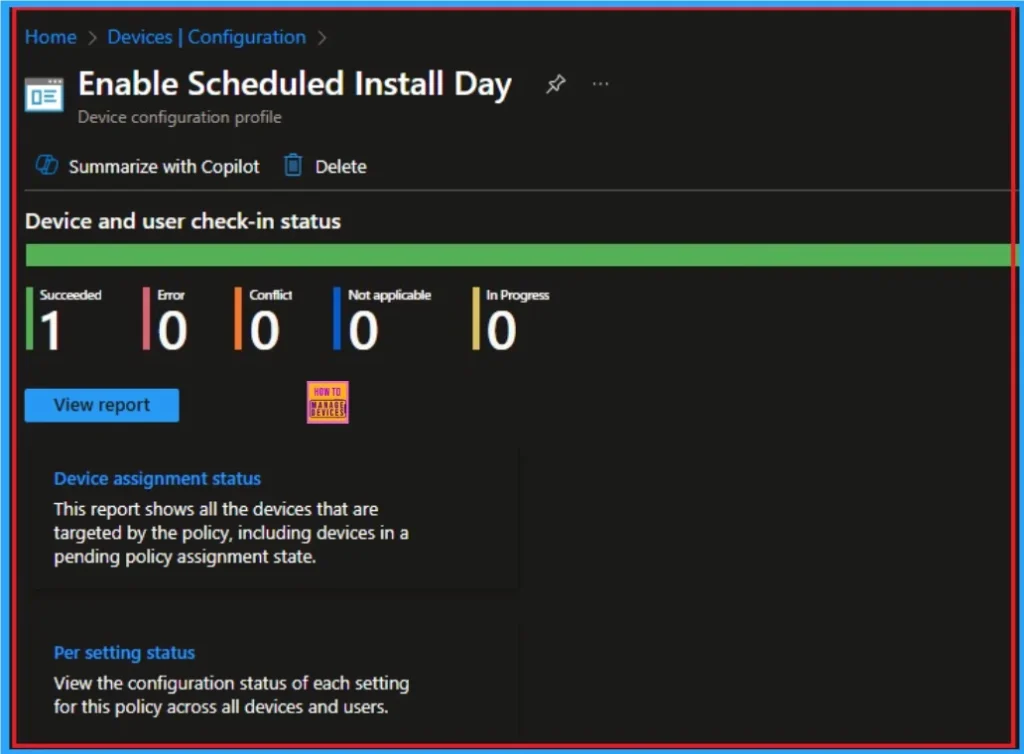
Device Check-in Status Page shows if the Policy is succeeded or Not. Before checking this, you can sync the device on Company Portal for Faster policy deployment. Then Go to Devices > Configuration > Search for the Policy. Here, the policy shows as successful.
Client Side Verification
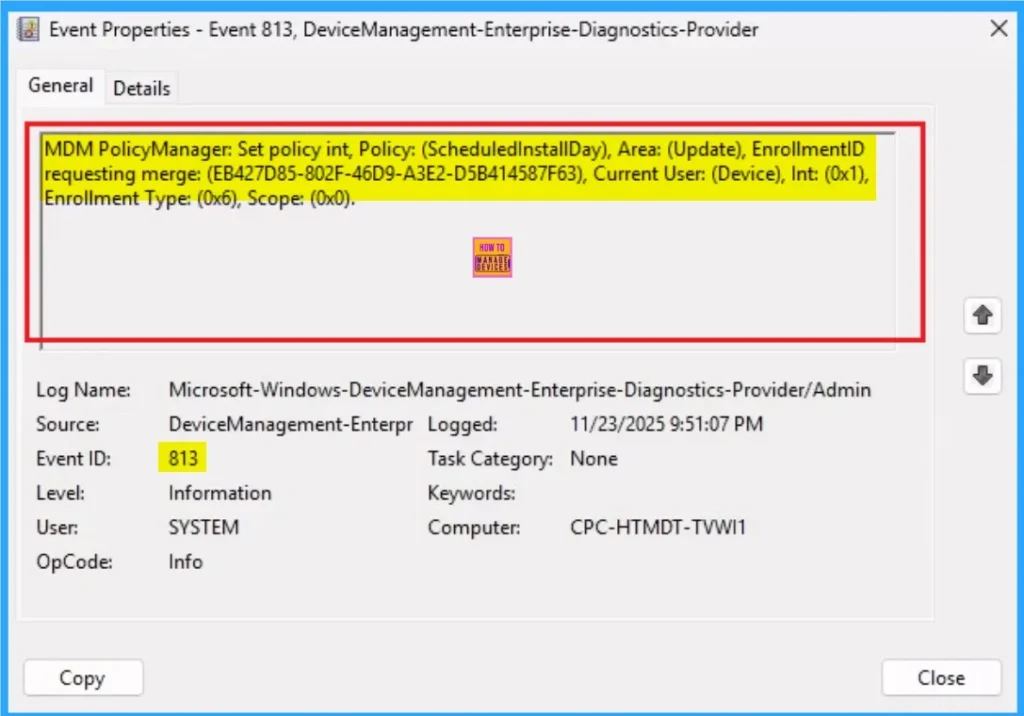
It helps you check the client side and verify the policy status. Open the Client device and open the Event Viewer. Go to Start > Event Viewer. Navigate to Logs: In the left pane, go to Application and Services Logs > Microsoft > Windows > DeviceManagement-Enterprise-Diagnostics-Provider > Admin.
MDM PolicyManager: Set policy int, Policy: (ScheduledInstallDay), Area: (Update), EnrollmentID
requesting merge: (EB427D85-802F-46D9-A3E2-D5B414587F63), Current User: (Device), Int: (0x1),
Enrollment Type: (0x6). Scope: (0x0).
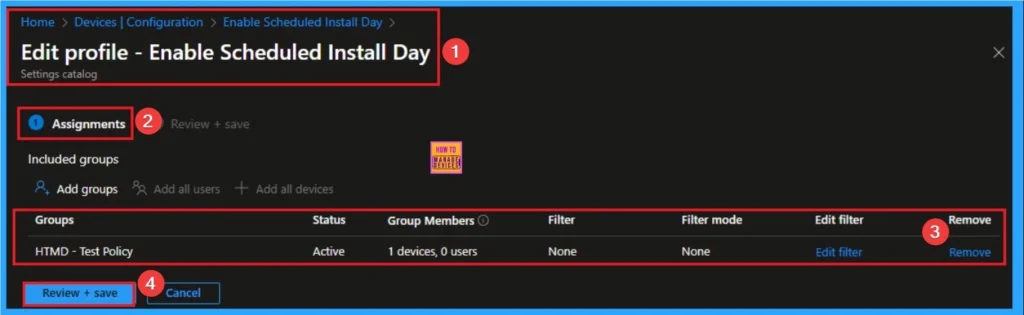
Removing the Assigned Group from Scheduled Install Day Policy Settings
If you want to remove the Assigned group from the policy, it is possible from the Intune Portal. To do this, open the Policy on Intune Portal and edit the Assignments tab and the Remove Policy.
To get more detailed information, you can refer to our previous post – Learn How to Delete or Remove App Assignment from Intune using by Step-by-Step Guide.
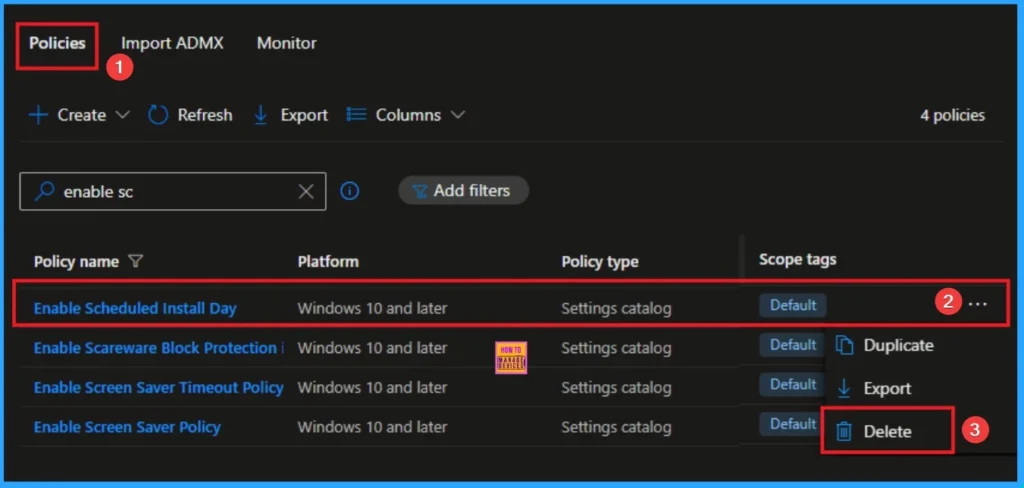
How to Delete Scheduled Install Day Policy
You can easily delete the Policy from the Intune Portal. From the Configuration section, you can delete the policy. It will completely remove it from the client devices.
For detailed information, you can refer to our previous post – How to Delete Allow Clipboard History Policy in Intune Step by Step Guide.
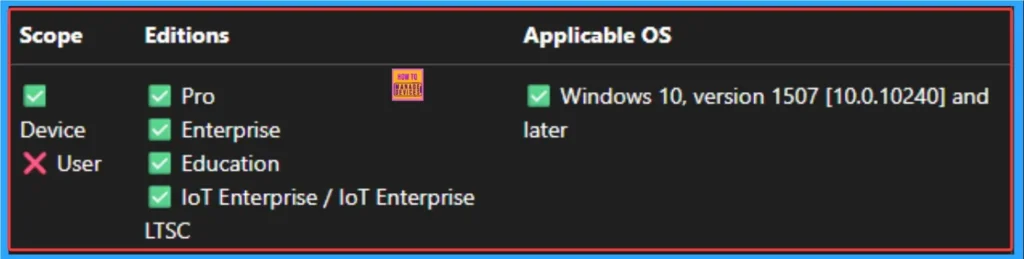
Windows CSP Details
Scheduled Install Day policy is applicable for Windows 10, version 1507 [10.0.10240] and later. This policy will only take effect if Update/AllowAutoUpdate has been configured to option 3 or 4 for scheduled installation.
| Value | Description |
|---|---|
| 0 (Default) | Every day. |
| 1 | Sunday. |
| 2 | Monday. |
| 3 | Tuesday. |
| 4 | Wednesday. |
| 5 | Thursday. |
| 6 | Friday. |
| 7 | Saturday. |
Need Further Assistance or Have Technical Questions?
Join the LinkedIn Page and Telegram group to get the step-by-step guides and news updates. Join our Meetup Page to participate in User group meetings. Also, Join the WhatsApp Community to get the latest news on Microsoft Technologies. We are there on Reddit as well.
Author
Anoop C Nair has been Microsoft MVP for 10 consecutive years from 2015 onwards. He is a Workplace Solution Architect with more than 22+ years of experience in Workplace technologies. He is a Blogger, Speaker, and Local User Group Community leader. His primary focus is on Device Management technologies like SCCM and Intune. He writes about technologies like Intune, SCCM, Windows, Cloud PC, Windows, Entra, Microsoft Security, Career, etc


Discussion