






Easy Automated Patching Actionable Insights and Just-in-Time Access in Intune with Right Click Tools
Easy Automated Patching Actionable Insights and Just-in-Time Access with Right Click Tools! Right Click Tools helps IT teams to simplify operations by combining automated patching, real-time visibility, and secure access control into a single solution.
Right Click Tools reduces the operational burden on IT teams by eliminating manual effort across patching, compliance, and access control. The Automated patching lets IT admins update applications faster, fix security gaps quickly, and save time for important tasks.
Right Click Tools is integrated with Microsoft Intune, making device management easier and more efficient. IT administrators can manage a large number of endpoints using familiar tools directly within the Intune interface, simplifying workflows and allowing access to features that were previously available only in SCCM.
With the instant insights, IT admins can see which devices are compliant and take action right away. This save time and keeps all endpoints secure and up to date. The Just-in-time access lets IT give temporary admin rights only when needed, improving security while letting users stay productive.

Table of Contents
Easy Automated Patching Actionable Insights and Just-in-Time Access with Right Click Tools
Right Click Tools helps admins to work faster, stay secure, and enforce compliance without adding complexity. Organizations gain a stronger security posture, higher operational efficiency etc. In this post, you will learn all about how Right Click Tools makes IT management easier with automated patching, actionable insights, and just-in-time access.
- Introducing Right Click Tools for Intune Recast Automation Endpoint Insights Kiosk and Privilege Manager
- Microsoft Adds Anti-Spoofing Update to Intune for On-Premises Comanaged Devices
- Intune and Patch My PC Cloud SaaS Solution for 3rd Party App Patching Lifecycle Management
- Robopack Intune Patching Solution is Free for Smaller Customers and NGO
Right Click Tools – Key Features and Intune Integration
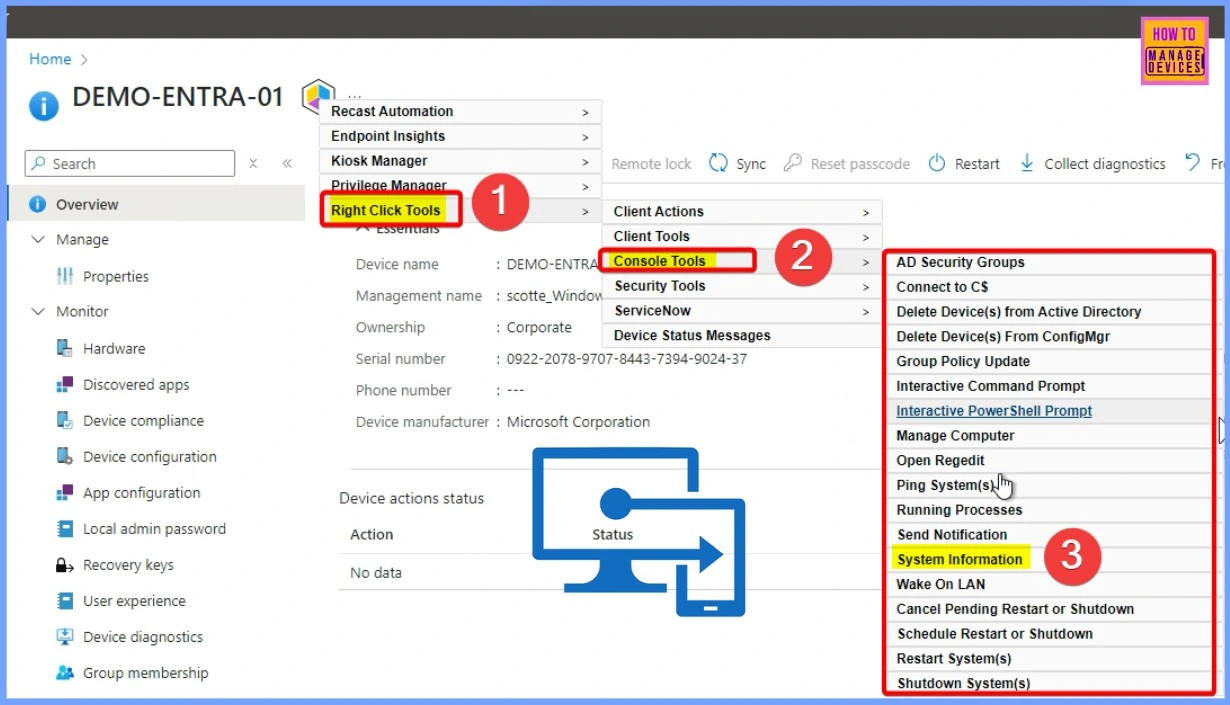
Right Click Tools extends Microsoft Intune capabilities with powerful workflow automation, compliance visibility, and remote remediation. All these are accessible with just a click. All these are accessible with just a click. Whether you are managing SCCM or Intune environments, it helps simplify operations, strengthen security, and make device management dramatically more efficient.
- Many IT teams find it hard to switch between different management consoles.
- Right Click Tools, originally for SCCM, now works with Intune too, providing a single interface that makes IT tasks easier, reduces switching between tools, and helps manage devices more efficiently with fewer mistakes.
| Features | Details |
|---|---|
| Security & Compliance | Organize, report, and instantly remediate compliance issues across devices. |
| Content Distribution | Monitor distribution point health to ensure smooth software and update delivery. |
| Inventory & Visibility | View hardware, software, and warranty insights from a single dashboard. |
| Kiosk Management | Remotely enable kiosk mode on devices at scale. |
| Environmental Health | Detect configuration drift early to prevent user-impacting issues |
| Workflow Automation | Combine actions into automated runbooks to eliminate repetitive work. |
| Role-Based Permissions | Define precise access levels to control who can perform which actions. |
| Environment Trends | Visual dashboards reveal compliance trends for faster decision-making. |
What’s New in the Latest Right Click Tools
Let’s discuss what’s New in the Latest Right Click Tools? The newer management tools are now moving beyond basic right-click utilities. Instead of offering only quick actions, they now focus on automation, better system visibility, and stronger security features built directly into the workflow.
| Old Approach | What is New? |
|---|---|
| Earlier, IT admins had to handle third-party app updates manually such as downloading the installer, packaging it, testing it, and deploying it in small groups. This process took a lot of time, led to delays, and often resulted in devices being updated unevenly across the organization. | Now, the process is automated. The tool helps you to detect new versions of third-party apps, package them automatically, and push updates to all devices without manual work. It even tracks which systems were updated and retries if any were missed. |
| Earlier, reports only showed what was wrong with devices, like missing updates or disabled settings. Admins couldn’t fix issues from the report itself and had to switch to another tool to take action, which wasted time and slowed down responses. | Now the reports are interactive, letting admins fix issues directly from the report. If a device is non-compliant or misconfigured, they can apply a fix or policy instantly without switching to another tool. |
| Before, IT admins had to keep full administrator rights all the time, and sometimes shared passwords. This was risky because anyone with those rights could accidentally or intentionally make big changes. | Now the admins get temporary access that access is task specific. The access lasts just for the task and is removed automatically, with all actions recorded. This keeps systems safer while still allowing IT to do their work. |
Take Your Intune Management to the Next Level with Right Click Tool
Take your Intune management to the next level with Right Click Tools. It enables faster troubleshooting, automation, and reporting. Gain actionable insights to monitor device health, compliance, and usage, and automate patching without workflow disruptions.
See the New Right Click Tools in action – https://links.recastsoftware.com/NTYzLU9EQi02ODgAAAGcrzhLc5uJQRaB4HIn2ChEbWTNYKqwL57_t3BEvzkkAb3d1oeQuZzV4fZdF4cWBXfwDt_X8ug=
Need Further Assistance or Have Technical Questions?
Join the LinkedIn Page and Telegram group to get the latest step-by-step guides and news updates. Join our Meetup Page to participate in User group meetings. Also, Join the WhatsApp Community to get the latest news on Microsoft Technologies. We are there on Reddit as well
Author
Anoop C Nair has been Microsoft MVP from 2015 onwards for 10 consecutive years! He is a Workplace Solution Architect with more than 22+ years of experience in Workplace technologies. He is also a Blogger, Speaker, and Local User Group Community leader. His primary focus is on Device Management technologies like SCCM and Intune. He writes about technologies like Intune, SCCM, Windows, Cloud PC, Windows, Entra, Microsoft Security, Career, etc


Discussion