






How to Deploy Azure Functions Core Tools with Intune Using Enterprise App Catalog App
Let’s discuss deploying Azure Functions Core Tools with Intune Using Enterprise App Catalog App. Azure Functions Core Tools is a set of command-line tools that help you develop, test, and manage Azure Functions on your local machine before deploying them to the cloud.
You can create and write your Azure Functions code directly on your local computer without connecting to Azure. This helps you work offline. Before deploying, you can run and test your functions locally on your machine, ensuring they work as expected in a similar environment to Azure.
This post provides detailed instructions on deploying Azure Functions Core Tools using Intune through the Enterprise App Catalog App. It guides you step by step through setting up and managing the deployment of these tools to your devices, ensuring they are available for local development and testing of Azure Functions.
The Enterprise App Catalog App is an App type that makes it easier for organizations to deploy and manage internal apps on devices using Intune. This catalog includes Win32 apps and can be managed using Intune’s Enterprise App Management features.

Table of Contents
What are Azure Functions Core Tools?
What Versions of Azure Functions Core Tools are Available?
v1 (v1.x branch): Requires .NET 4.7.1 and works only on Windows.
v2 (dev branch): A self-contained, cross-platform package.
v3 (v3.x branch): A self-contained, cross-platform package.
v4 (v4.x branch): A self-contained, cross-platform package
Which is the Recommended Version?
The recommended version is v4, which is the latest and supports cross-platform functionality.
How to Deploy Azure Functions Core Tools with Intune Using Enterprise App Catalog App
Using the Enterprise App Catalogue App, you can easily create the Azure Functions Core Tools with Intune. To make an application in Intune, follow the below steps. Sign in to the Microsoft Intune Admin portal. Select Apps > All Apps> + Add.
In the Select app type page, choose Enterprise App Catalog app from the drop-down menu under Intune application types and click Select.
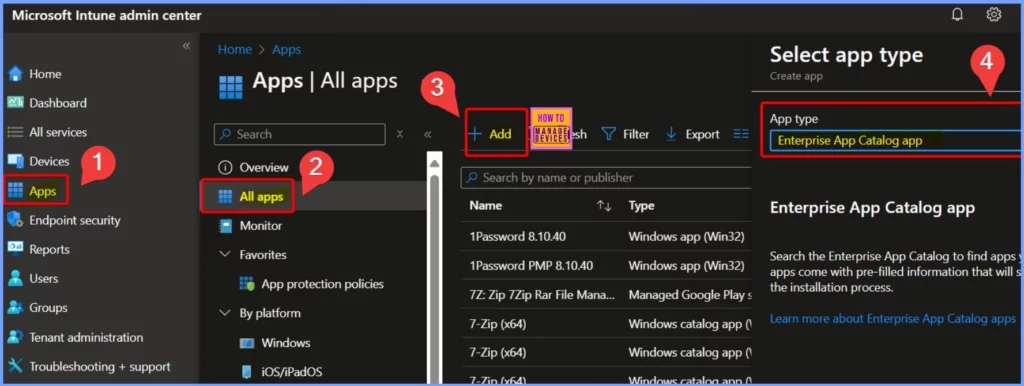
- Deploy Windows Catalog App type using Intune Enterprise Application Catalog
- 6 Exciting Features Coming to Intune Enterprise App Management
- Guidelines for Installing Microsoft PC Manager from New Microsoft Store in Intune
Azure Functions Core Tools
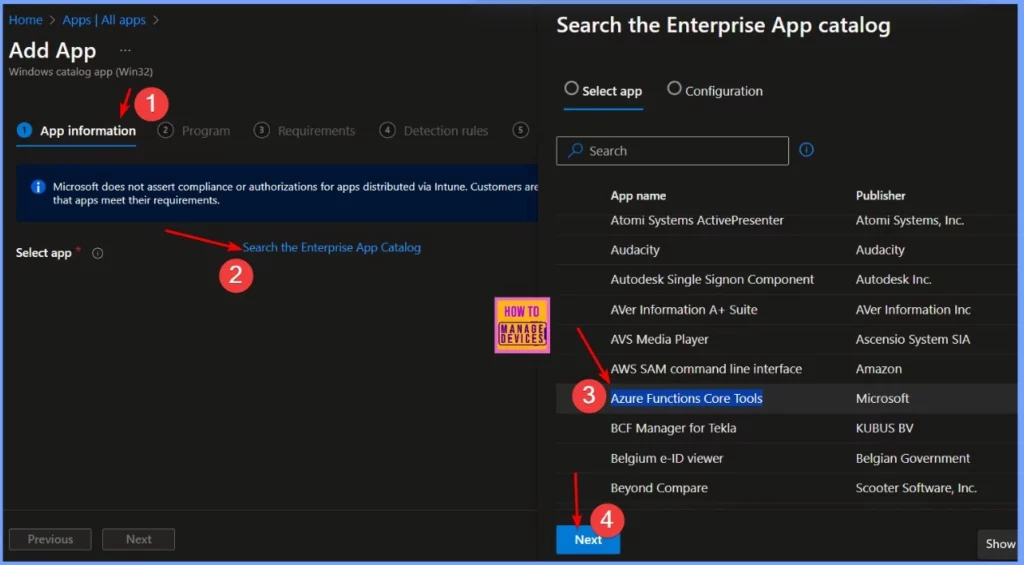
After you click Select, the App information settings will appear. Click on the Search the Enterprise App Catalog link. This will open the Search the Enterprise App Catalog page with two options: Select App and Configuration.
- Select the Azure Functions Core Tools under the Select app menu and click Next.
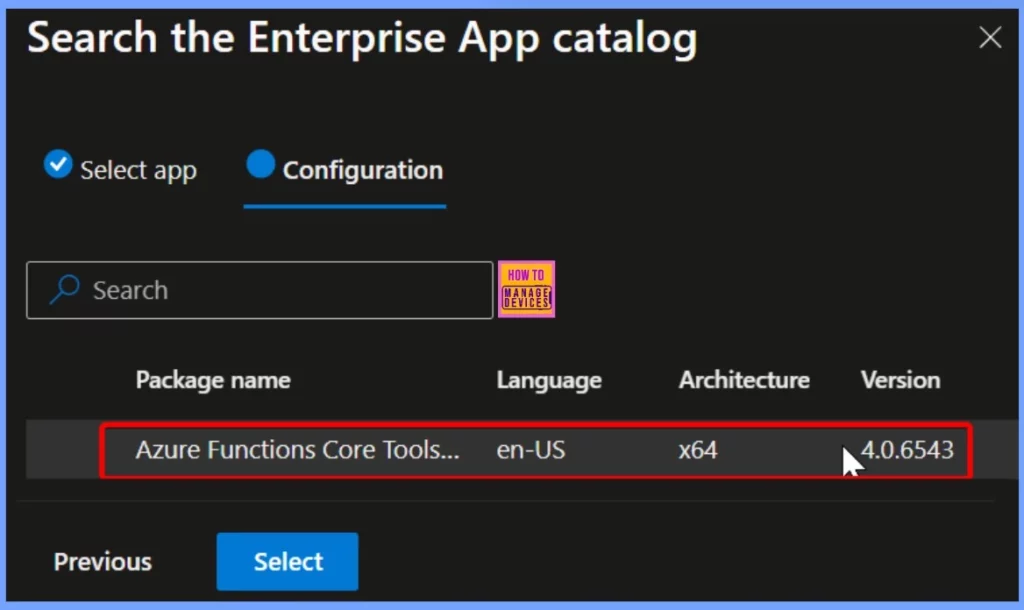
The Configuration settings contain details like the Package name, Language, Architecture version, and more. Once you have reviewed these, click Next to continue.
| Package Name | Language | Architecture | Version |
|---|---|---|---|
| Azure Functions Core Tools | en-US | ×64 | 4.0.6543 |
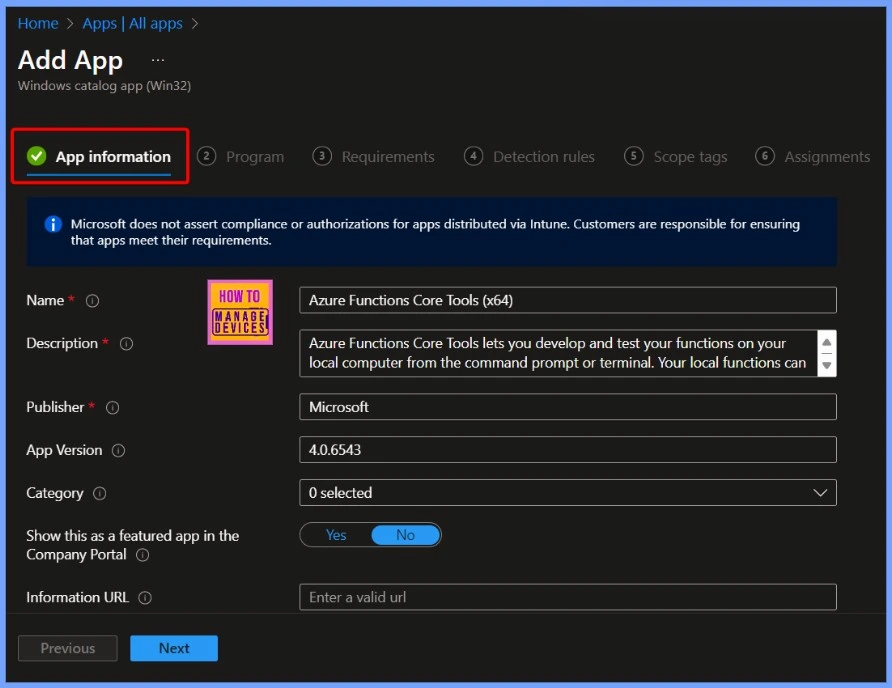
App Information Settings
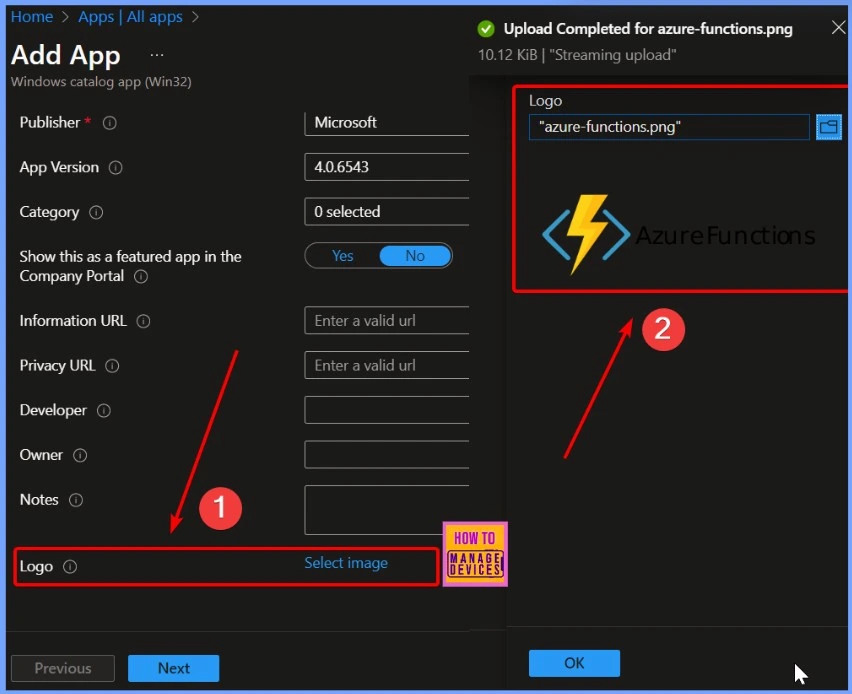
To set up the app, enter the following details:Name: Azure Functions Core Tools (x64), Description: Azure Functions Core Tools allows you to develop and test functions on your local computer using the command prompt or terminal—publisher: Microsoft, App Version: 4.0.6543. You can proceed with the setup once you’ve filled in these fields.
AzureFunctions
You can easily add a logo to the application by clicking the Select Image hyperlink next to the logo. In the pop-up window, choose the file icon and upload the image. After adding the Logo, select the Ok button.
- Guidelines for Installing Microsoft PC Manager from New Microsoft Store in Intune
- Create and Deploy Python Applications with Intune Enterprise App Catalog App
- Install Zoom Client using Windows Enterprise App Catalog App with Intune
Program Settings
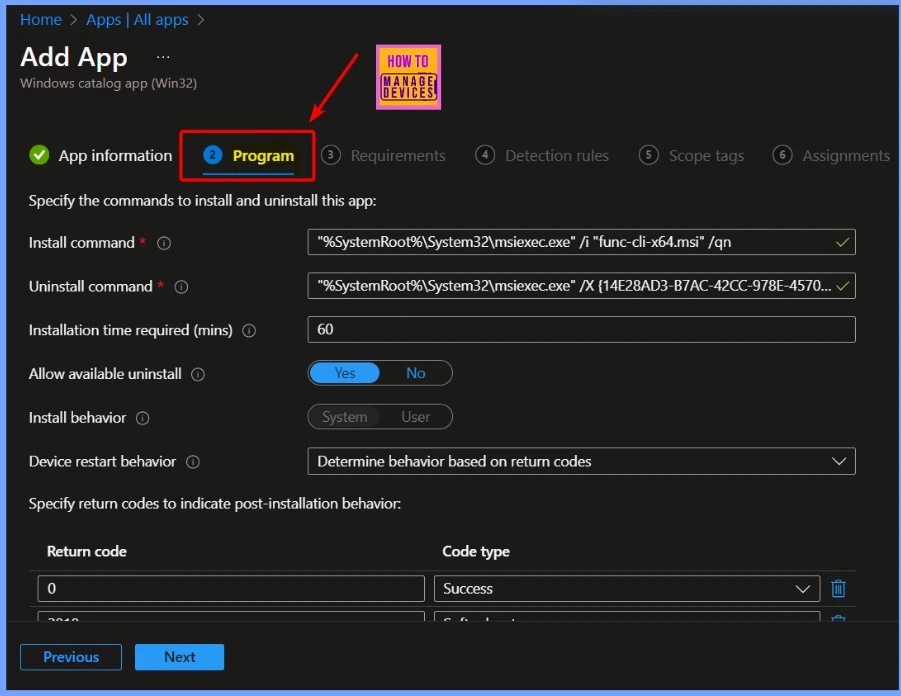
Under Program settings, you will find the following details: the installation and uninstallation commands, the time needed for installation, and whether uninstallation is allowed.
- Install command: “%SystemRoot%\System32\msiexec.exe” /i “func-cli-x64.msi” /qn
- Uninstall command: “%SystemRoot%\System32\msiexec.exe” /X {14E28AD3-B7AC-42CC-978E-4570 …}
- Installation time required: 60 minutes
- Allow uninstall: Yes
Requirements and Detection Rules
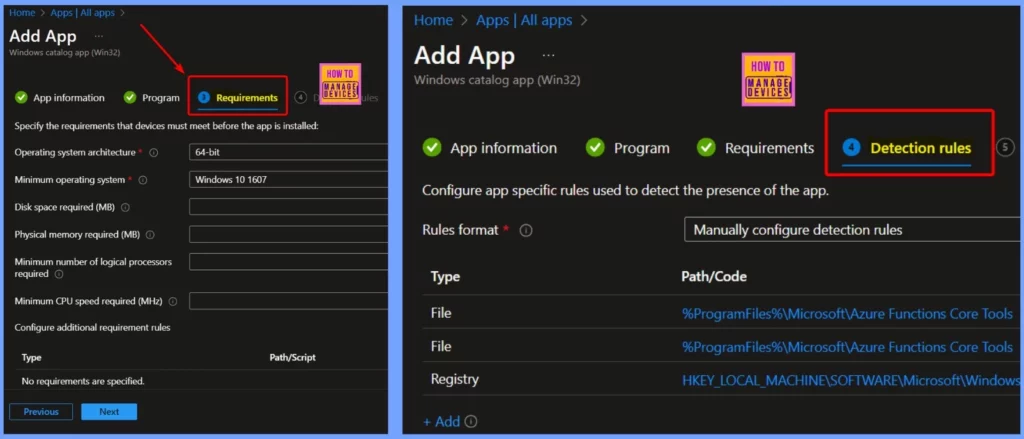
The Requirements and Detection Rules tabs in Intune specify conditions for when an app can be installed and how Intune should check if the app is already installed on a device. The Requirements Tab allows you to define system requirements for the app, such as the minimum operating system version, architecture (x86, x64), or specific device properties.
Scope Tag and Review +Create Settings
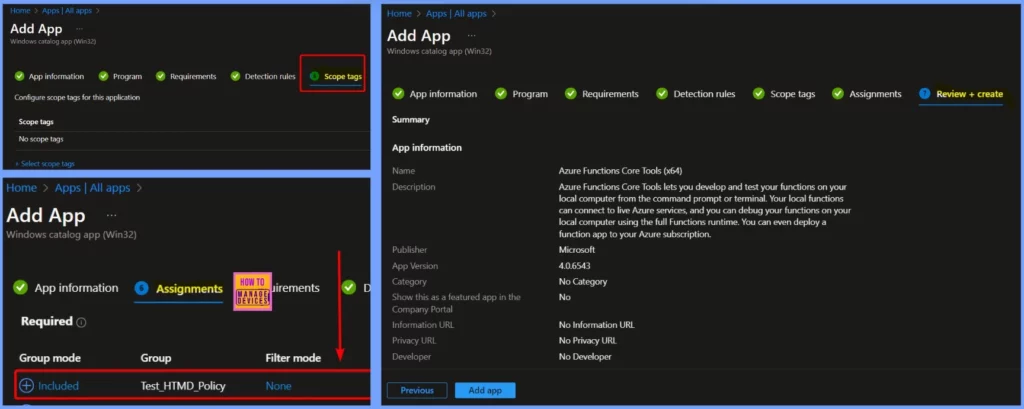
By assigning scope tags, you can ensure that only certain users or admins can see or manage particular resources, such as apps or policies. In the Review + Create tab, you finalize your app configuration in Intune before deployment.
Monitor the Azure Functions Core Tools Deployment Status
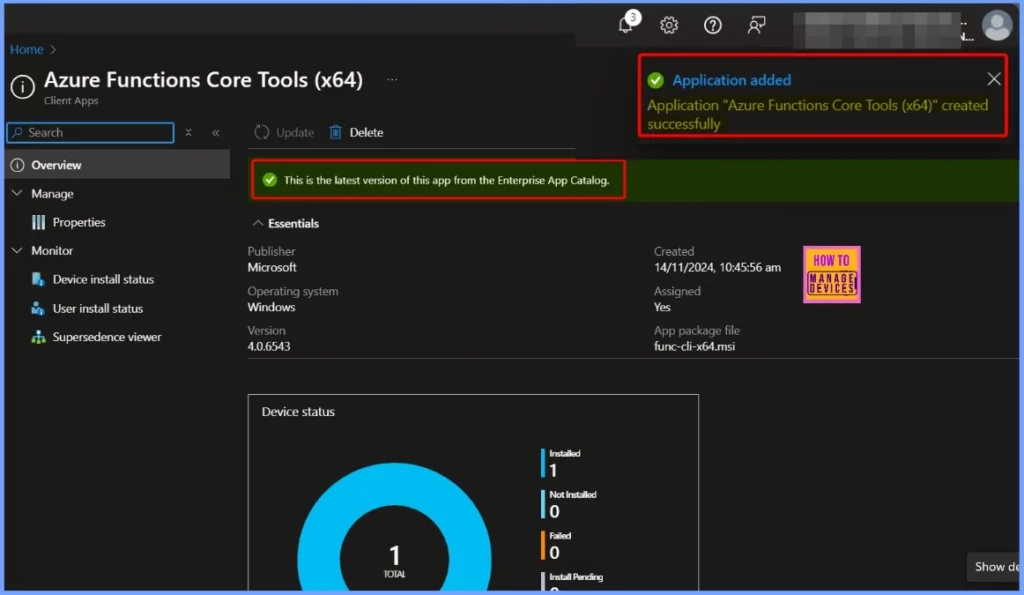
The Azure functions core tools were successfully created in the Overview menu. The other essentials are shown in the table below.
| Publisher | Operating system | Version | Created | Assigned | App package file |
|---|---|---|---|---|---|
| Microsoft | Windows | 4.0.6543 | 14/11/2024, 10:45:56 am | Yes | func-cli-x64.msi |
End User Experience
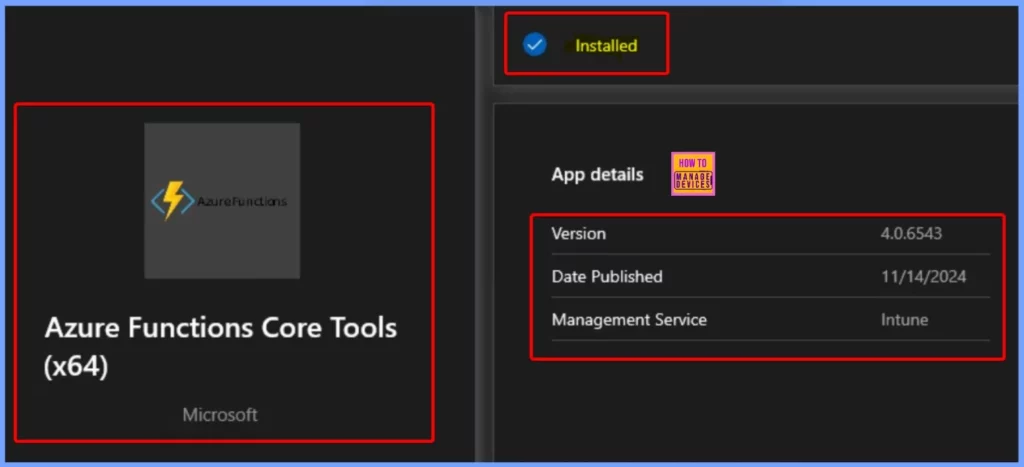
Once the Azure Functions Core Tools is deployed as a required application, it will be automatically installed on the workstations. To verify the installation, open the Company Portal on the workstation, go to Downloads & Updates, and check if the Azure Functions Core Tools application appears as installed.
Need Further Assistance or Have Technical Questions?
Join the LinkedIn Page and Telegram group to get the latest step-by-step guides and news updates. Join our Meetup Page to participate in User group meetings. Also, Join the WhatsApp Community to get the latest news on Microsoft Technologies. We are there on Reddit as well.
Author
Anoop C Nair has been Microsoft MVP from 2015 onwards for 10 consecutive years! He is a Workplace Solution Architect with more than 22+ years of experience in Workplace technologies. He is also a Blogger, Speaker, and Local User Group Community leader. His primary focus is on Device Management technologies like SCCM and Intune. He writes about technologies like Intune, SCCM, Windows, Cloud PC, Windows, Entra, Microsoft Security, Career, etc.


Discussion