






Block Android App Installation from Unknown Sources using Intune
This post walks you through how to block Android App Installation from Unknown Sources using Intune. By creating a device profile within Intune, admins can enforce policies that prevent users from installing apps from sources other than the Managed Google Play Store.
The Intune device restriction policy setting blocks app installation from unknown sources. This will prevent users from installing apps from sources other than the Managed Google Play Store.
This proactive approach significantly reduces the risk of malware or unauthorized software to installed in corporate devices, enhancing overall data protection. Once the policy is defined and applied to specific user groups, Intune ensures that only trusted apps from the Play Store can be installed.
Line of Business apps are the apps that are specific to an organization and are used for internal use. These apps are either developed internally or by Private Apps for your Organization. These apps are designed to meet the specific needs of each company, and they are not available publicly in the Google Play Store for use.

Intune supports various types of Android apps for multiple types of enrolment, An IT admin can add these LOB apps to the managed Google Play Store and deploy them to enrolled users, For more details Deploy Private LOB Apps To Android Devices Using Intune.
Block Android App Installation from Unknown Sources using Intune
Blocking Android app installations from unknown sources using Intune is a crucial security measure for organizations. Let’s check the steps, to understand which policies can be applied to block or allow Android App Installation from Unknown Sources.
- Sign in to Microsoft Intune Admin Center https://intune.microsoft.com/
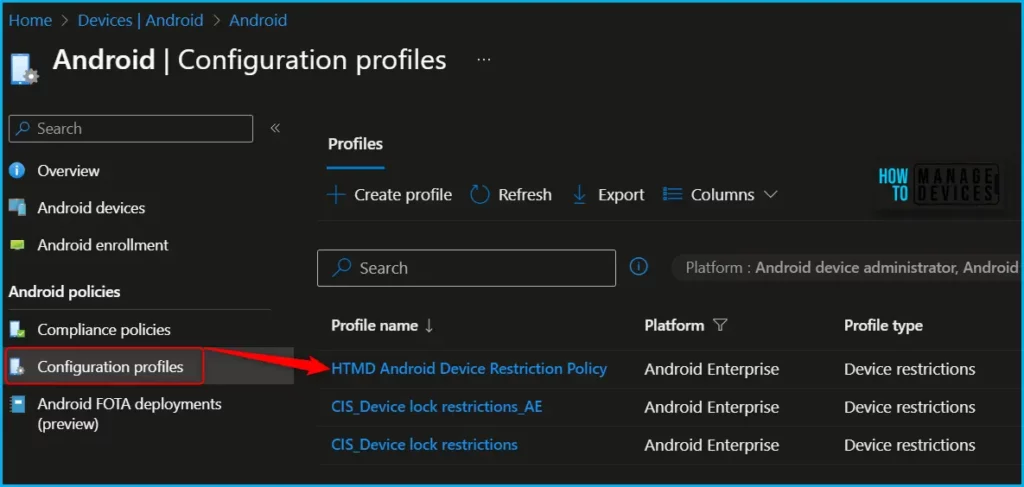
- Click on Devices > Android > Configuration Policies. I selected the existing configuration profile (Device Restriction) for modification.
You can check more details, you wanted to create device restriction policies from scratch, Enforcing Screen Lock For Android Devices In Intune
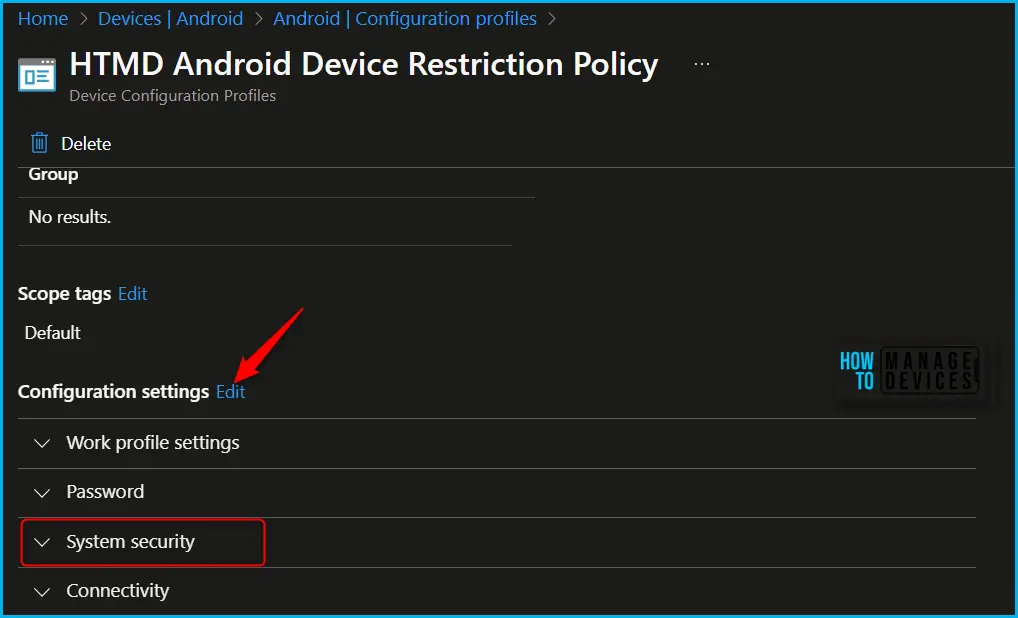
You can see the different categories of applied configuration in the configuration settings for Android Enterprise personally owned devices with a work profile (BYOD). The System security allows you to configure the policy to control the app scan and installation from unknown sources.
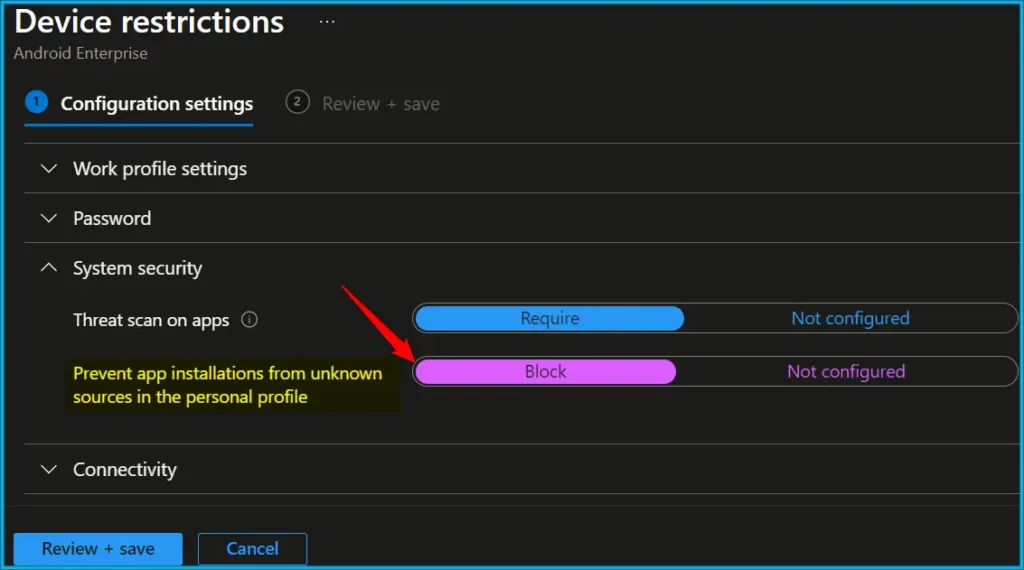
Here you can review the available restriction settings under System security. You can select and customize them as per our requirements. I will be toggling to Switch to Block for Allow installation from unknown sources where you will apply the policy.
| Settings | Description |
|---|---|
| Allow installation from unknown sources | Allow lets users turn on Unknown sources. This setting allows apps to install from unknown sources, including sources other than the Google Play Store. When set to Not configured (default), Intune doesn’t change or update this setting. By default, the OS might prevent users from turning on Unknown sources. |
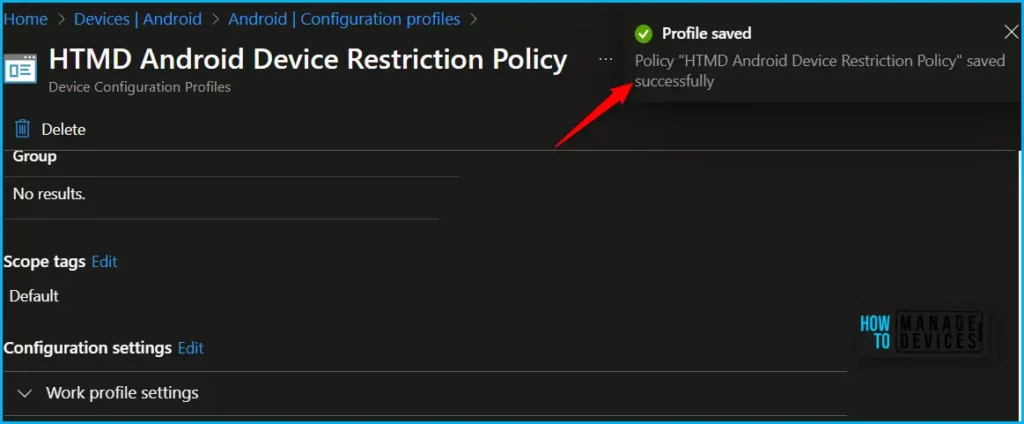
The next step is to review the setup policy and Save. A notification prompt will appear when you save the profile, Profile “HTMD Android Device Restriction Policy” saved successfully.
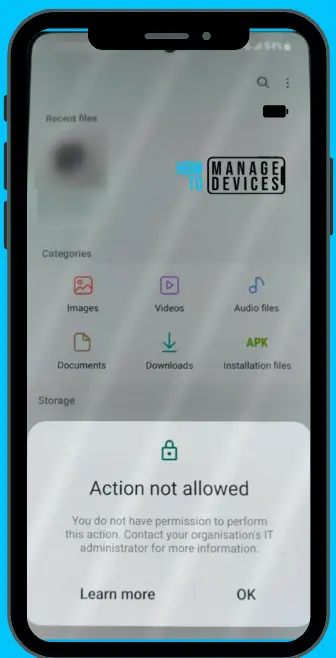
Monitor the devices to ensure that the restriction is successfully enforced. Let’s test the devices to confirm that users are unable to install APKs from unknown sources on the mobile device.
- Intune Company Portal App For Windows 11 Android | Install And Uninstall
- How To Add Android Managed Google Play App In Intune
Once the configuration is applied to the device, Staging app progress will appear as soon as you attempt to install the app on the managed mobile device.
The user cannot install the APKs. Here you can see the message appears “Action not allowed” You do not have permission to perform this action. Contact your organization’s IT administrator for more information.
Author
About Author – Jitesh, Microsoft MVP, has over six years of working experience in the IT Industry. He writes and shares his experiences related to Microsoft device management technologies and IT Infrastructure management. His primary focus is Windows 10/11 Deployment solution with Configuration Manager, Microsoft Deployment Toolkit (MDT), and Microsoft Intune.


Discussion