






Block Screenshots for Android Devices using Intune
Let’s learn how to block Screenshots for Android Devices using Intune. Screen capture protection prevents sensitive information from being captured on mobile devices.
By blocking screenshots, sensitive and confidential information displayed on the screen remains inaccessible to unauthorized users. This is especially crucial when dealing with sensitive company data, and customer information.
Screenshots can be a common way for employees or users to capture and share sensitive information intentionally. In Bring Your Own Device (BYOD) scenarios, where employees use personal devices for work purposes, blocking screenshots helps prevent mixing personal and company data, enhancing company information security.
For industries with strict compliance regulations blocking screenshots can help maintain compliance with data protection and privacy regulations. By disabling screenshots, you can reduce the risk of unintentional data leaks.

- Check Out Device Restriction Settings For MacOS Offered By Intune
- Restrict Malicious Apps On IOS And Android Devices Using Intune
Block Screenshots for Android Devices using Intune
Screen capture protection is configured on the configuration profile and enforced on the devices. Blocking screenshots on Android devices using Intune involves the step of creating and assigning device configuration profile to the targeted devices.
- Sign in to Microsoft Intune Admin Center https://intune.microsoft.com/
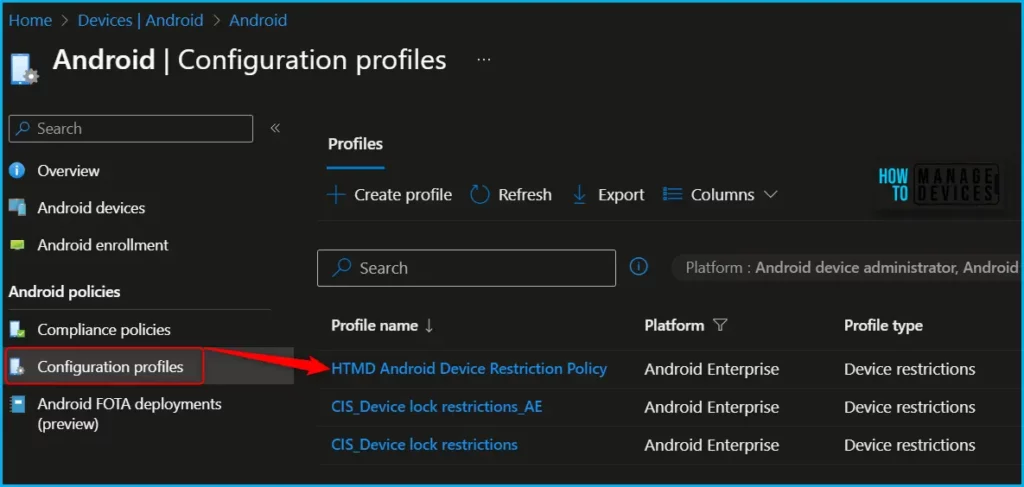
- Click on Devices > Android > Configuration Policies. I selected the existing configuration profile (Device Restriction) for modification.
You can check more details, you wanted to create device restriction policies from scratch, Enforcing Screen Lock For Android Devices In Intune
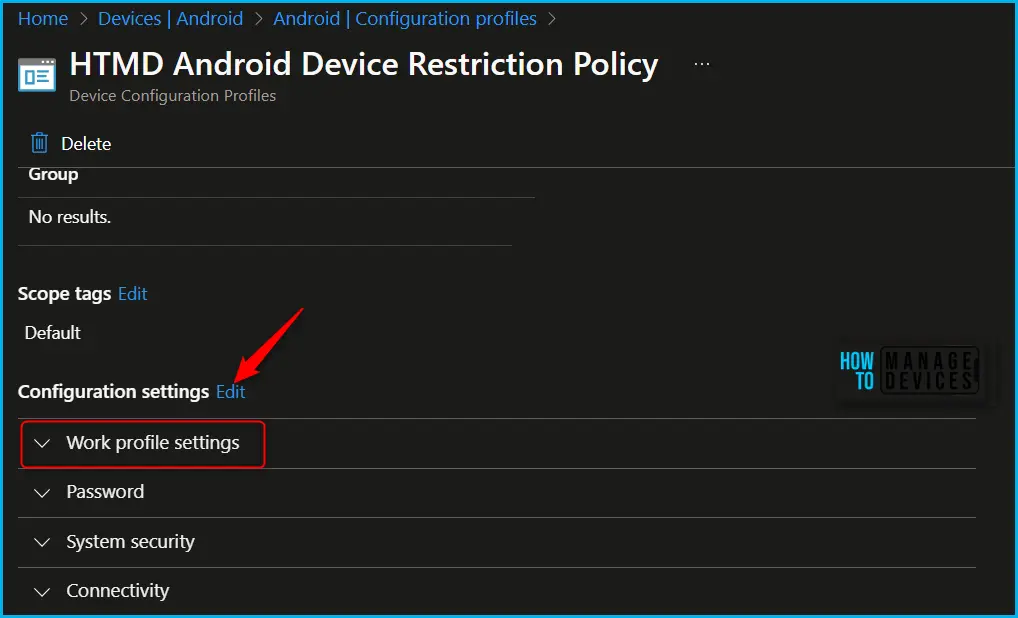
You can see the different categories of applied configuration in the configuration settings for Android Enterprise personally owned devices with a work profile (BYOD). The Work profile settings allow you to configure the policy to control the Screen Capture.
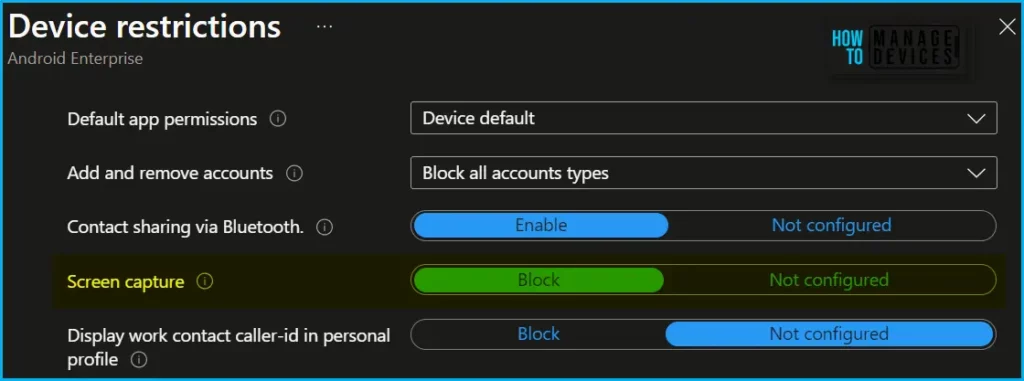
Here you can review the available restriction settings under Work profile settings. You can select and customize them as per our requirements. I will be toggling to Switch to Block for Screen capture that prevents screenshots on the Android devices where you will apply the policy.
| Settings | Description |
|---|---|
| Screen Capture | Block prevents screenshots or screen captures on the device. It also prevents the content from being shown on display devices that don’t have a secure video output. When set to Not configured (default), Intune doesn’t change or update this setting. By default, the OS might let users capture the screen contents as an image. |
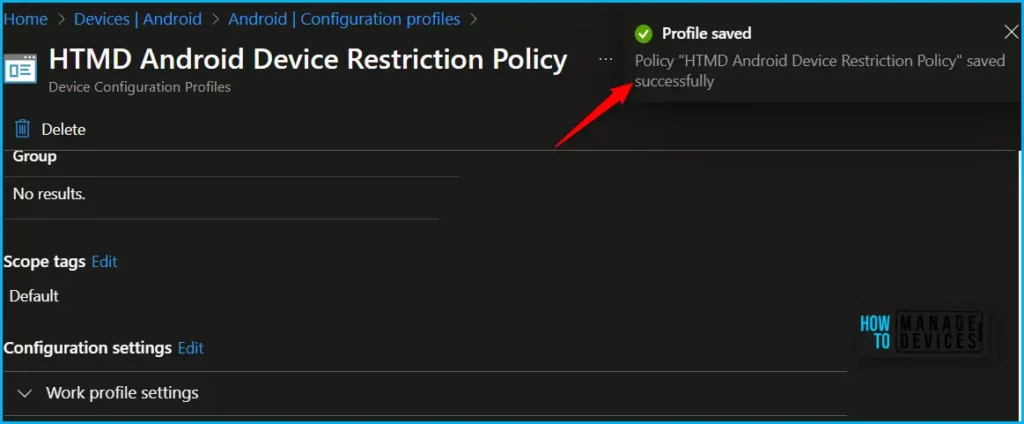
The next step is to review the setup policy and Save. A notification prompt will appear when you save the profile, Profile “HTMD Android Device Restriction Policy” saved successfully.
Monitor the devices to ensure that the screen capture restriction is successfully enforced. Let’s test the devices to confirm that users are unable to take screenshots.
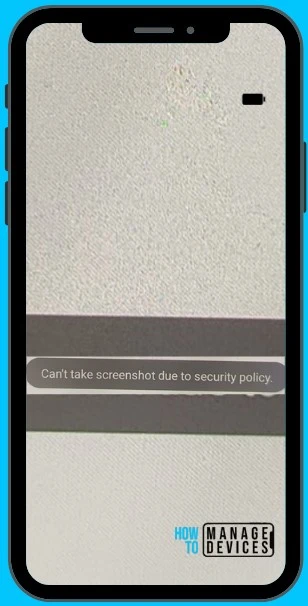
Once the configuration is applied to the device, the User cannot take the screenshot. Here you can see the message appears “Can’t take screenshot due to security policy”.
Author
About Author – Jitesh, Microsoft MVP, has over six years of working experience in the IT Industry. He writes and shares his experiences related to Microsoft device management technologies and IT Infrastructure management. His primary focus is Windows 10/11 Deployment solution with Configuration Manager, Microsoft Deployment Toolkit (MDT), and Microsoft Intune.


Discussion