





Block Specific Device Classes to Take Control of Windows Drivers using Intune
Key Takeaways:
- Prevent Installation of Devices using Drivers that Match these Device Setup Classes
- Allows you to specify a list of device setup class globally unique identifiers
- Blocking can be applied at the device-class level (e.g., printers, USB storage, Bluetooth), giving admins precise control
- Ideal for organizations needing to restrict external devices
Let’s discuss about Block Specific Device Classes to Take Control of Windows Drivers using Intune. This policy setting allows you to specify a list of device setup class globally unique identifiers (GUIDs) for device drivers that Windows is prevented from installing. This policy setting takes precedence over any other policy setting that allows Windows to install a device.
Table of Contents
Table of Contents
Block Specific Device Classes to Take Control of Windows Drivers using Intune
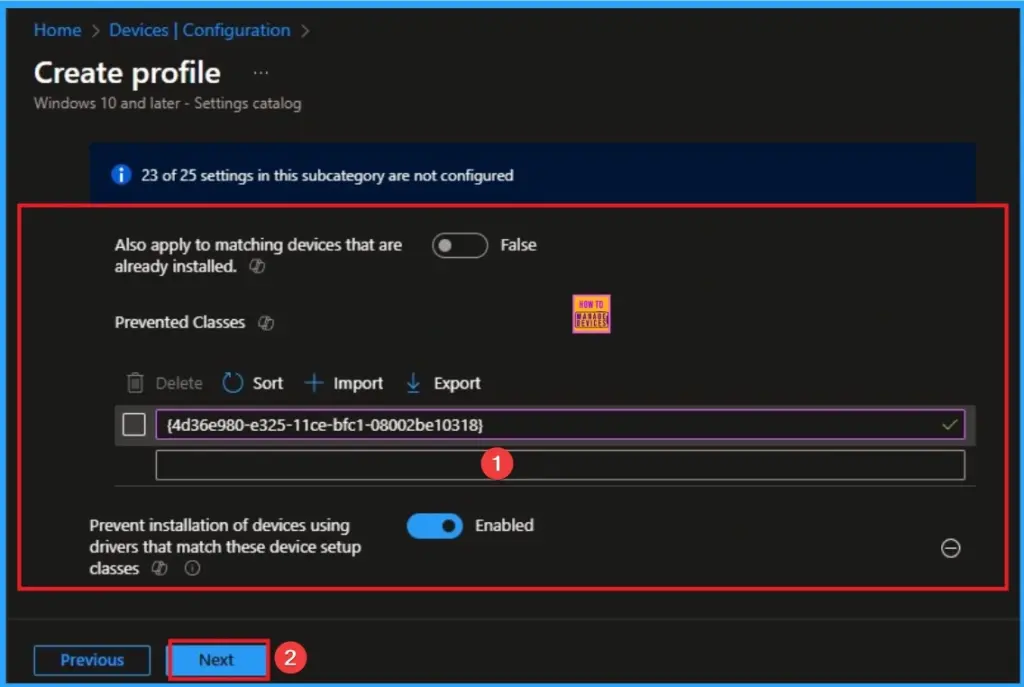
If you enable this policy setting, Windows is prevented from installing or updating device drivers whose device setup class GUIDs appear in the list you create. If you enable this policy setting on a remote desktop server, the policy setting affects redirection of the specified devices from a remote desktop client to the remote desktop server.
- How to Set Deadline for Automatic Installation of Quality Updates on Windows Devices using Intune
- How to Track Device Battery Information using Intune Property Catalog
- How to Collect Physical and Virtual Memory Information using Intune Properties Catalog
Start Policy Creation in Intune Portal
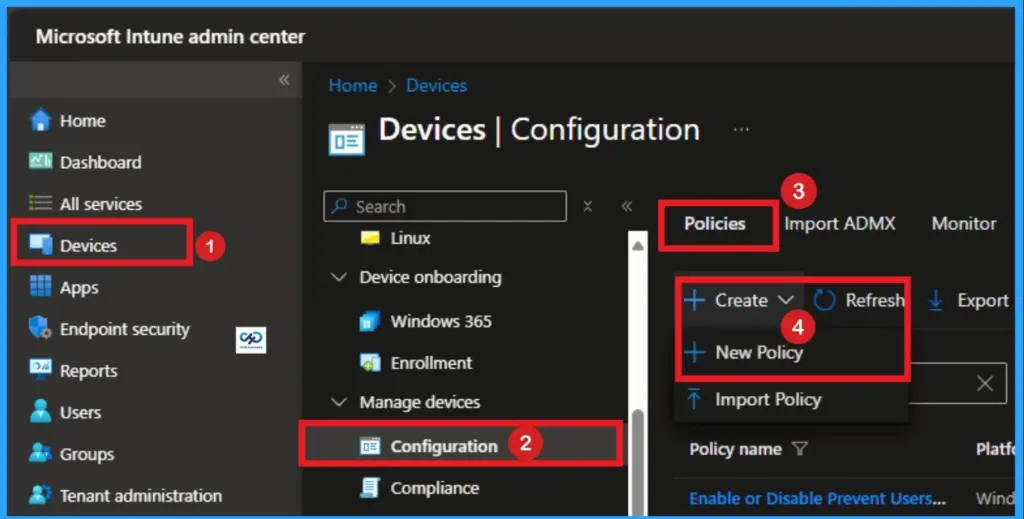
With your credential you can easily sign in Intune Portal. Then you can configure Require Platform Security Features policy for your managed devices. For this go to Devices > Configuration >+ Create > +New Policy.
Policy Profile Creation
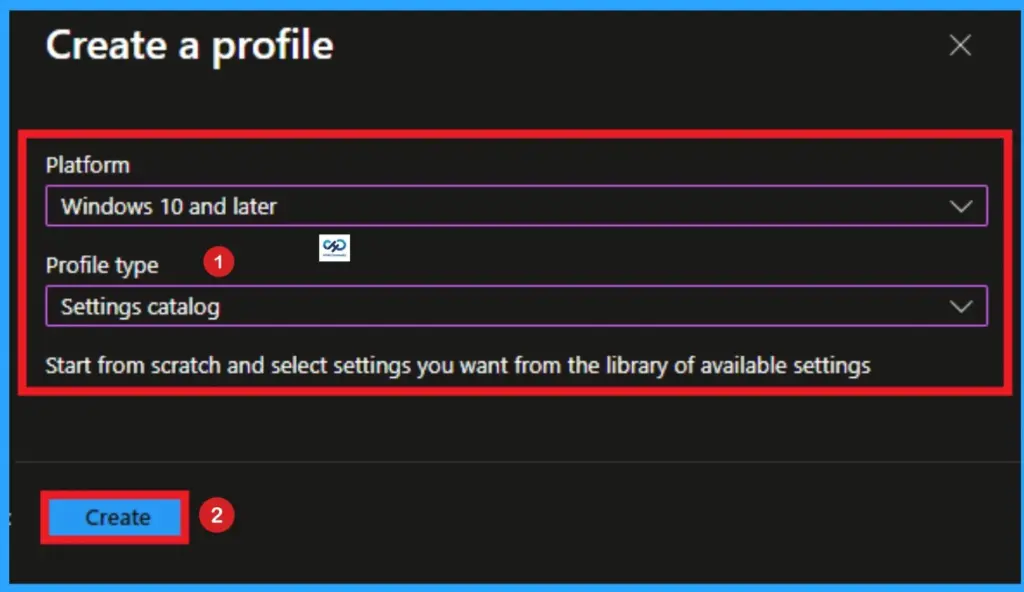
It is the next step step you have to do for policy Creation. In profile creation you must select platform and profile type. Here I would like to configure the policy to Windows 10 and later platform and settings catalog profile. Then click on the Create button.

Add Name and Description
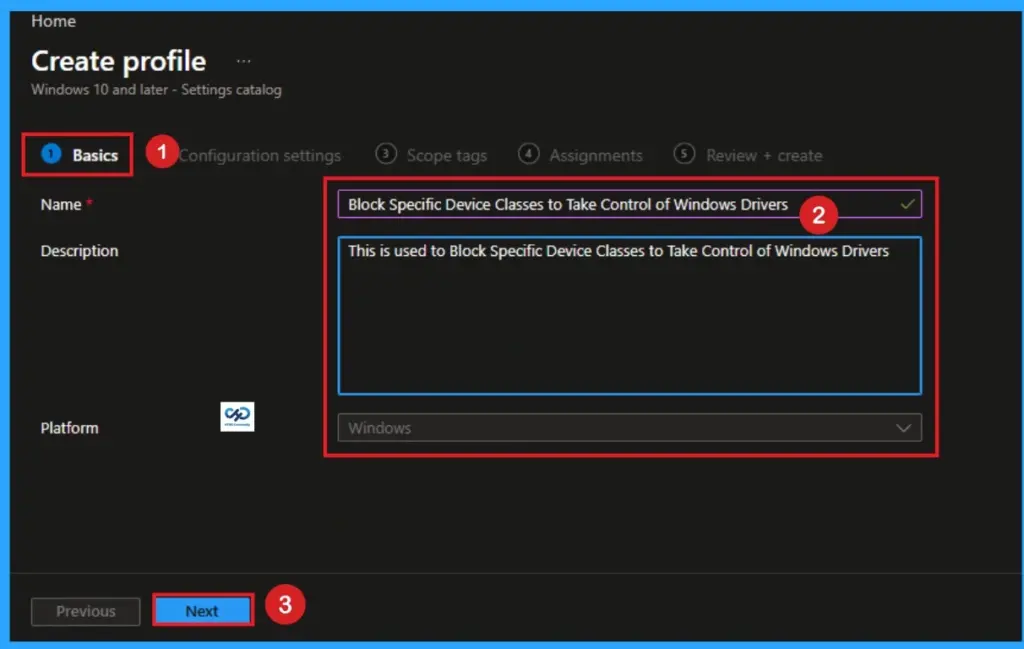
Naming the policy is the primary step that help admins to identify the policy later. This is important and necessary step that allows you to know the purpose of the policy. Here is Name is mandatory and description is optional. After adding this click on the Next button.
Select Platform Security Features Settings
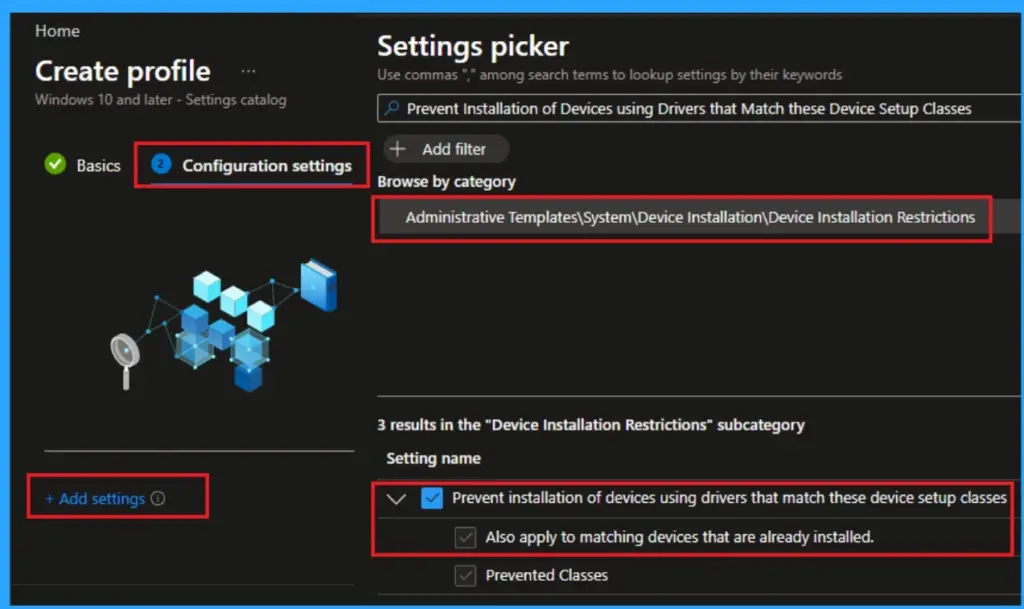
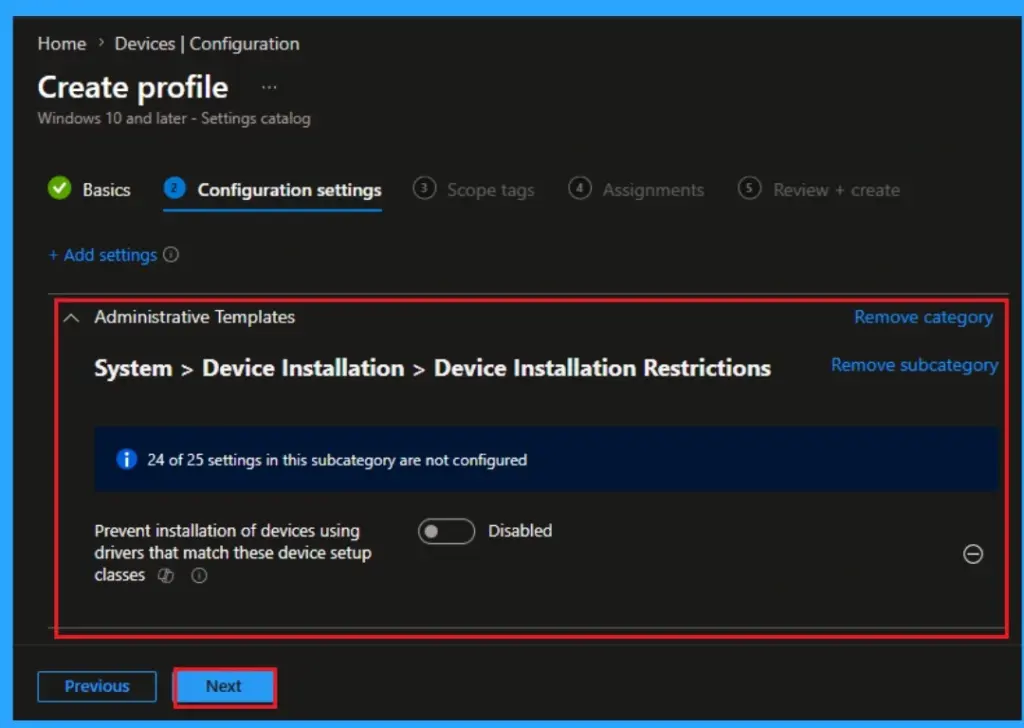
With Settings Picker, you can use the Configuration Settings Tab. On this tab, you can click on the +Add Settings hyperlink to get the Settings Picker. The settings picker shows huge number of settings. Here, I would like to select the settings by browsing by Category. I choose Administrative Templates\System\Device Installation\Device Installation Restrictions\Prevent installation of devices using drivers that match these
device setup classes.
Add Scope Tags
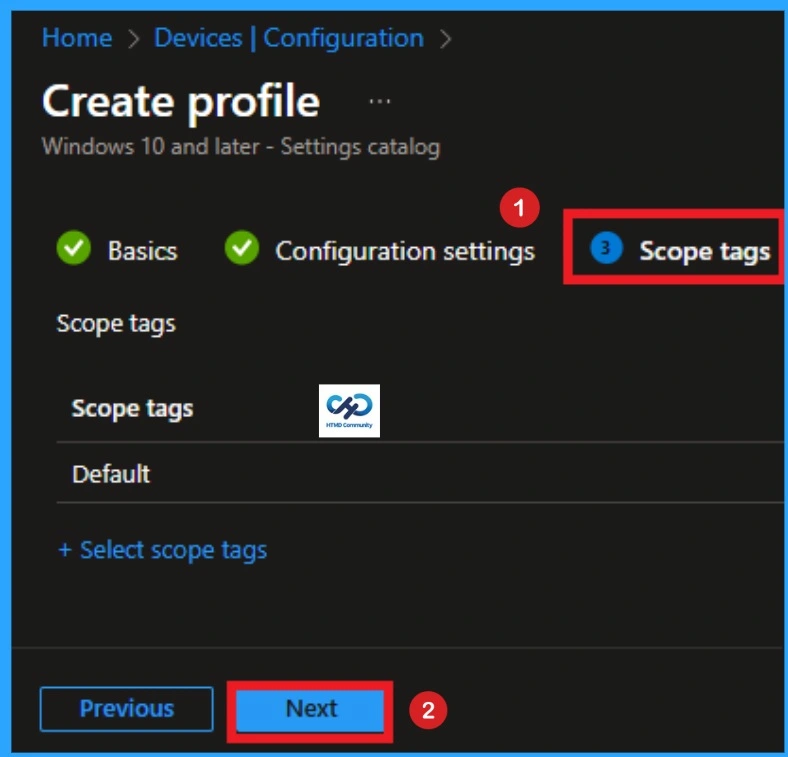
With scope tags, you create a restriction to the visibility of the Block Specific Device Classes. It helps to organise resources as well. Here, I would like to skip this section, because it is not mandatory. Click on the Next button.
Assignments Tab for Selecting Group
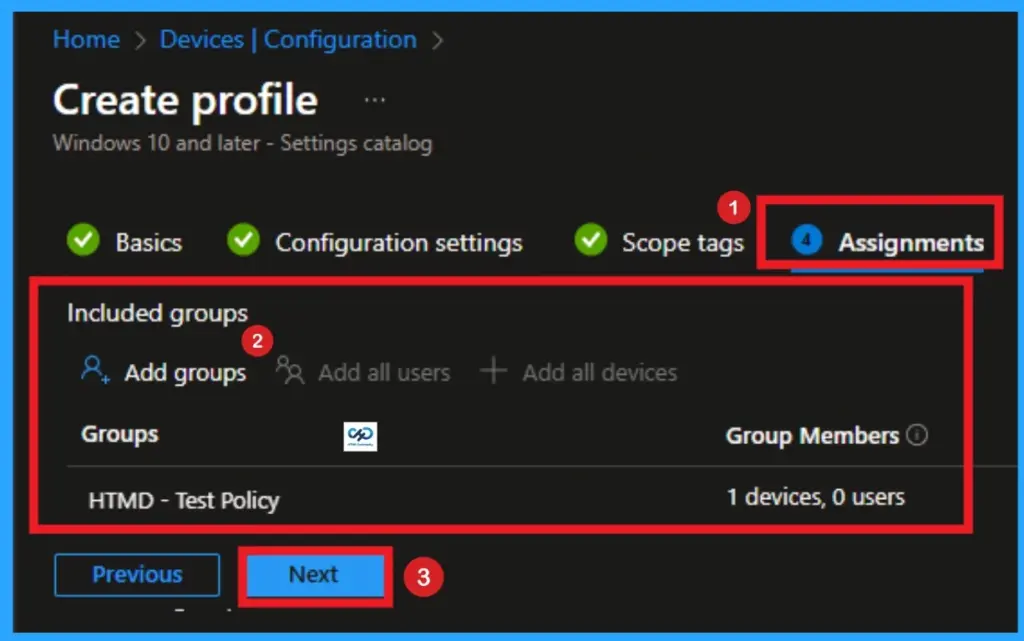
To assign the policy to specific groups, you can use the Assignment Tab. Here I click, +Add groups option under Included groups. I choose a group from the list of groups and click on the Select button. Again, I click on the Select button to continue.
Review + Create Tab
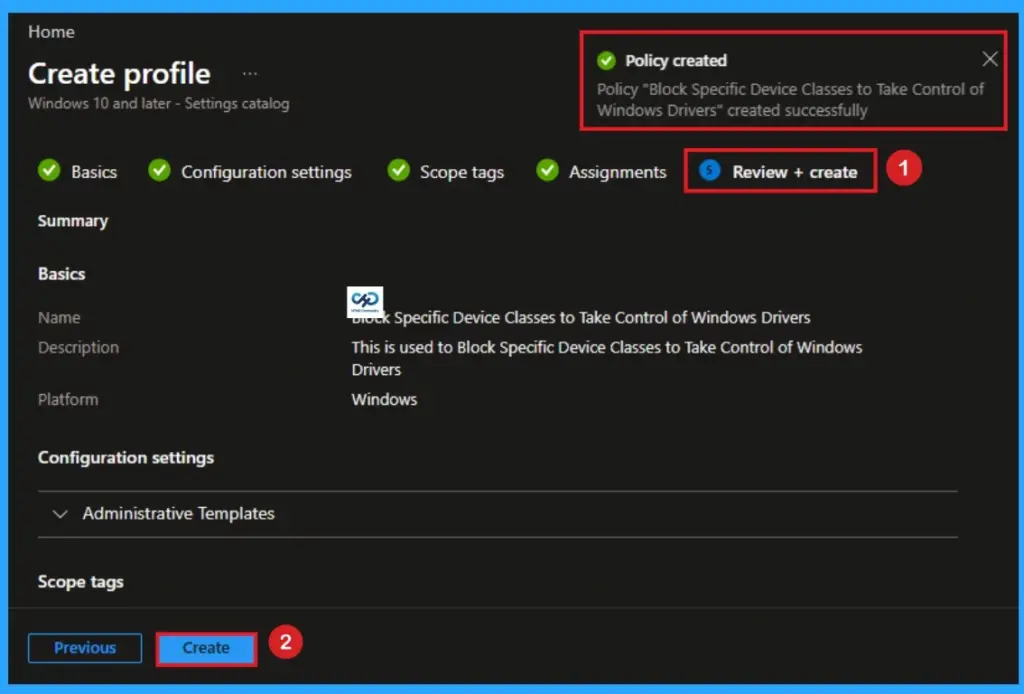
Before completing the policy creation, you can review each tab to avoid misconfiguration or policy failure. After verifying all the details, click on the Create Button. After creating the policy, you will get a success message.
Monitoring Status
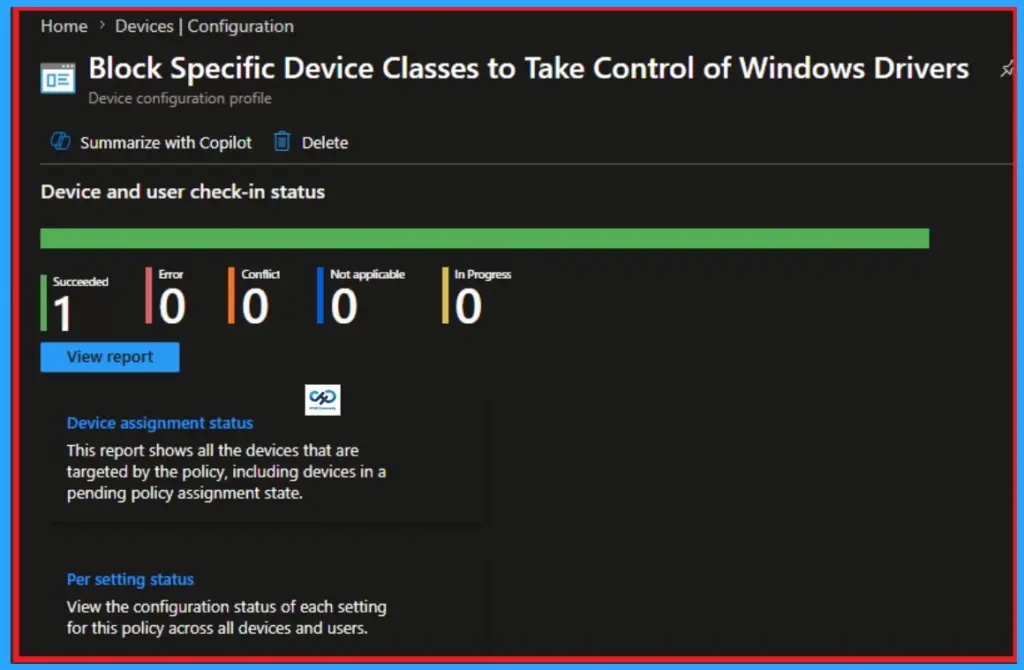
The Monitoring Status page shows whether the policy has succeeded or not. To quickly configure the policy and take advantage of the policy sync the assigned device on Company Portal. Open the Intune Portal. Go to Devices > Configuration > Search for the Policy. Here, the policy shows as successful.
Removing the Assigned Group from Block Specific Device Classes
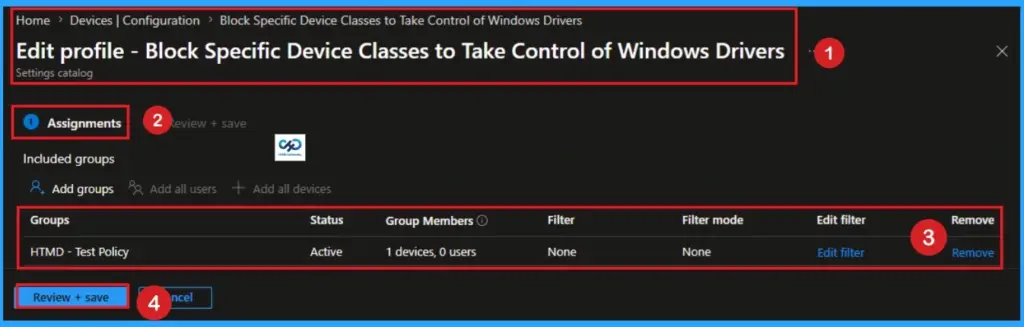
If you want to remove the Assigned group from the policy, it is possible from the Intune Portal. To do this, open the Policy on Intune Portal and edit the Assignments tab and the Remove Policy.
To get more detailed information, you can refer to our previous post – Learn How to Delete or Remove App Assignment from Intune using by Step-by-Step Guide.
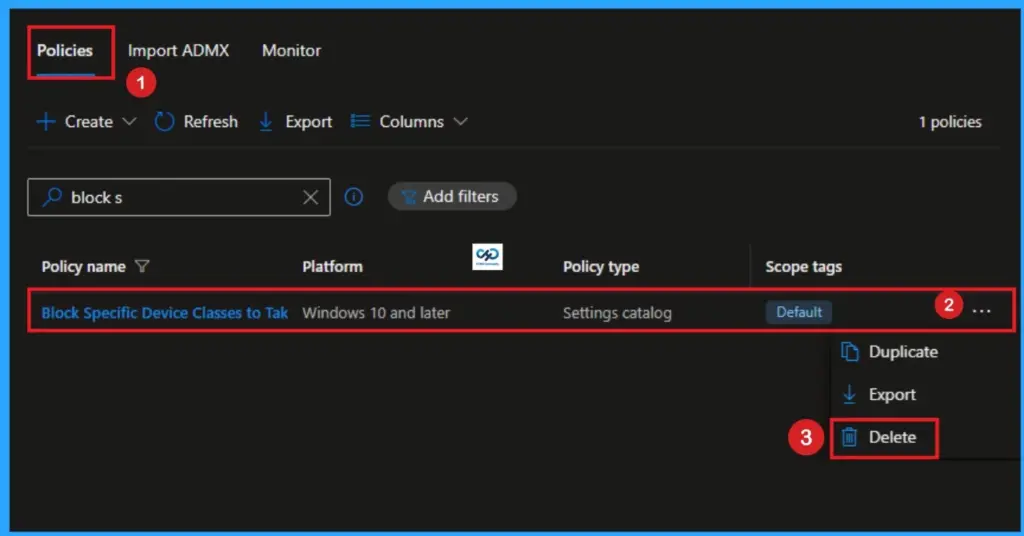
How to Delete Block Specific Device Classes
You can easily delete the Policy from the Intune Portal. From the Configuration section, you can delete the policy. It will completely remove it from the client devices.
For detailed information, you can refer to our previous post – How to Delete Allow Clipboard History Policy in Intune Step by Step Guide.
Need Further Assistance or Have Technical Questions?
Join the LinkedIn Page and Telegram group to get the latest step-by-step guides and news updates. Join our Meetup Page to participate in User group meetings. Also, join the WhatsApp Community and the WhatsApp channel to get the latest news on Microsoft Technologies. We are there on Reddit as well.
Author
Anoop C Nair is a Workplace Technology solution architect with 25+ years of experience. Microsoft Certified Trainer. Microsoft MVP from 2015 onwards for consecutive 11+ years! He is a blogger, Speaker, and Founder of HTMD Community and HTMD Conference. His main focus is on Device Management technologies like Intune, Windows, and Cloud PC. He writes about technologies like Intune, SCCM, Windows, Cloud PC, Entra, and Microsoft Security.


Discussion