






How to Block Viewing of Corporate Documents in Unmanaged Apps on iOS or iPadOS using Intune Policy
How to Block Viewing of Corporate Documents in Unmanaged Apps Using Intune Policy! The Intune policy “Block viewing corporate documents in unmanaged apps” for iOS/iPadOS is a data protection setting. When this policy is turned on, employees cannot open or share company files using apps that are not managed or approved by your organization.
When this setting is enabled, only the apps that are deployed and managed through Intune will appear in the iOS Share menu. This ensures that unmanaged or personal apps cannot open or access corporate files. For example, if the Teams app is not managed by Intune, it will not show up as a sharing option for corporate documents, thereby minimizing the risk of sensitive data being shared outside the organization.
This policy empowers IT administrators with stronger control over how corporate data is accessed and used across devices. It reduces the risk of data leakage through insecure or personal apps. Additionally, it simplifies compliance management by aligning data access practices with the organization’s security policies and regulatory requirements, ensuring sensitive information remains protected at all times.
This policy helps organizations strengthen their overall data security. It keeps corporate documents safe by blocking access from personal or unmanaged devices. It also ensures that all users and devices follow the same data access rules, making it easier to maintain consistency and control.

Table of Contents
How to Block Viewing of Corporate Documents in Unmanaged Apps using Intune Policy
The “Block viewing corporate documents in unmanaged apps” policy is helps you to prevent sensitive organizational data from being accessed through apps that are not managed or protected by your company’s Intune or MAM (Mobile Application Management) policies.
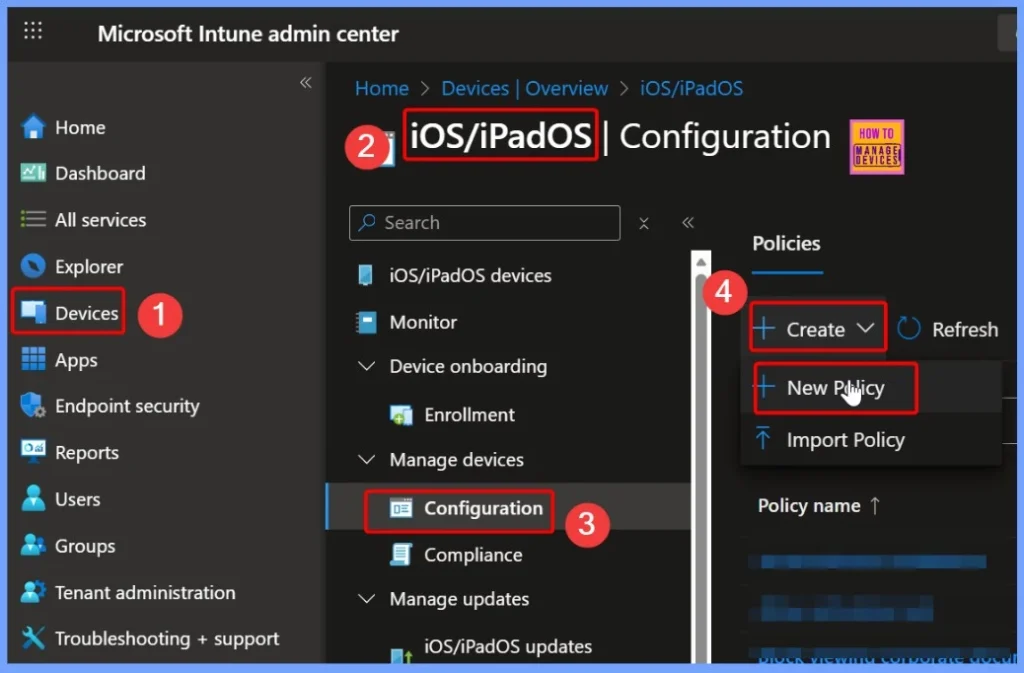
- First, sign in to the Microsoft Intune admin center.
- Go to Devices and choose iOS/iPadOS.
- Next, select Configuration Settings, and under the Create tab, click New Policy to begin creating your configuration.
- Protect Corporate Data using Data Loss Protection Policies with Microsoft Purview Portal
- Create Sensitivity Labels in Microsoft 365 to Protect Corporate Data
- Publish Sensitivity Labels in Microsoft 365 to Protect Corporate Data
Create a Profile for iOS/iPadOS Devices
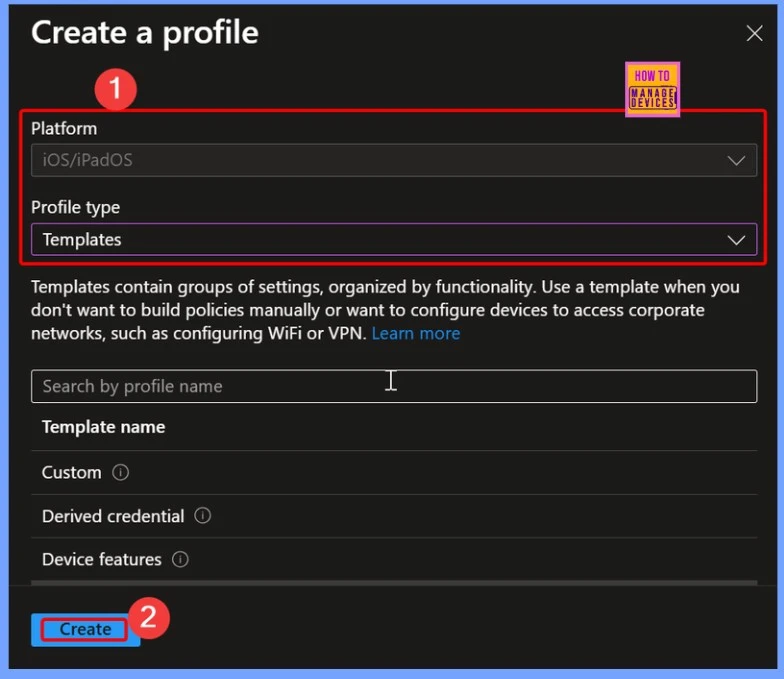
On the Create a Profile page, the platform iOS/iPadOS will appear automatically. From there, choose the Profile Type as Templates to proceed with configuring the required policy settings for Apple devices.
- Profile Type > Templates
- Choose Device Restriction from Template
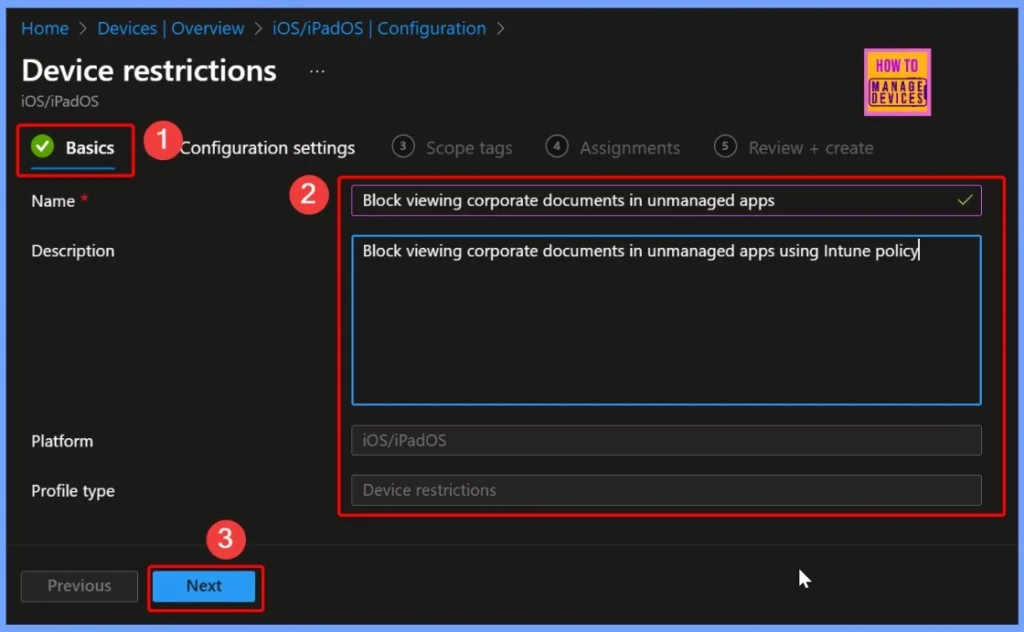
Provide the Name and Description for your Policy
In the Basics settings page, provide the Name and Description for your policy. For example:Name: Block viewing corporate documents in unmanaged apps and Description: Block viewing corporate documents in unmanaged apps using Intune policy. These details help identify the purpose of the policy and make it easier to manage within the Intune portal.
Configuration Settings – App Store, Doc Viewing, and Gaming
In the Configuration Settings section, select App Store, Doc Viewing, and Gaming. Then, verify that the option Block viewing corporate documents in unmanaged apps is available. By default, this setting appears as Not configured, allowing you to modify it as per your organization’s security requirements.
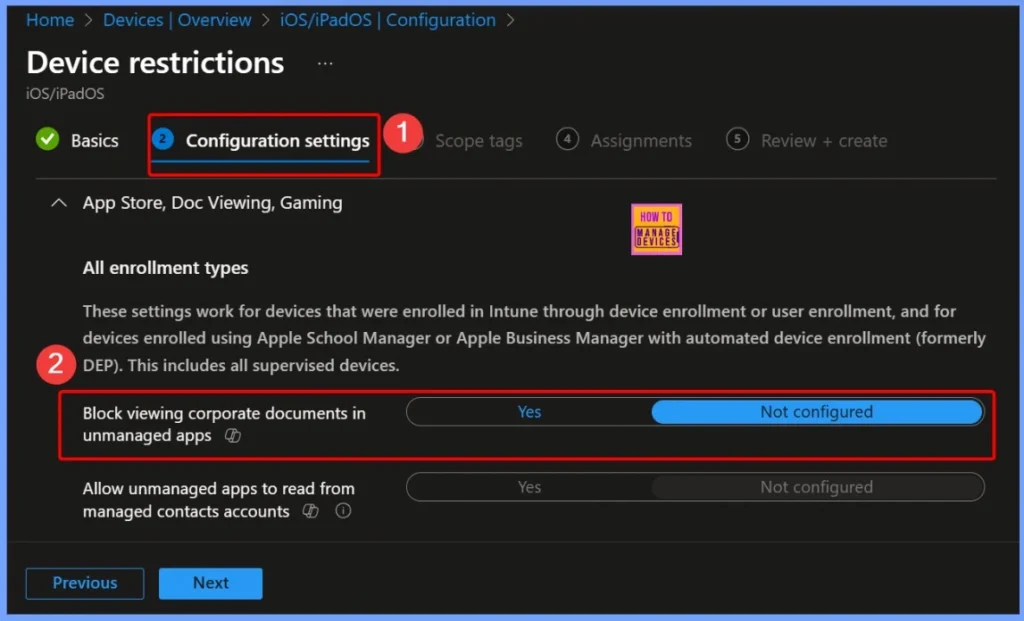
Corporate Documents cannot be Viewed or Accessed through Unmanaged or Personal App
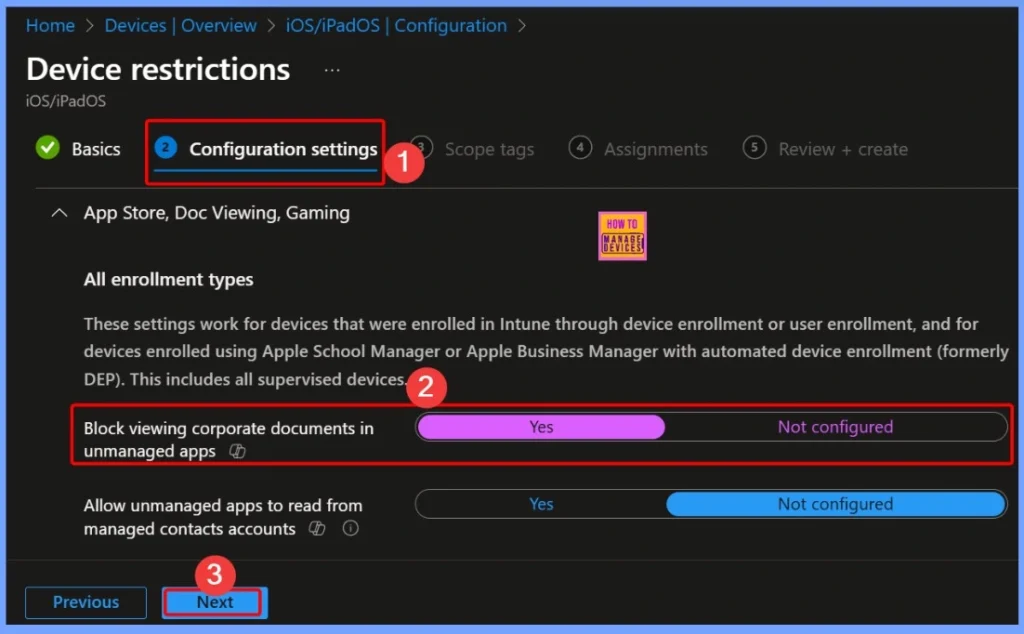
In this step, confirm that the Block viewing corporate documents in unmanaged apps option is available under the selected category and is set to Yes. This ensures that corporate documents cannot be viewed or accessed through unmanaged or personal apps, helping to protect sensitive organizational data.
| Policy name | Settings |
|---|---|
| Block viewing corporate documents in unmanaged apps | Yes |
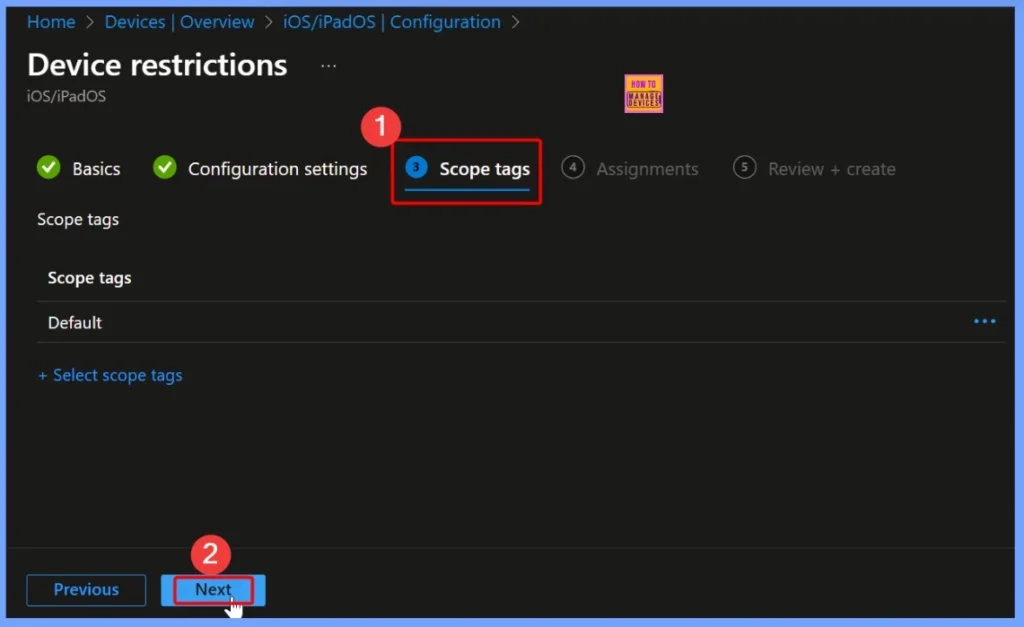
Scope Tags of the Policy Settings
Scope tags are especially useful in larger organizations, where different admin groups manage specific sets of devices or users. By applying appropriate scope tags, you can ensure that only authorized administrators have visibility and control over this policy.
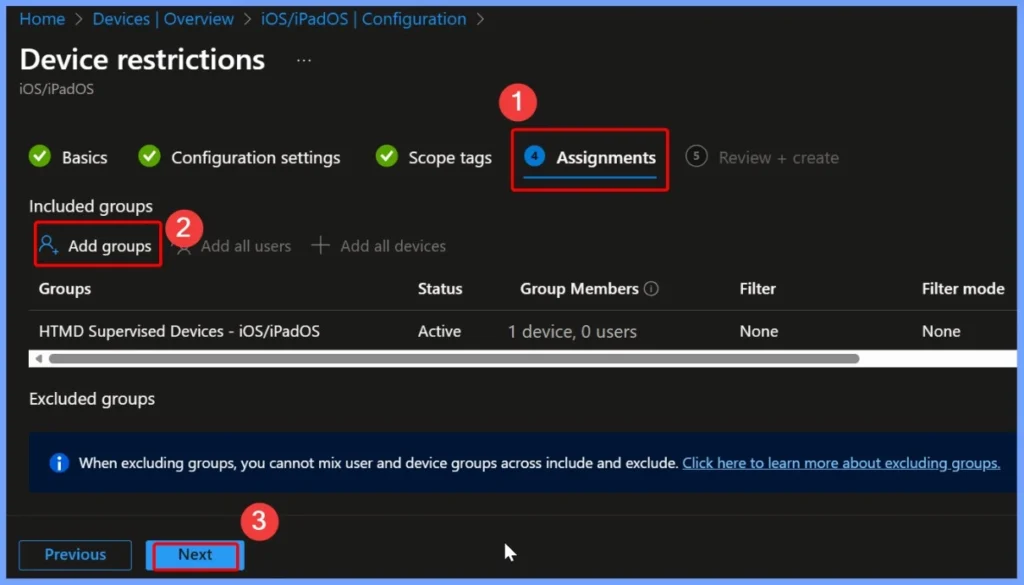
Assignments – Add Device Groups
Under the Assignments tab, click Add Groups under the Included Groups section. From the list, select the group HTMD Supervised Device – iOS or iPadOS. This step ensures that the policy is applied only to the targeted supervised Apple devices managed through Intune.
Carefully Verify all the Configured Settings
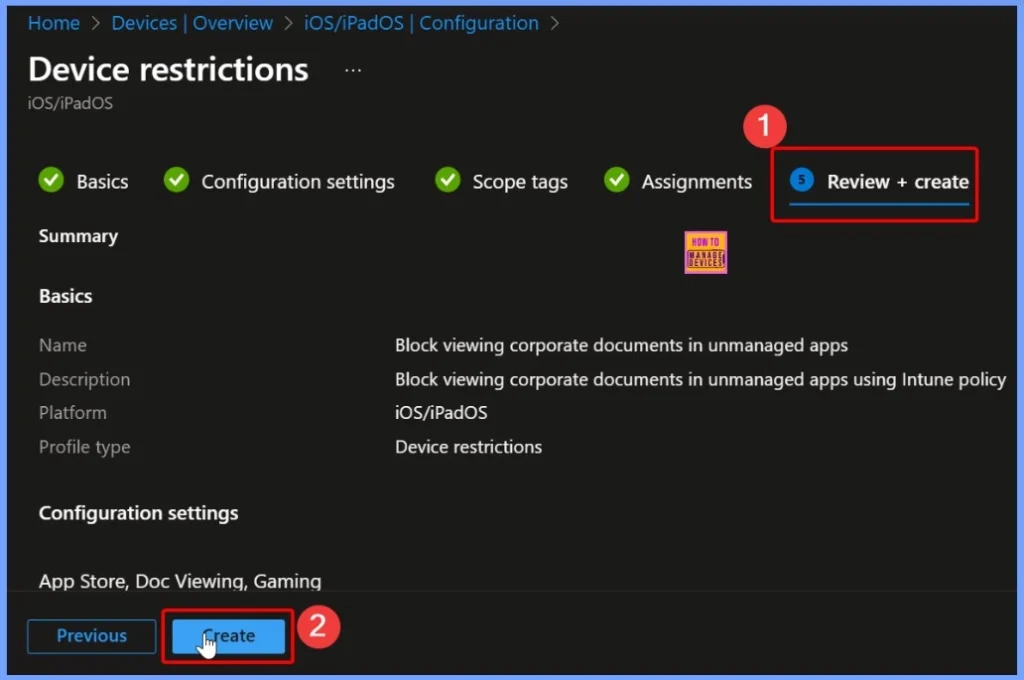
In the Review + Create section, carefully verify all the configured settings, including the policy name, description, configuration options, scope tags, and assigned groups. Once you’ve confirmed that everything is accurate, click Create to finalize and deploy the policy.
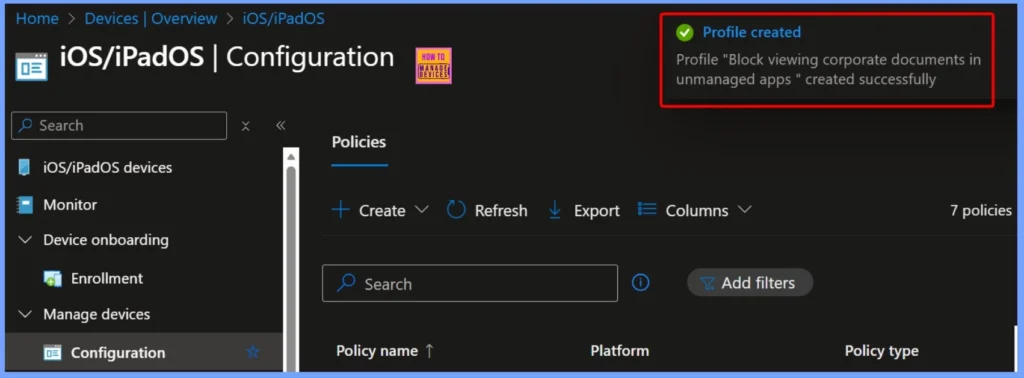
Policy Notification
After the policy is created, a notification will appear in the Intune admin center confirming that the policy has been successfully deployed. The below screenshot helps you to show more details.
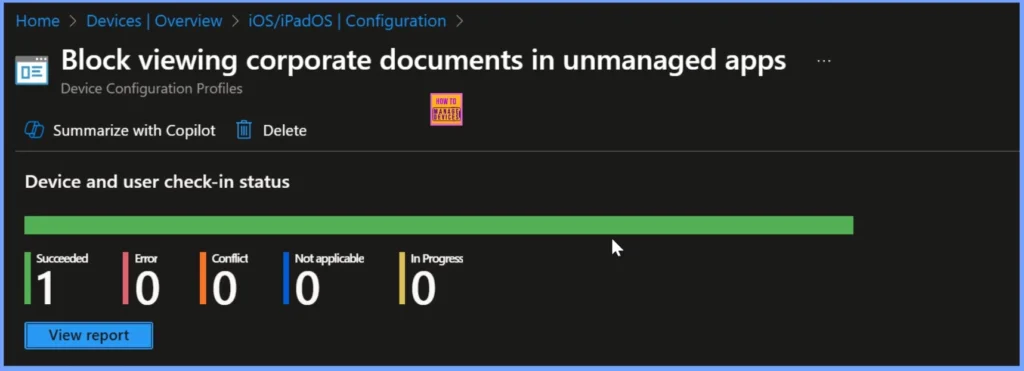
Device and User Check in Status
After deploying the policy, you can monitor the Device and User Check-In Status in the Intune admin center. This section helps you verify whether the targeted iOS or iPadOS devices and users have successfully received and applied the policy.
Need Further Assistance or Have Technical Questions?
Join the LinkedIn Page and Telegram group to get the latest step-by-step guides and news updates. Join our Meetup Page to participate in User group meetings. Also, Join the WhatsApp Community to get the latest news on Microsoft Technologies. We are there on Reddit as well.
Author
Anoop C Nair has been Microsoft MVP from 2015 onwards for 10 consecutive years! He is a Workplace Solution Architect with more than 22+ years of experience in Workplace technologies. He is also a Blogger, Speaker, and Local User Group Community leader. His primary focus is on Device Management technologies like SCCM and Intune. He writes about technologies like Intune, SCCM, Windows, Cloud PC, Windows, Entra, Microsoft Security, Career, etc.


Discussion