






How to Build Configuration Manager Technical Preview LAB Baseline version of SCCM
Let’s build the first Microsoft Endpoint Configuration Manager Technical Preview LAB. In this post, you will learn How to Build Configuration Manager Technical Preview LAB. The ConfigMgr team released the baseline version of TP ConfigMgr.
Why do you need Technical Preview LAB? If you are a technology enthusiast and you love to test new features of ConfigMgr, then YES, go for the Technical Preview LAB. The Microsoft Endpoint Manager Configuration Manager Technical Preview is only supported for use in a lab environment.
Upgrading to the ConfigMgr technical preview branch version 2002 from a previous ConfigMgr production version is not supported. Similarly, upgrading from the ConfigMgr technical preview branch version 2002 to a later ConfigMgr production version is not supported.
The SCCM Technical Preview version can manage up to 10 clients. It supports only a standalone primary site; secondary sites are not supported. A product key is not required for the ConfigMgr Technical Preview.

NOTE! – Technical Preview version of ConfigMgr is not supported for use in a production environment.
Setup Prerequisites for Technical Preview LAB
The following steps will help you prepare for a technical preview lab. They are applicable if you are building one from the ground up.
NOTE! When you already have an SCCM LAB with the production version, you can skip the Active Directory-related steps mentioned below.
- Prerequisites – ConfigMgr Primary Server Installation Infra Setup
- Active Directory Setup
- User & Computer Access Rights Requirements
- SQL DB Setup
- Firewall Ports
- Install Windows ADK
- Install WSUS & IIS
- Install Remote Differential & BITS
Download Technical Preview
Microsoft released the latest Technical Preview baseline version, 2002.2. You can download all the technical preview versions from the Microsoft Evaluation Center.
DOWNLOAD – Microsoft Endpoint Manager Configuration Manager Technical Preview
Install New ConfigMgr Preview
- Let’s start Microsoft Endpoint Configuration Manager Technical Preview | MEMCM Setup Wizard.
- Go through the verification steps again before proceeding. Most of them are listed in the Prerequisite section of this post above.
- Click on the NEXT button to continue.
- I will go through the primary server’s standard installation process. NO Option to install CAS in the Technical Preview world
- Select the option “Install a Configuration Manager Primary Site“
- Click on the Next button to continue
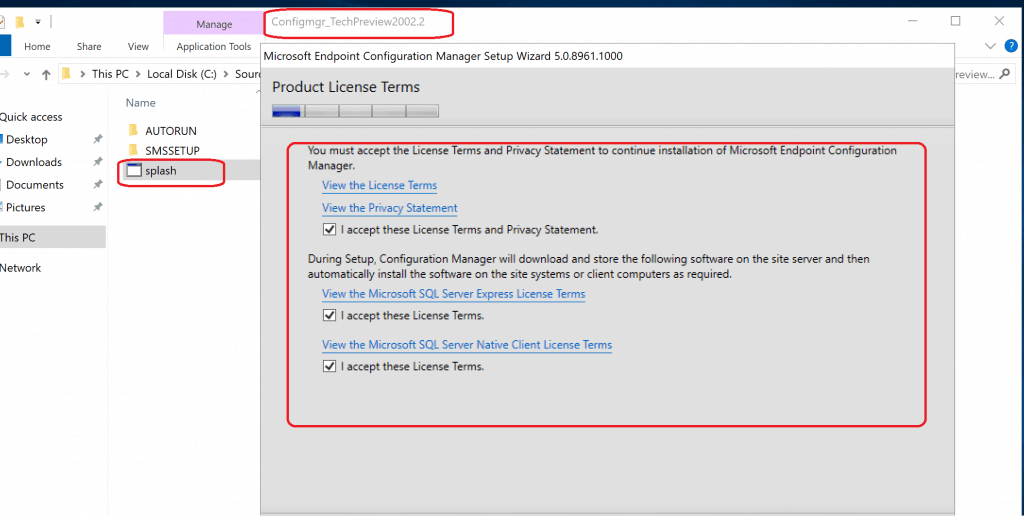
- ACCEPT product License Terms as you can see below
- Click NEXT
ACCEPT product License Terms as you can see below – Build Configuration Manager Technical Preview LAB
Prerequisite Files
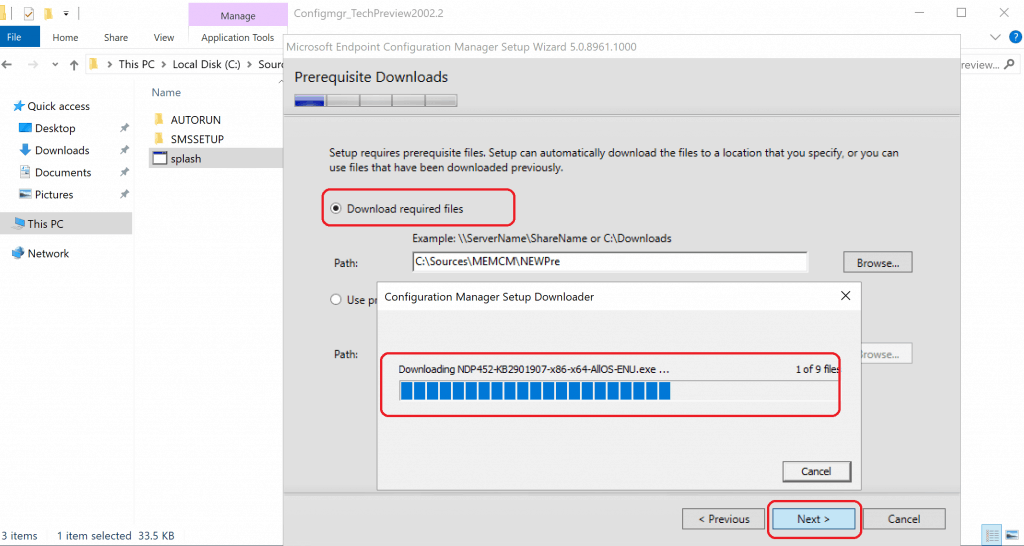
- Select the Prerequisite files options from the following page for the Technical Preview version of SCCM
- Download Required Files
- Use Previously Downloaded Files (Use this option when you don’t have internet access on the SCCM server)
- Click NEXT to continue
Language Selection
- Select the Server Language
- In my scenario, it’s ENGLISH
- Click on NEXT to continue
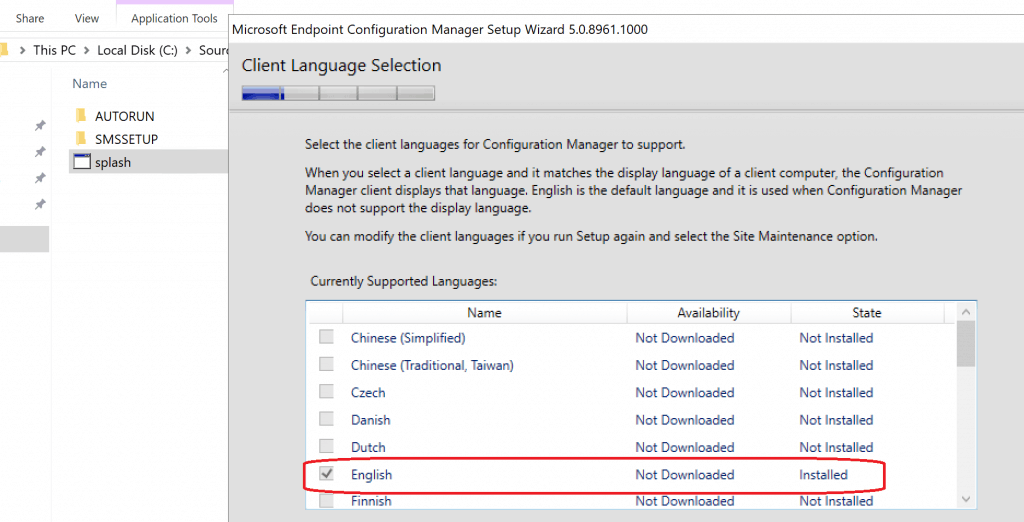
- Select the Client Language
- It’s ENGLISH for me
- Click NEXT to continue
Primary Server Site Details
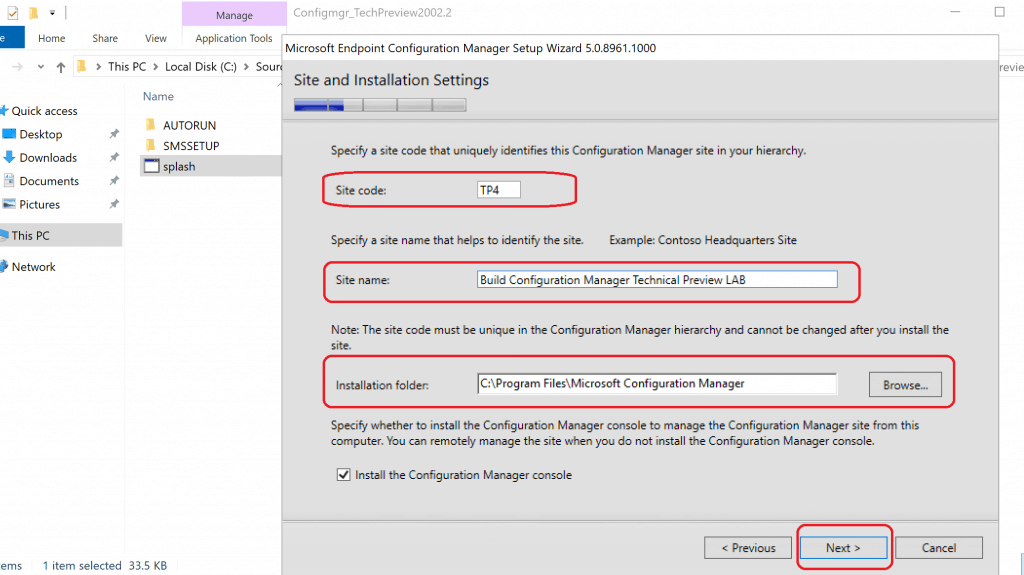
- In the Site and Installation Settings, you need to decide on the Site Code, Site Name, and Installation Folder before proceeding.
- Enter the Site Code (Any Combination of 3 three alphanumeric digits) = My site code name is TP4
- Don’t Use the following name as site code
- AUX, CON, NUL, PRN, and SMS
- Don’t Use the following name as site code
- Enter the Site Code (Any Combination of 3 three alphanumeric digits) = My site code name is TP4
- Enter the Site Name is the name that helps to identify the site
- Site Name Example – Build Configuration Manager Technical Preview LAB
- Select the Installation Folder – Specify the folder where you want to store SCCM Inbox and all the other folders
- DO NOT install SCCM on C:\ Drive for production setup
- Click on the Next button
SQL Configuration
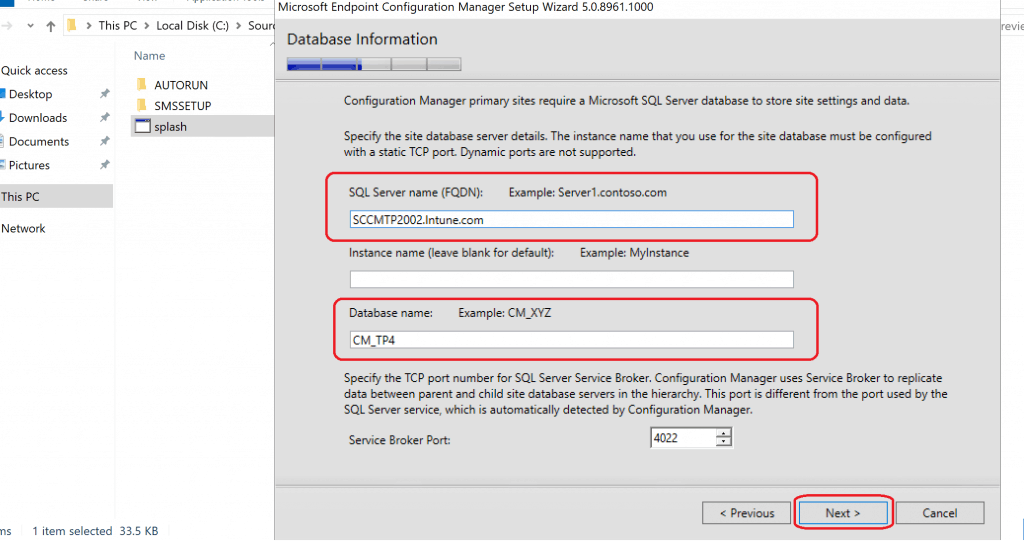
- Enter the SQL Database information on this page
- Enter the SQL Server Name (FQDN) => I’m using the same server as SQL Database server
- SCCMTP2002.Intune.com
- Enter Instance name – I left it blank because I’m using the default instance of SQL
- Database Name – The DB name shall automatically get populated based on your Site Code name
- CM_TP4
- Don’t change the Service Broker port (in 99% of the Primary server installations) = 4022
- Enter the SQL Server Name (FQDN) => I’m using the same server as SQL Database server
- Click on the NEXT button to continue
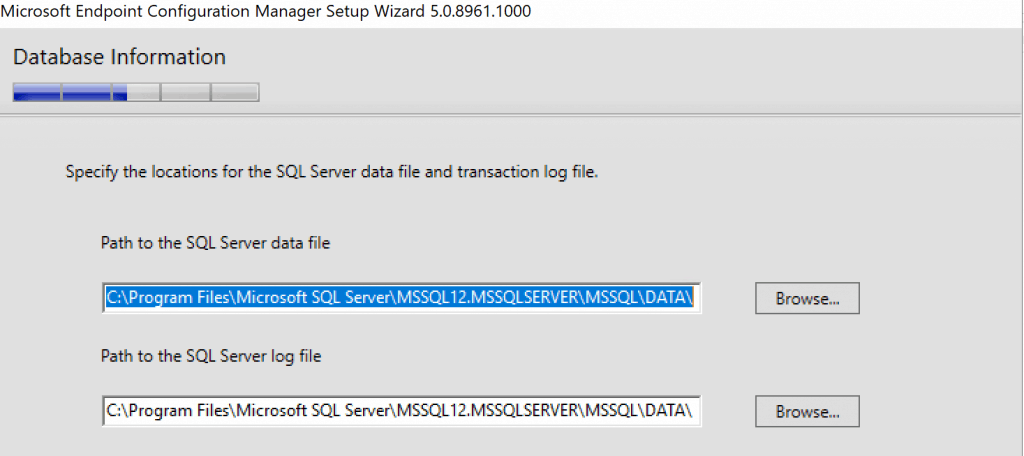
- Microsoft Endpoint Configuration Manager (MECM) technical preview 2002.2 populates locations for the SQL server data file and transaction log file locations
- Automatically populate log files
- Click the NEXT button to continue
SMS Provider
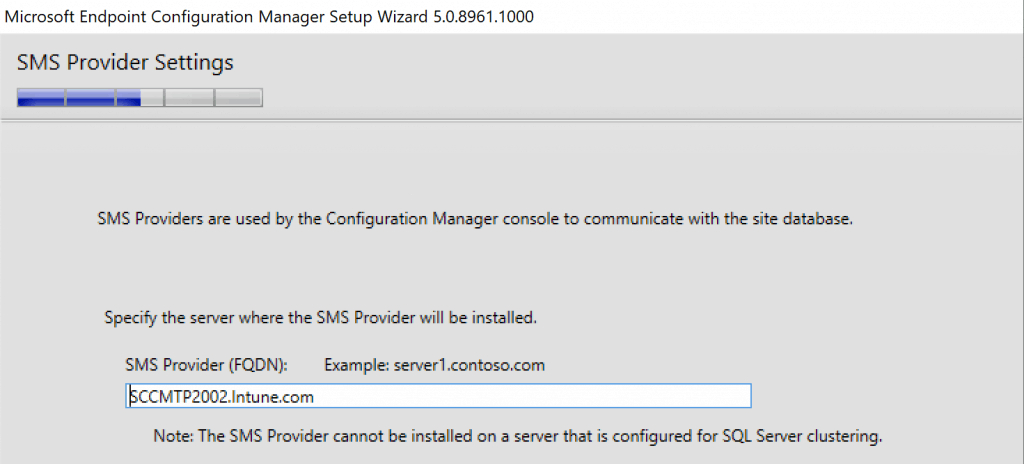
- You get an option to select SMS Provider Server for your SCCM Technical Preview LAB infra in this page
- SMS providers are used by the ConfigMgr console to communicate with the site database
- Click the NEXT button to continue to
NOTE! – You can have only a limited number of clients in ConfigMgr Technical Preview versions.
Client Communication
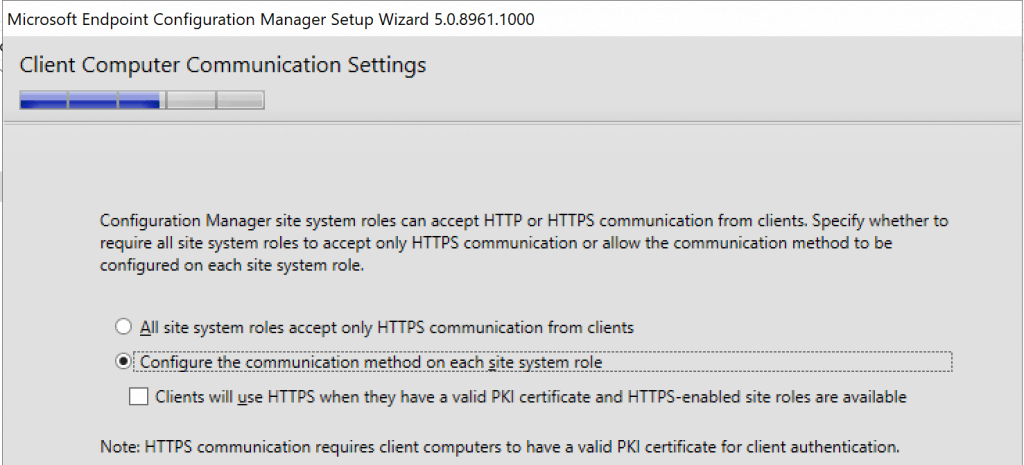
- Configure the communication method on each site system role
- HTTP (This is the one that I’m going to use for this installation process for the Technical Preview version of SCCM)
- Click on NEXT to continue
- Specify whether to have setup install Site System Roles
- Install a Management point – Install Management Point Role
- Install a Distribution Point – Install Distribution Point Role
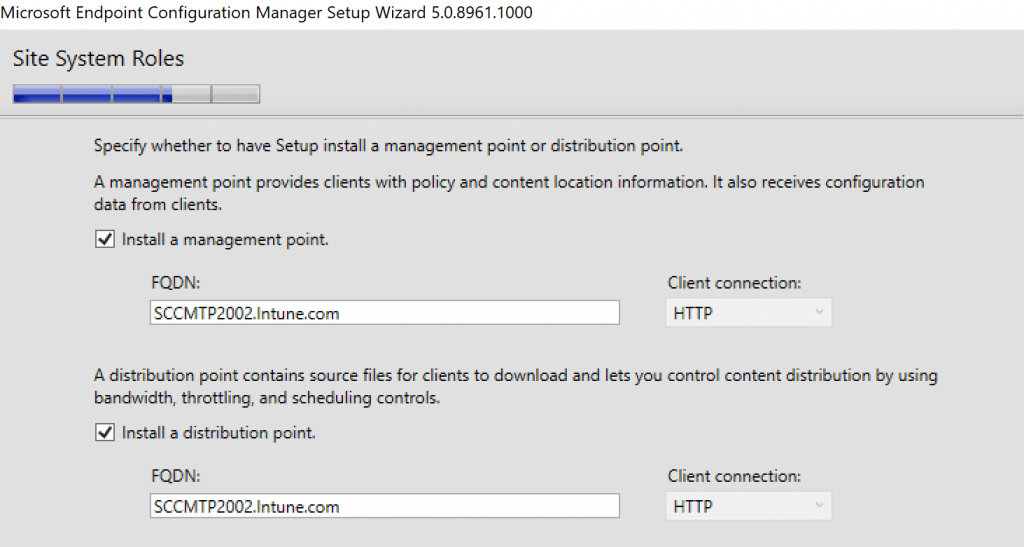
- Click on the NEXT button to continue from the Diagnostic and Usage Data page
- Select the Service connection Point server for your SCCM TP environment
- Click NEXT to continue
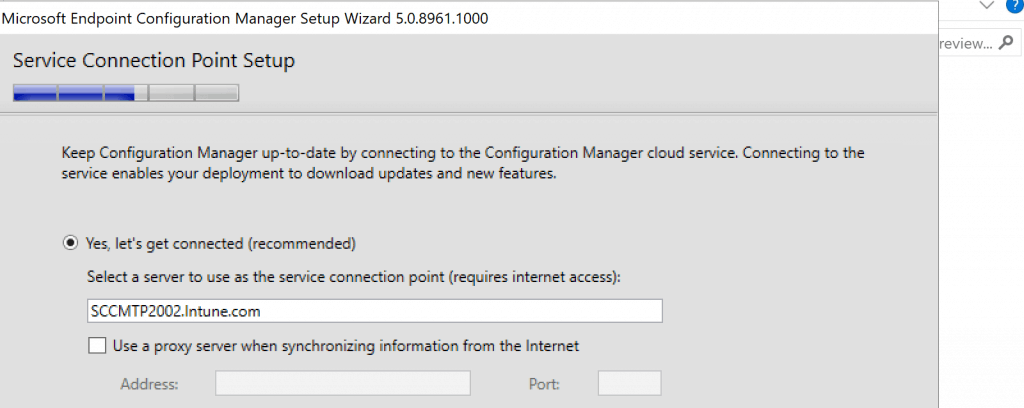
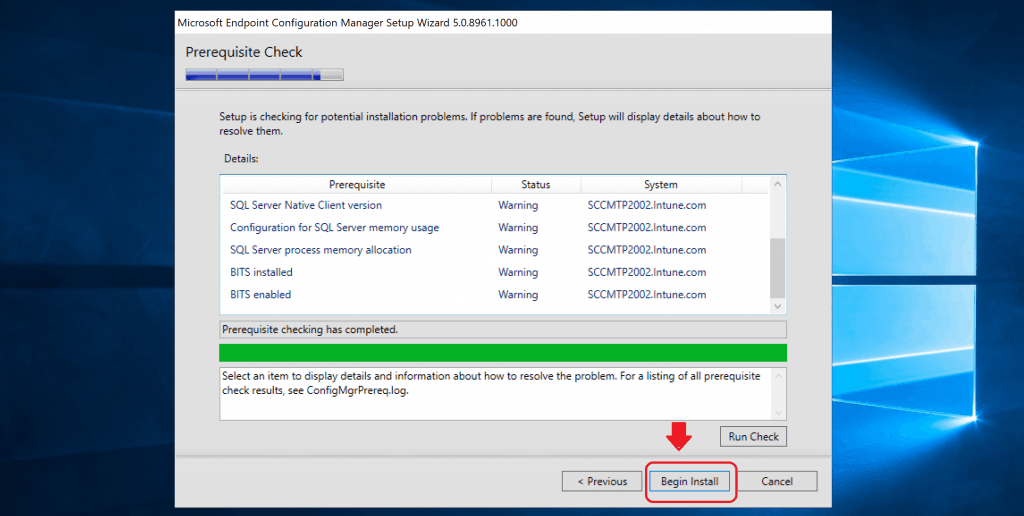
Prerequisites Checks
- Check and Confirm whether all the configurations are correct or not from the Setting Summary
- Click on NEXT to continue.
- Ignore all the warnings, for NOW, in this installation guide from Prerequisite Check & Install page
- Click on BEGIN INSTALL button to start the installation of ConfigMgr Technical Preview LAB primary server
Install Preview LAB
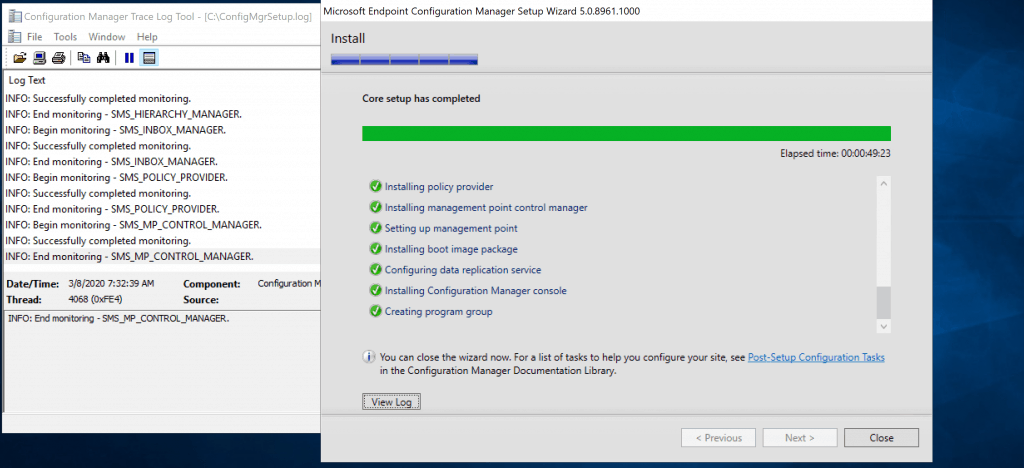
- Check the Progress bar of the ConfigMgr Preview version primary server and wait for it to complete
- Click on the VIEW Log button (ConfigMgrSetup.log) to open the log file to check the progress
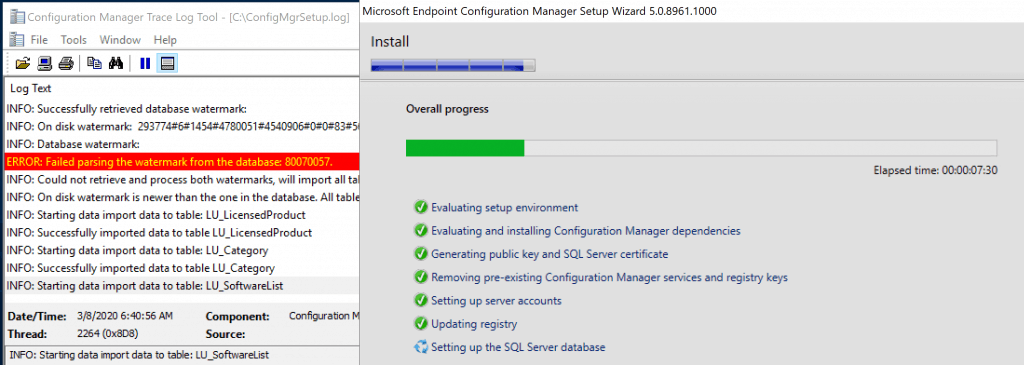
Results –Build Configuration Manager Technical Preview Lab
So this was the guide to Build Configuration Manager Technical Preview LAB setup. This setup is completed successfully now.
- Let’s launch Configuration Manager Console 2002.2
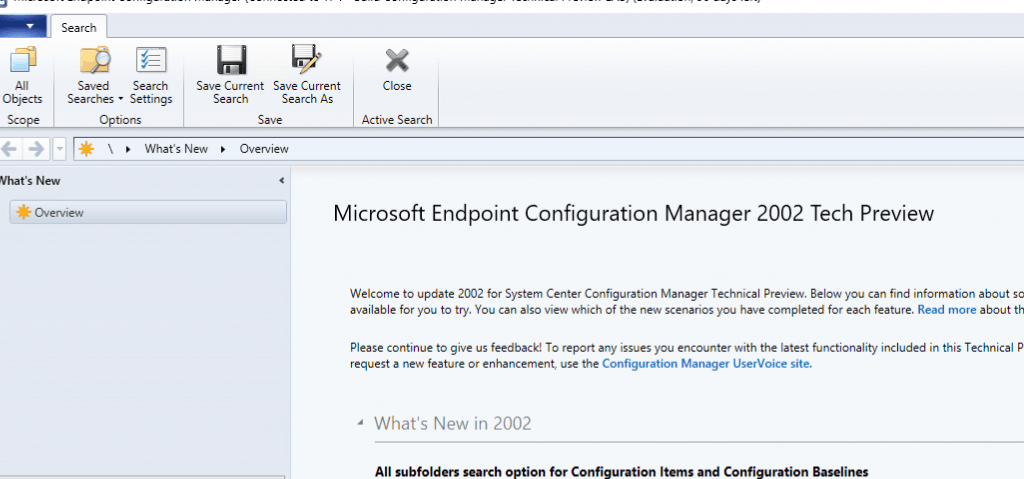
ConfigMgr Version Details
- Configuration Manager 2002.2 Console 5.2002.1052.100
- Configuration Manager 2002.2 Site Version 5.0
Resources
- Technical preview for Configuration Manager – https://docs.microsoft.com/en-us/configmgr/core/get-started/technical-preview
- ConfigMgr 2002 Technical Preview Console Startup Time
We are on WhatsApp. To get the latest step-by-step guides and news updates, Join our Channel. Click here –HTMD WhatsApp.
Author
Anoop C Nair is Microsoft MVP! He is a Device Management Admin with more than 20 years of experience (calculation done in 2021) in IT. He is a Blogger, Speaker, and Local User Group HTMD Community leader. His main focus is on Device Management technologies like SCCM 2012, Current Branch, and Intune. He writes about ConfigMgr, Windows 11, Windows 10, Azure AD, Microsoft Intune, Windows 365, AVD, etc.




Discussion