






How to Add Apps to Business Store and Install Intune Company Portal without Using MS Account
How do you add apps to the business store and install the Intune Company Portal without using an MS account? How do you add apps to the business store and install the Intune Company Portal without using an MS account?
When a Windows 10 device is AAD + MDM enrolled, as explained in the following blog here, users always face an odd situation where they must use their personal Microsoft account to install applications from the Windows store.
Users won’t prefer to log in to Windows Store using a personal account if it’s a company-owned device. When your MDM is Intune, the Intune company portal is one of the applications all company-owned devices should have.
Using Microsoft Store for Business can remove the dependency on using a personal account to log in to the Windows store. Sign up for Microsoft Store for Business from here and start using it.

Table of Contents
- How to Deploy Microsoft Store for Business Apps using Intune
- Add Microsoft Store Apps to Intune using Microsoft Graph API
- Intune LOB and Win32 Apps Together Co-Exist with New Windows Autopilot
- Best Guide to Enable WinSCP Win32 App Supersedence and Auto-Update with Intune
- Intune Google Chrome Deployment using Intune Line of Business Application
- How to Deploy Putty Windows Line-Of-Business app using Intune
- Windows Autopilot Self-deploying Mode is now Generally Available
How to Add Apps to Business Store and Install Intune Company Portal
There are two types of apps that you can add to a private store (Microsoft Store for Business). One is the applications already published in the Windows Store (this option is explained in this post), and the other option is to add LOB apps to the private store.
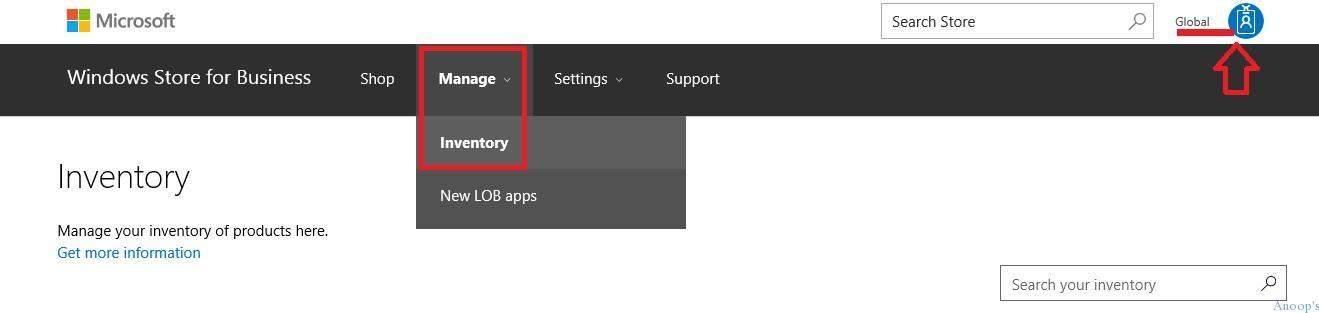
Select the Manage button from the Microsoft Store for Business and click on Inventory to view already published apps. As you can see in the screen capture below, there is an option to add new LOB apps to the Microsoft Store for Business (I’ve not tested this).
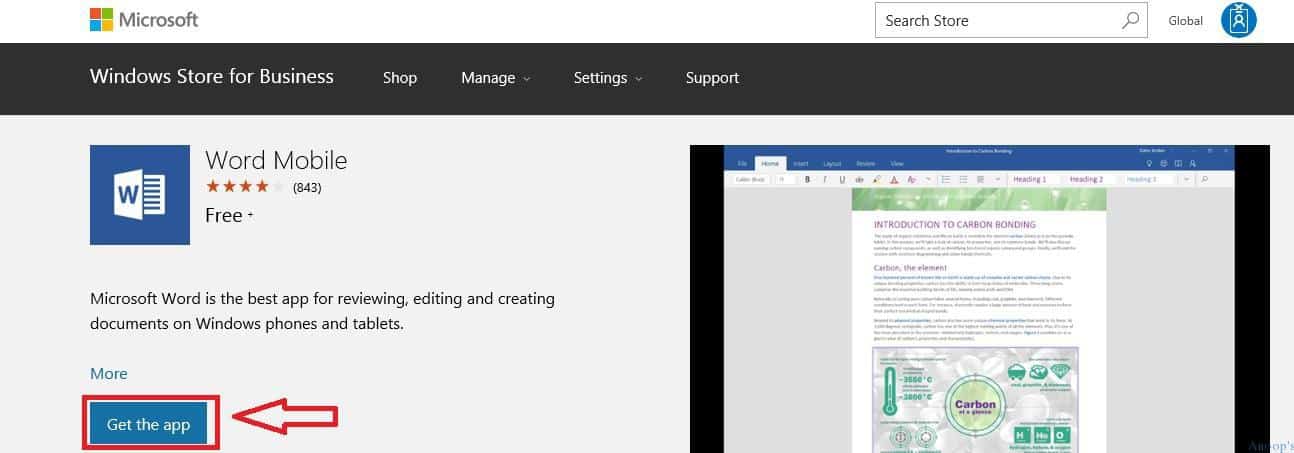
Search the Windows Store and select the application you want to deploy to the Microsoft Store for Business (private store). In this scenario, I selected the Word Mobile application. Click the Get the App button to add this application to the Microsoft Store for Business.
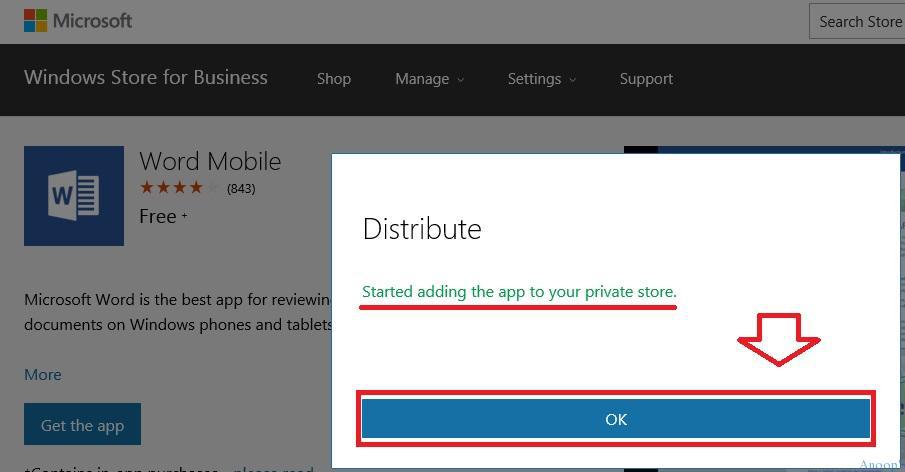
As mentioned in the above tab, you will get distribution options once you click the Get the App option. The next step explains more details about distribution. Click OK on the message. I started adding the app to your private store.
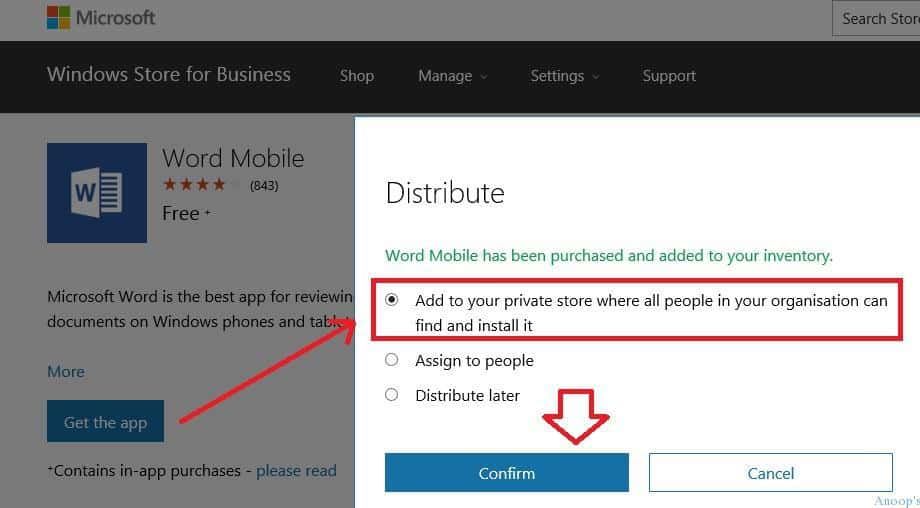
As mentioned above, the Windows store application can be distributed. I selected the first option, which will start distributing the Word Mobile application to the organization’s private store.
| Distribute |
|---|
| Add to your private store where all people in your organization can find and install it. |
| Assign to people (via email ID) |
| Distribute it later |
The Inventory tab inside Microsoft Store for Business will tell you which applications have already been published in the Business store. In my case, I had already published the Intune Company Portal and Outlook applications.
So you can see two applications already in the private store (Already in the private store means these applications are already present in the store for business). One application, Word Mobile, gives a status like “Add in Progress“.
Add-in progress means the process is initiated in the background to add an application to your Microsoft Store for Business. In my experience, it took more than 12 hours to publish an application in the Microsoft Store for Business.
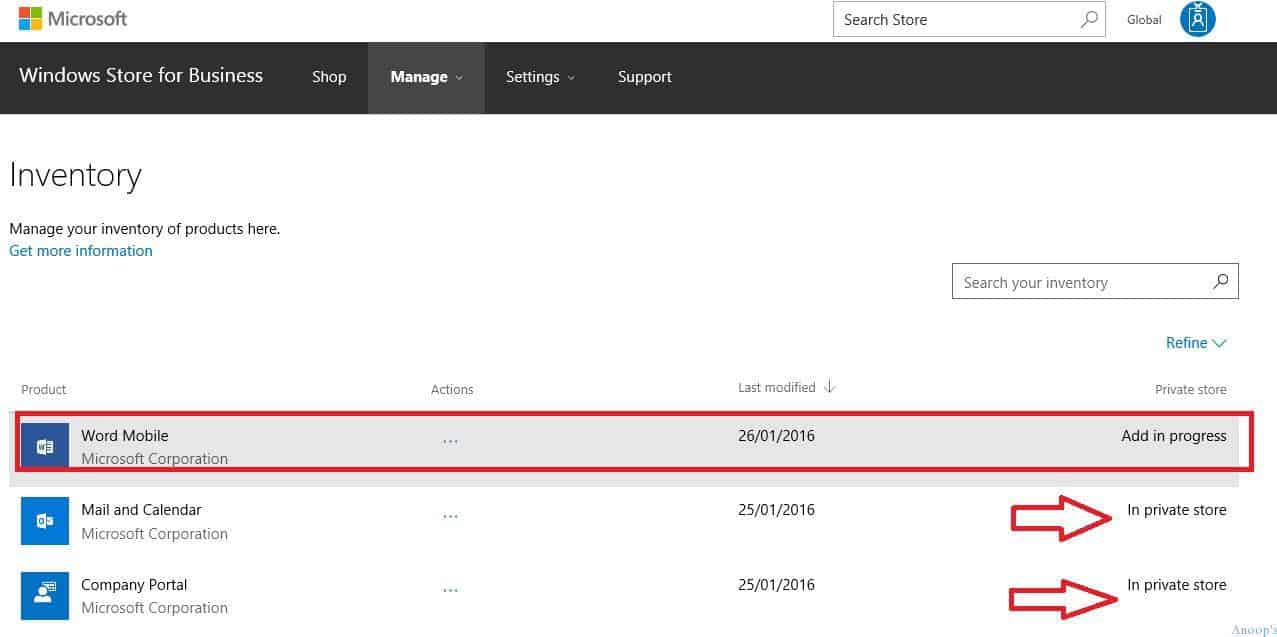
Once the application is added to the Microsoft Store for business, you can log in to Azure AD + MDM on your auto-enrolled Windows 10 device and launch the Windows Store to install private store apps.
You do not need to log in with Microsoft ID; instead, you can use corporate credentials (SSO) to access the Windows store. As you can see in the following screen capture, when you want to install an application not published in a private store, you need to log in with Microsoft credentials.
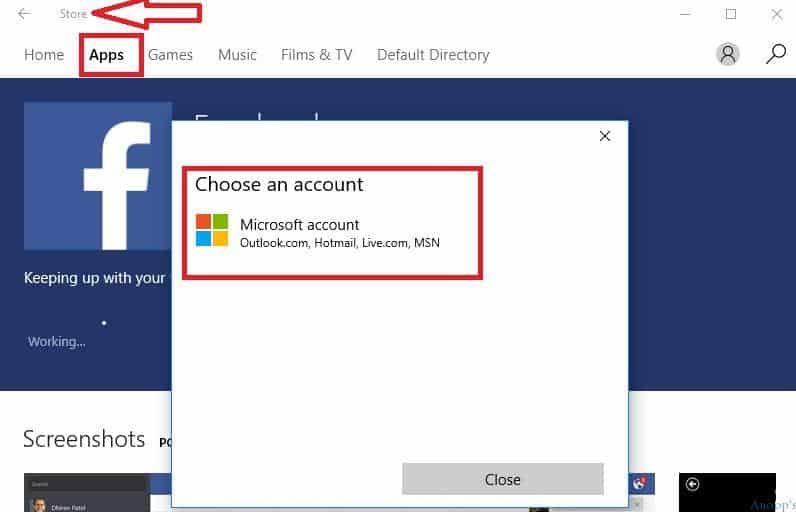
Default Directory is the name of your private store (Microsoft store for business). Default Directory is the tab where you can view and install applications from your private store (you can give custom names). I used the default directory in Azure AD, which is why this tab’s name is Default Directory.
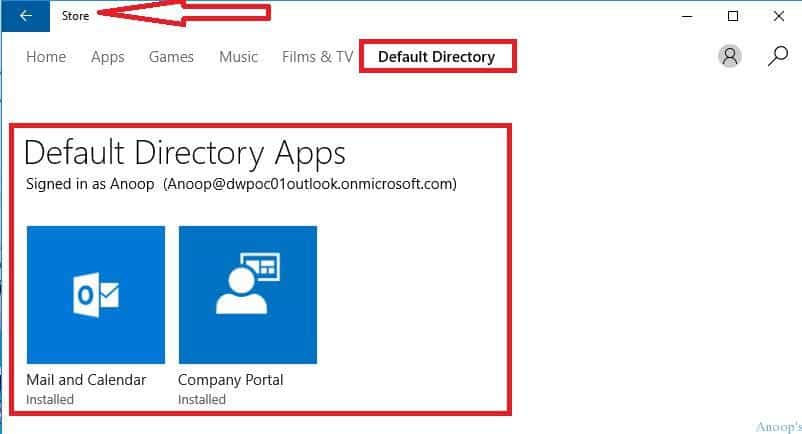
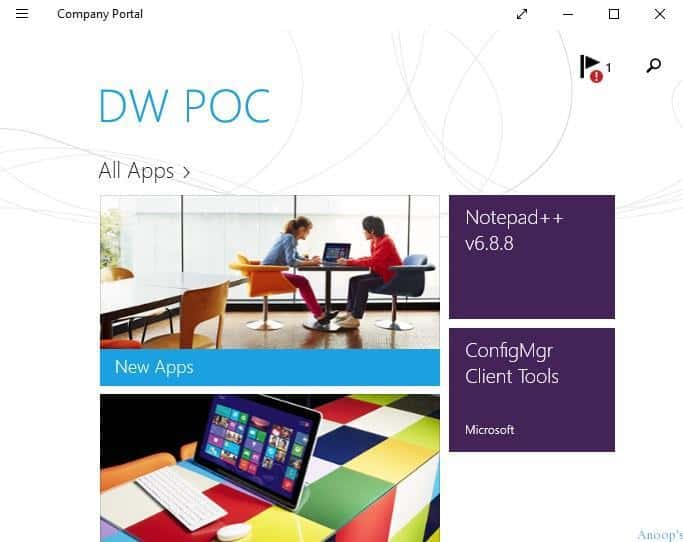
Successfully installed Company portal application from a Private Store named Default Directory.
Resources
SCCM Related Posts Real World Experiences Of SCCM Admins (anoopcnair.com)
SCCM Video Tutorials For IT Pros – HTMD Blog #2 (howtomanagedevices.com)
We are on WhatsApp now. To get the latest step-by-step guides, news, and updates, Join our Channel. Click here. HTMD WhatsApp.
Author
Anoop C Nair is Microsoft MVP! He is a Device Management Admin with more than 20 years of experience (calculation done in 2021) in IT. He is a Blogger, Speaker, and Local User Group HTMD Community leader. His main focus is on Device Management technologies like SCCM 2012, Current Branch, and Intune. He writes about ConfigMgr, Windows 11, Windows 10, Azure AD, Microsoft Intune, Windows 365, AVD, etc.


Discussion