Skip to content
Capture Network Trace for Troubleshooting in Microsoft Edge

Capture Network Trace for Troubleshooting in Microsoft Edge

Written By Gopika S Nair
Last Updated November 27, 2023
Posted In Windows 11
SHARE

Let’s learn how to collect Network trace for troubleshooting in Microsoft Edge. Browser trace is a meaningful way of capturing additional information to ask Microsoft Support when troubleshooting an issue.

Microsoft Edge is a proprietary cross-platform that provides several features for users. It is a supported browser for troubleshooting issues and a systematic approach to solving problems.

Many browsers support tools for capturing browser traces. This blog post explains using a Microsoft Edge browser trace for troubleshooting in the Azure portal. You can use the same methodology to check any other sites, and collect the details. Microsoft support uses these traces for troubleshooting purposes only.

Edge browser trace information helps users access essential details about what is happening in the portal when an issue occurs. Step recording and console output are the other factors that help obtain details about what is happening in the Azure Portal.

Patch My PC

Microsoft Edge Network Trace for Troubleshooting

Edge browser tracing for troubleshooting can be done on the site you browse. If you are exploring, for example, Intune or Azure Portal, Signing in before starting the trace is essential, which doesn’t contain sensitive information about your account. After that, you can start recording your steps in the portal using the Step Recorder.

Different Steps of Edge Browser Trace for Troubleshooting
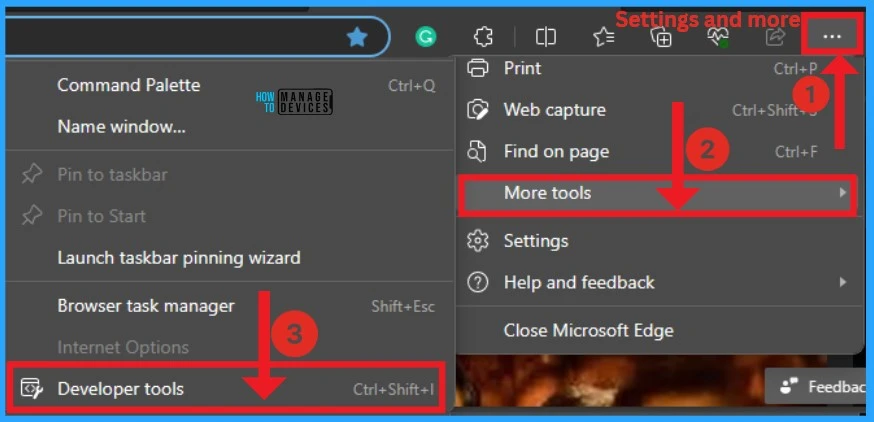
Press Ctrl+Shift+I to launch Microsoft Edge Dev tools. Dev Tool can also be found from the toolbar menu under More tool > Developer tools
Table 1 – Capture Browser Trace for Troubleshooting in Microsoft Edge
Capture Network Trace for Troubleshooting in Microsoft Edge Fig.1

After that, Select the Console tab, select Console settings, and then select Preserve Log. The browser only keeps trace information of the current loaded page by default. Select the Console tab, select Console settings, and then choose Log Preserve
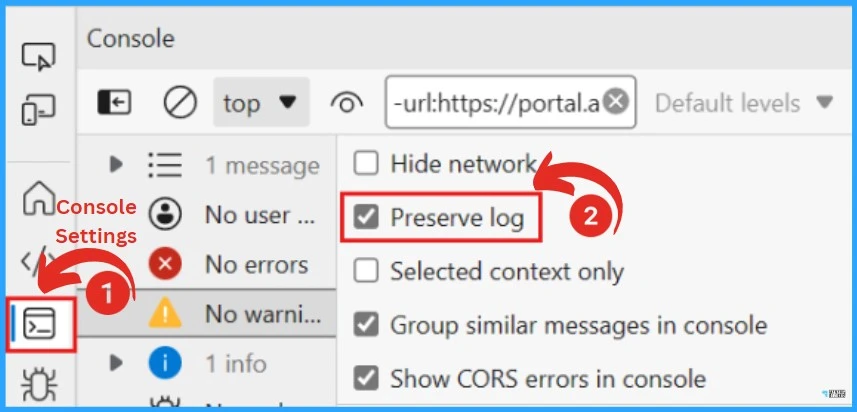
Capture Network Trace for Troubleshooting in Microsoft Edge Fig.2 Credit - Microsoft
Capture Network Trace for Troubleshooting in Microsoft Edge Fig.2 Credit – Microsoft

After that, select the Network tab on the left side of the window. If the Network tab isn’t visible, click the More tools (+) button and select Network. Then click on the Preserve log option from the Network tab.
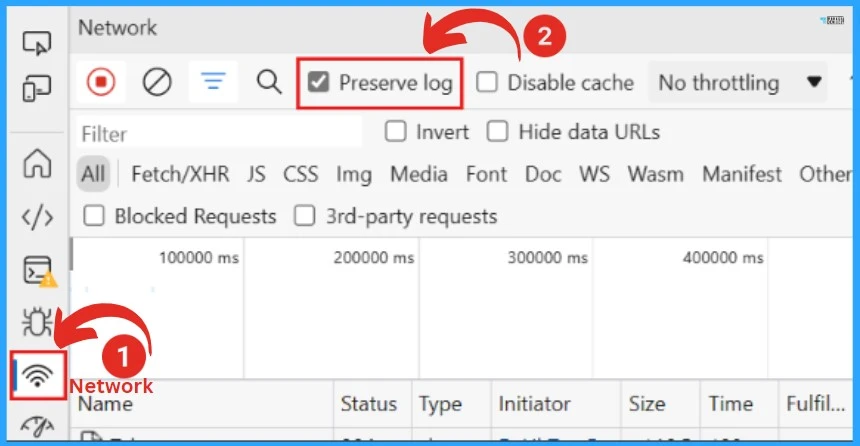
Capture Network Trace for Troubleshooting in Microsoft Edge Fig.3 Credit - Microsoft
Capture Network Trace for Troubleshooting in Microsoft Edge Fig.3 Credit – Microsoft

You can quickly stop recording the Network tab. Click the Stop recording option and clear. Check the screenshot below.
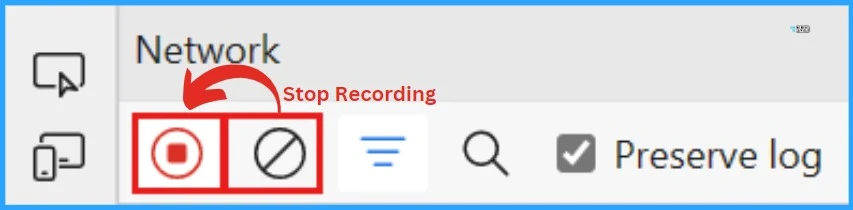
Capture Network Trace for Troubleshooting in Microsoft Edge Fig.4 Credit - Microsoft
Capture Network Trace for Troubleshooting in Microsoft Edge Fig.4 Credit – Microsoft

After that, select the Record network log and reproduce the issue in the portal. The screenshot below will guide you.
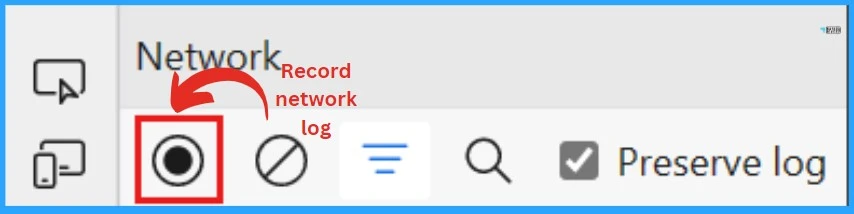
Capture Network Trace for Troubleshooting in Microsoft Edge Fig.5 Credit - Microsoft
Capture Network Trace for Troubleshooting in Microsoft Edge Fig.5 Credit – Microsoft

The screenshot below shows the session output. It shows the name, status, type, initiator, size, time, fulfilment, and waterfall. You will get a similar session output.
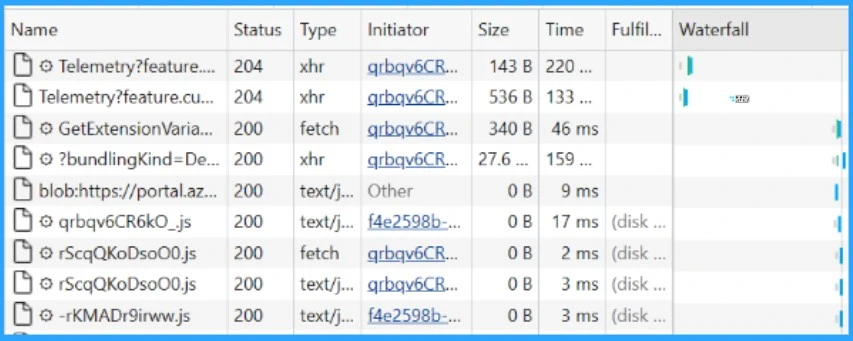
Capture Browser Trace for Troubleshooting in Microsoft Edge - Fig.6 - Credits to MS
Capture Network Trace for Troubleshooting in Microsoft Edge Fig.6 Credit – Microsoft

Select the Stop recording network log after you have reproduced unexpected portal behaviour. Then select Export HAR and save the file.

Capture Browser Trace for Troubleshooting in Microsoft Edge - Fig.7 - Credits to MS
Capture Network Trace for Troubleshooting in Microsoft Edge Fig.7 Credit – Microsoft

After that, stop the Steps Recorder and save the recording. Then, select the Console tab in the Edge browser developer tools pane. Right-click one of the messages, select Save and keep the console output to a text file.
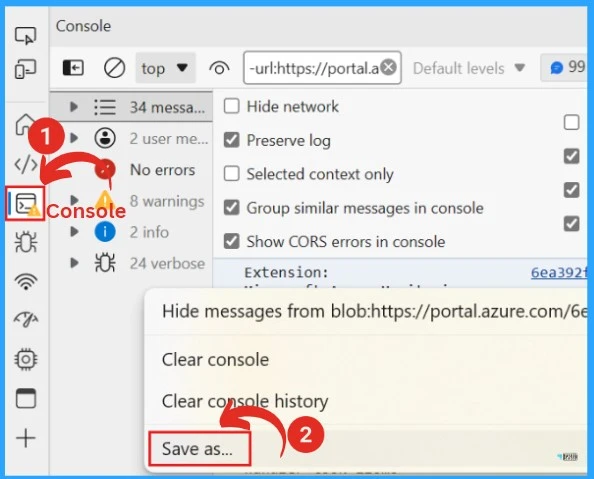
Capture Browser Trace for Troubleshooting in Microsoft Edge - Fig.8 - Credits to MS
Capture Network Trace for Troubleshooting in Microsoft Edge Fig.8 Credit – Microsoft

Note:– You can pack the browser trace HAR file, Console output and screen recording file in a compressed format such as .zip and share it with Microsoft Support

Reference

Capture a browser trace for troubleshooting

We are on WhatsApp. To get the latest step-by-step guides and news updates, Join our Channel. Click here for HTMD WhatsApp.

Author

Gopika S Nair is a computer enthusiast. She loves writing on Windows 11 and related technologies. She is here to share quick tips and tricks with Windows 11 or Windows 10 users. She is Post Graduate Diploma Holder in Computer Science.


Written by

Gopika S Nair is a computer enthusiast. She loves writing on Windows 11 and related technologies. She is here to share quick tips and tricks with Windows 11 or Windows 10 users. She is Post Graduate Diploma Holder in Computers Science.

Discussion

Join the discussion

Your email address will not be published. Required fields are marked *

Related guides

Security

Microsoft Fixes 570 Security Vulnerabilities and 3 Zero-Day Vulnerabilities in July 2026 Patch Tuesday

Key Takeaways Microsoft Fixes 570 Security Vulnerabilities and 3 Zero-Day Vulnerabilities in July 2026 Patch Tuesday! Microsoft fixed 3 zero-day vulnerabilities as part of the July 2026 Patch Tuesday updates. Two of them, CVE-2026-56164 (Microsoft SharePoint Server Elevation of Privilege) and CVE-2026-56155 (Active Directory Federation Services Elevation of Privilege), were actively exploited before the security […]

AC Anoop C Nair 29 min read
Intune

Windows 11 KB5101650 KB5099414 July 2026 Patch and 3 Zero Day Vulnerabilities and 570 Flaws

Key Takeaways Windows 11 KB5101650 KB5099414 July 2026 Patch and 3 Zero Day Vulnerabilities and 570 Flaws! In the July 2026 Patch, Microsoft introduced new features designed to improve the overall Windows experience. The update adds enhancements to Windows Update for more flexible update management and introduces Point-in-Time Restore, providing an additional recovery option for […]

AC Anoop C Nair 9 min read
Windows 11

Boost Productivity with Zoom Workplace on Windows 11 | Setup Guide for Meetings Chat Calls and Collaboration

Key Takeaways Hey, let’s learn about Boost Productivity with Zoom Workplace on Windows 11 | Setup Guide for Meetings Chat Calls and Collaboration. Zoom workplace is an AI-powered collaboration app used for online meetings, team collaboration, and video calls. This application helps to conduct meetings Including chat and messaging, screen sharing and Calendar Integration. Boost […]

AC Anoop C Nair 35 min read
Windows 11

13 Windows AI Features to Turn Off for Better Privacy

Key takeaways Hey, let’s discuss about 13 Windows AI features to turn off for better privacy. AI is widely used in modern systems such as Windows 11 to automate tasks, improve productivity, and enhance user experience. However, AI also has several disadvantages. It may raise privacy concerns because personal data can be collected and analysed […]

AC Anoop C Nair 15 min read