






How to Check Character Count in the Notepad App in Windows 11
Hello, Today, I will teach you how to Check Character Count in the Notepad App in Windows 11. Notepad is a fast and simple text editor for Windows applications. It allows users to view, edit, and search plain text documents. Notepad exclusively treats text as plain text and supports some formatting tools.
Notepad is available for download in the Windows 10 and 11 Microsoft Store. On March 21, 2024, Windows 11 was updated by adding a spell check and autocorrect feature. This update aims to improve the user experience by providing essential writing assistance within the Notepad application for Windows 11 users.
We have many informative articles related to Notepad. These articles focus on the newest features of Notepad in Windows 11 and take you through the exciting feature set of Notepad++ for advanced text editing and coding tasks.
Windows 11 continually introduces new application features. Notepad recently underwent some changes and improvements. In this post, I will cover how to check the number of characters in a text that you have saved in Notepad.

Table of Contents
Character Count in the Notepad App
In Notepad version 11.2311.29.0 for Windows 11 Insiders in the Canary and Dev Channels, and Notepad version 11.2311.33.0 in the Beta Channel, a new feature has been added. You can now see the character count of your document in the status bar.
| Notepad versions | Windows 11 Insiders |
|---|---|
| 11.2311.29.0 | Canary and Dev Channels |
| 11.2311.33.0 | Beta Channel |
- New Notepad Auto Save Option for Windows 11
- Customize Alt + Tab Keys Behavior To Show The Number Of App Tabs Such As Notepad Edge Chrome Browsers
- How to Enable Dark Mode Notepad in Windows 11 10 PCS
How to Check Character Count
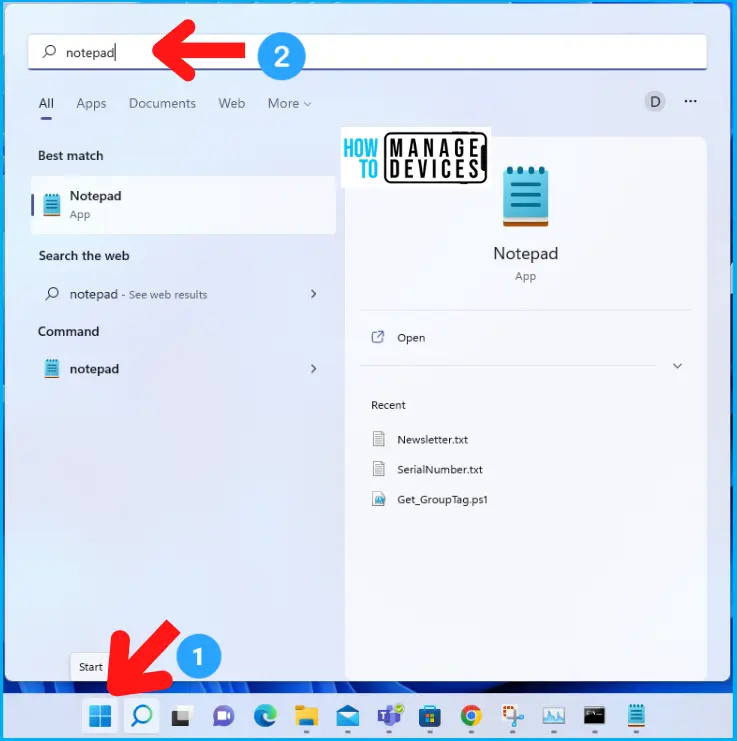
Let’s check how we can check the character length of the text in Notepad. First, we should open Notepad. To do so, click Start and then search Notepad.
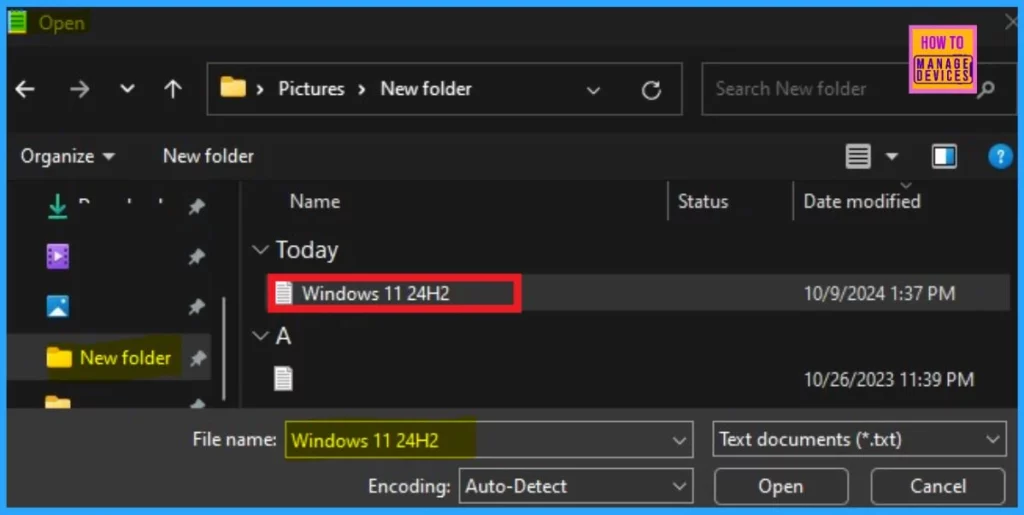
You can open a document from File. For example, I am taking a Windows 1124H2 file for your reference.
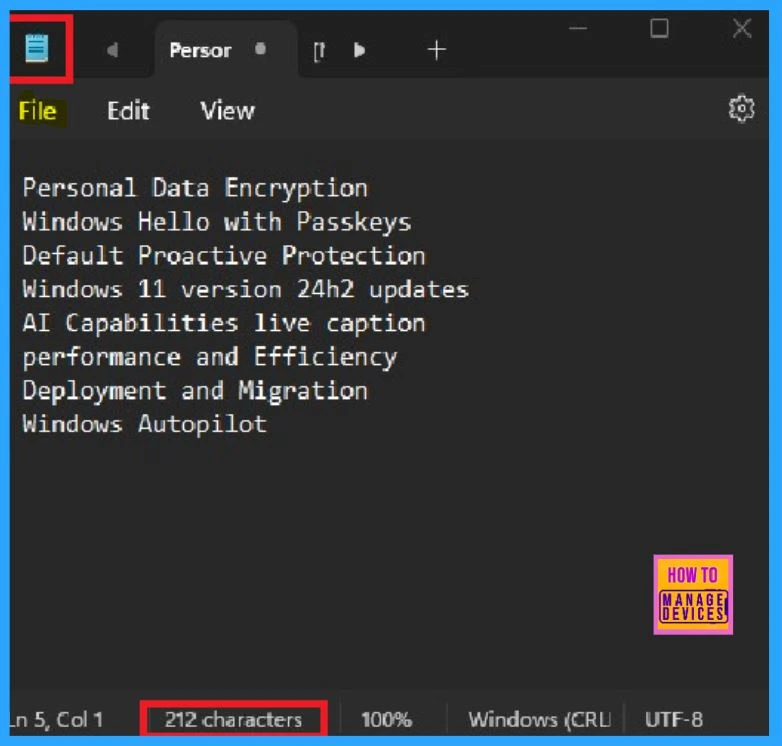
When the document is selected, the status bar, situated at the bottom of the Notepad interface, shows the character count for the selected text and the whole document. Here, it is 32 out of 212 characters.
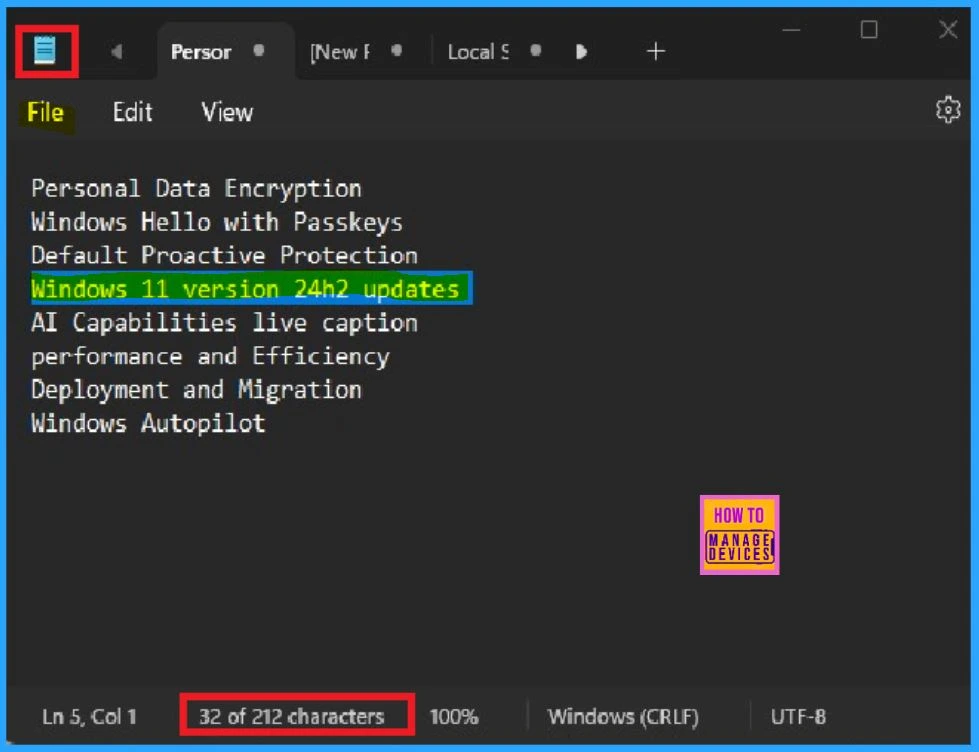
If you have not selected a particular word or text, the character count for the entire document will automatically display. In this context, it is 212 characters.
Microsoft is continuously updating the Notepad app for Windows 11 users. Notepad now has a character count tool, which is explained in this post, dark mode for better visibility, tabbed windows for easier document management, and integration with Microsoft Copilot. It also includes a virtual fidget spinner for a fun touch. Let’s wait for the new updates in Windows 11 Notepad.
Join the LinkedIn Page and Telegram group to get the latest step-by-step guides and news updates. Join our Meetup Page to participate in User group meetings. Also, Join the WhatsApp Community to get the latest news on Microsoft Technologies. We are there on Reddit as well.
Author
Anoop C Nair has been Microsoft MVP for 10 consecutive years from 2015 onwards. He is a Workplace Solution Architect with more than 22+ years of experience in Workplace technologies. He is a Blogger, Speaker, and Local User Group Community leader. His primary focus is on Device Management technologies like SCCM and Intune. He writes about technologies like Intune, SCCM, Windows, Cloud PC, Windows, Entra, Microsoft Security, Career, etc.




Discussion