






Check Firewall Port is Open or Block on Windows 11 using PowerShell Command
Check Firewall Port is Open or Block on Windows 11 PC using PowerShell Command. Let’s understand how to check firewall port connectivity from Windows 11 PC.
There are different types of firewalls (2 of them are explained in this post) here with this topic of Windows 11 Firewall. Let’s try to identify and Fix application connectivity issues using the following steps.
More than one Windows firewall application can be installed on Windows 11 PCs. However, you also have firewall appliances placed between your server infrastructure in Data Center and Windows endpoint devices such as Windows 11 laptops.
Both the firewall settings come into the picture when you have a connectivity issue for the client-server application. So, it’s better to start troubleshooting from a firewall application installed on Windows 11.

Checking the Firewall ports connectivity with PowerShell command or Windows Terminal is the best option for Windows 11 PCs. I will be using the Test-NetConnection PS command to display diagnostic information for a connection.
Defender Windows 11 Firewall Application
I normally don’t recommend using any 3rd party antivirus and firewall applications for Windows 10 and Windows 11 home computers. Microsoft has its Antivirus, Anti-malware, and Firewall application called Microsoft Defender installed on all the Windows 11 and Windows 10 PCs.
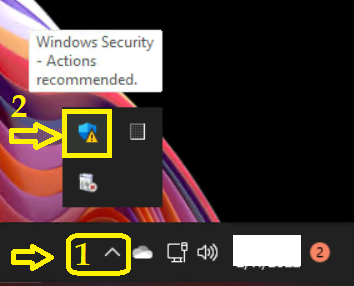
You can launch the Microsoft Defender application configuration from Windows 11 Taskbar, as shown below. Click on the Blue icon to launch Microsoft Defender, Windows 11, Security settings.
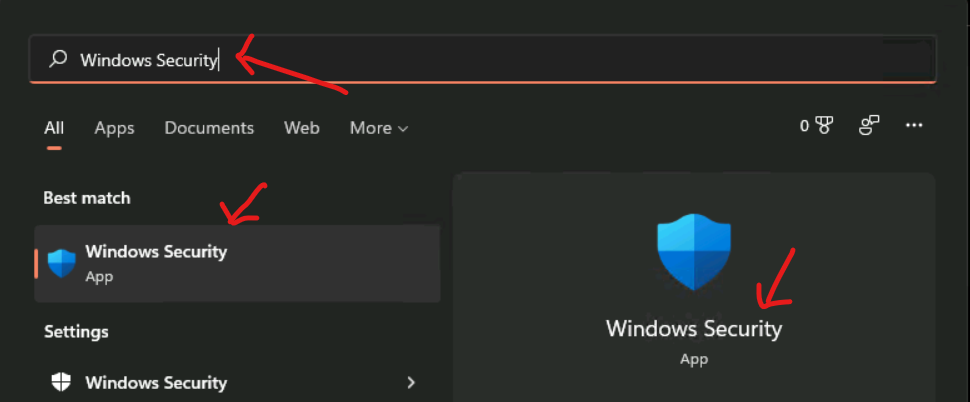
The Windows Security settings app can be launched from the Search option from the Start menu. Search with Windows Security and open the Windows Security app. This app is by default installed on all Windows 11 PCs.
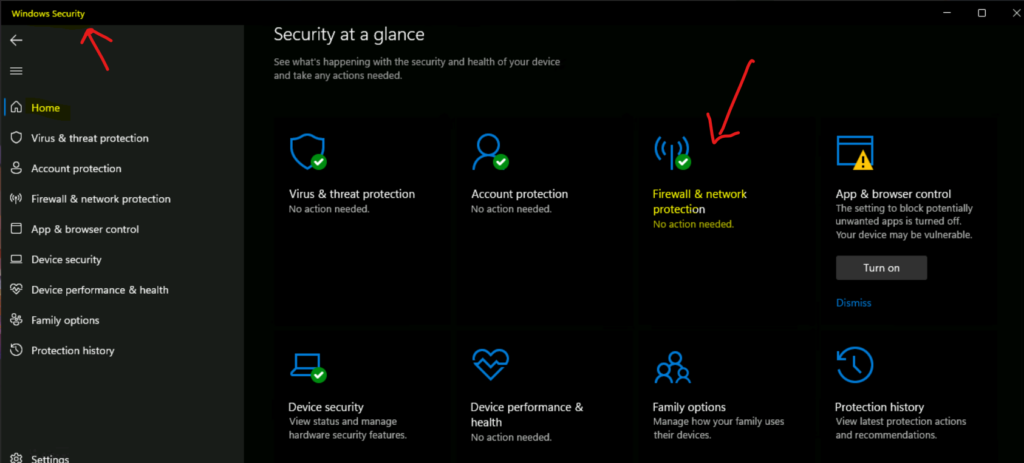
As you can see below, Firewall & Network Protection is enabled as an out of the box setting. Suppose you are looking at a Windows 11 PC of an organization, and you can see this enabled. In that case, the firewall component is managed by some other third-party applications such as Symantec or McAfee EPO.
How to Check and Identify Firewall Application Enabled on Windows 11?
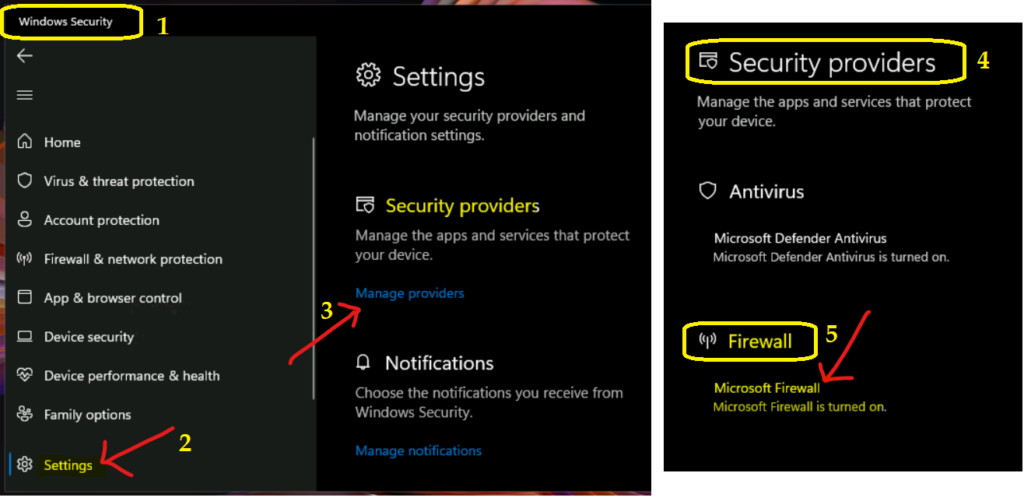
How to check and identify the application providing firewall service on Windows 11 PCs? Can you identify the Firewall Application Enabled on Windows 11 using the following method? You can check this from the same Windows Security app discussed in the above section.
- Open Windows Security App – Click on Settings.
- You can manage Security providers on Windows 11 PC.
- Click on Manage Providers link.
Under the Firewall section on the Security Provider page, you can see the Microsoft Firewall application manages the Firewall settings, and that is nothing but Microsoft Defender.
The following sections will have further troubleshooting options to Check Firewall Port is Open or Block on Windows 11 using PowerShell Command.
Test Ping and DNS Connectivity with Test-NetConnection PowerShell Command
You can now test the Ping and DNS Connectivity with Test-NetConnection PowerShell Command. You can use the Test-NetConnection PowerShell command to test connectivity and DNS (name resolution) between server and client. You can launch the Windows Terminal and type the following command to test whether internet connectivity is there or not.
Test-NetConnection bbc.com
I tried to reach BBC.COM with the Test-NetConnection PS command, which indicates the Firewall configurations, internet connection, DNS, Server IP, etc., on Windows 11 PC. And most of the time, the PING/ICMP is disabled on the server-side because of security reasons.
In the following scenario, the Windows 11 Firewall application (Microsoft Defender) is not blocking any communication between BBC and the client device. This is the first step to check whether the Firewall Port Open or Block on Windows 11 using PowerShell Command
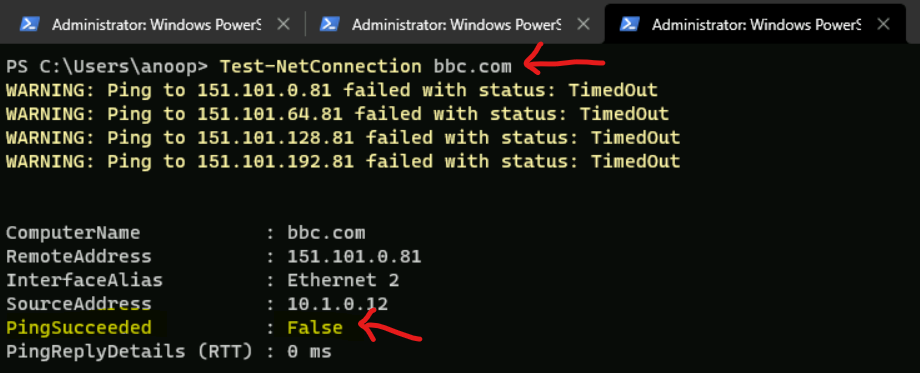
The Test-NetConnection PowerShell command without any parameter works just like the PING command. This will help get the following details Computer Name, Remote Address, Network Interface details, Source IP, Ping Succeeded or failed status, Ping Reply Details (RTT).
NOTE! – Most of the time, PING/ICMP is disabled between client devices and servers.
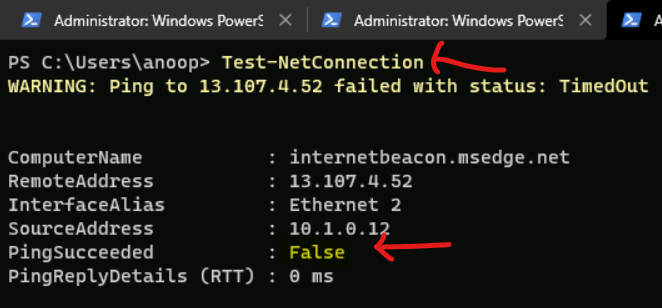
Normally you will need to provide the destination address to check whether ICMP or PING is enabled between servers and Windows 11 client devices. The following is the example of Test-NetConnection from an Azure VM (Windows 11).
- ComputerName : internetbeacon.msedge.net
- RemoteAddress : 13.107.4.52
- InterfaceAlias : Ethernet 2
- SourceAddress : 10.1.0.12
- PingSucceeded : False
- PingReplyDetails (RTT) : 0 ms
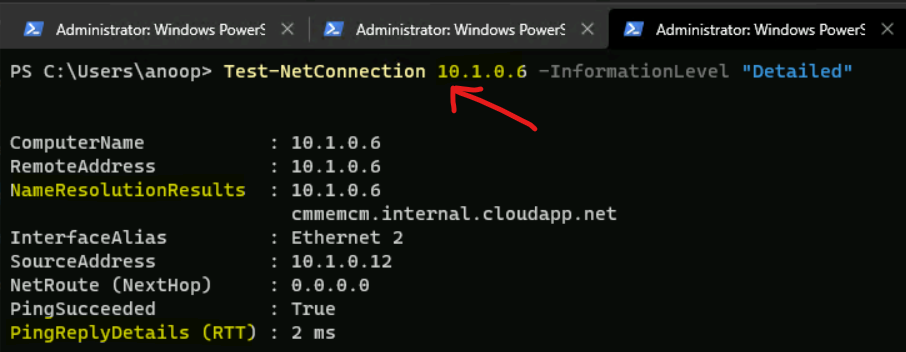
More detailed ping results will be available if you use the following parameters of the Test-NetConnection PS command. With InformationLevel and Detailed parameters, you can get more Name Resolution Results, etc.
Test-NetConnection 10.1.0.6 -InformationLevel “Detailed”
- ComputerName : 10.1.0.6
- RemoteAddress : 10.1.0.6
- NameResolutionResults : 10.1.0.6
- cmmemcm.internal.cloudapp.net
- InterfaceAlias : Ethernet 2
- SourceAddress : 10.1.0.12
- NetRoute (NextHop) : 0.0.0.0
- PingSucceeded : True
- PingReplyDetails (RTT) : 2 ms
Check Firewall Port is Open or Block on Windows 11 using PowerShell Command
The Test-NetConnection is one of my favorites to find the connectivity between server and client apps. You can easily check the firewall ports connectivity between Windows 11 PC and servers using PowerShell Command.
The Test-NetConnection command is part of the PowerShell module NetTCPIP. This module is loaded on all the Windows 11 PCs by default.
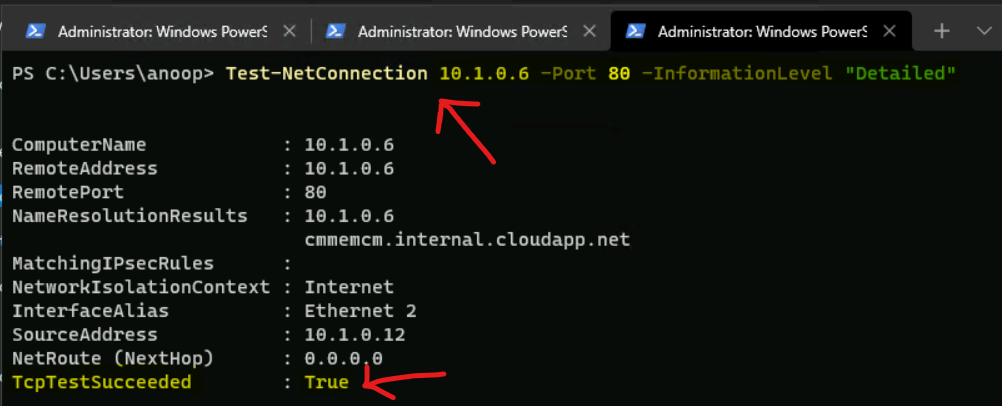
I used the following command to get the TCP firewall port connectivity details and understand whether the firewall port is opened between the remote server (10.1.0.6) and the Windows 11 client on port 80.
Test-NetConnection 10.1.0.6 -Port 80 -InformationLevel “Detailed”
You can check the below details to identify whether the TCP port 80 is opened between the remote server 10.1.0.6 and Windows 11 Client. The key components of the result are TcpTestSucceeded and NetToute.
The TCP Test Succeeded value should be True to confirm the TCP connection between remote server and client is successful. The UDP ports connectivity testing is not supported with this command line.
- Computer Name : 10.1.0.6
- RemoteAddress : 10.1.0.6
- RemotePort : 80
- NameResolutionResults : 10.1.0.6
- cmmemcm.internal.cloudapp.net
- MatchingIPsecRules :
- NetworkIsolationContext : Internet
- InterfaceAlias : Ethernet 2
- SourceAddress : 10.1.0.12
- NetRoute (NextHop) : 0.0.0.0
- TcpTestSucceeded : True
Firewall Port Connectivity Troubleshooting with Route Diagnostics
You can perform route diagnostics to connect to a remote server from Windows 11 client using the Test-NetConnection command line. This is helpful to understand routing details from client to server. These types of information are useful for advanced network troubleshooting.
Related Post – Network Trace Examples Microsoft RPC Remote Procedure Call
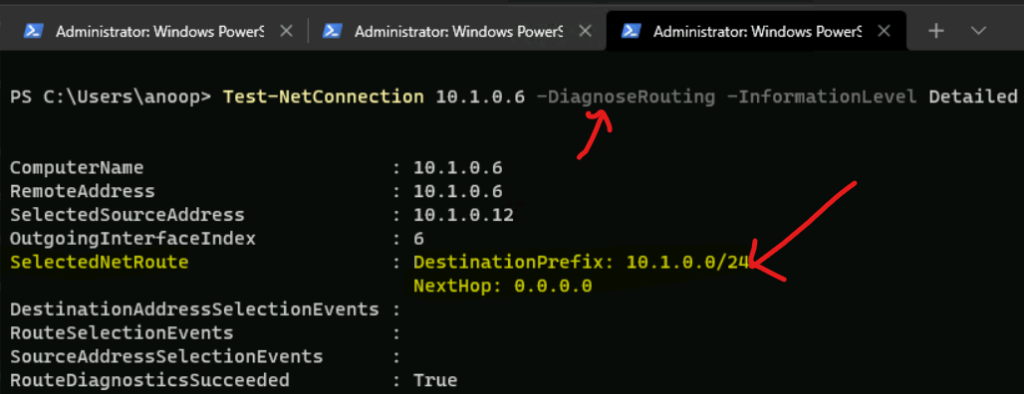
I used the following command to check the network route diagnostics between the remote server and Windows 11 client devices.
Test-NetConnection 10.1.0.6 -DiagnoseRouting -InformationLevel Detailed
RouteDiagnosticsSucceeded: True value gives you the confidence that network routing between remote server and Windows device is perfectly fine.
- ComputerName : 10.1.0.6 RemoteAddress : 10.1.0.6
- SelectedSourceAddress : 10.1.0.12
- OutgoingInterfaceIndex : 6
- SelectedNetRoute : DestinationPrefix: 10.1.0.0/24
- NextHop: 0.0.0.0
- DestinationAddressSelectionEvents :
- RouteSelectionEvents :
- SourceAddressSelectionEvents :
- RouteDiagnosticsSucceeded : True
Troubleshoot Network Connectivity Issues on Windows 11
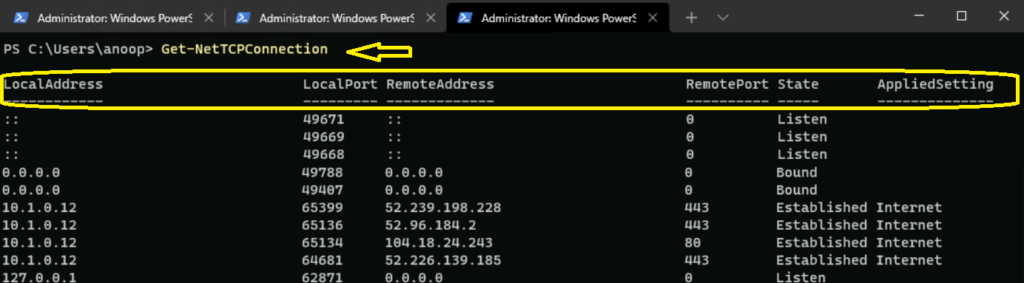
The entire blog post is intended to help with Troubleshooting Network Connectivity Issues on Windows 11. I see Netstat, Get-NetUDPEndpoint, and Get-NetTCPConnection commands are here to check and identify network-related issues. This helps to check what ports are open or blocked on Windows 11 PCs.
Network Connectivity Troubleshooting on Windows 11 using NetStat -ano commands from CMD; however, I would prefer to use PowerShell Commands such as Get-NetTCPConnection, Get-NetUDPEndpoint, etc.
You will need to use the Portqry.exe application to check whether the firewall port is open or blocked for the UDP port. The State is the important column in the results to understand whether the port is blocked or open.
There are four different states available for Windows 11 when using the Get-NetTCPConnection PowerShell command.
- Listen – Shows the ports that are waiting to send an answer whenever a client – server program requests.
- Bound – Show the ports that have transitioned out of time wait.
- Established Internet – Show the posts that Established the connection to the internet.
- Established – Show the ports that Established the connection without going to internet.
Conclusion – Identify and Fix application connectivity issues
In this post, I tried to help you identify and Fix application connectivity issues on Windows 11 Device. First, we have checked the details of the Firewall application, and then we started checking the network connectivity between the remote server and Windows 11 client using the PowerShell command.
Firewall applications check on Windows 11 is important to isolate network or local Windows Firewall issues. In the scenario, you can disable the local Windows firewall application – Microsoft Defender to isolate the issue.
If this step didn’t help resolve the connectivity issue of your application, check firewall appliances placed in between the remote server and Windows 11 client. You can check this using many methods and command explained in the above section.




Discussion